Feature Summary
In WPS Slides collaboration mode, set the color of text, supporting theme colors, standard colors, and custom colors.
Feature Description
| Feature Dimension | Description |
|---|---|
| Membership Restriction | No membership restriction |
| Version Restriction | No version restriction |
Operation Steps
Set Font Color
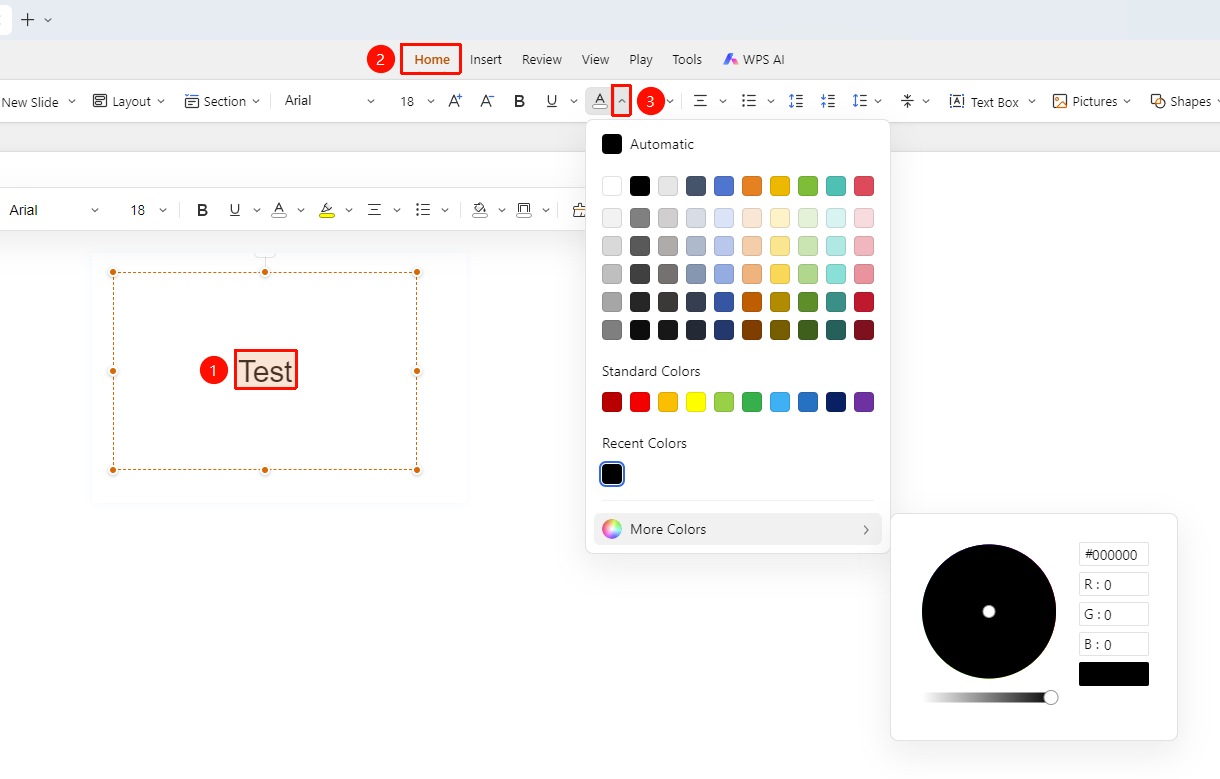
Feature Entry 1
"Home" tab → "Font Color" drop-down button
- Select the text for which you want to set the color
- Click the "Home" tab in the top menu bar
- Click the "Font Color" drop-down button in the toolbar
- Select the desired color in the pop-up color panel:
- Automatic: Use the default color
- Theme Colors: Color schemes provided by the current theme
- Standard Colors: Basic color options
- More Colors: Open the color picker to customize colors
Feature Entry 2
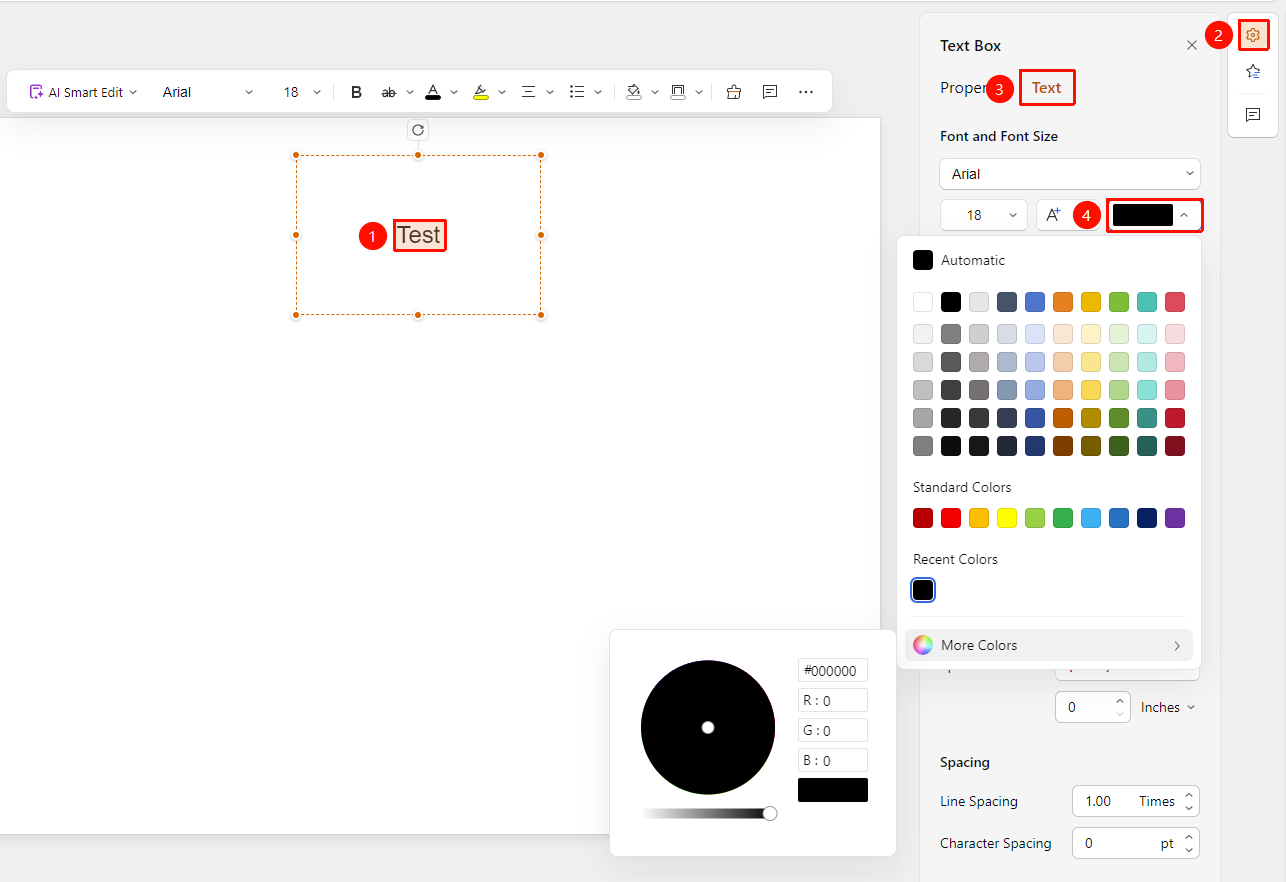
Right-side task pane → Format → Text → "Font Color" button
- Select the text for which you want to set the font color
- Click the "Format" option in the right-side task pane
- Select the "Text" tab
- Click the "Font Color" button
- Select the desired color in the pop-up color panel
Feature Entry 3
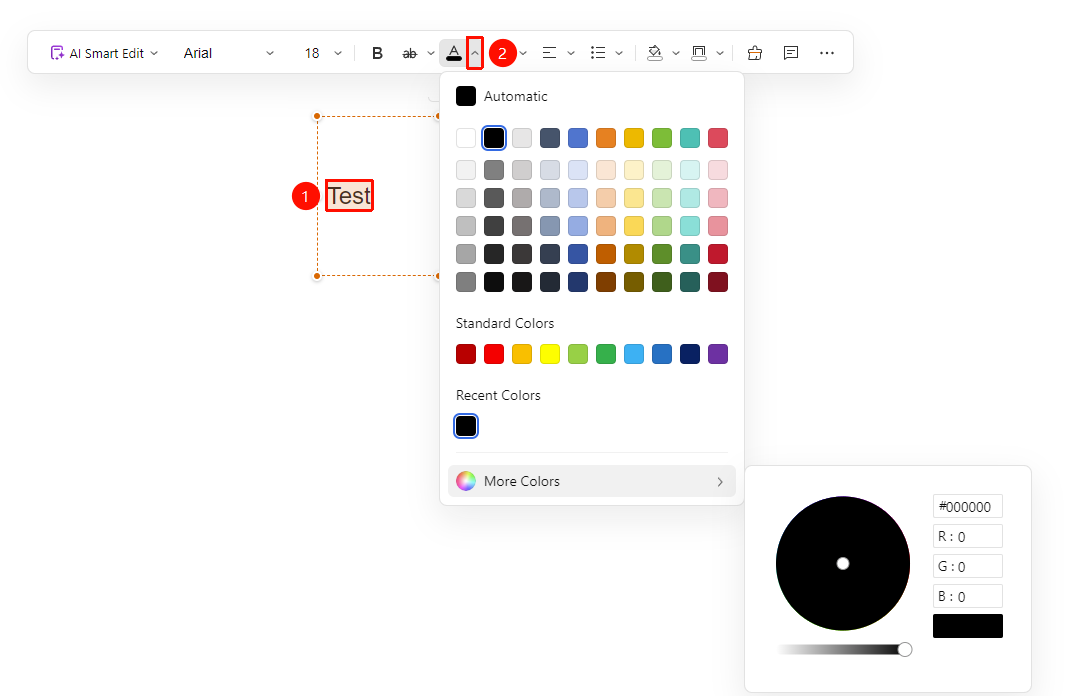
Floating toolbar → "Font Color" drop-down button
- Select the text for which you want to set the font
- Click the "Font Color" drop-down menu in the floating toolbar
- Select the desired color in the pop-up color panel
FAQ
Q1: What should I do if the font color button is grayed out?
- Solution: You need to select the text content first before using the font color feature. Please confirm that the target text has been selected.
Q2: How to set a precise color value?
- Solution: Click the "More Colors" option to enter RGB or hexadecimal color values in the color picker.
Q3: How to quickly restore the default color?
- Solution: Select the "Automatic" option in the color panel to restore the default text color.
Notes
- Font color settings only take effect on the currently selected text
- It is recommended to maintain the consistency of the presentation's color style
- It is recommended to use light-colored text on dark backgrounds and dark-colored text on light backgrounds