Feature Summary
In WPS Slides collaboration mode, precisely adjust the width and height dimensions of objects (shapes, images, text boxes, etc.).
Feature Description
| Feature Dimension | Description |
|---|---|
| Membership Restriction | No membership restriction |
| Version Restriction | No version restriction |
Operation Steps
Adjust Object Size via the Sidebar
Feature Entry
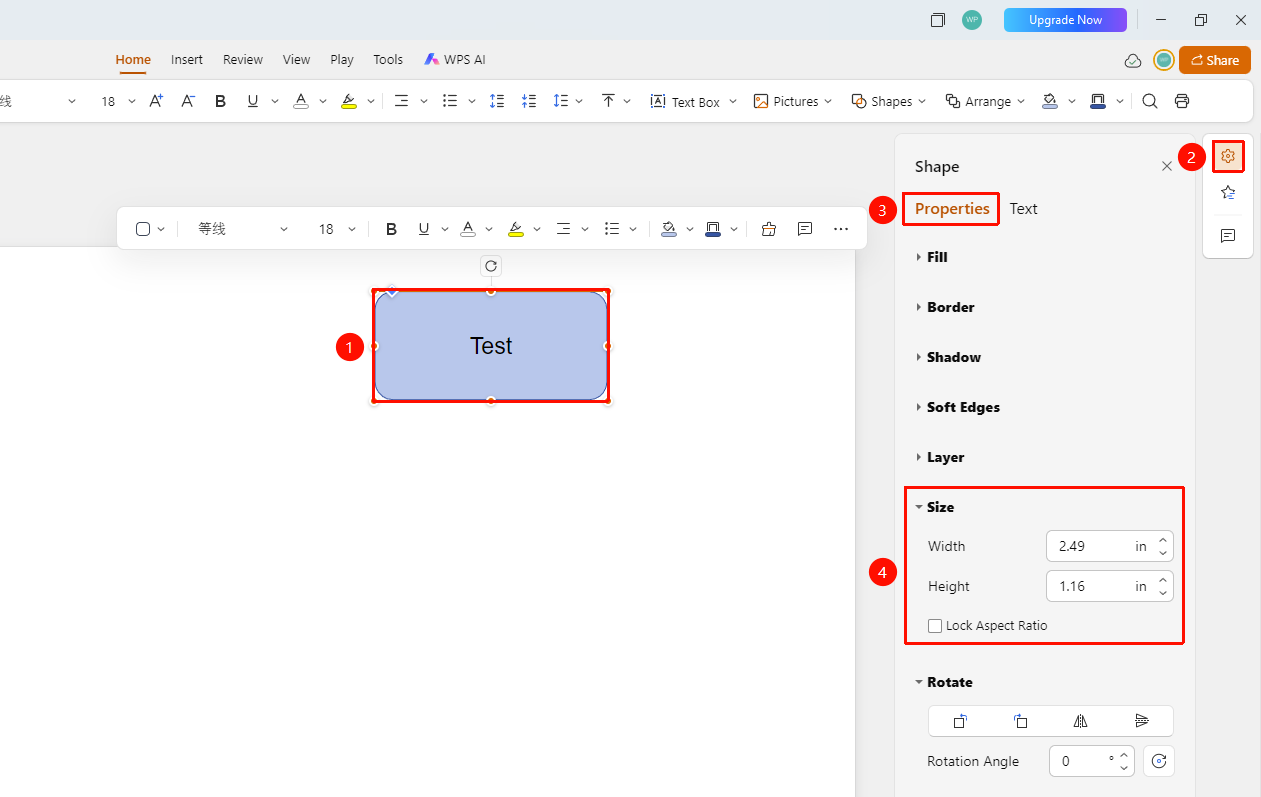
Right sidebar → "Format" tab → "Size" area
- Select the object you want to resize
- Click the "Format" icon in the right sidebar
- In the "Size" area, you can set:
- Width: Enter or adjust the width value of the object
- Height: Enter or adjust the height value of the object
- Lock Aspect Ratio: When checked, adjusting one side will proportionally change the other side
- Directly enter a value or use the up/down arrows to fine-tune
FAQ
Q1: How to keep the object's proportions unchanged?
- Solution: After checking the "Lock Aspect Ratio" option, the proportions will be automatically maintained when adjusting width or height.
Q2: How to precisely set the object size?
- Solution: Directly enter the exact value in the width and height input boxes.
Q3: What if the object is too large and exceeds the slide?
- Solution: You can reduce the object size or adjust the slide size to fit.
Notes
- You can quickly resize by dragging the object's border
- Precise value adjustment is suitable for scenarios requiring uniform dimensions