Feature Summary
In WPS Slides collaboration mode, set the horizontal alignment of text within text boxes, including left align, center align, right align, etc.
Feature Description
| Feature Dimension | Description |
|---|---|
| Membership Restriction | No membership restriction |
| Version Restriction | No version restriction |
Operation Steps
Set Horizontal Alignment
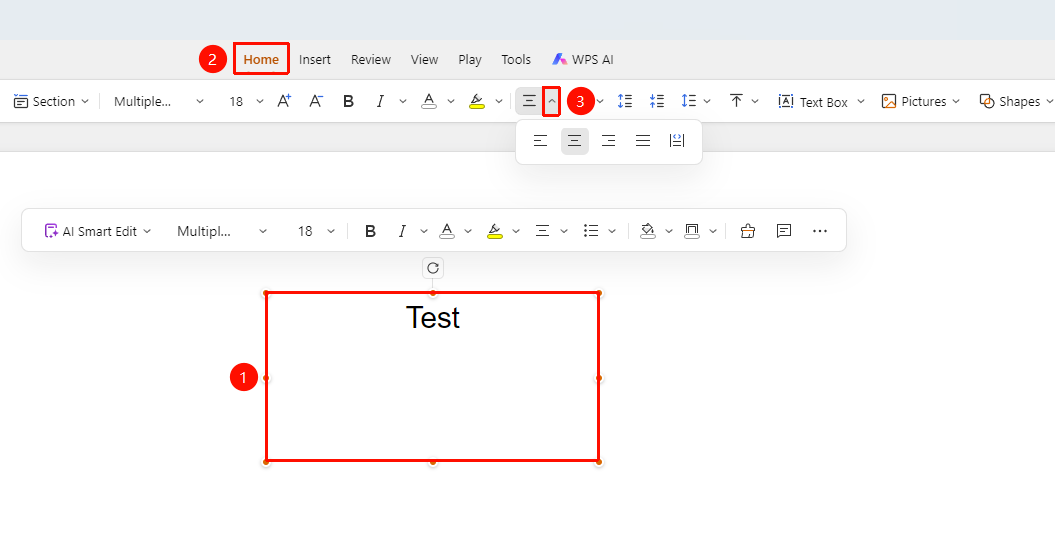
Feature Entry 1
「Home」 tab → Paragraph area → Horizontal alignment dropdown button
- Select the text, text box, or shape you want to align
- Click the 「Home」 tab in the top menu bar
- Find the Horizontal Alignment dropdown button in the Paragraph area, including:
- Align Left: Text aligns to the left
- Align Center: Text aligns to the center
- Align Right: Text aligns to the right
- Justify: Text aligns to both ends
- Distributed: Text is evenly distributed
- Click the desired alignment button to apply
Feature Entry 2
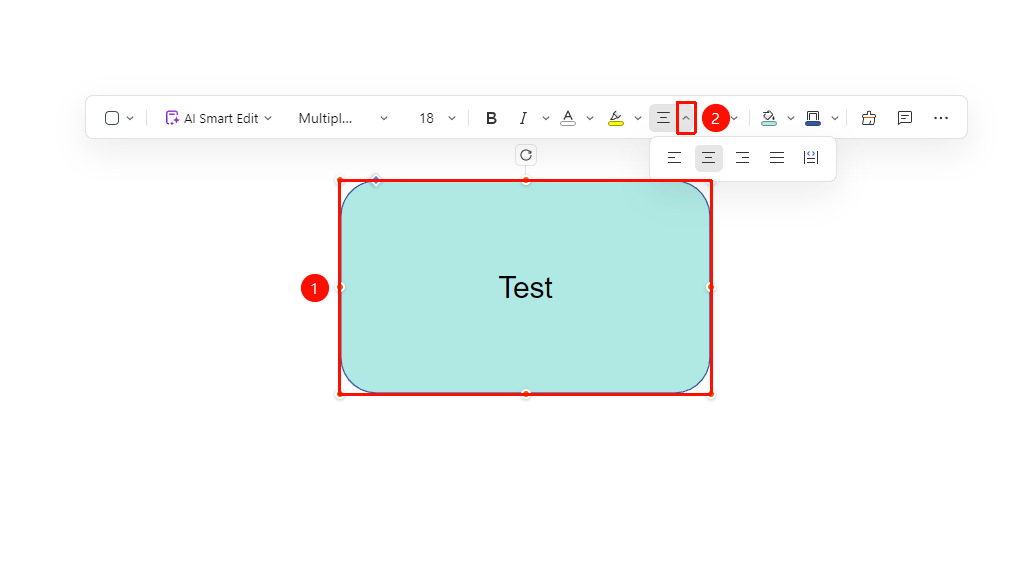
Floating toolbar → Alignment dropdown button
- Select the text, text box, or shape you want to align to bring up the floating toolbar
- Find and click the 「Alignment」 dropdown button in the floating toolbar
- Click the desired alignment button to apply
Feature Entry 3
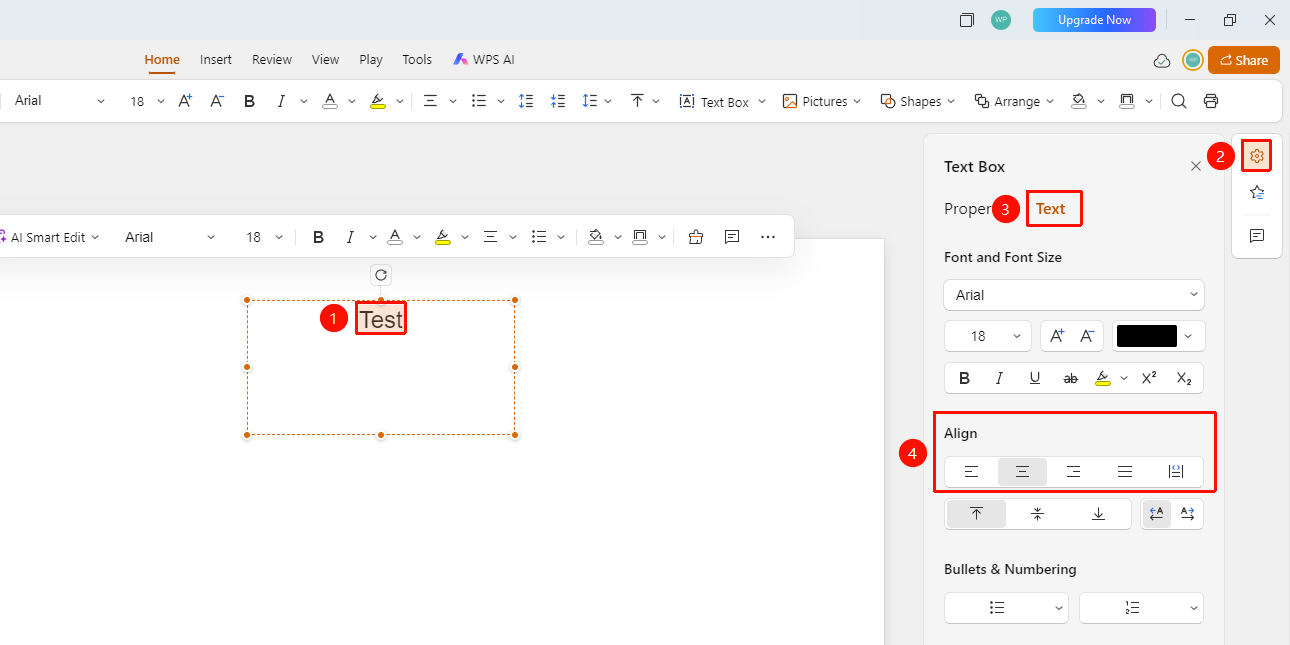
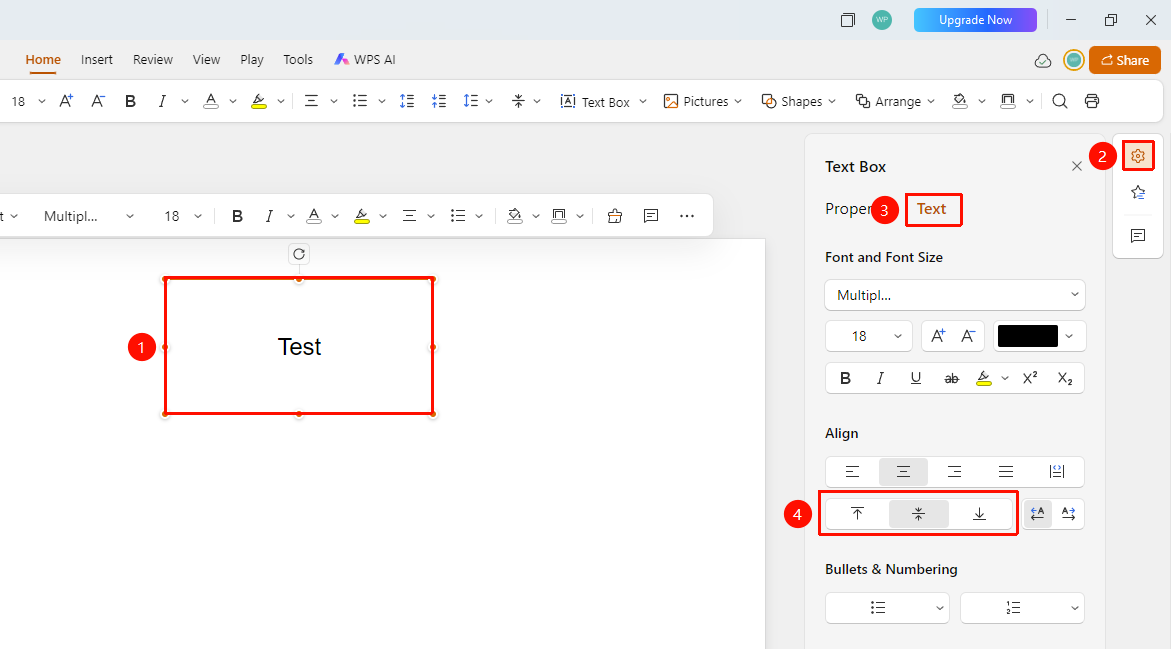
Right task pane → 「Format」 → 「Docs」 tab → Horizontal alignment
- Select the text, text box, or shape you want to align
- Click the 「Format」 icon in the right task pane
- Switch to the 「Docs」 tab
- Select the desired alignment in the Horizontal Alignment area
Set Vertical Alignment
Feature Entry 1
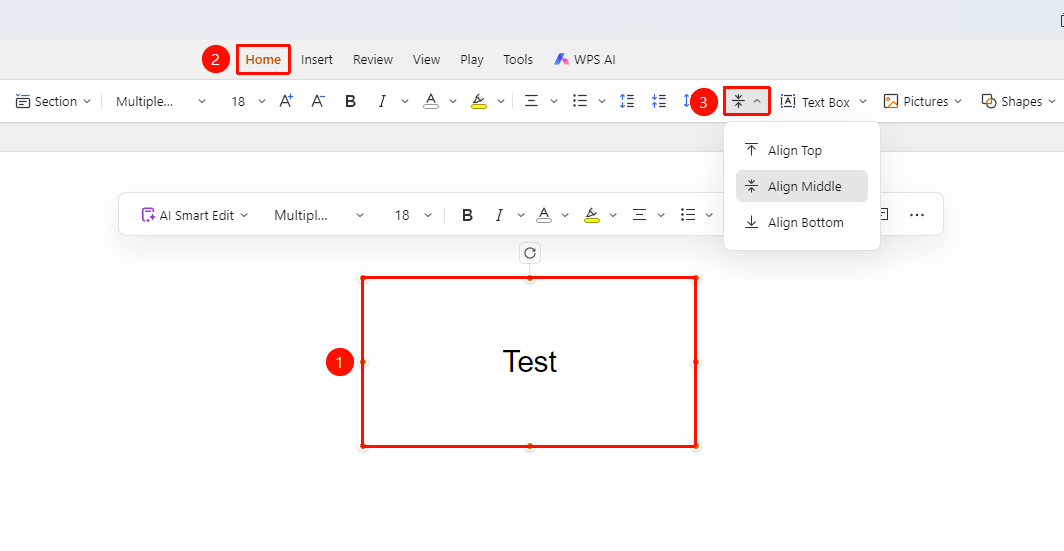
「Home」 tab → Paragraph area → Vertical alignment dropdown button
- Select the text, text box, or shape you want to align
- Click the 「Home」 tab in the top menu bar
- Find the Vertical Alignment dropdown button in the Paragraph area, including:
- Align Top: Text aligns to the top
- Middle Align: Text aligns to the middle
- Align Bottom: Text aligns to the bottom
- Click the desired vertical alignment button to apply
Feature Entry 2
Right task pane → 「Format」 → 「Docs」 tab → Vertical alignment
- Select the text, text box, or shape you want to align
- Click the 「Format」 icon in the right task pane
- Switch to the 「Docs」 tab
- Select the desired alignment in the Vertical Alignment area
FAQ
Q1: What should I do if the alignment buttons are grayed out?
- Solution: You need to select the text content first to use the alignment feature.
Q2: What is the difference between Align Left and Justify?
- Solution: Align Left only aligns the left side, and the right side may be uneven; Justify aligns both the left and right sides.
Q3: How to quickly switch alignment?
- Solution: Use the Shortcut Align Left: Ctrl+L (Mac: Cmd+L), Center: Ctrl+E (Mac: Cmd+E), Align Right: Ctrl+R (Mac: Cmd+R) to quickly switch.
Notes
- Titles usually use center alignment
- Body text usually uses left alignment or justify
- Keep the alignment consistent throughout the entire Slides