Feature Summary
In WPS Slides collaboration mode, import slides from other presentations to reuse existing content and formatting.
Feature Description
| Feature Dimension | Description |
|---|---|
| Membership Restriction | No membership restriction |
| Version Restriction | No version restriction |
Steps
Import Slides
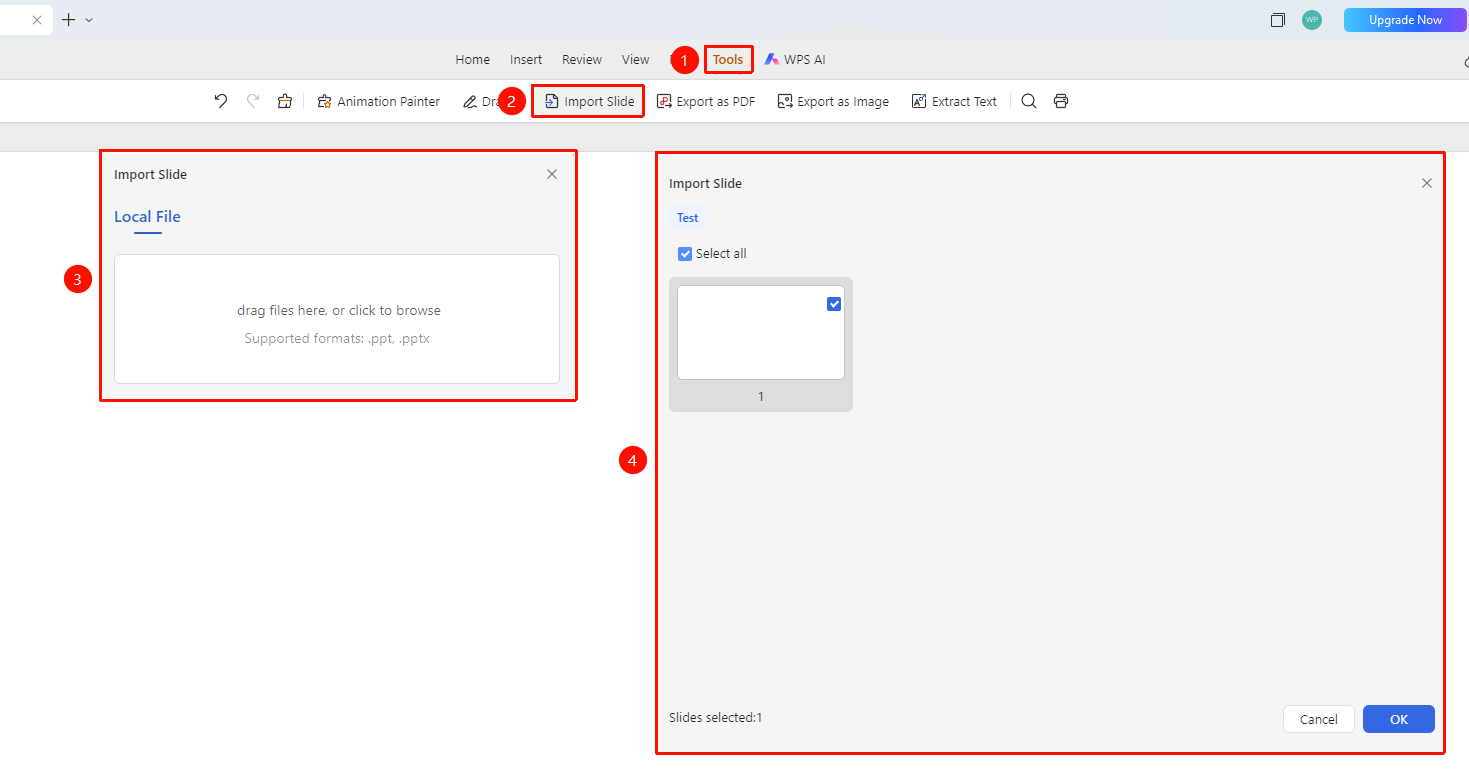
Feature Entry 1
Top "Efficiency" tab → "Import Slides" option
- Switch to the "Efficiency" tab at the top of the page
- Find and click the "Import Slides" option
- Select the presentation to import in the file selection dialog that appears
- Choose the slides to import and click OK
Feature Entry 2
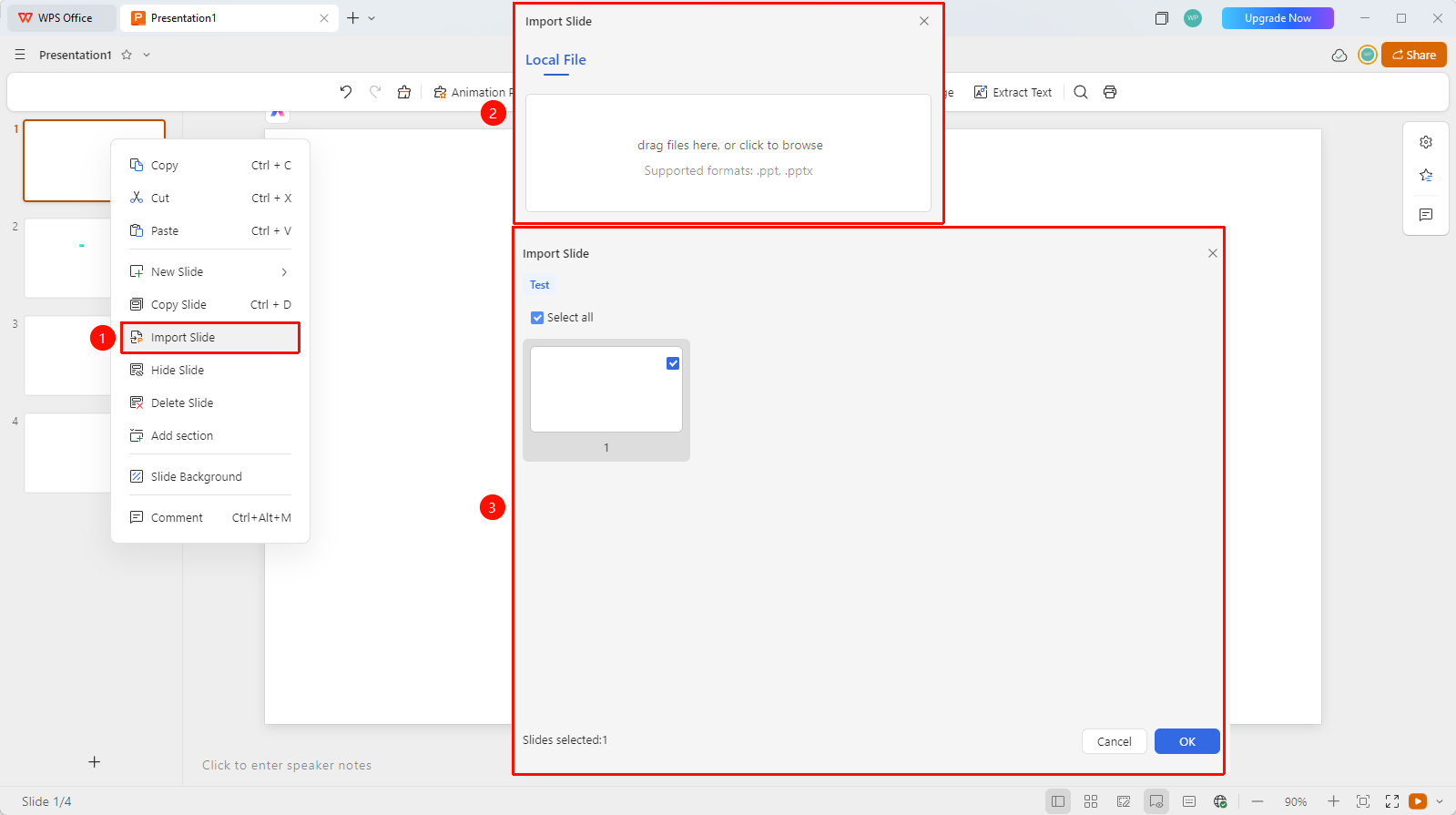
Left slide thumbnails → right-click menu → "Import Slides" option
- In the left slide thumbnail area, right-click the target location
- Select the "Import Slides" option from the right-click menu
- Select the presentation to import in the file selection dialog that appears
- Choose the slides to import and click OK
FAQ
Q1: What should I do if the formatting is inconsistent after importing?
- Solution: Imported slides retain their original formatting. You can click the desired master and format in the right sidebar under Format → Layout.
Q2: How do I import only some slides?
- Solution: You can select specific slides to import in the import dialog.
Notes
- Imported slides retain their original animations and transition effects
- It is recommended to check and adjust formatting after importing to fit the current presentation
- The import feature is suitable for reusing content from other presentations