Feature Summary
In WPS Slides collaboration mode, adjust the stacking order of objects to control their front-to-back display sequence.
Feature Description
| Feature Dimension | Description |
|---|---|
| Membership Restriction | No membership restriction |
| Version Restriction | No version restriction |
Steps
Adjust Layer via the Ribbon
Feature Entry
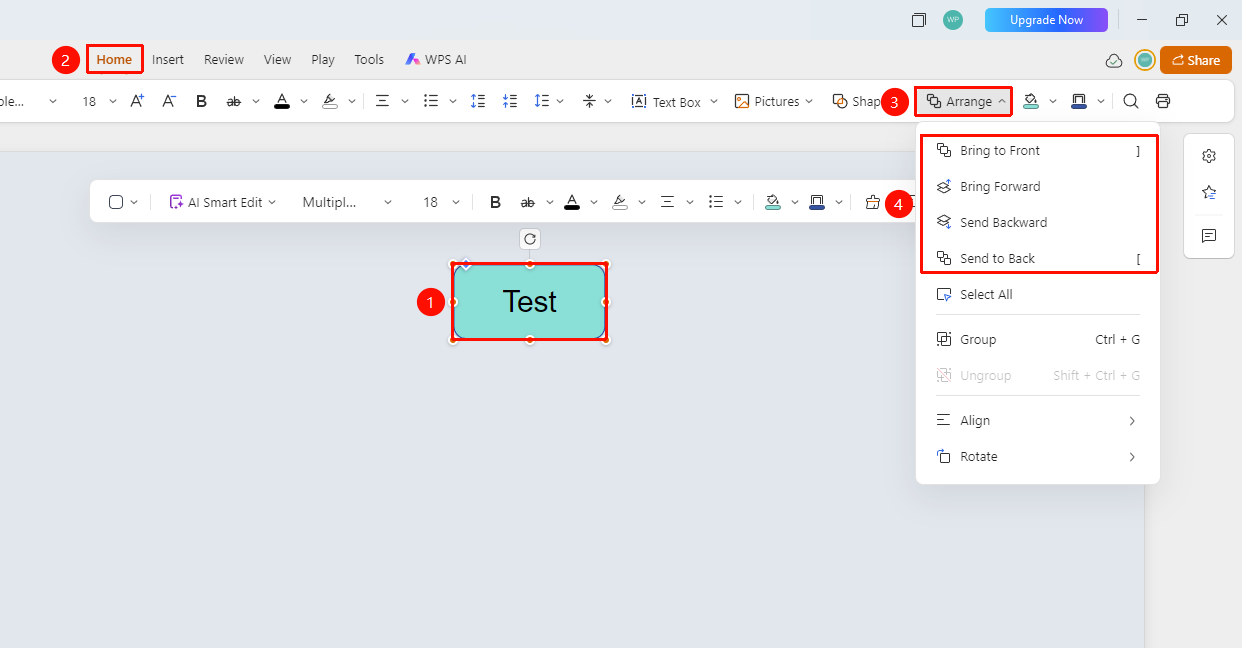
"Home" tab → "Arrange" → Layer options
- Select the object whose layer you want to adjust
- Click the "Home" tab in the top menu bar
- Click the "Arrange" button
- Select a layer operation from the pop-up menu:
- Bring to Front: Move the object to the topmost layer
- Bring Forward: Move the object up one layer
- Send Backward: Move the object down one layer
- Send to Back: Move the object to the bottommost layer
Adjust Layer via the Right-Click Menu
Feature Entry
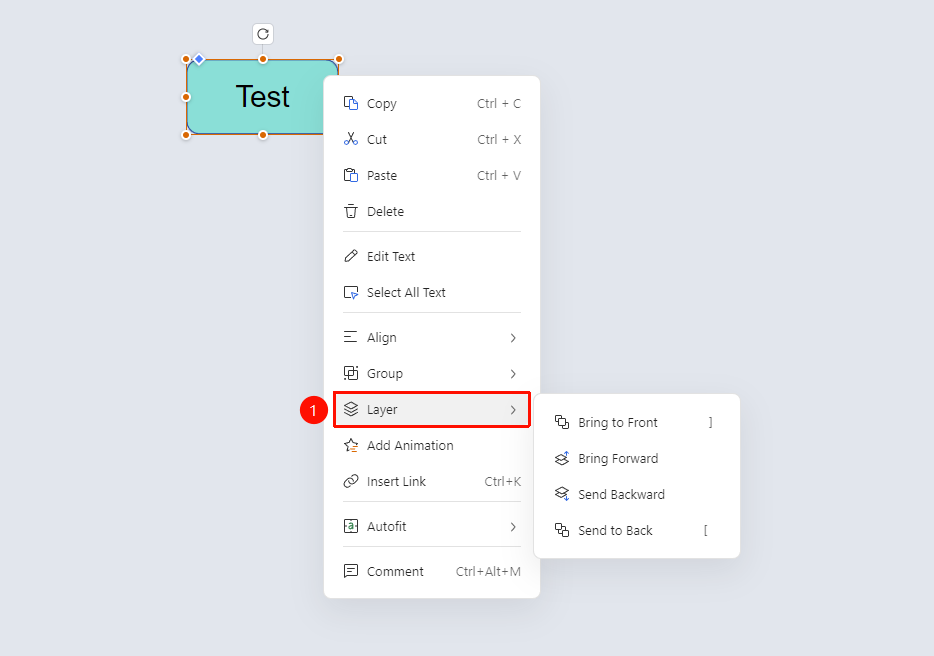
Object right-click menu → "Arrange" → Layer options
- Right-click the object whose layer you want to adjust to bring up the right-click menu
- Click the "Layer" button in the right-click menu
- Select a layer operation from the pop-up menu:
- Bring to Front: Move the object to the topmost layer
- Bring Forward: Move the object up one layer
- Send Backward: Move the object down one layer
- Send to Back: Move the object to the bottommost layer
Adjust Layer via the Sidebar
Feature Entry
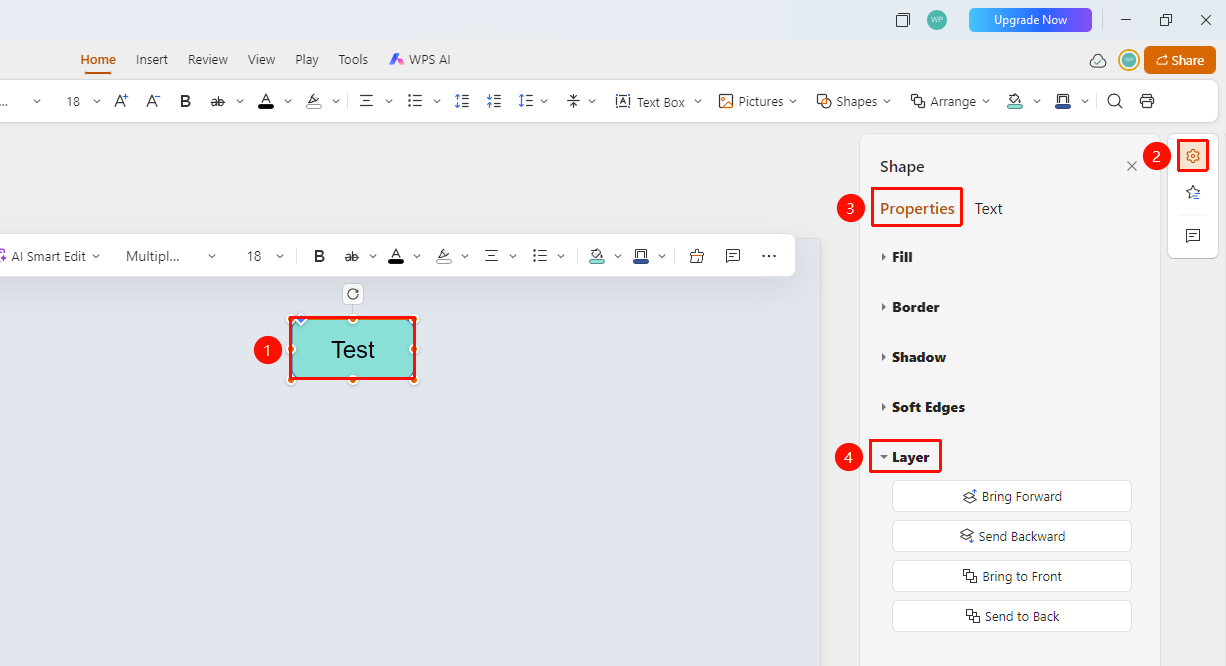
Right task pane → "Format" → "Properties" → "Layer" area
- Select the object whose layer you want to adjust
- Click the "Format" button in the right task pane
- Switch to the "Properties" tab
- In the "Layer" area, you can set:
- Bring Forward
- Send Backward
- Bring to Front
- Send to Back
FAQ
Q1: What is the purpose of layers?
- Solution: Layers determine the front-to-back stacking order of objects. Upper-layer objects will obscure lower-layer objects.
Notes
- Using layers properly can create complex visual effects
- Pay attention to whether obscured objects need adjustment
- You can use the Selection Pane to view all objects