Feature Summary
In WPS Slides collaboration mode, use the Slide Browsing view to see thumbnails of all slides, making it easy to browse overall and adjust the order.
Feature Description
| Feature Dimension | Description |
|---|---|
| Membership Restriction | No membership restriction |
| Version Restriction | No version restriction |
Operation Steps
Switch to Slide Browsing View
Feature Entry 1
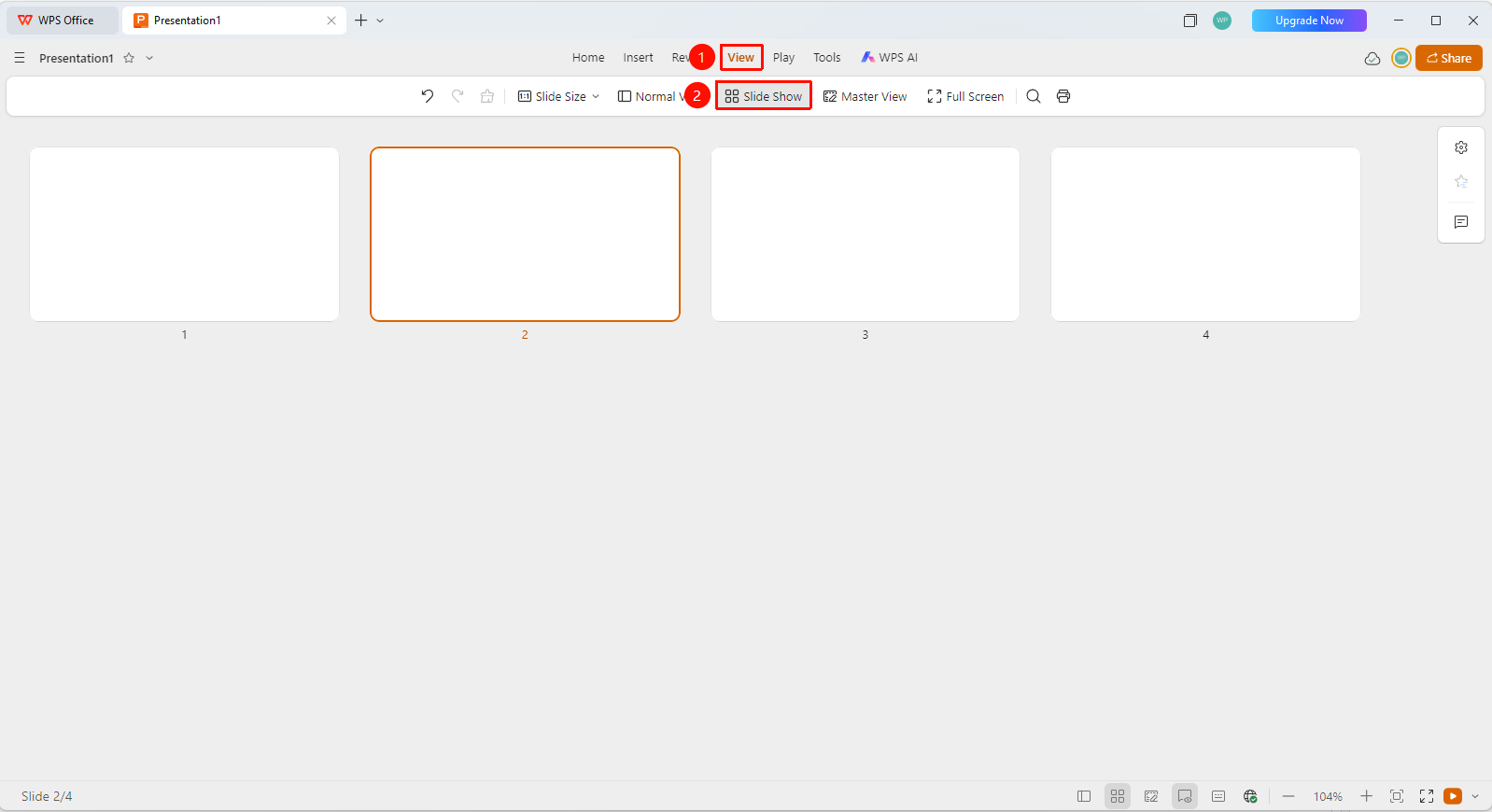
「View」 tab → 「Slide Browsing」 button
- Click the 「View」 tab in the top menu bar
- Click the 「Slide Browsing」 button in the toolbar
- The interface will switch to Slide Browsing view
- All slides will be displayed as thumbnails in a tiled layout
Feature Entry 2
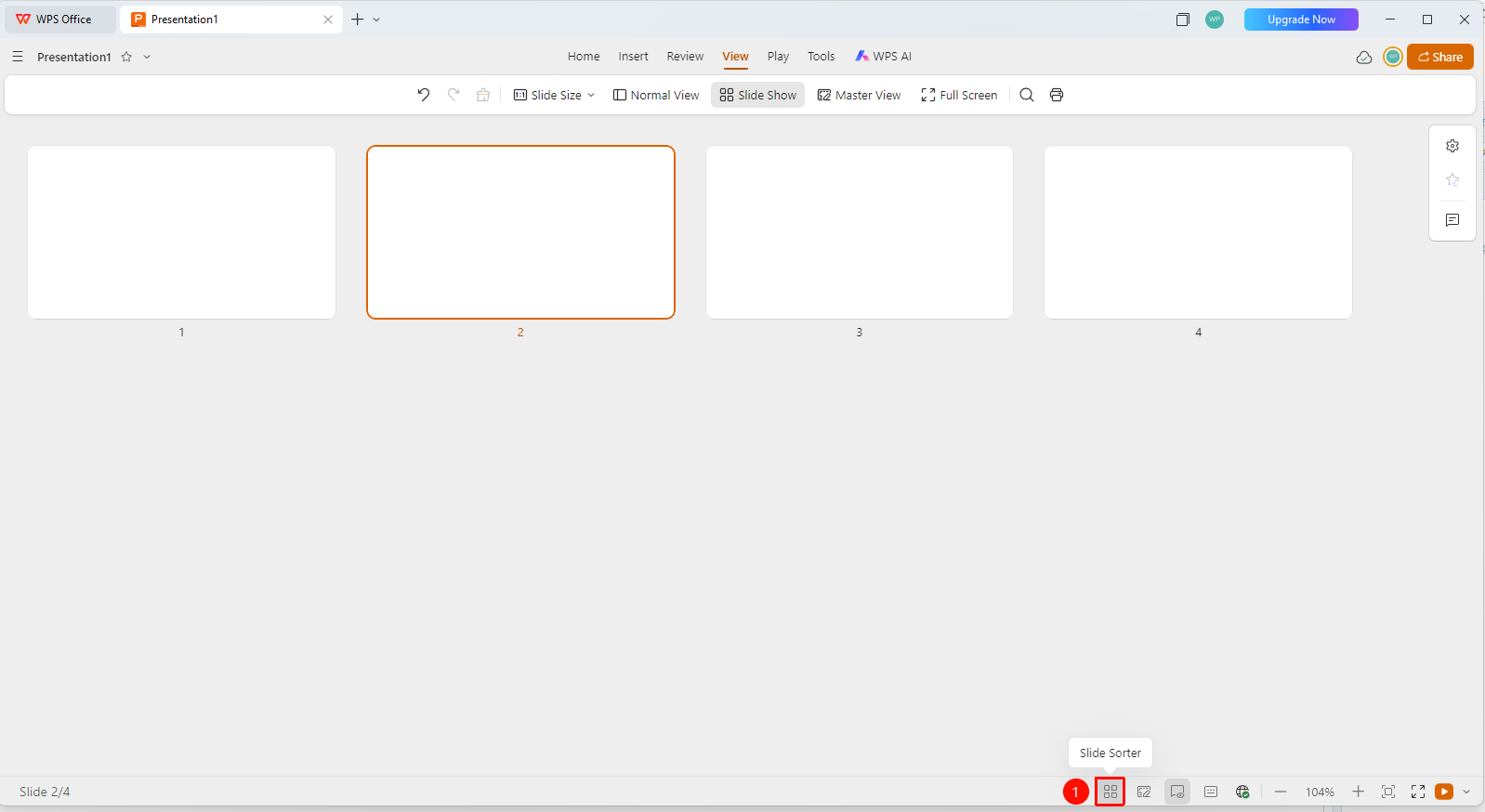
Bottom status bar → 「Slide Browsing」 button
- Click the 「Slide Browsing」 button in the bottom status bar
- The interface will switch to Slide Browsing view
- All slides will be displayed as thumbnails in a tiled layout
Operations in Slide Browsing View
Feature Entry
Slide Browsing view → Slide thumbnails
- Drag slides to adjust the order
- Double-click a slide to return to Normal view
- Right-click a slide to perform operations such as copy and delete
Frequently Asked Questions
Q1: What is the use of Slide Browsing view?
- Solution: It allows you to quickly preview all slides, adjust the order, and perform batch operations.
Q2: How to return to Normal view?
- Solution: Double-click any slide, or click "Normal View" in the View tab.
Q3: Can I edit content in Browsing view?
- Solution: Browsing view is mainly used for viewing and organizing. Editing content requires returning to Normal view.
Notes
- Browsing view is suitable for organizing slide order
- You can quickly identify duplicate or missing slides
- Suitable for overall inspection before a presentation