Feature Summary
In WPS Slides collaboration mode, set the background style of slides, supporting various background effects such as solid color fill and picture fill.
Feature Description
| Feature Dimension | Description |
|---|---|
| Membership Restriction | No membership restriction |
| Version Restriction | No version restriction |
Operation Steps
Set Slide Background via Task Pane
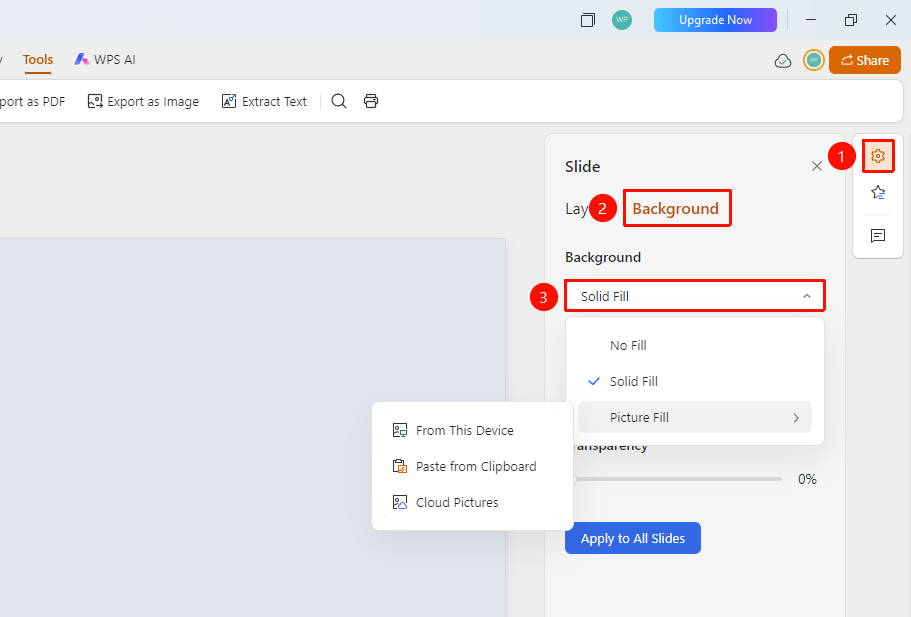
Feature Entry 1
Right sidebar → "Format" option → "Background" tab
- Click on a blank area of the slide
- Click the "Format" option in the right task pane
- Switch to the "Background" tab
- Select a fill method from the background drop-down menu:
- None: No background (default)
- Solid Fill: Choose a single color as the background
- Picture Fill: Use a picture as the background, including:
- Local Picture: Select a picture from the local computer
- Paste from Clipboard: Use a picture from the clipboard
- Cloud Picture: Select a picture from Cloud storage
- The background is automatically applied after selecting a suitable one
- Click "Apply to All Slides" to apply the current slide's background to all slides with one click
Feature Entry 2
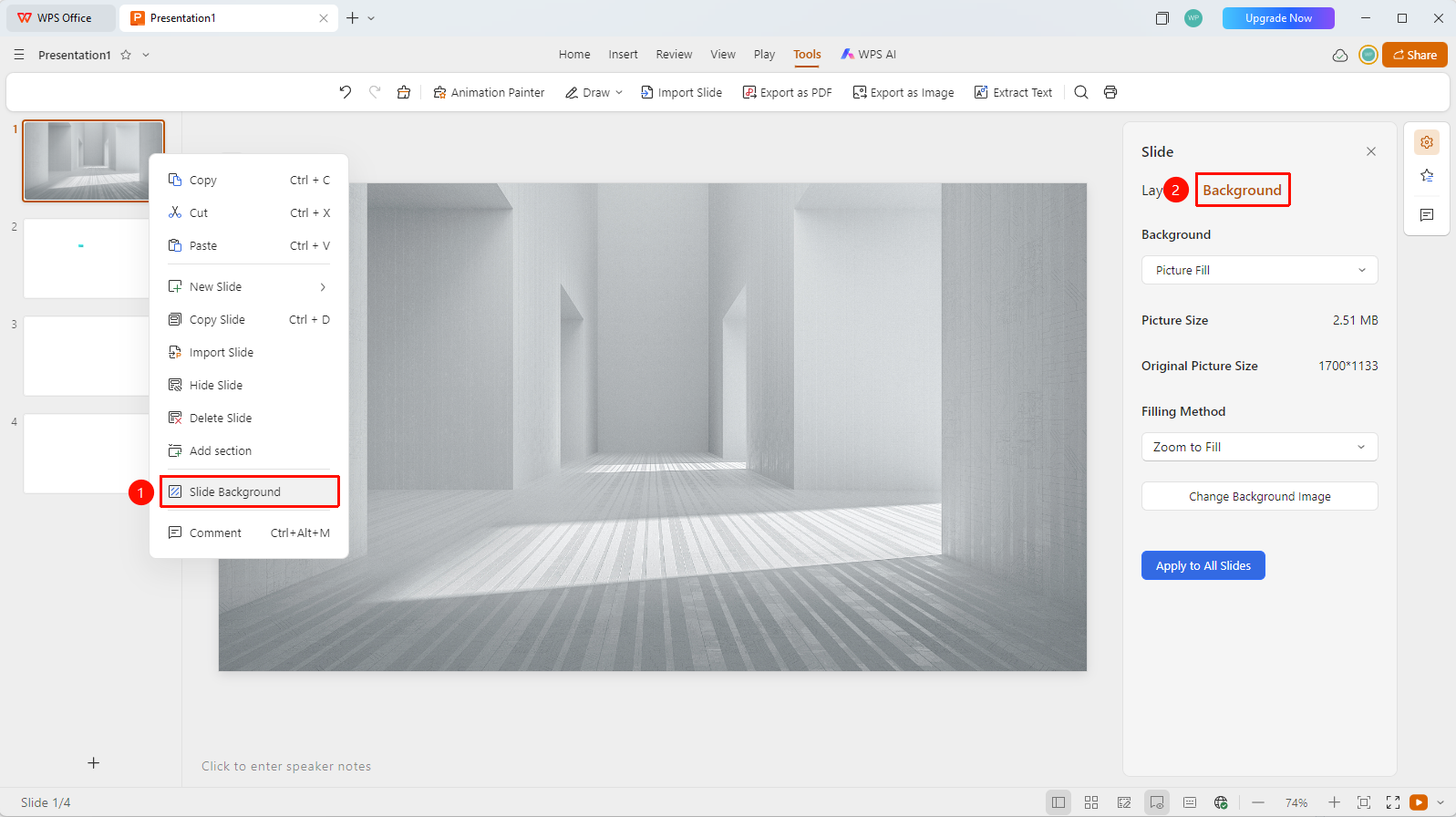
Slide thumbnail right-click menu → "Set Background" option
- Navigate to the slide for which you want to set the background
- Right-click on a blank area of that slide
- Select the "Set Background" option from the right-click menu
- The right task pane will automatically expand to the "Format" option → "Background" tab
- Select a fill method from the background drop-down menu
- The background is automatically applied after selecting a suitable one
- Click "Apply to All Slides" to apply the current slide's background to all slides with one click
Feature Entry 3
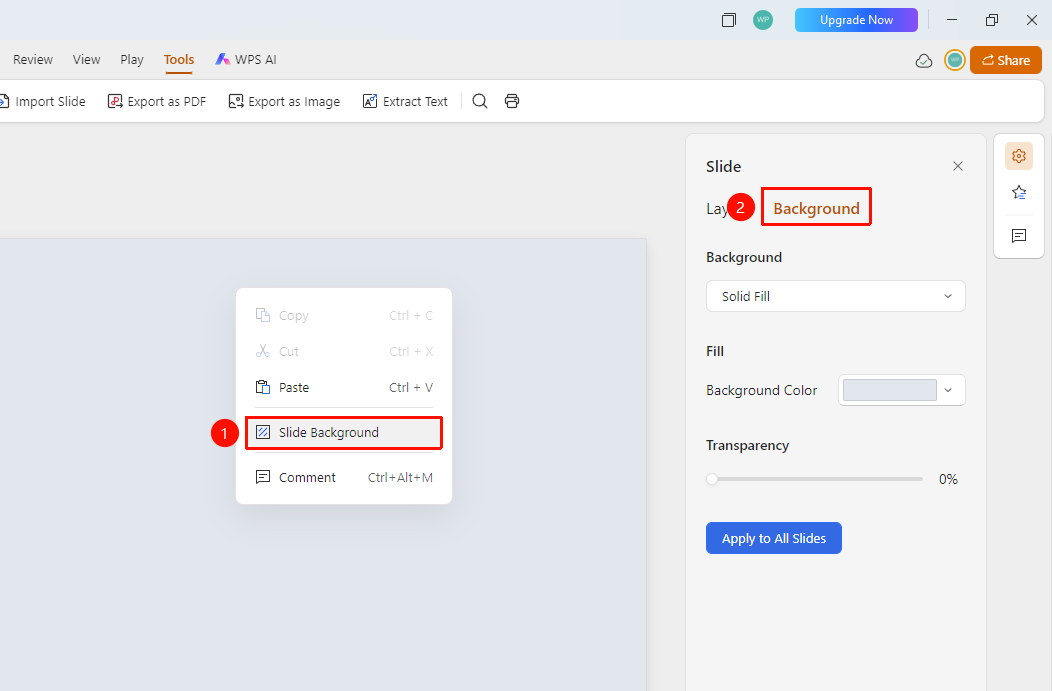
Slide blank area right-click menu → "Set Background" option
- Navigate to the slide for which you want to set the background
- Right-click on the slide's thumbnail on the left
- Select the "Set Background" option from the right-click menu
- The right task pane will automatically expand to the "Format" option → "Background" tab
- Select a fill method from the background drop-down menu
- The background is automatically applied after selecting a suitable one
- Click "Apply to All Slides" to apply the current slide's background to all slides with one click
Set Slide Background via Picture
Feature Entry
Picture right-click menu → "Set as Background" option
- Right-click on an existing picture within the slide
- Select the "Set as Background" option from the right-click menu
- The picture will be automatically applied as the current slide's background
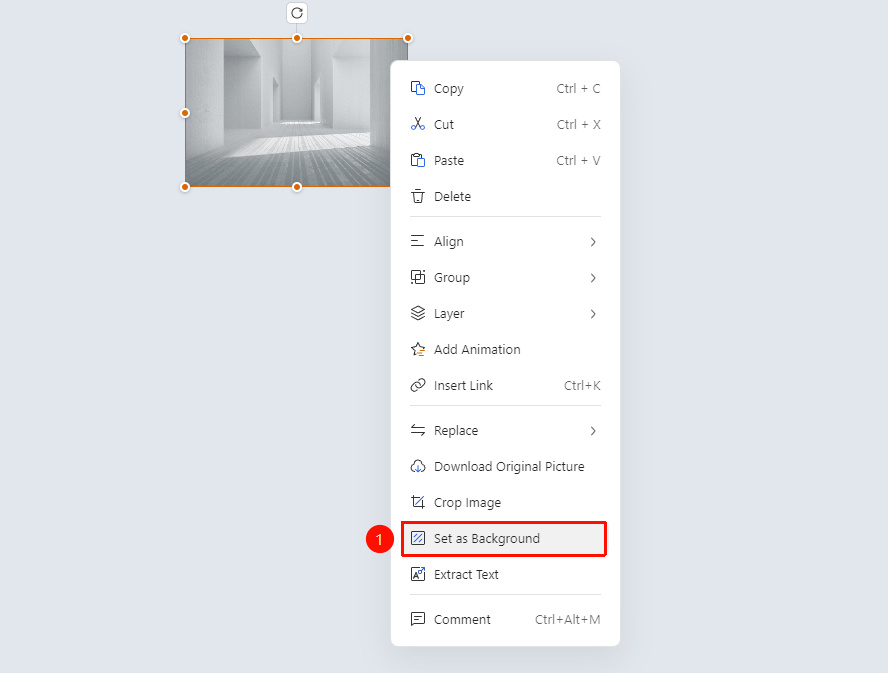
This method is suitable when there is already a picture in the slide. It is recommended to first insert the desired background picture into the target slide where you want to set the background.
FAQ
Q1: How to make all slides use the same background?
- Solution: After setting the background for one slide, click the "Apply to All Slides" button.
Q2: How to adjust the background picture?
- Solution: You can adjust the transparency, position, and size of the background picture.
Q3: How to restore the default background?
- Solution: Select "None" in the background settings to restore the default background.
Notes
- The background should form sufficient contrast with the text content
- Avoid using overly complex backgrounds that affect readability
- You can use gradient colors or semi-transparent effects to add a sense of depth