Feature Summary
In WPS Slides collaboration mode, you can print presentations with support for print preview and various print settings.
Feature Description
| Feature Dimension | Description |
|---|---|
| Membership Restriction | No membership restriction |
| Version Restriction | No version restriction |
Steps
Feature Entry 1
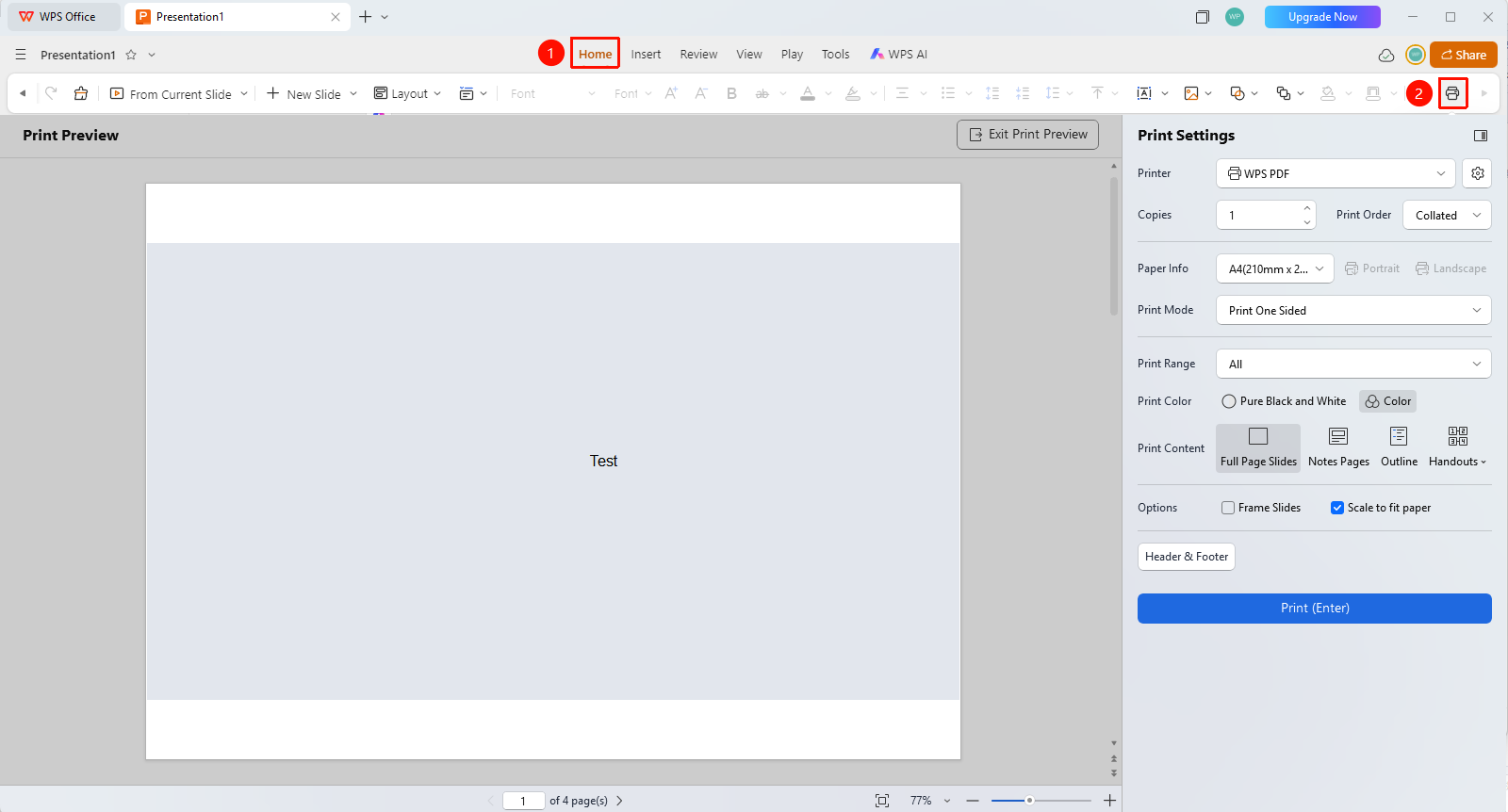
Home tab → "Print" button (Windows shortcut: Ctrl+P; Mac shortcut: Cmd+P)
- Click the "Print" button in the Home tab
- Or use the shortcut Ctrl+P (Mac shortcut: Cmd+P) to open the Print dialog
- Configure print options in the print settings:
- Select printer
- Set print range (All, Current, Specific pages)
- Select print content (Slides, Handouts, Notes, etc.)
4.Click the "Print" button to start printing
Feature Entry 2
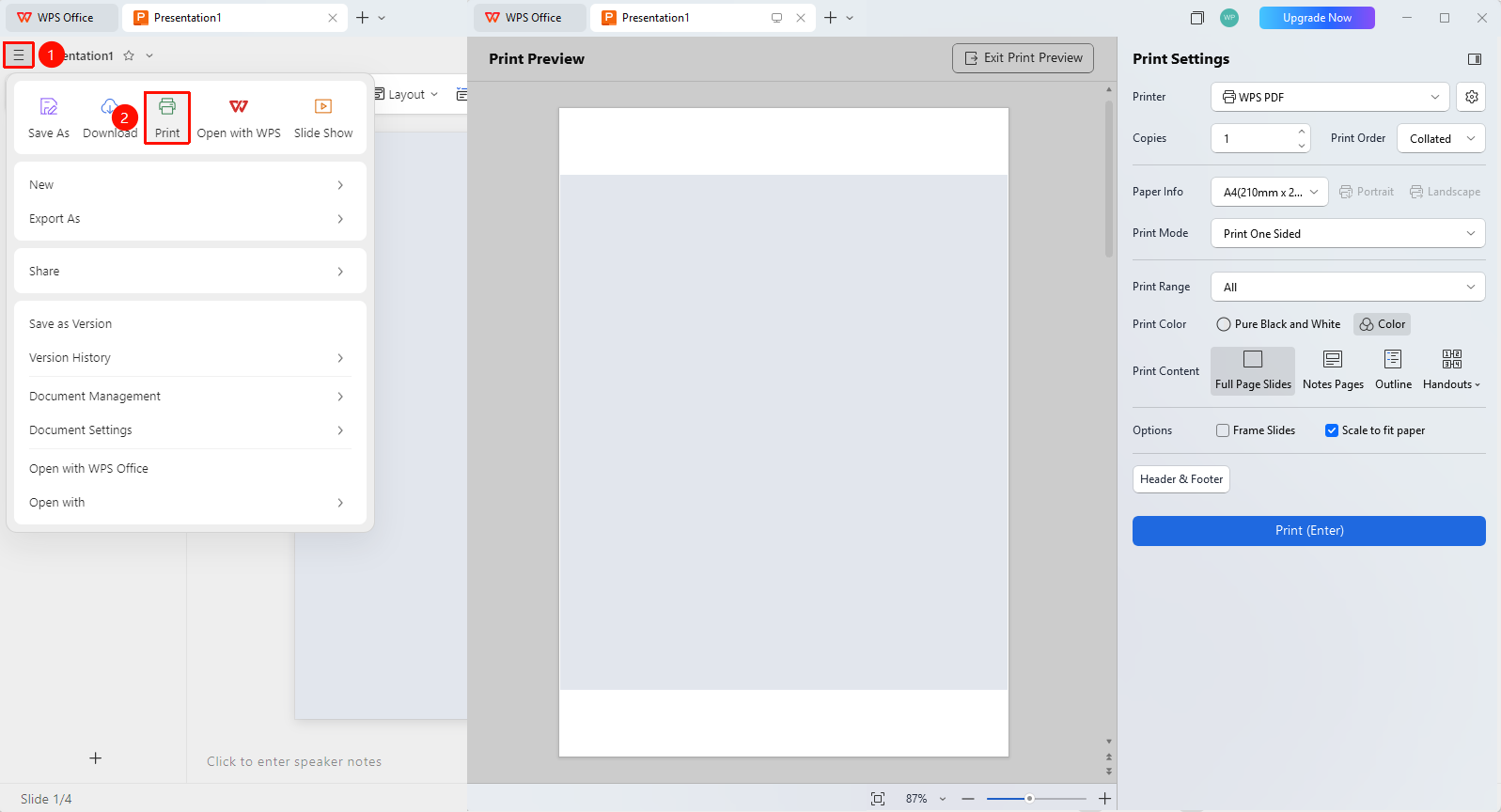
Top-left "File Operations" button → "Print" option
- Click the "File Operations" button in the top-left corner
- Find and click the "Print" option to open the Print dialog
- Configure print options in the print settings:
- Select printer
- Set print range (All, Current, Specific pages)
- Select print content (Slides, Handouts, Notes, etc.)
4.Click the "Print" button to start printing
FAQ
Q1: What should I do if the printed page comes out blank?
- Solution: Check whether the slide has content, and whether the printer is properly connected and has ink in the cartridge.
Notes
- It is recommended to use print preview to confirm the effect before printing
- Handout mode is suitable for distribution to the audience
- Notes pages are suitable for the speaker's own use