In WPS Slides collaboration mode, insert a QR code into a slide, supporting multiple QR code types such as URL, business card, and Docs.
Feature Description
| Feature Dimension | Description |
|---|---|
| Membership Restriction | No membership restriction |
| Version Restriction | No version restriction |
Operation Steps
Insert QR Code via the Ribbon
Feature Entry
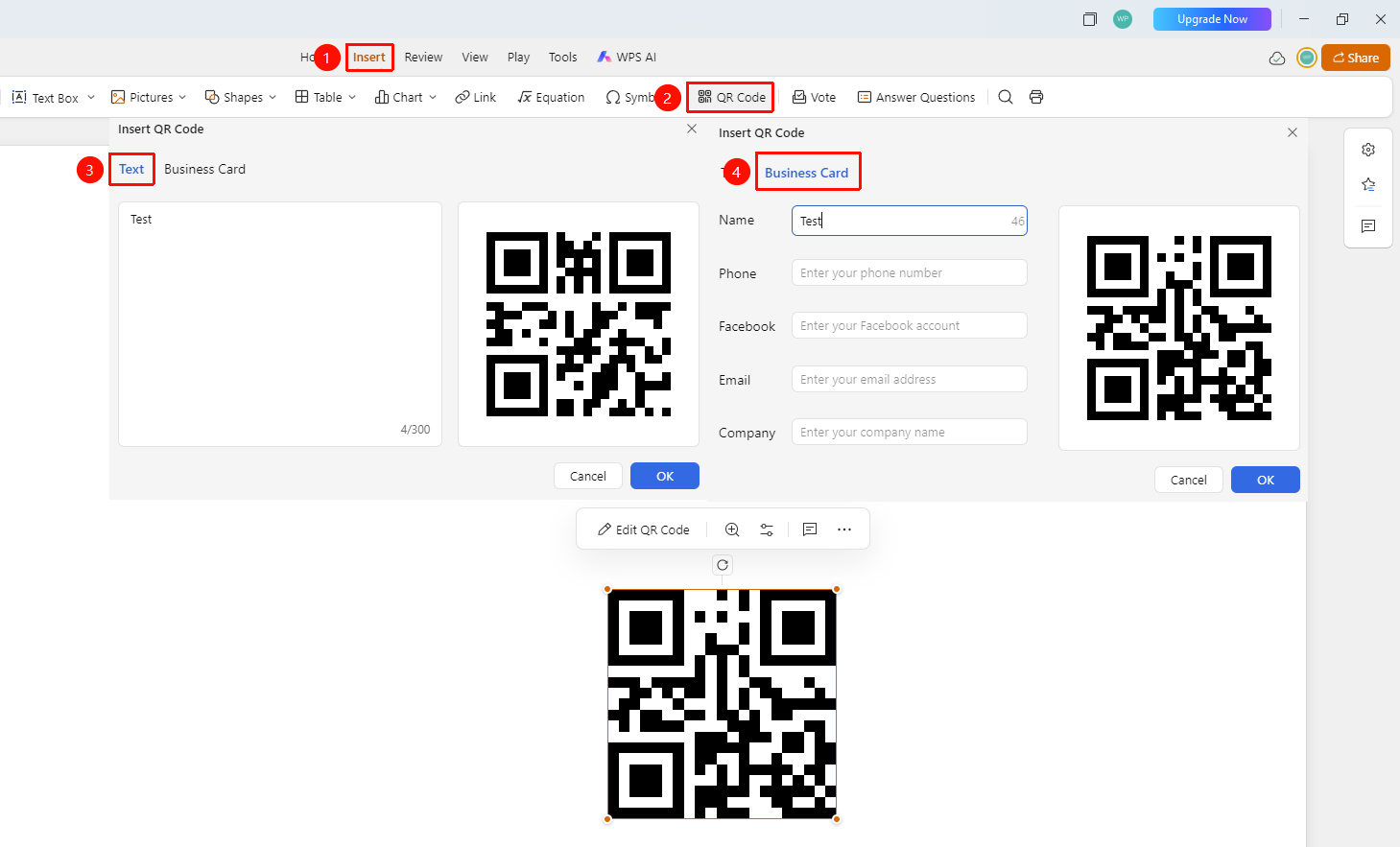
"Insert" tab → "QR Code" button
- Click the "Insert" tab in the top menu bar
- Click the "QR Code" button in the toolbar
- Select the QR code type in the pop-up dialog:
- Business Card: Fill in business card information to generate a QR code
- Docs: Enter text content to generate a QR code
- Fill in the corresponding content as prompted
- Click the "Insert" button to insert the QR code into the slide
FAQ
Q1: What should I do if the inserted QR code is not clear?
- Solution: You can adjust the size of the QR code; a larger size scans more reliably.
Q2: How do I modify an already inserted QR code?
- Solution: Click the QR code, then click the "Edit QR Code" button above to open the editing dialog for modification.
Notes
- The QR code should be kept large enough for scanning
- It is recommended to test the scanning effect before use
- Business card QR codes are suitable for business presentation scenarios