Feature Summary
In WPS Slides collaboration mode, insert mathematical formulas into slides, supporting various mathematical symbols and formula editing.
Feature Description
| Feature Dimension | Description |
|---|---|
| Membership Restriction | No membership restriction |
| Version Restriction | No version restriction |
Operation Steps
Insert Formula via the Ribbon
Feature Entry
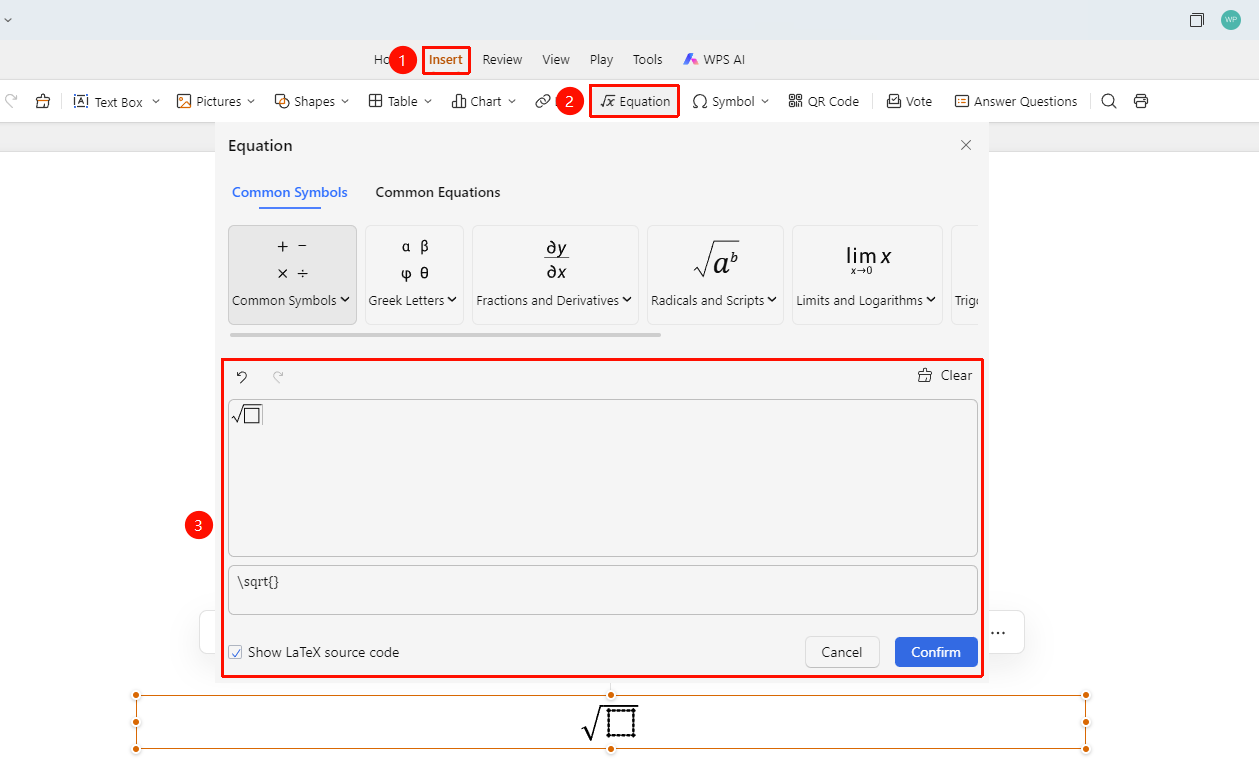
「Insert」 tab → 「Formula」 button
- Click the 「Insert」 tab in the top menu bar
- Click the 「Formula」 button in the toolbar
- Enter the formula in the pop-up formula editor
- Click to confirm and insert the formula after editing
Use Preset Formula Templates
Feature Entry
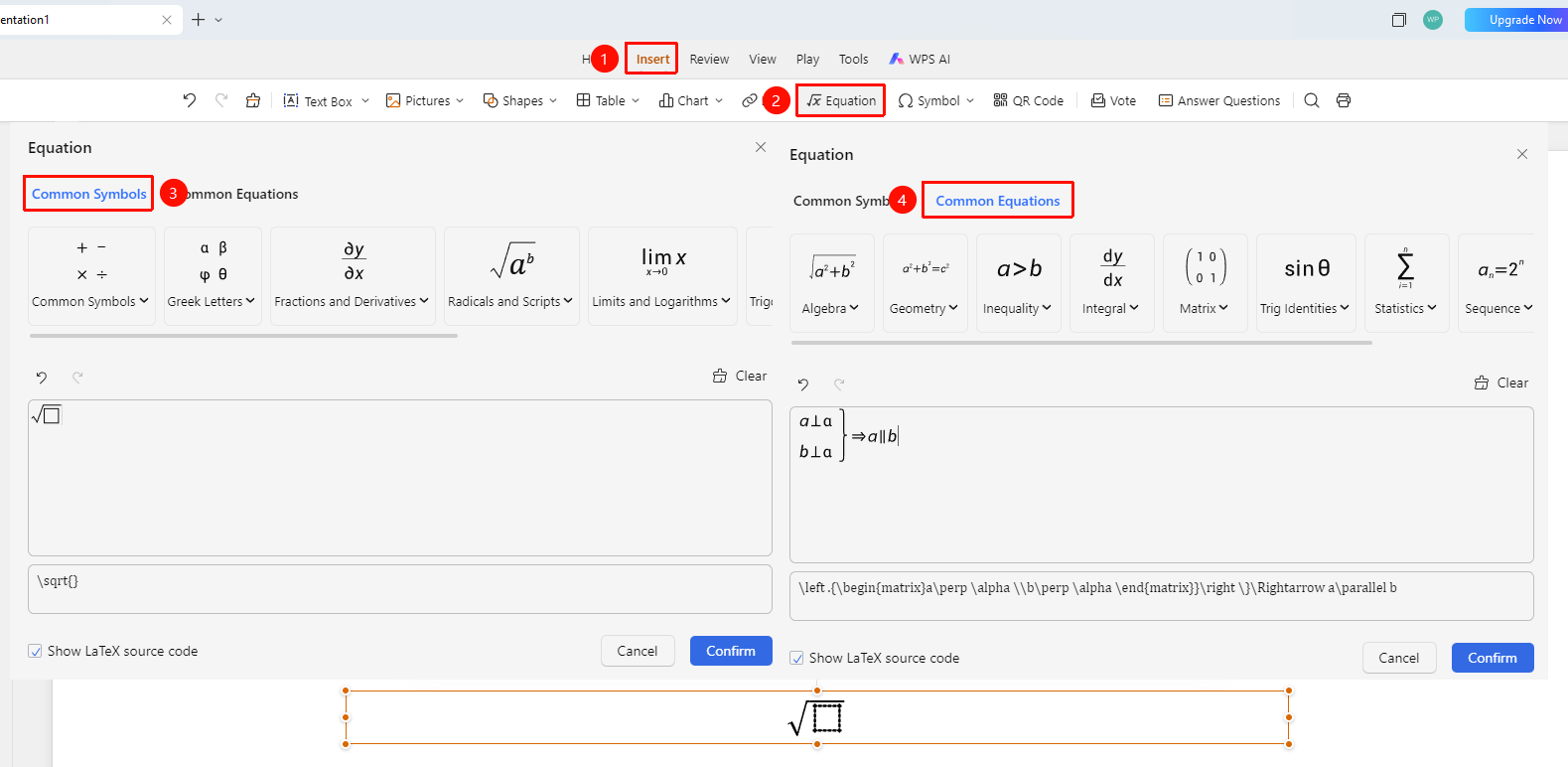
Formula Editor → Formula Templates
- After opening the formula editor, you can select a preset formula template
- Common templates include: fractions, radicals, integrals, summations, etc.
- After selecting a template, fill in values or variables in the corresponding positions
- Insert into the slide after editing
FAQ
Q1: Can the font in the formula be adjusted?
- Solution: You can select the formula and then adjust the font size and color.
Q2: How to enter special mathematical symbols?
- Solution: Various mathematical symbols can be selected in the symbol panel of the formula editor.
Notes
- The formula editor supports LaTeX syntax input
- For complex formulas, it is recommended to use preset templates to improve editing efficiency
- The inserted formula can be resized and repositioned