Feature Summary
In WPS Slides collaboration mode, you can insert images into slides from various sources, including local files, clipboard, AI generation, and cloud storage.
Feature Description
| Feature Dimension | Description |
|---|---|
| Membership Restrictions | No membership restrictions |
| Version Restrictions | No version restrictions |
Steps
Insert Images
Feature Entry 1
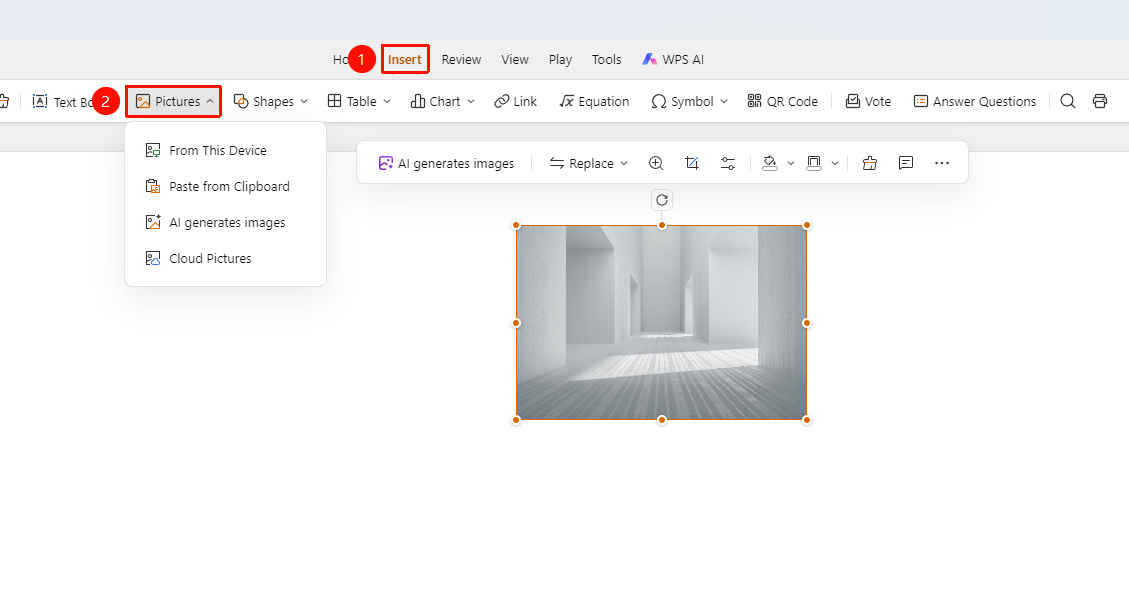
Insert tab > Picture drop-down button
Switch to the Insert tab at the top of the page.
Find and click the Picture drop-down button.
Choose an image source:
- Local Image: Choose an image file from your local computer.
- Paste from Clipboard: Paste an image from your clipboard.
- AI Image Generator: Generate an image using AI features.
- Cloud Image: Choose an image from cloud storage.
After choosing the image, click to confirm and insert it.
After clicking to select the image, drag the control points around the image to quickly resize it.
Feature Entry 2
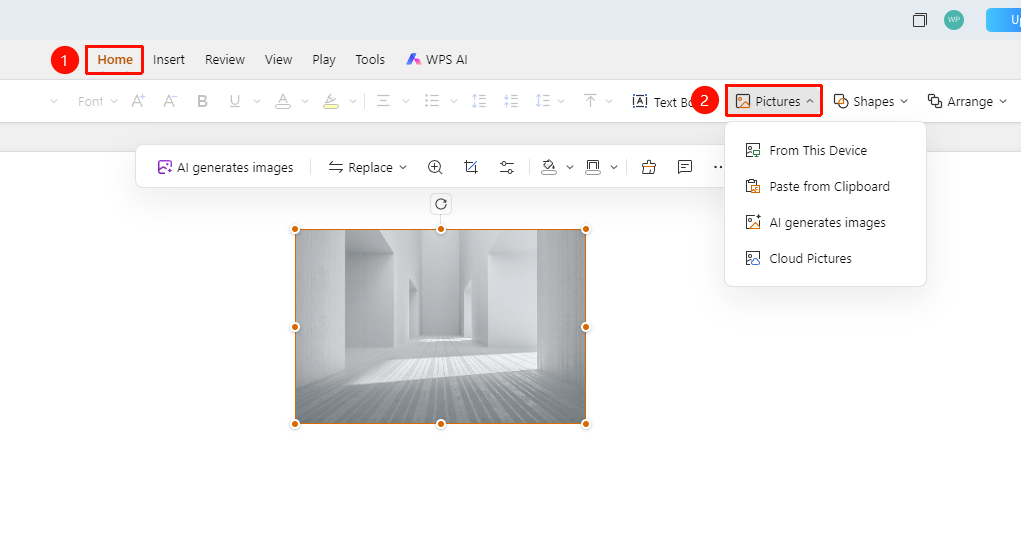
Home tab > Picture drop-down button
Switch to the Home tab at the top of the page.
Find and click the Picture drop-down button.
Choose an image source:
- Local Image: Choose an image file from your local computer.
- Paste from Clipboard: Paste an image from your clipboard.
- AI Image Generator: Generate an image using AI features.
- Cloud Image: Choose an image from cloud storage.
After choosing the image, click to confirm and insert it.
Floating Image Toolbar
Feature Entry
Click to select an image > Floating image toolbar
Click to select an image inserted in the slide to bring up the floating image toolbar.
Find and use the following special image features in the floating image toolbar:
- AI Image Generator: Quickly expand the AI Image Generator sidebar.
- Replace Picture: Quickly replace the image at its current position.
- View Original Image: View the original image and expand the image editing menu.
- Crop Image: Crop the image.
- Opacity & Other Effects: Drag the slider to change image opacity, soft edges, and rounded corners.
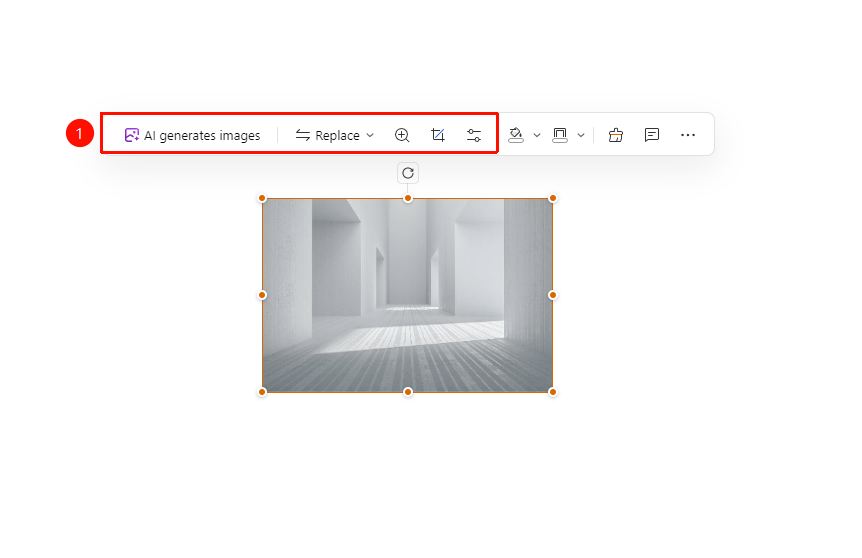
Image Right-Click Menu
Feature Entry
Image right-click menu
Right-click an image inserted in the slide to bring up the image right-click menu.
Find and use the following special image features in the image right-click menu:
- Replace Picture: Quickly replace the image at its current position.
- Download Original Image: Download the original image to your local computer.
- Crop Image: Crop the image.
- Set as Background: Apply the image as the background of the current slide.
- Extract Text: Extract text from the image.
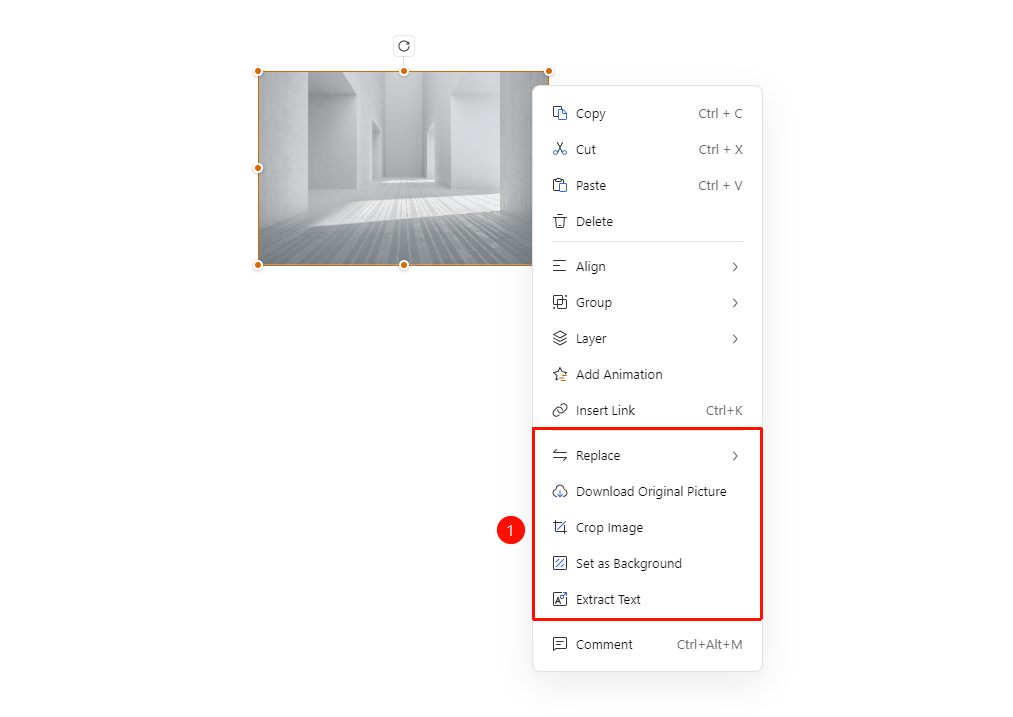
Image Size
Feature Entry
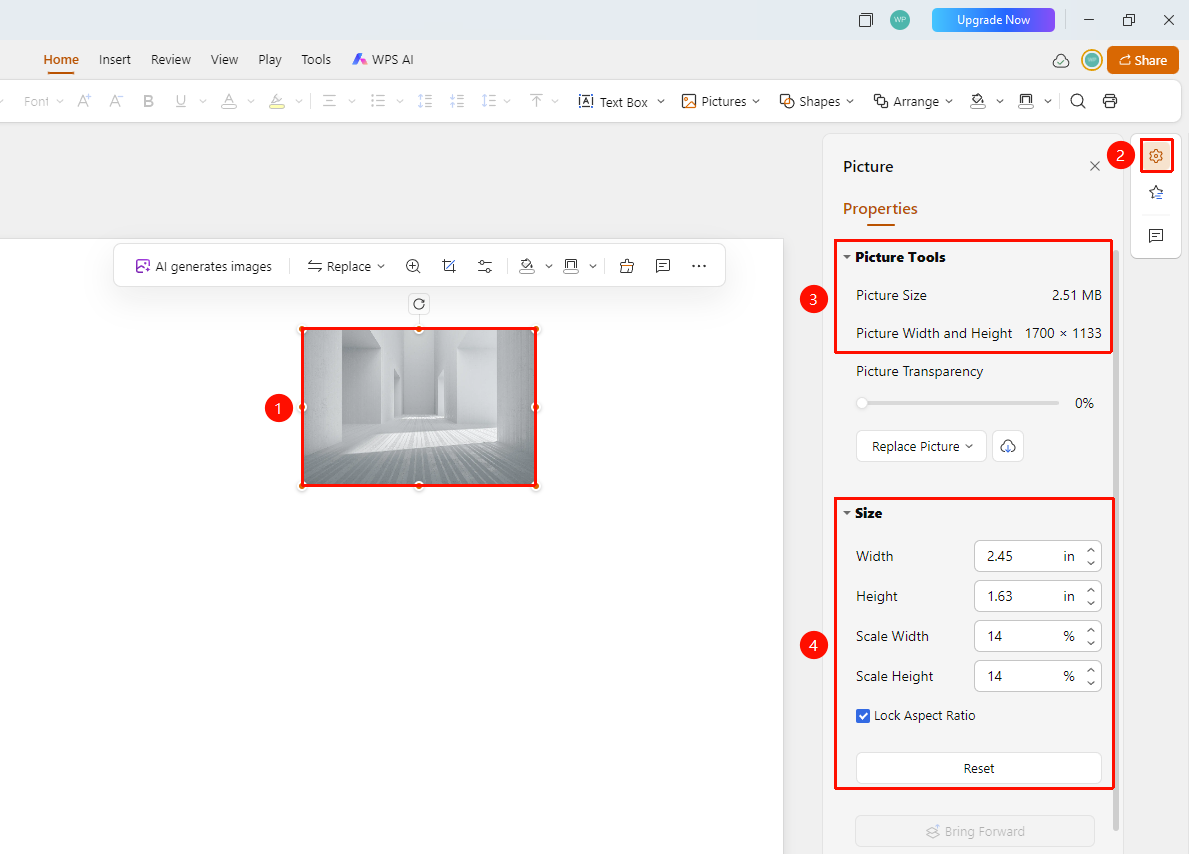
Select an image > Format option in the right task pane
Click to select an image, then click the Format option in the right task pane.
View the original size and dimensions of the image in the Picture Tools section.
Find and use the following special image features in the Size section:
- Width: Enter a value directly or use the buttons to fine-tune the image width.
- Height: Enter a value directly or use the buttons to fine-tune the image height.
- Scale Width: Enter a value directly or use the buttons to fine-tune the image width scaling percentage.
- Scale Height: Enter a value directly or use the buttons to fine-tune the image height scaling percentage.
- Lock Aspect Ratio: Select or deselect this option to lock the image aspect ratio. When selected, the image can only be resized proportionally.
- Reset: Restore the image to its size when it was inserted.
FAQ
Question 1: How do I resize an image?
- Solution: Select the image, then drag the control points on the image border to resize it.
Notes
- We recommend using high-resolution images to ensure optimal display quality.