Feature Summary
In WPS Slides collaboration mode, insert data charts into slides, supporting various chart types such as column charts, line charts, and pie charts.
Feature Description
| Feature Dimension | Description |
|---|---|
| Membership Restriction | No membership restriction |
| Version Restriction | No version restriction |
Operation Steps
Insert Chart
Feature Entry
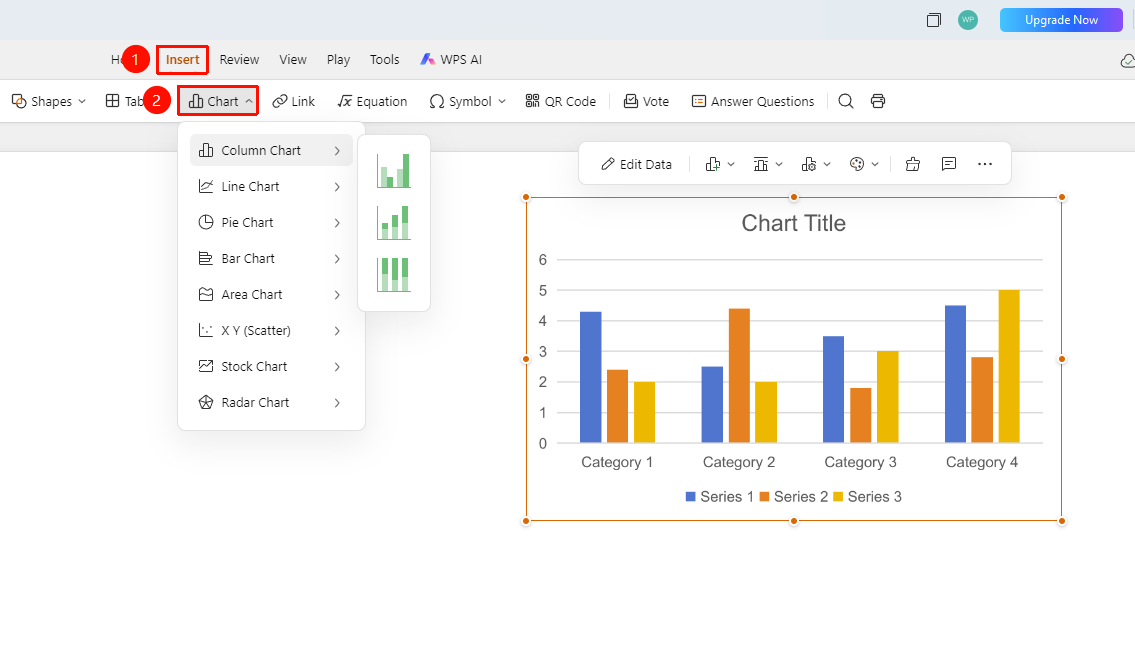
「Insert」 tab → 「Chart」 dropdown button
- Click the 「Insert」 tab in the top menu bar
- Click the 「Chart」 dropdown button in the toolbar
- Select the chart type from the pop-up menu:
- Column Chart: Suitable for displaying data comparison
- Line Chart: Suitable for displaying trend changes
- Pie Chart: Suitable for displaying proportion relationships
- Bar Chart: Suitable for displaying ranking comparison
- Area Chart: Suitable for displaying cumulative changes
- XY Scatter Chart: Suitable for displaying data distribution
- Stock Chart: Suitable for displaying financial data
- Radar Chart: Suitable for displaying multi-dimensional comparison
- Sparkline: Suitable for displaying trends within a cell
4.Select the appropriate chart type and click to insert the chart
Edit Chart Data
Feature Entry
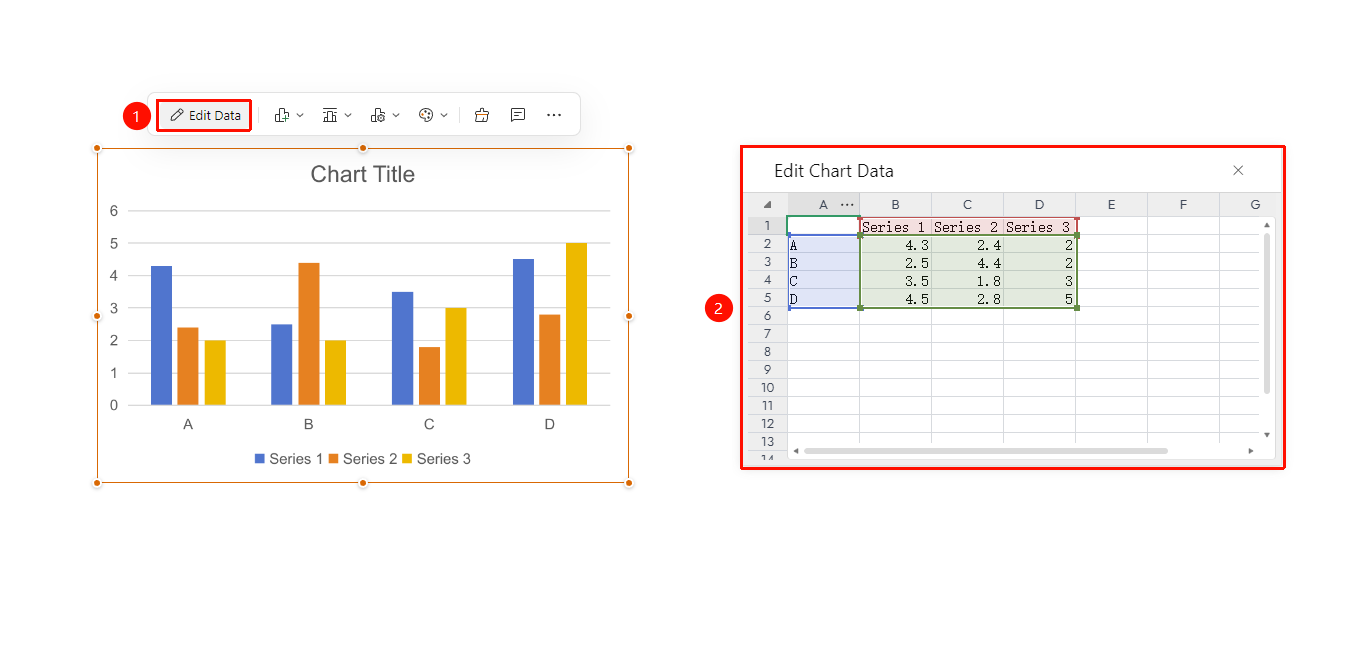
Chart floating toolbar → 「Edit Data」
- Select the chart whose data you need to edit to invoke the floating toolbar
- Click the 「Edit Data」 option in the floating toolbar
- Change the series name and values in the pop-up editing interface
- Preview chart changes in real time
Edit Chart Elements
Feature Entry
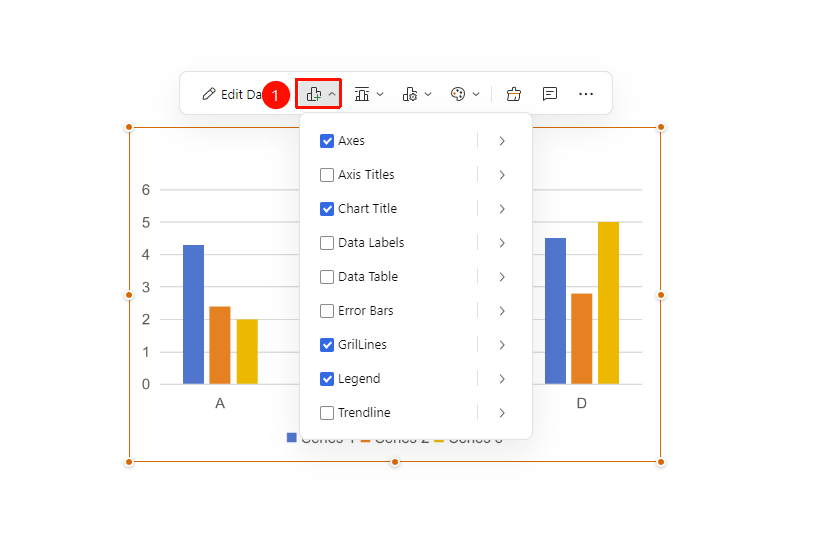
Chart floating toolbar → 「Chart Elements」 dropdown menu
- Click to select the chart whose elements you need to edit to invoke the floating toolbar
- Click the 「Chart Elements」 option in the floating toolbar to expand the dropdown menu
- Check/uncheck chart elements such as axes, chart title, and data labels
- Preview chart changes in real time
Change Chart Layout
Feature Entry
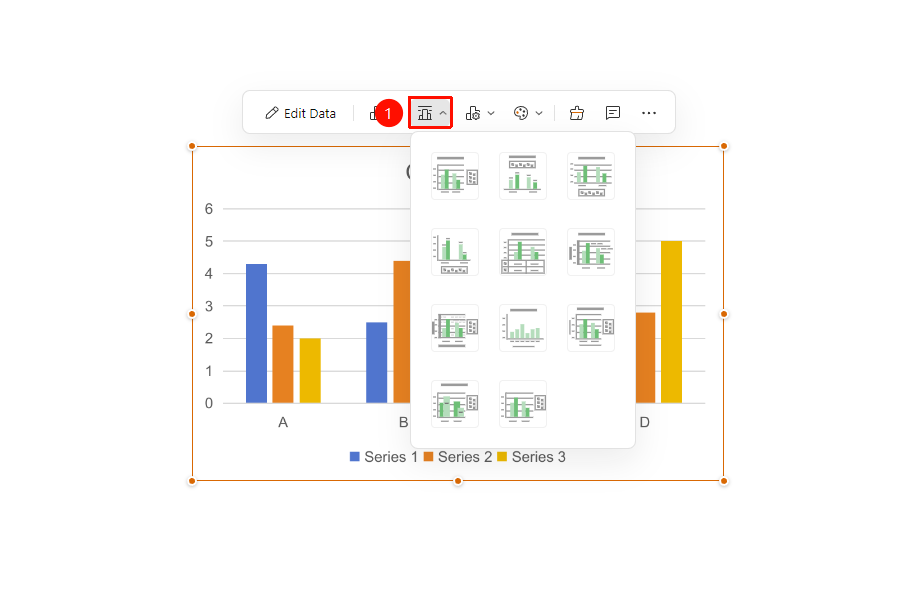
Chart floating toolbar → 「Chart Layout」 dropdown menu
- Click to select the chart whose layout you need to change to invoke the floating toolbar
- Click the 「Chart Layout」 option in the floating toolbar to expand the dropdown menu
- Select the desired chart layout and click to apply
- Preview chart changes in real time
Change Chart Style
Feature Entry
Chart floating toolbar → 「Style」 dropdown menu
- Click to select the chart whose style you need to change to invoke the floating toolbar
- Click the 「Style」 option in the floating toolbar to expand the dropdown menu
- Select the desired chart style and click to apply
- Preview chart changes in real time
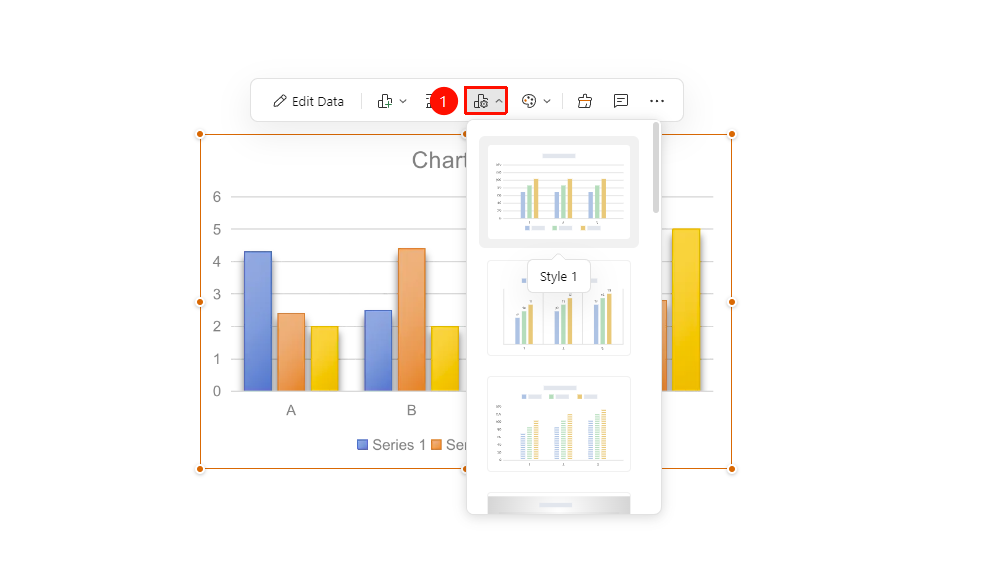
Change Chart Color Scheme
Feature Entry
Chart floating toolbar → 「Color Scheme」 dropdown menu
- Click to select the chart whose color scheme you need to change to invoke the floating toolbar
- Click the 「Color Scheme」 option in the floating toolbar to expand the dropdown menu
- Select the desired chart color scheme and click to apply
- Preview chart changes in real time
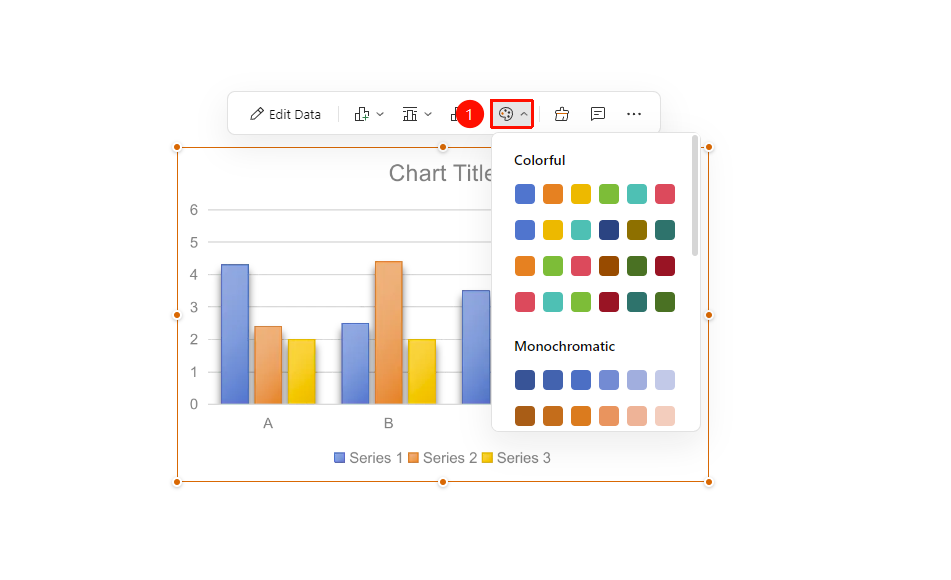
Frequently Asked Questions
Q1: How to modify chart data?
- Solution: Double-click the chart to open the data editing window. The chart will automatically update after modifying the data.
Q2: How to change the chart style?
- Solution: After selecting the chart, you can choose different chart styles and color schemes in the floating toolbar.
Q3: How to adjust the chart size?
- Solution: After selecting the chart, drag the control points on the chart border to adjust the size.
Notes
- Choose the appropriate chart type based on data characteristics
- Chart titles and legends should be clear and easy to read