Feature Summary
In WPS Slides collaboration mode, you can insert various shapes into slides, including lines, rectangles, basic shapes, block arrows, and more.
Feature Description
| Feature Dimension | Description |
|---|---|
| Membership Limits | No membership limits |
| Version Limits | No version limits |
Steps
Insert Shapes
Feature Entry 1
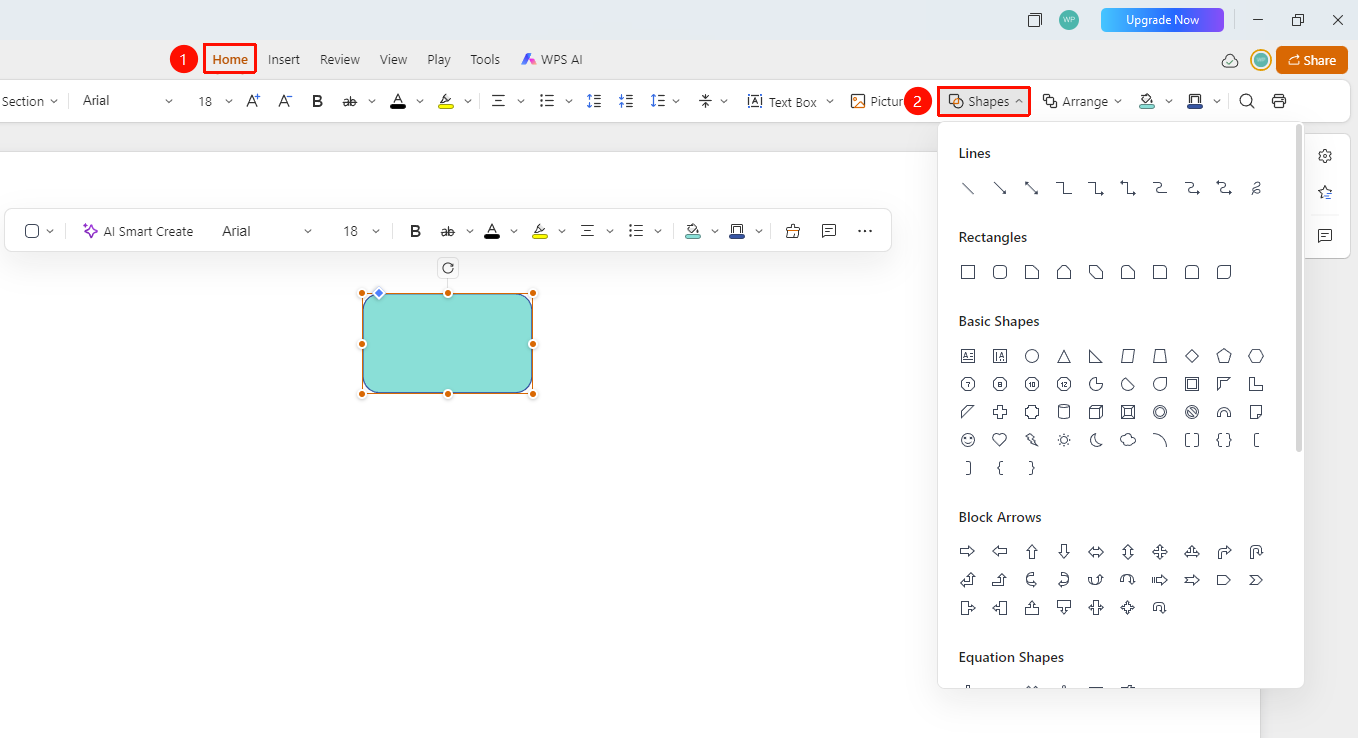
"Home" tab -> "Shapes" drop-down button
Switch to the Home tab at the top of the page.
Click the Shapes drop-down button in the ribbon.
Select the desired shape type from the pop-up shape panel:
- Lines: Straight lines, curves, connectors, etc.
- Rectangles: Rectangles, rounded rectangles, parallelograms, etc.
- Basic Shapes: Circles, triangles, pentagrams, hearts, etc.
- Block Arrows: Arrows pointing in various directions
- Equation Shapes: Operators such as addition, subtraction, multiplication, and division
After selecting a shape, drag your mouse on the slide to draw it.
Feature Entry 2
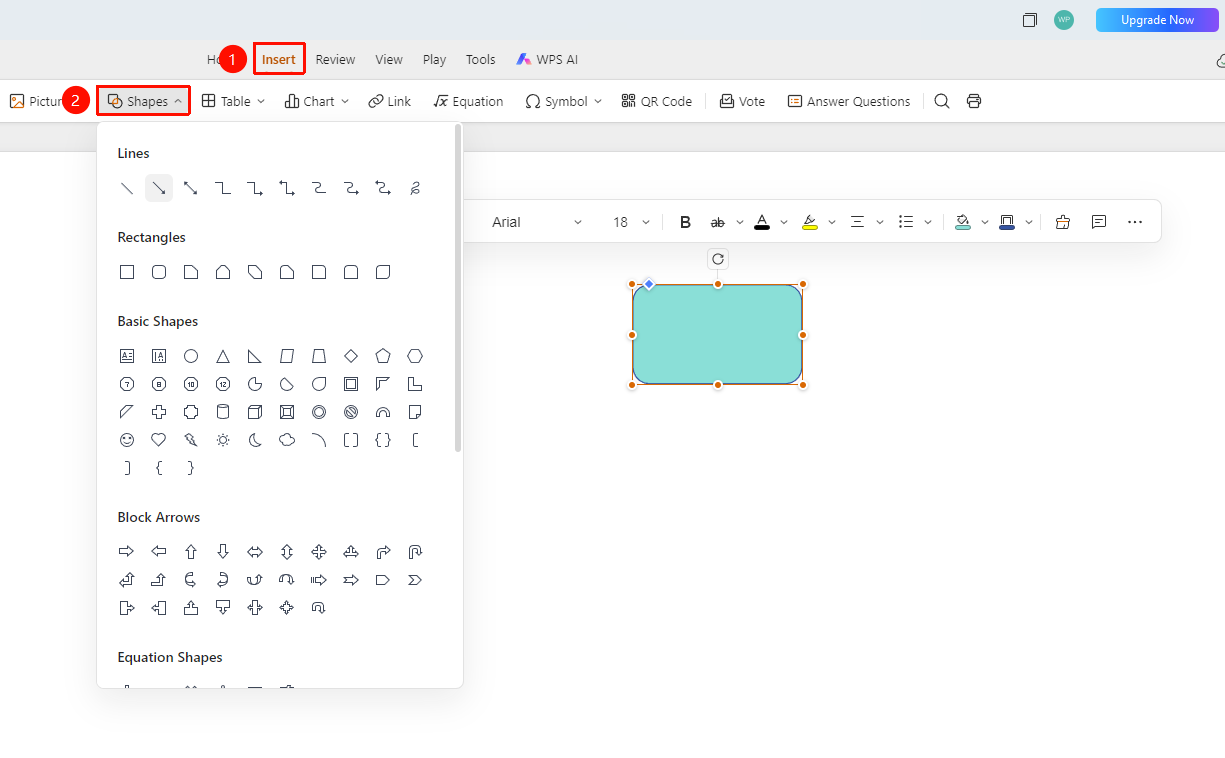
"Insert" tab -> "Shapes" drop-down button
- Switch to the Insert tab at the top of the page.
- Click the Shapes drop-down button in the toolbar.
- Select the desired shape type from the pop-up shape panel, and then drag your mouse on the slide to draw it.
Auto-fit Text in Shapes
Feature Entry
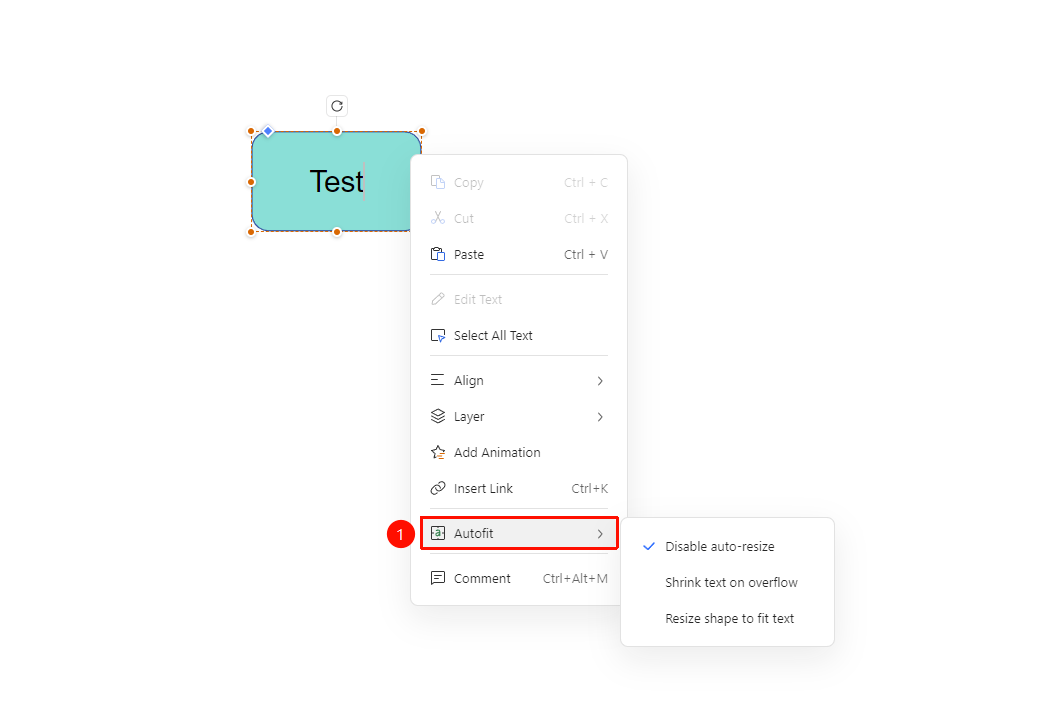
Right-click "Shape" -> Click "Auto-fit Text" in the drop-down menu
Right-click the Shape on the slide.
Click Auto-fit Text in the shortcut menu.
Select an auto-fit option:
- Do not auto-fit text on overflow: No adjustments are made when the text content exceeds the size of the text box shape.
- Shrink text on overflow: Shrinks the font size when the text content exceeds the size of the text box shape.
- Resize shape to fit text: Automatically adjusts the size of the text box shape when the text content exceeds the size of the text box.
FAQ
Q1: How do I draw a perfect square or circle?
- Solution: Hold down the Shift key while dragging the mouse to draw a perfect square or circle.
Q2: How do I add text to a shape?
- Solution: Right-click the shape and select "Edit Text" to type text inside the shape. You can also double-click the shape directly to type text.
Q3: How do I adjust the fill color of a shape?
- Solution: Select the shape, and then you can modify the fill color and border style in the formatting settings.
Notes
- Shapes can be used to create flowcharts, diagrams, etc.
- We recommend keeping the shape style consistent with the overall design.
- You can group multiple shapes to create complex graphics.
- Select a shape and click Format in the task pane on the right to edit shape properties and text settings.