Feature Summary
In WPS Slides collaboration mode, you can insert text boxes into slides. Both horizontal and vertical text boxes are supported.
Feature Description
| Feature Dimension | Description |
|---|---|
| Member Limit | No member limit |
| Version Limit | No version limit |
Operating Steps
Insert a Text Box
Feature Entry 1
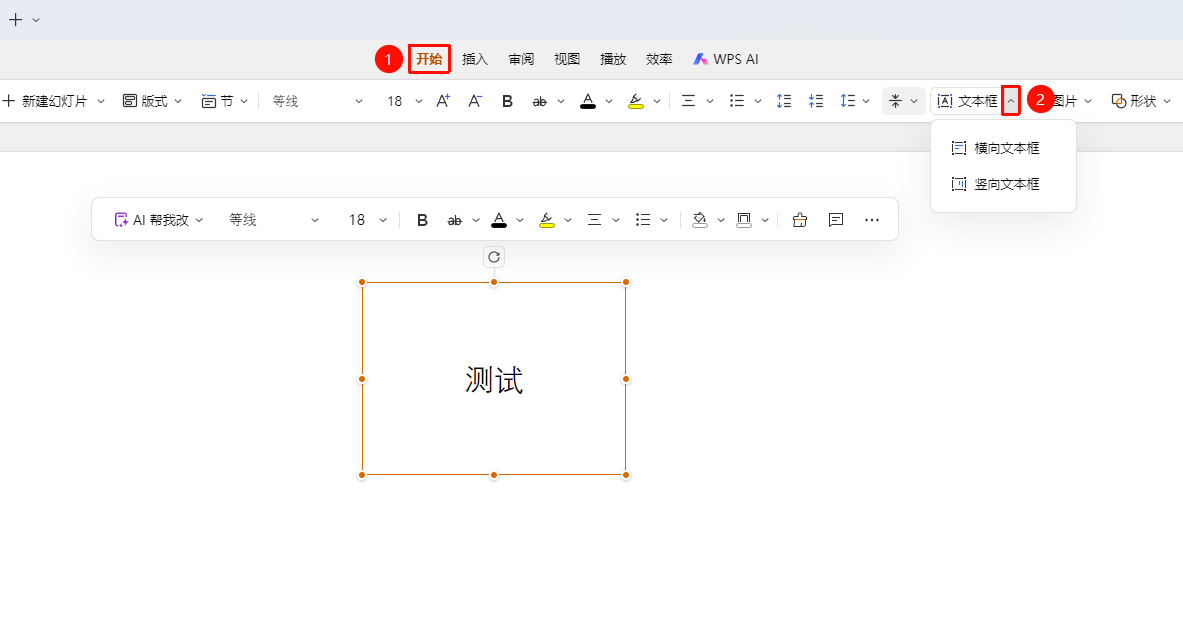
"Home" tab → "Text Box" drop-down button
Click the "Home" tab in the top menu bar.
Click the "Text Box" drop-down button in the toolbar.
Choose a text box type:
- Horizontal Text Box: Text is arranged horizontally from left to right.
- Vertical Text Box: Text is arranged vertically from top to bottom.
After choosing, drag the mouse on the slide to draw the text box.
Enter text content in the text box.
Double-click any blank area on the slide to quickly add a text box.
Feature Entry 2
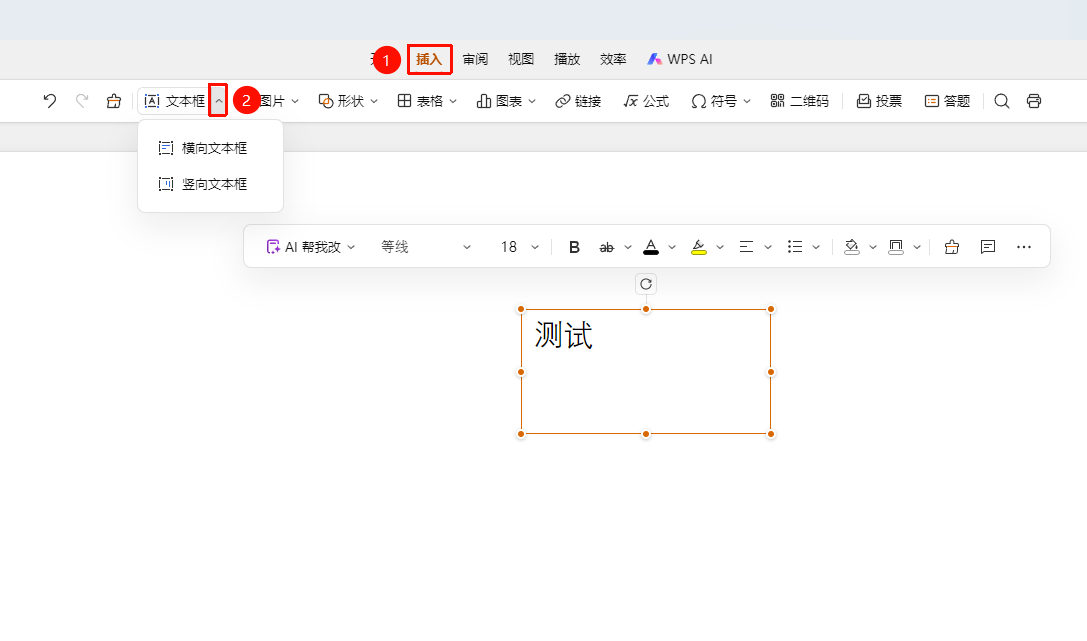
"Insert" tab → "Text Box" drop-down button
- Click the "Home" tab in the top menu bar.
- Click the "Text Box" drop-down button in the toolbar.
- Choose a text box type, and then drag the mouse to draw the text box.
Auto-Fit Text in Text Boxes
Feature Entry
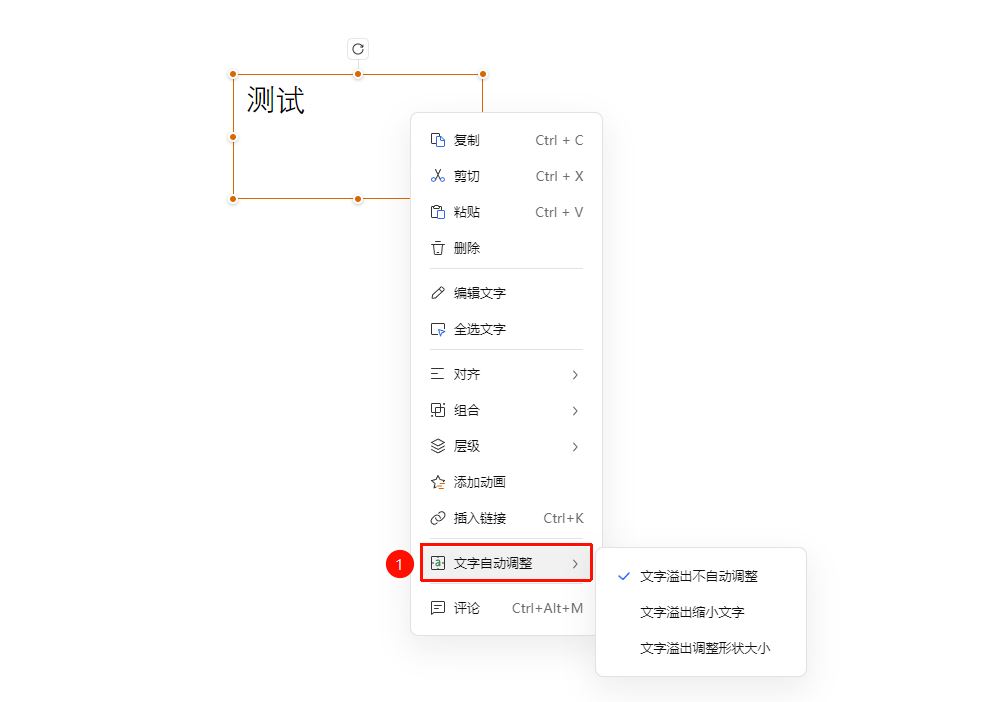
Right-click "Text Box" → Click "Auto-Fit Text" in the drop-down menu
Right-click the "Text Box" on the slide.
Click "Auto-Fit Text" in the right-click toolbar.
Choose an auto-fit option:
- Do Not Auto-Fit On Overflow: No adjustment is made when the text overflows the text box shape.
- Shrink Text On Overflow: Shrinks the font size when the text overflows the text box shape.
- Resize Shape On Overflow: Automatically adjusts the size of the text box shape when the text overflows the text box.
FAQ
Question 1: What should I do if the text in the text box is not fully displayed?
- Solution: Drag the text box border to resize it, or adjust the font size to display the content fully.
Question 2: How do I set the border and fill of a text box?
- Solution: Select the text box, and then you can modify the border style and fill color in the formatting settings.
Notes
- Text boxes can be freely moved and positioned.
- You can apply animation effects to text boxes.
- Select a text box and click "Format" in the right task pane to edit text box properties and text settings.