Feature Summary
In WPS Slides collaboration mode, insert special symbols into slides, including mathematical symbols, Greek letters, common symbols, and more.
Feature Description
| Feature Dimension | Description |
|---|---|
| Membership Restriction | No membership restriction |
| Version Restriction | No version restriction |
Operation Steps
Insert Symbols via the Ribbon
Feature Entry
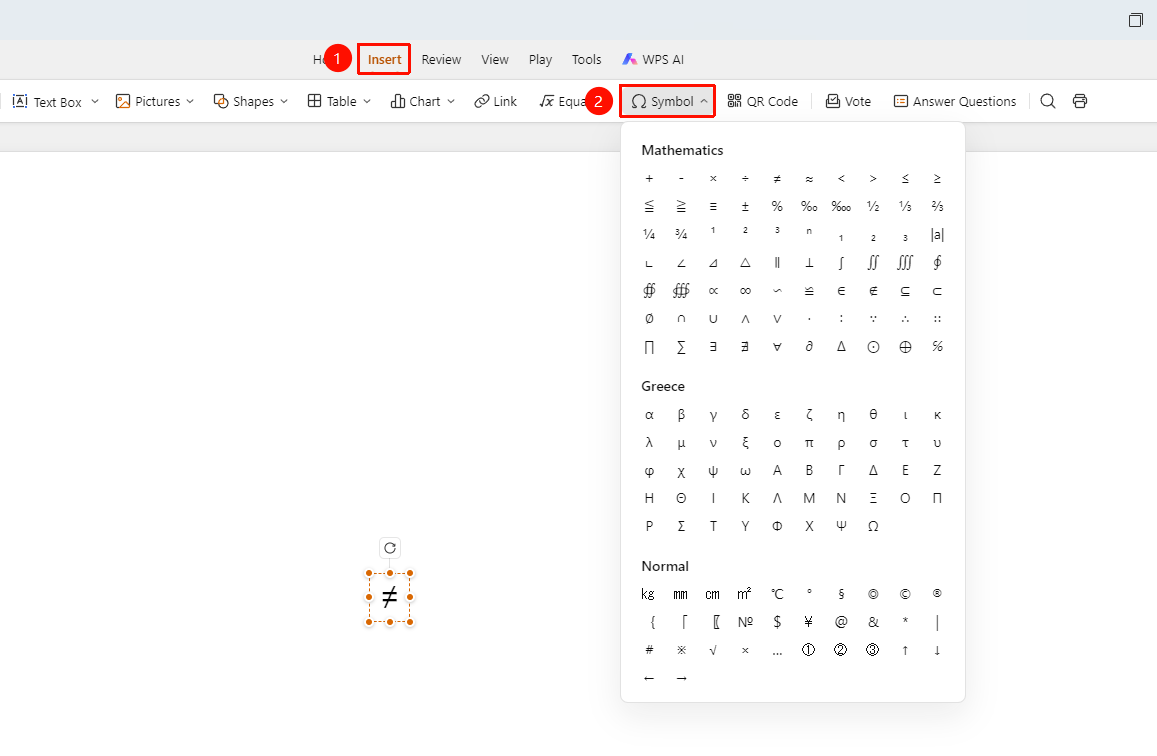
"Insert" tab → "Symbol" button
- Click the "Insert" tab in the top menu bar
- Click the "Symbol" button in the toolbar
- In the pop-up symbol panel, select the desired symbol category:
- Mathematical Symbols: Includes +, -, ×, ÷, ≈, ≤, ≥ and other mathematical operation symbols
- Greek Letters: Includes α, β, γ, δ, π, σ and other Greek letters
- Common Symbols: Includes kg, cm, ℃, ©, ® and other common units and special symbols
- Click the desired symbol to insert it into the current slide or at the cursor position
Frequently Asked Questions
Question 1: How to insert symbols that are not on the keyboard?
- Solution: Use the insert symbol feature to select various special symbols from the symbol panel.
Question 2: How to quickly find the desired symbol?
- Solution: Use the category feature of the symbol panel to search by categories such as Mathematics, Greek, Common, etc.
Question 3: How to adjust the size of the inserted symbol?
- Solution: The inserted symbol will follow the current text size. You can select the symbol and then adjust the font size.
Notes
- The symbol will be inserted at the current cursor position
- After insertion, its format can be adjusted like normal text
- Commonly used in academic presentations, scientific and technical reports, and similar scenarios