Feature Summary
Insert tables into slides in WPS Slides collaboration mode to display structured data.
Feature Description
| Feature Dimension | Description |
|---|---|
| Member Limit | No member limit |
| Version Limit | No version limit |
Steps
Insert a Table via Ribbon
Feature Entry
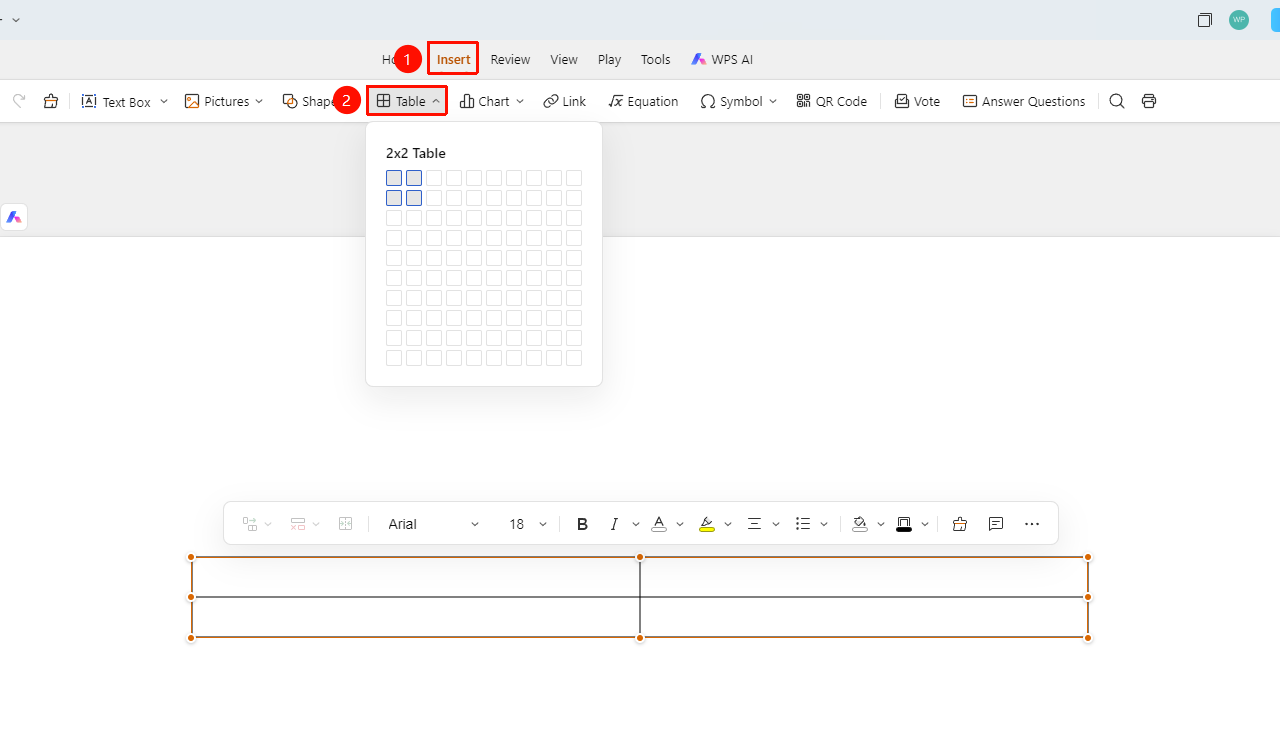
Insert tab > Table drop-down button
- Click the Insert tab in the top menu bar.
- Click the Table drop-down button in the toolbar.
- Move the mouse in the pop-up grid selector to select the required number of rows and columns.
FAQ
Question 1: How do I resize a table?
- Solution: Select the table, and then drag the control points on the table border to resize it.
Question 2: How do I add or delete rows and columns?
- Solution: Right-click the table, and then select the option to insert or delete rows or columns from the shortcut menu.
Question 3: How do I merge or unmerge cells?
- Solution: Select the table, and then merge or unmerge cells in the floating toolbar or right-click menu.
Notes
- Table content must be concise and clear to avoid excessive complexity.
- Text in the table must be kept at an appropriate size for readability.