Feature Summary
In WPS Slides collaboration mode, add comments to slides to facilitate team collaboration and feedback.
Feature Description
| Feature Dimension | Description |
|---|---|
| Membership Restriction | No membership restriction |
| Version Restriction | No version restriction |
Operation Steps
Insert Slide Comment
Feature Entry 1
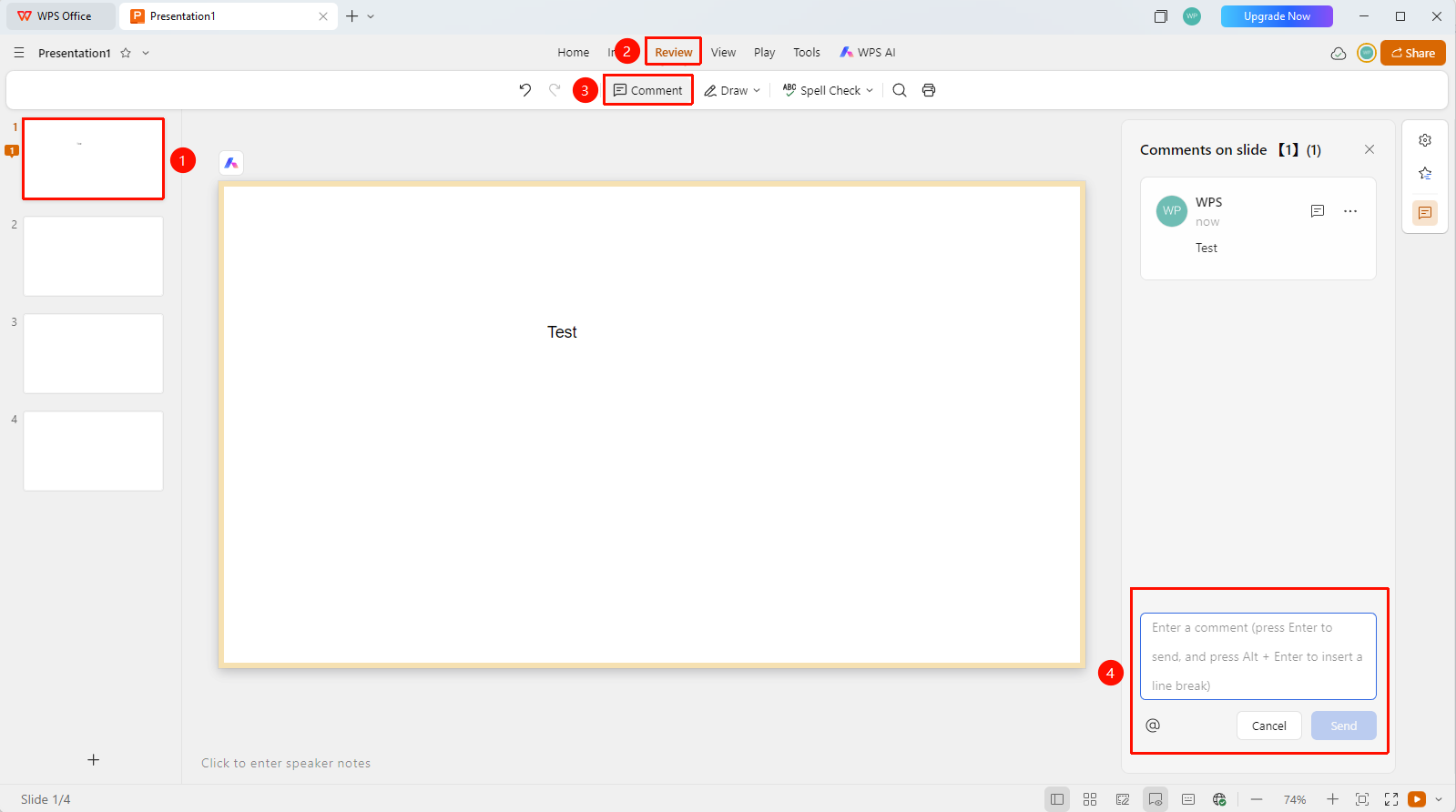
「Review」 tab → 「Comment」 button (Shortcut: Ctrl+Alt+M)
- Navigate to the slide where you want to add a comment
- Switch to the 「Review」 tab at the top
- Click the 「Comment」 button in the ribbon
- The comment panel will open on the right side
- Enter your comment content in the input box. You can click @ to notify other collaborators (press Alt+Enter for a new line, press Enter to send)
- Click the 「Send」 button to submit the comment
- After successfully adding a comment, a numbered dialog box will appear next to the slide thumbnail on the left, with the number corresponding to the comment count for that slide
Feature Entry 2
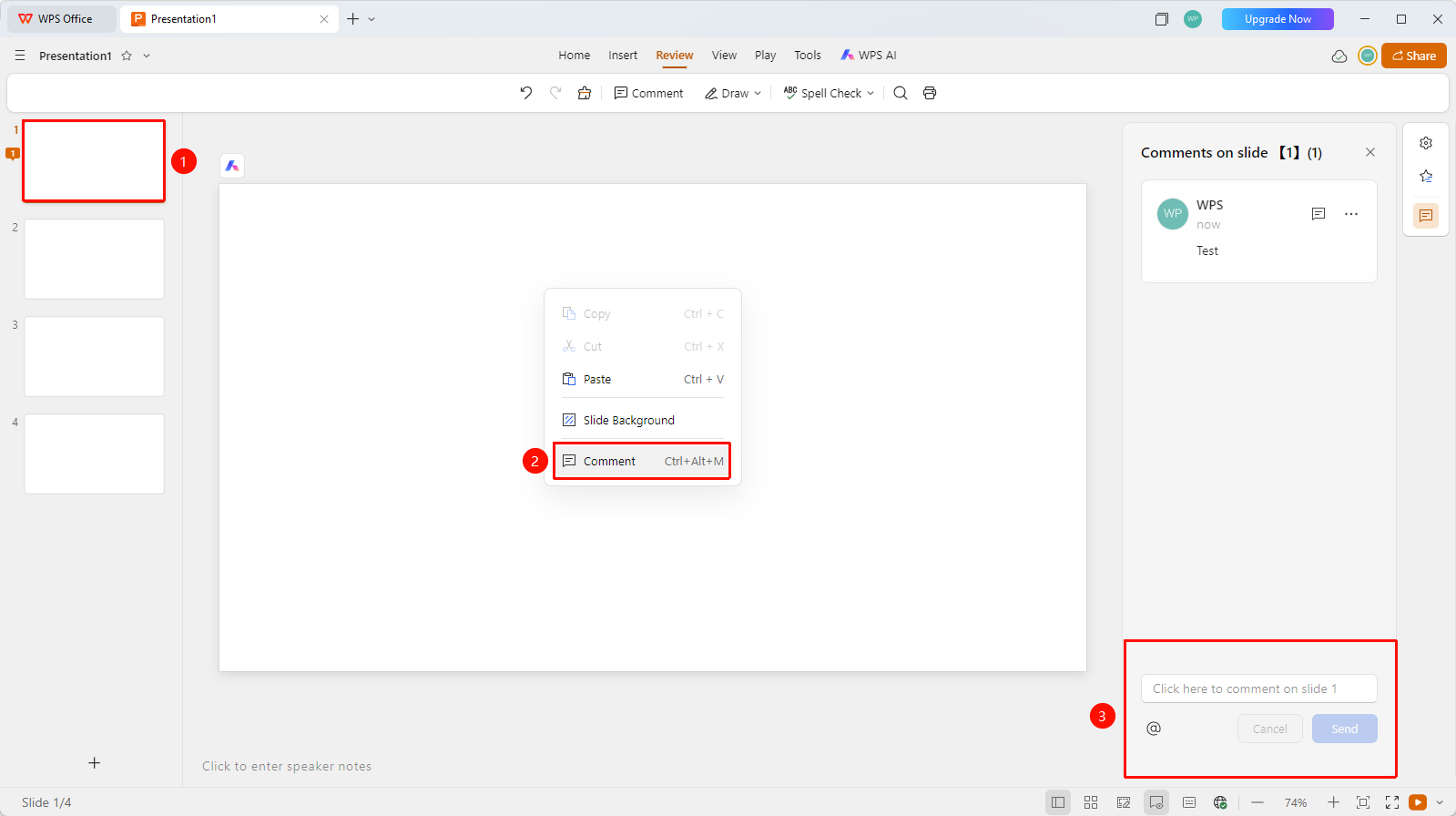
Right-click menu on blank area of slide → 「Comment」
- Navigate to the slide where you want to add a comment, right-click on a blank area of the slide to bring up the context menu
- Select the 「Comment」 option from the pop-up context menu
- The comment panel will open on the right side
- Enter your comment content and click the 「Send」 button
Feature Entry 3
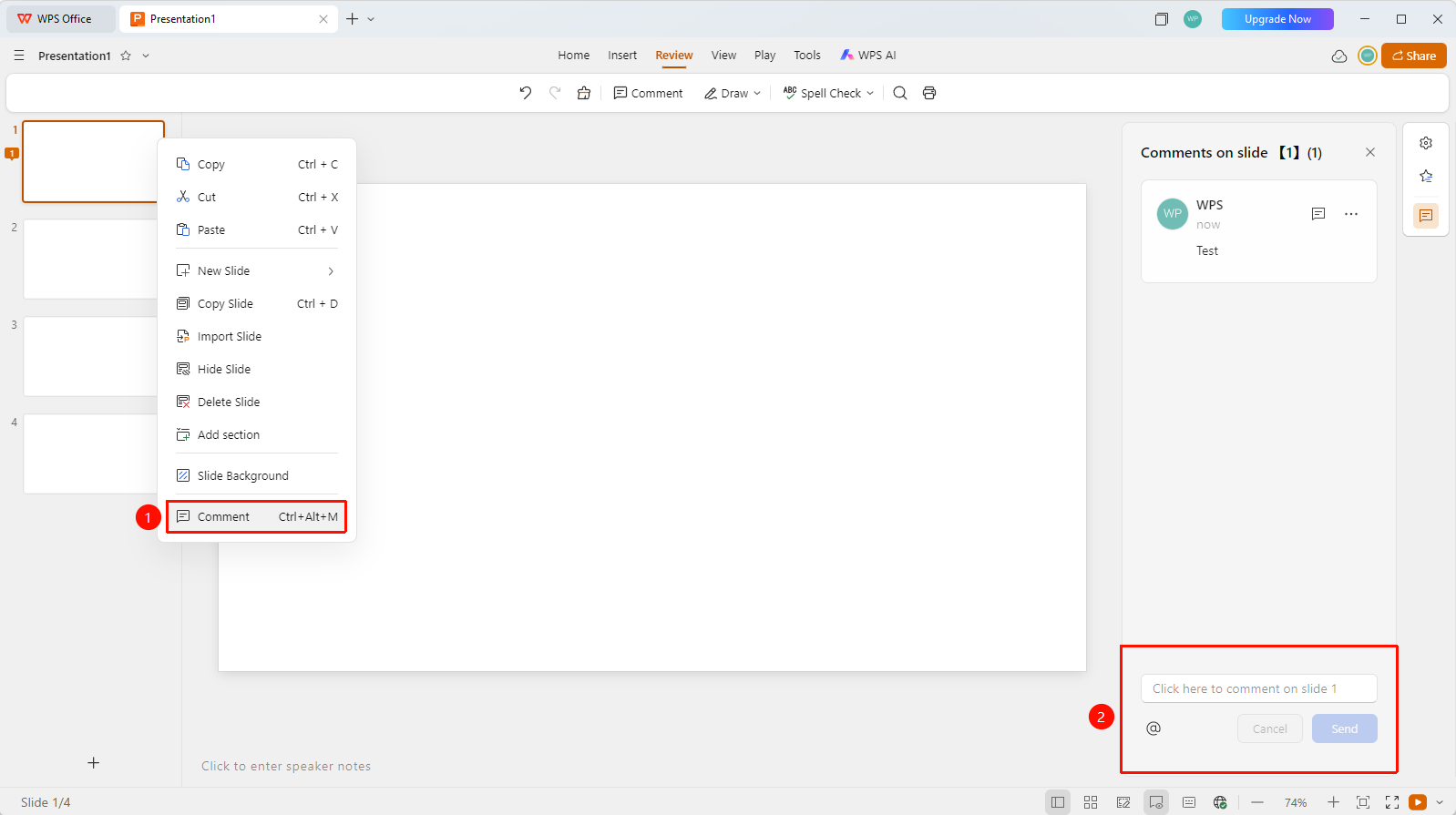
Left-side slide thumbnail → right-click menu → 「Comment」
- In the left-side slide thumbnail pane, right-click the target slide
- Select the 「Comment」 option from the pop-up context menu
- The comment panel will open on the right side
- Enter your comment content and click the 「Send」 button
Insert Object Comment
Feature Entry 1
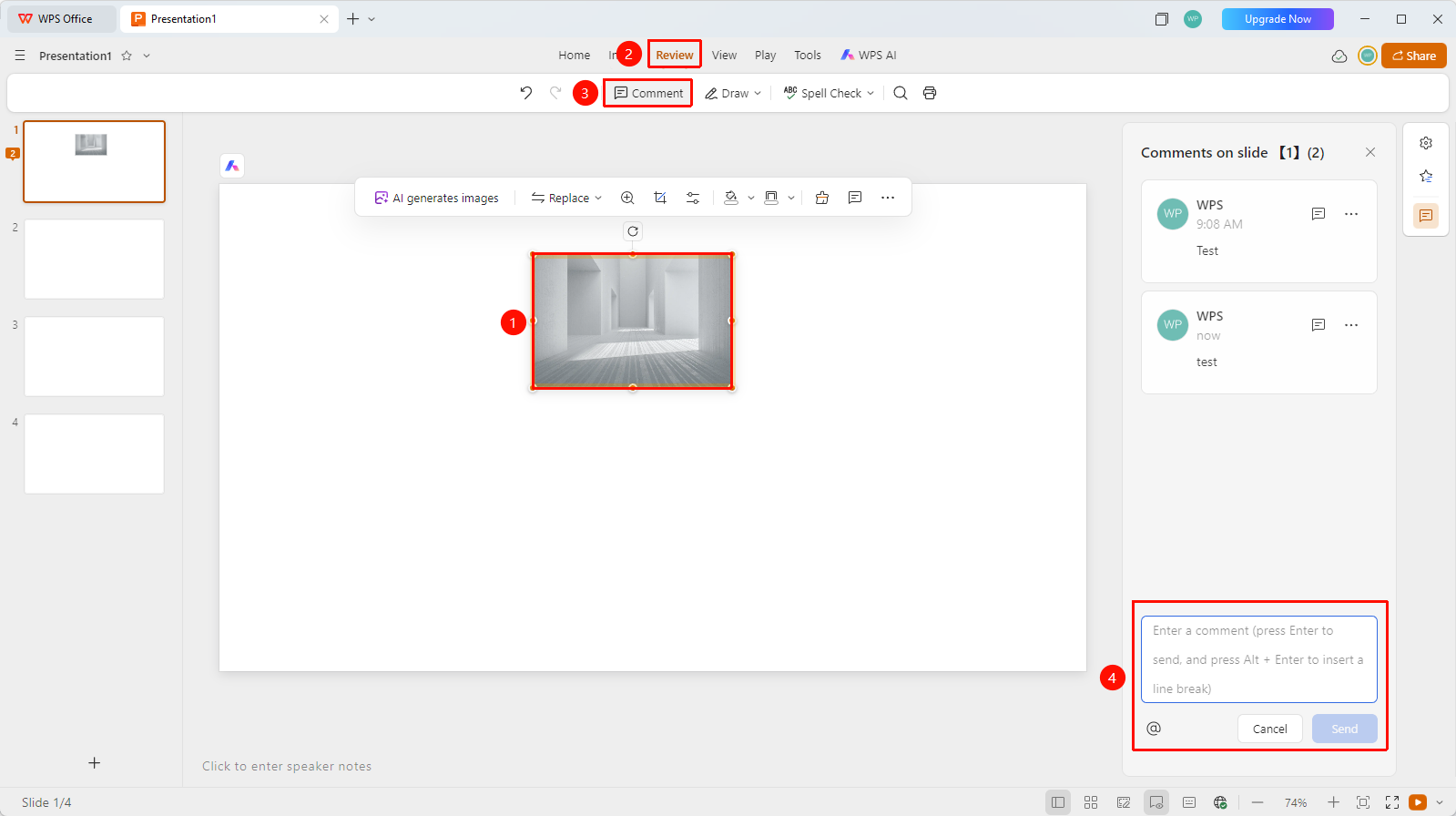
「Review」 tab → 「Comment」 button (Shortcut: Ctrl+Alt+M)
- Select the object you want to add a comment to (Docs, text box, shape, image, etc.)
- Switch to the 「Review」 tab at the top
- Click the 「Comment」 button in the ribbon
- The comment panel will open on the right side
- Enter your comment content in the input box (press Alt+Enter for a new line, press Enter to send)
- Click the 「Send」 button to submit the comment
Feature Entry 2
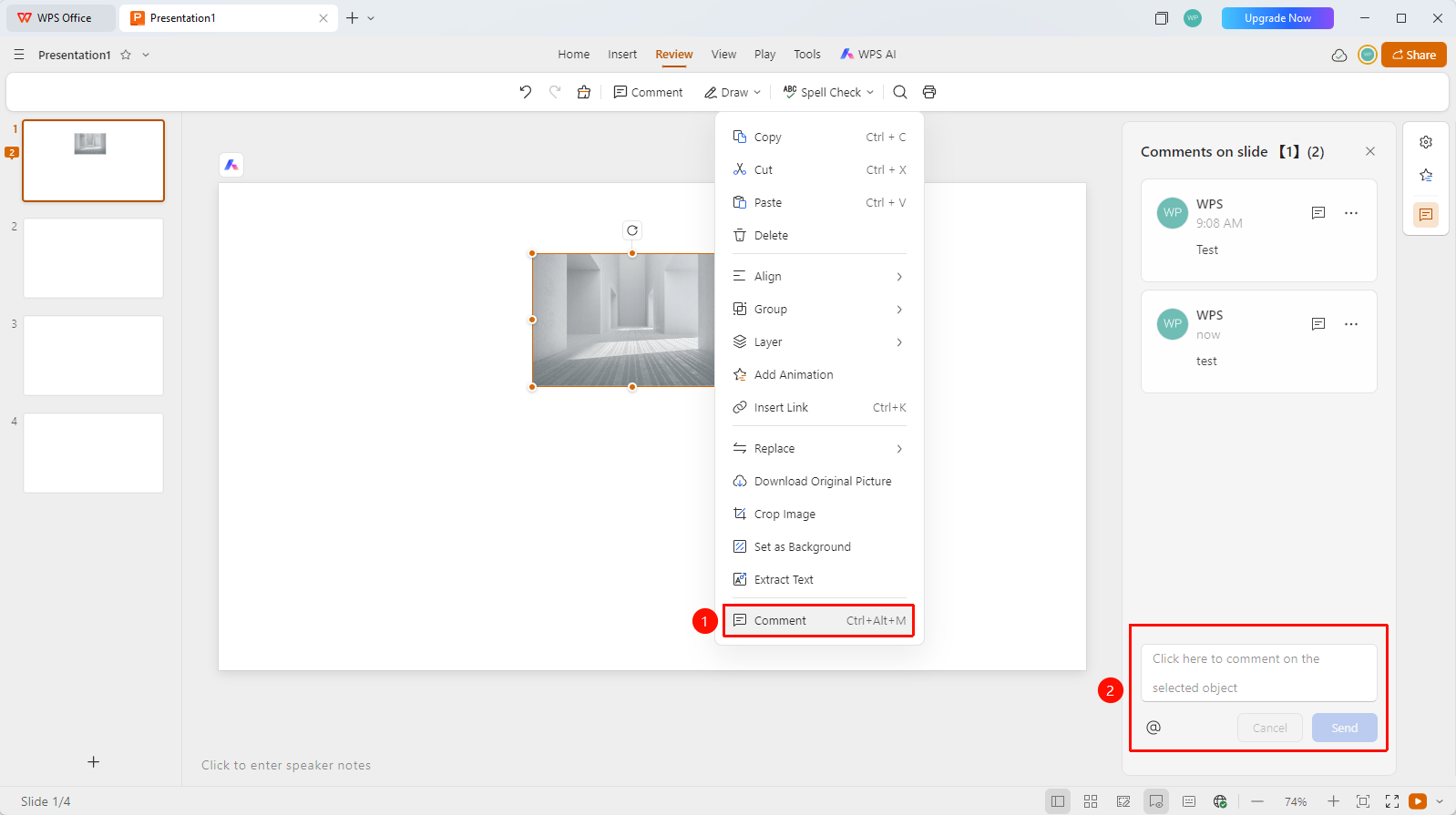
Object right-click menu → 「Comment」
- Select the object you want to add a comment to (Docs, text box, shape, image, etc.), right-click to bring up the context menu
- Select the 「Comment」 option from the context menu
- The comment panel will open on the right side
- Enter your comment content and click the 「Send」 button
View Comments
Feature Entry
Right-side task pane 「Comment」 option → Comment panel
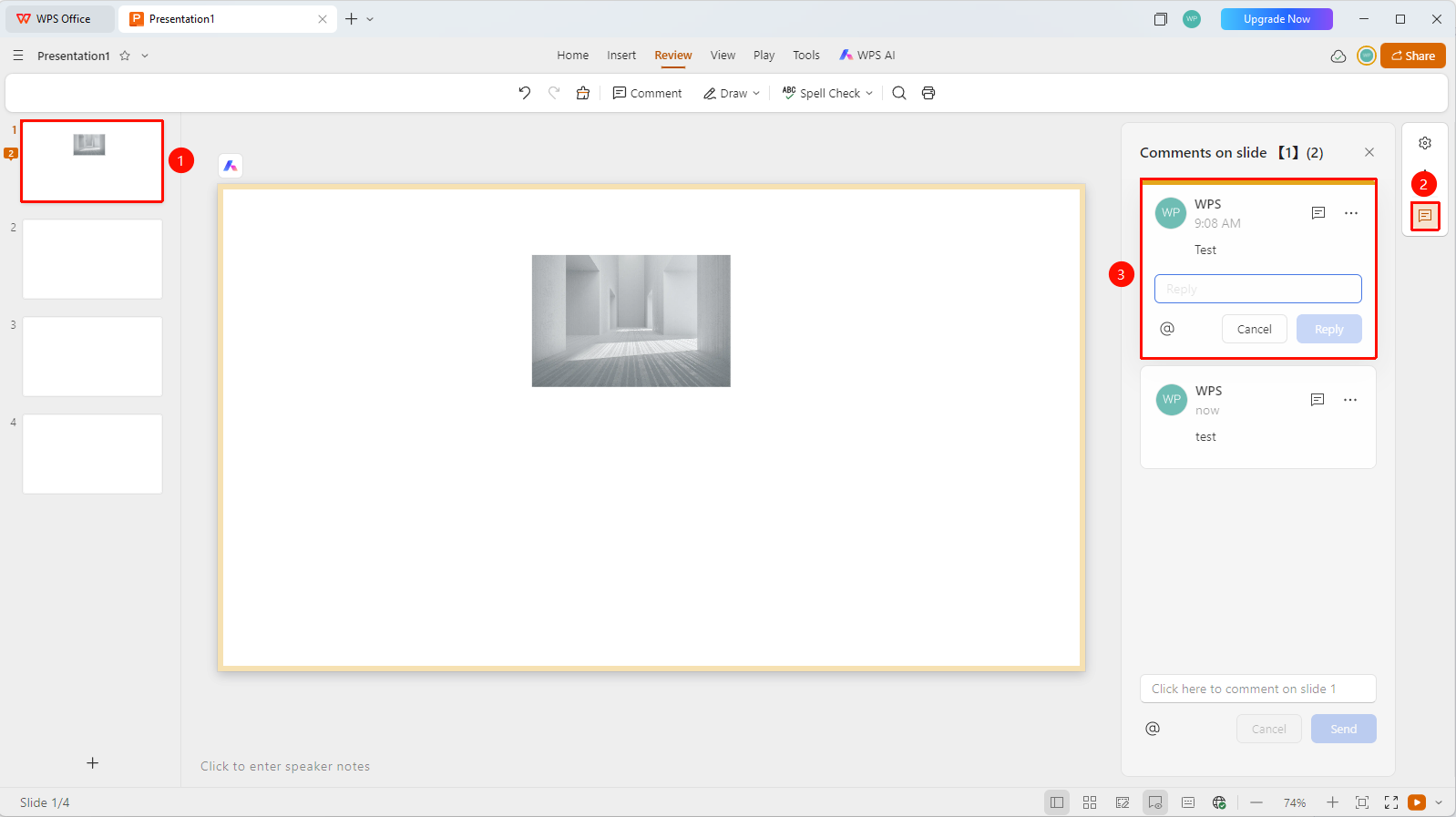
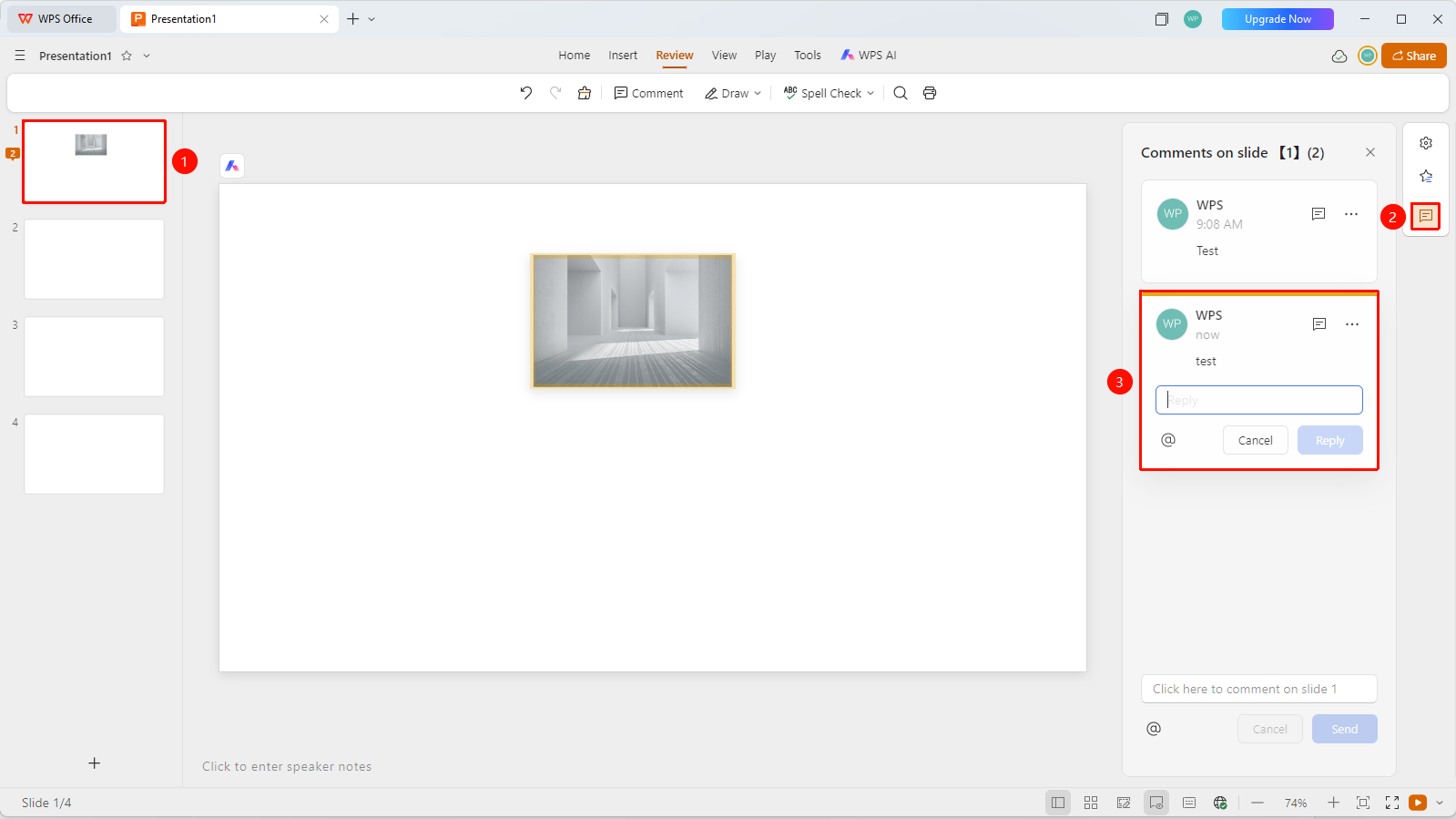
- Navigate to the slide with comments added
- Click the 「Comment」 option in the right-side task pane to expand the comment panel
- In the comment panel, you can view all comments for the current slide
- Click a comment to view details and highlight the comment location (slide/object comment)
Reply to Comments
Feature Entry
Right-side task pane 「Comment」 option → Comment content
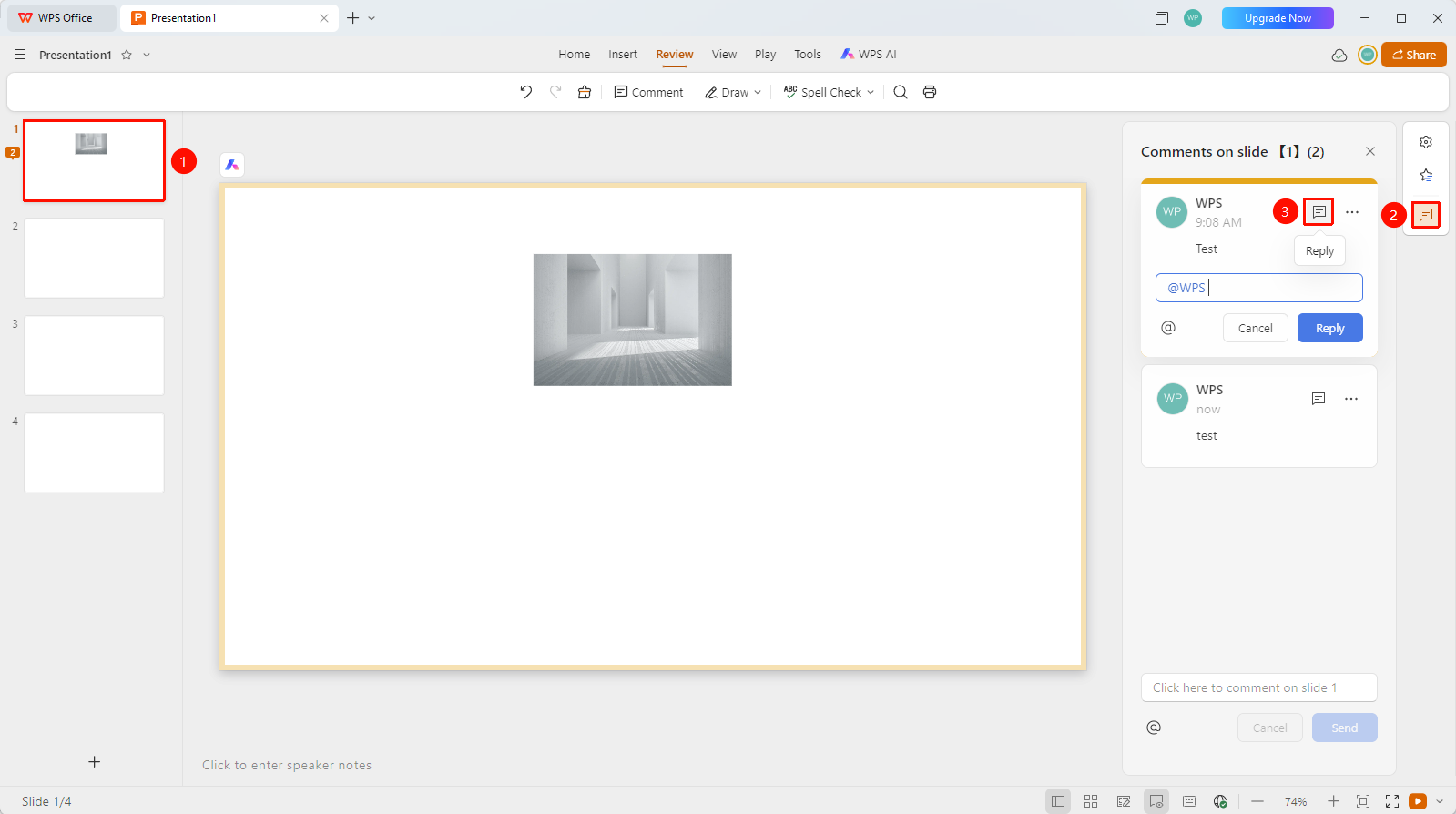
- Navigate to the slide with comments added
- Click the 「Comment」 option in the right-side task pane to expand the comment panel
- Locate the comment you want to reply to and click the 「Reply」 button
- The @comment creator is automatically added. Enter your reply content
- Click 「Reply」 to send the comment reply
Click to use @ to notify other collaborators
Manage Comments
Feature Entry
Right-side task pane "Comments" option → Comment content
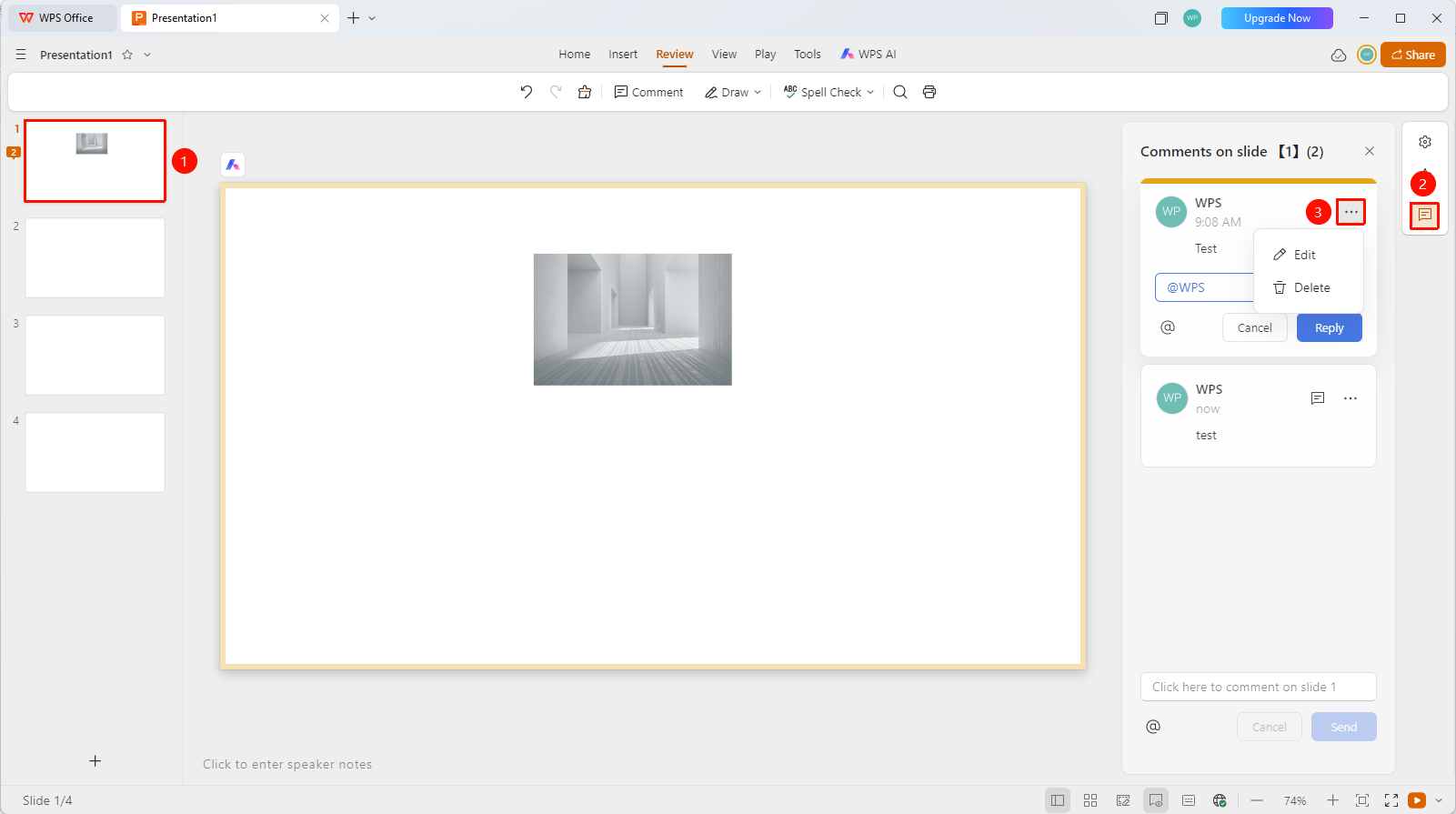
- Navigate to the slide with added comments
- Click the "Comments" option in the right-side task pane to expand the comments panel
- Locate the comment you want to manage, and click the "More" button (...) icon
- Click the "Edit" option to re-edit the comment content
- Click "Delete" to delete the comment
FAQ
Question 1: Will comments be displayed during the slideshow?
- Solution: No, comments are only visible in Read Mode and will not be displayed during the slideshow.
Question 2: How to view comments on a specific slide?
- Solution: Click the thumbnail on the left to switch to the target slide, and click "Comments" in the right-side task pane to display the comments for that slide.
Notes
- The comment feature facilitates collecting feedback during team collaboration
- You can use the @mention feature to notify specific collaborators
- Comment content is saved with the Document and will be visible when others open it