Feature Summary
In WPS Slides collaboration mode, insert hyperlinks for objects in slides, supporting links to web pages, other slides, files, etc.
Feature Description
| Feature Dimension | Description |
|---|---|
| Membership Restriction | No membership restriction |
| Version Restriction | No version restriction |
Operation Steps
Insert Link
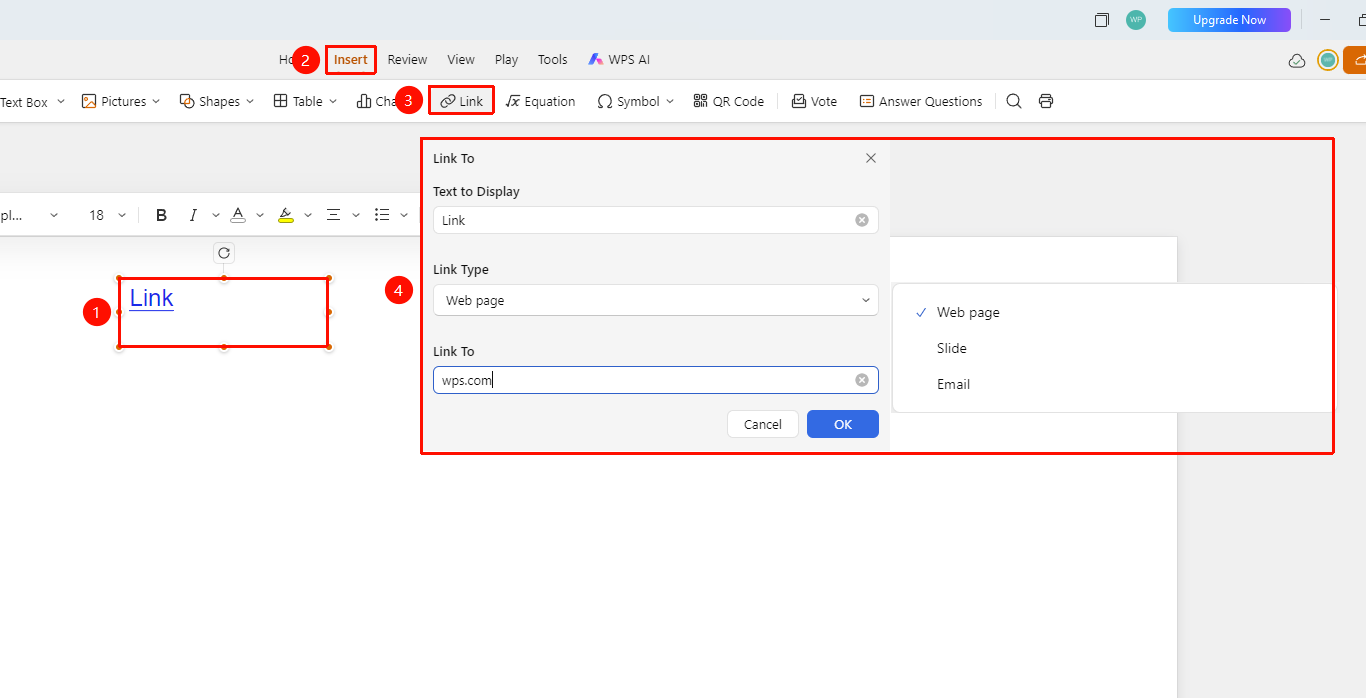
Feature Entry 1
「Insert」 tab → 「Link」 button
- Select the object to which you want to add a link (Docs, text box, shape, picture, etc.)
- Switch to the 「Insert」 tab at the top of the page
- Click the 「Link」 button in the ribbon
- Select the link type in the pop-up dialog box:
- Web Link: Enter a URL to link to an external web page
- Slide Link: Select another slide in the current presentation
- File Link: Link to a local or network file
- Enter or select the link target
- Click OK to complete the link insertion
Shortcut: Windows device: Ctrl+K, Mac device: Cmd+K
Feature Entry 2
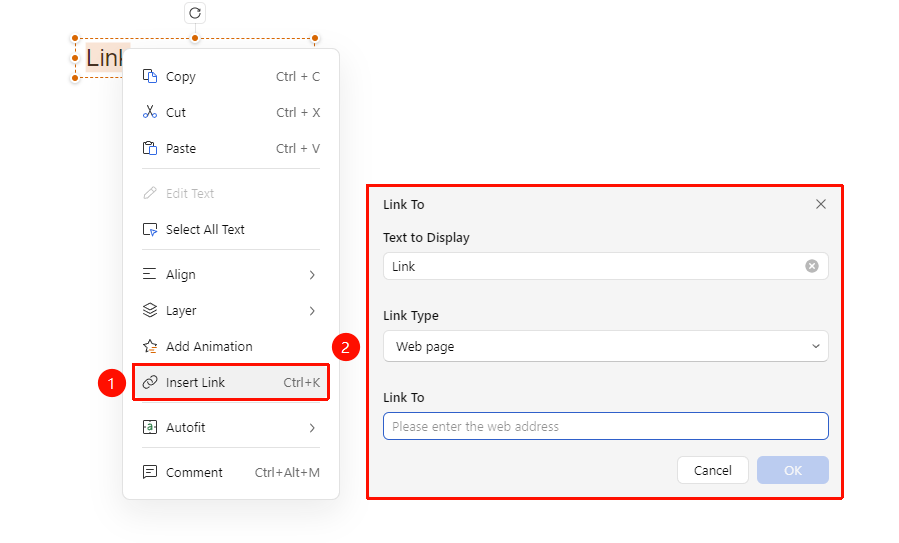
Object right-click menu → 「Insert Link」
- Select the object to which you want to add a link (Docs, text box, shape, picture, etc.), right-click to bring up the right-click menu
- Click the 「Insert Link」 option in the right-click menu
- Select the link type in the pop-up dialog box:
- Enter or select the link target
- Click OK to complete the link insertion
Manage Links
Feature Entry
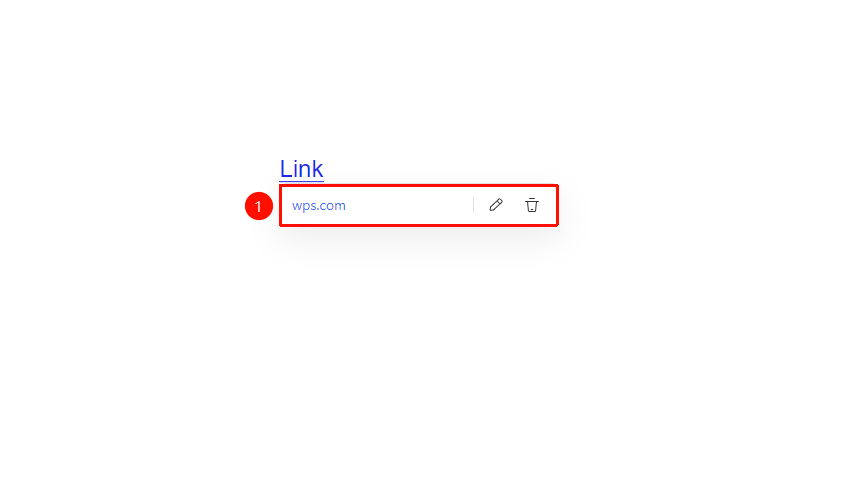
Link floating toolbar
- Move the mouse over the object with an added link, and the floating toolbar will automatically appear
- Select the manage link option in the floating toolbar:
- Link Address: Click to jump directly
- Edit Link (✏ icon): Re-edit the link content
- Remove Link: Delete the link while keeping the link text content
FAQ
Q1: How to edit an inserted link?
- Solution: Right-click the object with the link and select "Edit Link" to modify the link target.
Q2: How to delete a link?
- Solution: Right-click the object with the link and select "Remove Link" to remove the link.
Q3: Does the link work in slideshow mode?
- Solution: Yes, the link can be clicked and used normally in slideshow playback mode.
Notes
- The link text should clearly describe the link target
- It is recommended to test the link to ensure correctness
- Slide links are suitable for creating navigation directories