Feature Summary
In WPS Slides collaboration mode, undoing mistakes or redoing previously undone actions is a basic feature in presentation editing.
Feature Description
| Feature Dimension | Description |
|---|---|
| Membership Restriction | No membership restriction |
| Version Restriction | No version restriction |
Steps
Undo
Feature Entry
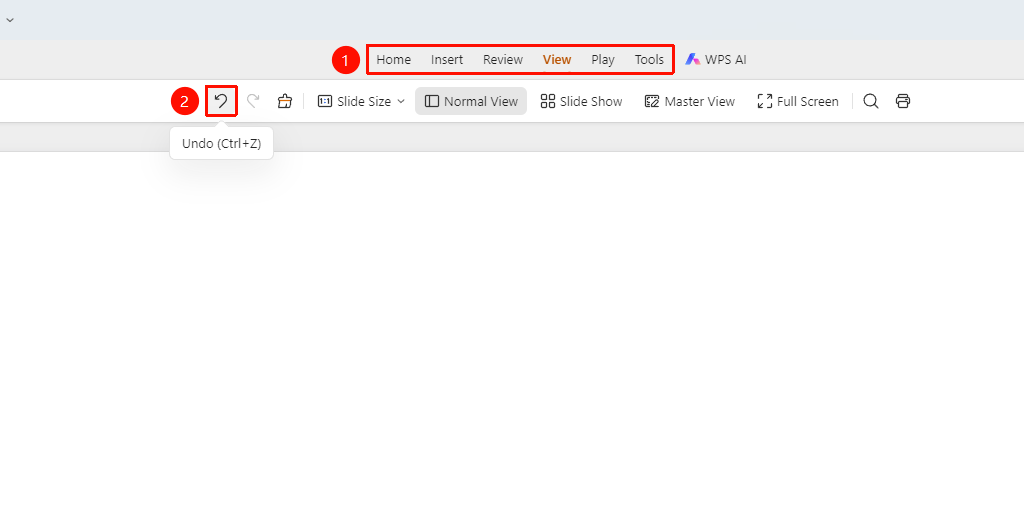
Any tab on the ribbon → Undo button (Windows shortcut: Ctrl+Z; Mac shortcut: Cmd+Z)
- Click the Undo button on any tab of the ribbon
- Or use the shortcut Ctrl+Z (Mac shortcut: Cmd+Z) to undo the last action
- You can undo multiple times to return to a previous state
Redo
Feature Entry
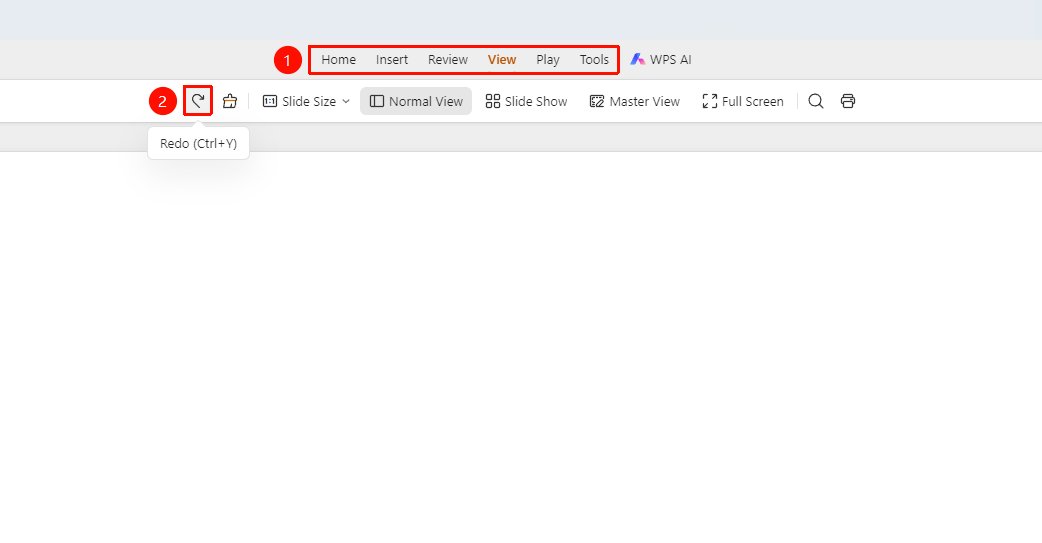
Any tab on the ribbon → Redo button (Windows shortcut: Ctrl+Y; Mac shortcut: Cmd+Y)
- Click the Redo button on any tab of the ribbon
- Or use the shortcut Ctrl+Y (Mac shortcut: Cmd+Y) to redo the undone action
- The redo feature can re-execute the undone action
FAQ
Q1: What should I do if the Undo button is grayed out?
- Solution: If no action has been performed, the Undo button will be grayed out and unclickable.
Q2: Can Undo and Redo be used alternately?
- Solution: Yes, Undo and Redo can be used alternately.
Notes
- It is recommended to save the document before important operations
- Undo actions will roll back in sequence; intermediate steps cannot be skipped