Summary
In WPS Slides collaboration mode, set the automatic adjustment method when text exceeds the text box to ensure the text content is displayed completely.
Feature Description
| Feature Dimension | Description |
|---|---|
| Membership Restriction | No membership restriction |
| Version Restriction | No version restriction |
Steps
Set Text Overflow Method
Feature Entry 1
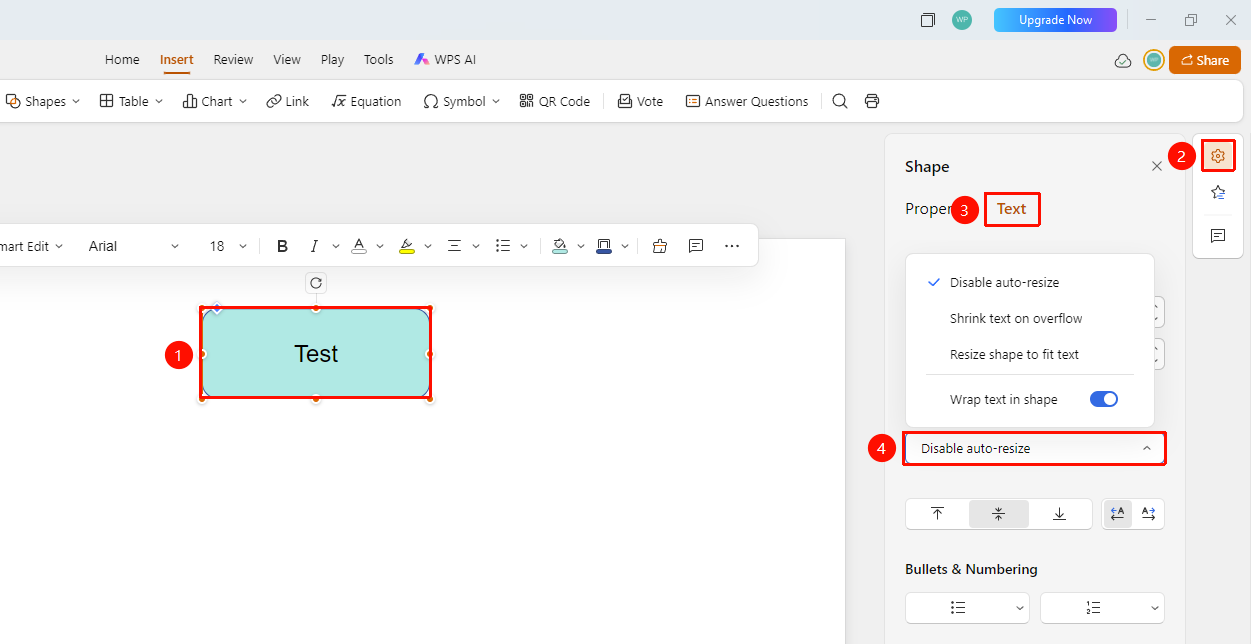
Right task pane → "Format" → "Docs" tab → "AutoFit" area
- Select the text box or shape you want to set
- Click the "Format" icon in the task pane
- Switch to the "Docs" tab
- Scroll to the bottom to find the "AutoFit" area
- Select the overflow handling method:
- Do not Autofit: Keep the original size, hide the overflowing part
- Shrink text on overflow: Automatically reduce font size to fit the text box
- Resize shape to fit text (currently selected): Automatically expand the text box to accommodate all text
- You can also set the "Wrap text in shape" toggle
Feature Entry 2
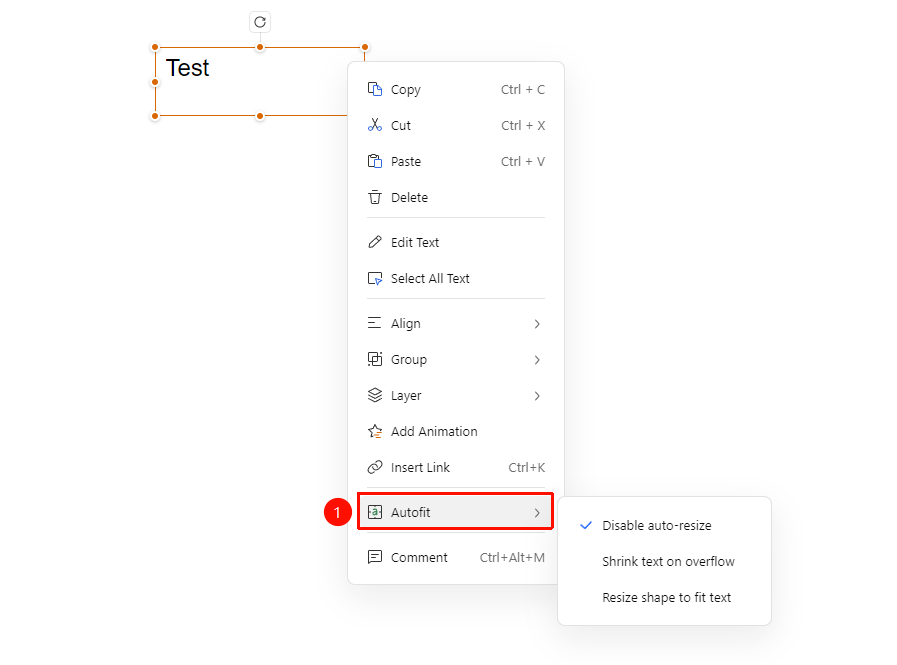
Text box / Shape right-click menu → "AutoFit" option
- Right-click the text box or shape you want to set to bring up the right-click menu
- Find and click the "AutoFit" option in the right-click menu
- Select the overflow handling method:
- Do not Autofit: Keep the original size, hide the overflowing part
- Shrink text on overflow: Automatically reduce font size to fit the text box
- Resize shape to fit text (currently selected): Automatically expand the text box to accommodate all text
FAQ
Q1: What should I do if the text is not displayed completely?
- Solution: Select "Resize shape to fit text" to allow the text box or shape to expand automatically.
Q2: How do I make text wrap automatically?
- Solution: Enable the "Wrap text in shape" option, and the text will wrap automatically according to the width of the text box or shape.
Q3: Will shrinking the text affect readability?
- Solution: If the text is too small, it will affect readability. It is recommended to prioritize adjusting the size of the text box or shape.
Notes
- Choose the appropriate overflow handling method based on actual needs
- For titles, it is recommended to use "Resize shape to fit text" to keep the display complete
- For body text, you can use "Do not Autofit" combined with manual typesetting