Feature Summary
In WPS Slides collaboration mode, you can create new slides in various ways, including blank pages, layouts, and AI generation.
Feature Description
| Feature Dimension | Description |
|---|---|
| Membership Limits | No membership limits |
| Version Limits | No version limits |
Operating Steps
Create a Blank Slide
Feature Entry
"Start" tab → "New Slide" drop-down button
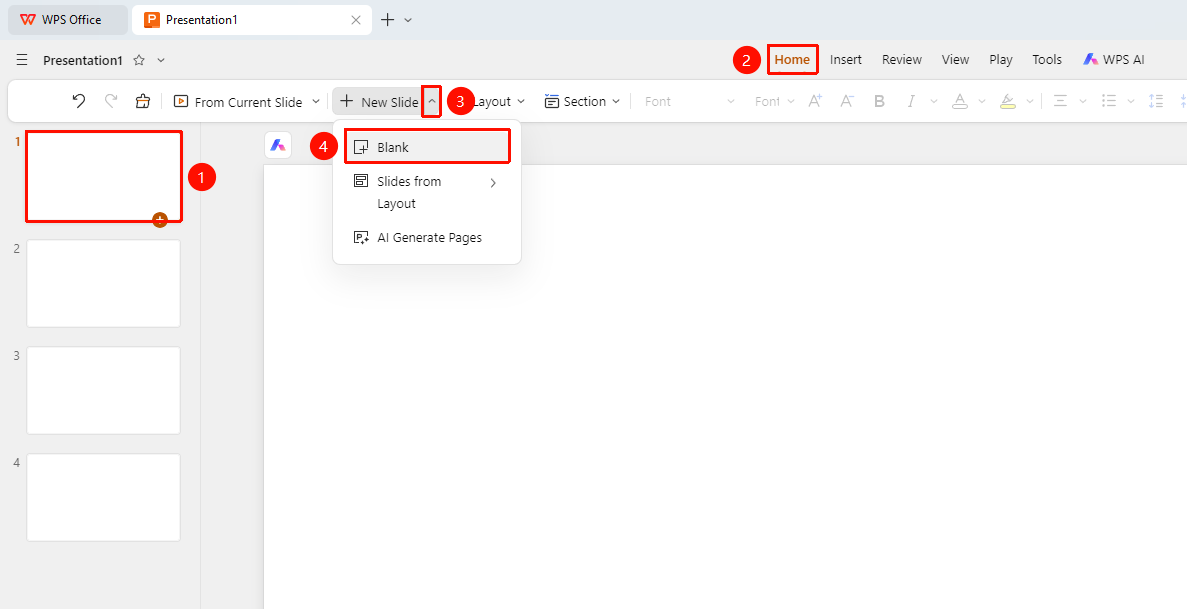
- Locate the slide where you want to insert a new slide.
- Switch to the "Start" tab in the top ribbon.
- Click the "New Slide" drop-down button in the toolbar.
- Select "New Blank Page" from the drop-down menu.
- A new blank slide will be automatically created after the current slide.
Create a Slide from Layout
Feature Entry
"Start" tab → "New Slide" drop-down → "New from Layout"
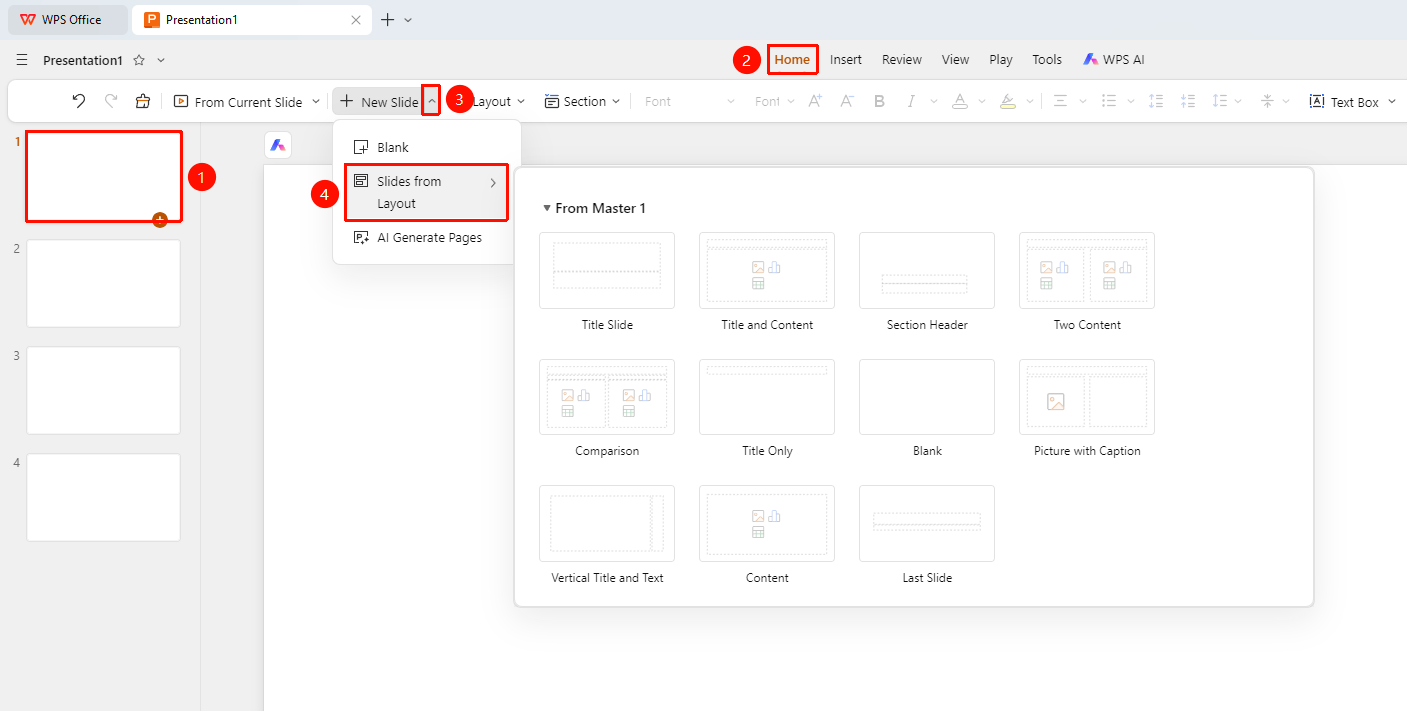
- Locate the slide where you want to insert a new slide.
- Switch to the "Start" tab in the top ribbon.
- Click the drop-down arrow next to the "New Slide" button.
- Select "New from Layout".
- Select the desired layout from the layout panel that appears.
- Once selected, a new slide with that layout will be created after the current slide.
Create a Slide via AI
Feature Entry
"Start" tab → "New Slide" drop-down → "AI Generate Pages"
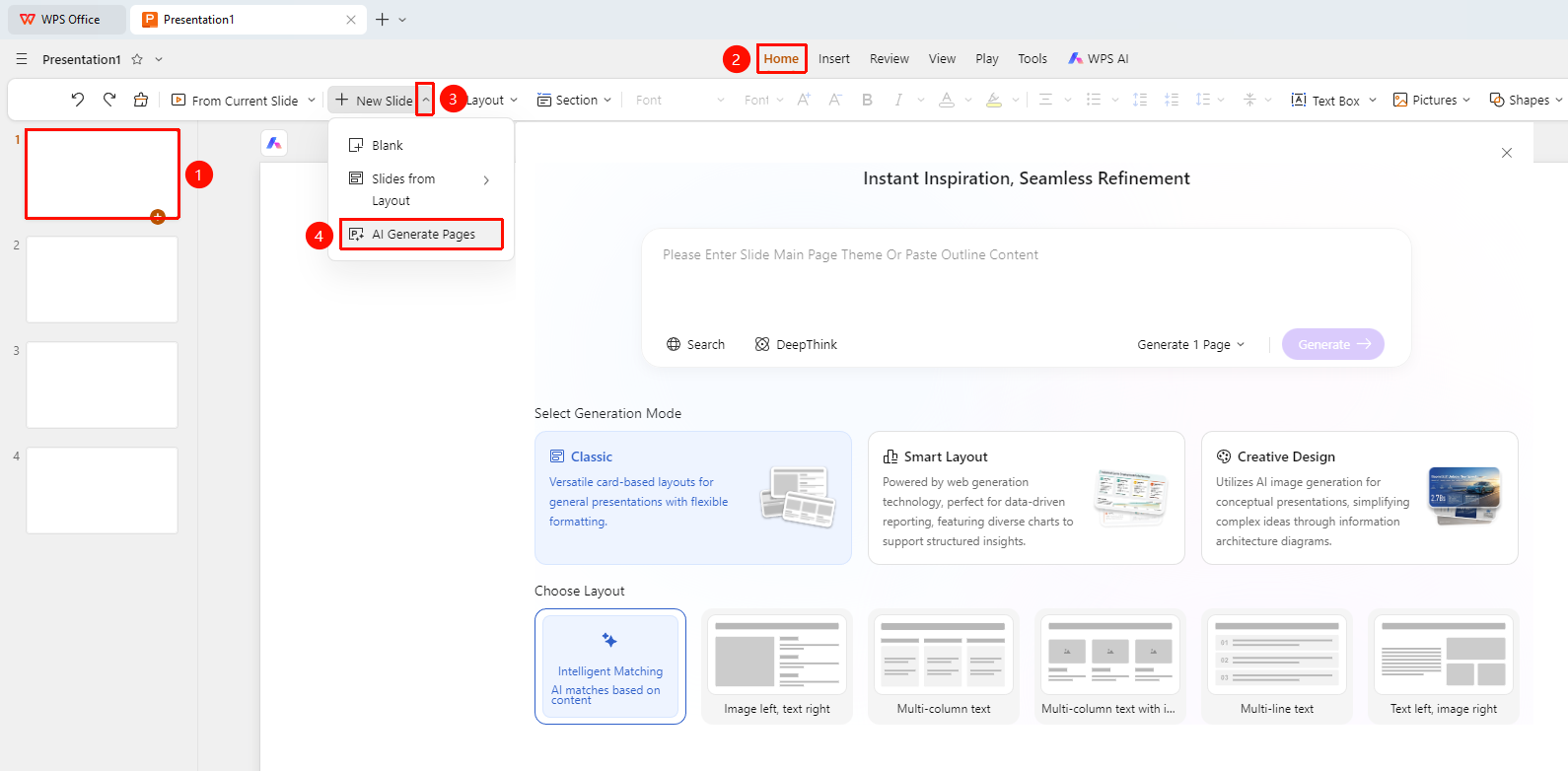
- Locate the slide where you want to insert a new slide.
- Switch to the "Start" tab in the top ribbon.
- Click the drop-down arrow next to the "New Slide" button.
- Select "AI Generate Pages".
- Enter the topic/outline as prompted.
- Select "Generation Mode" and "Layout".
- The AI will automatically generate the corresponding slide content.
Create a Slide via Slide Thumbnails
Feature Entry
Slide thumbnail area
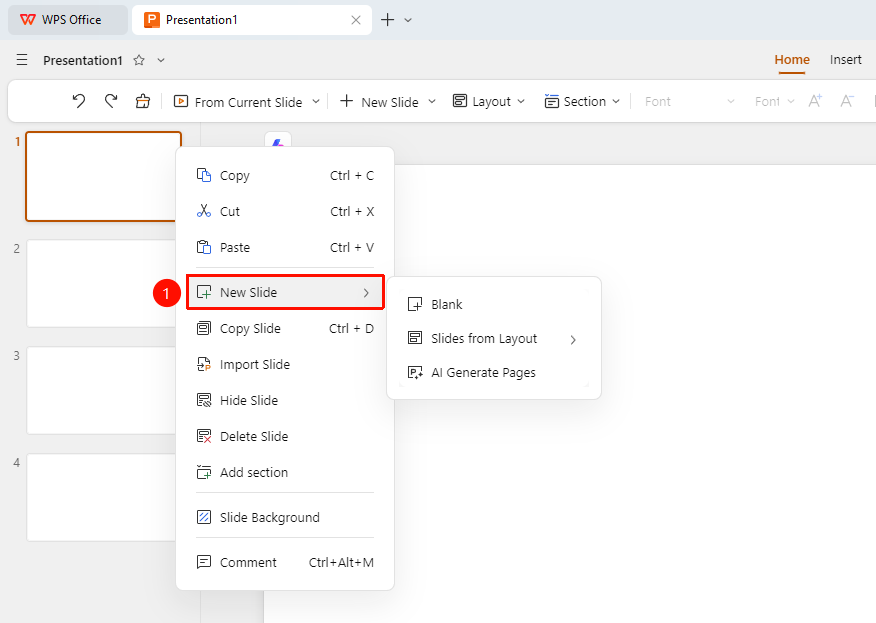
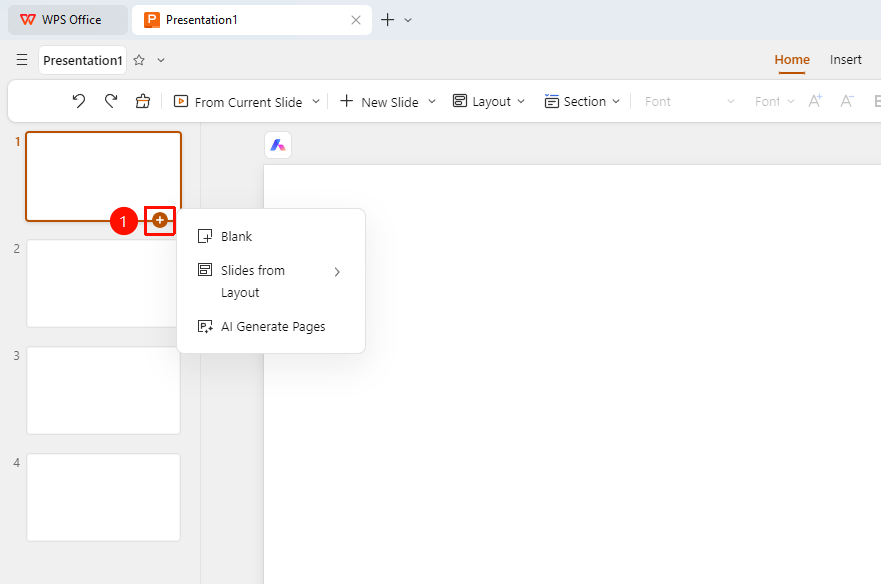
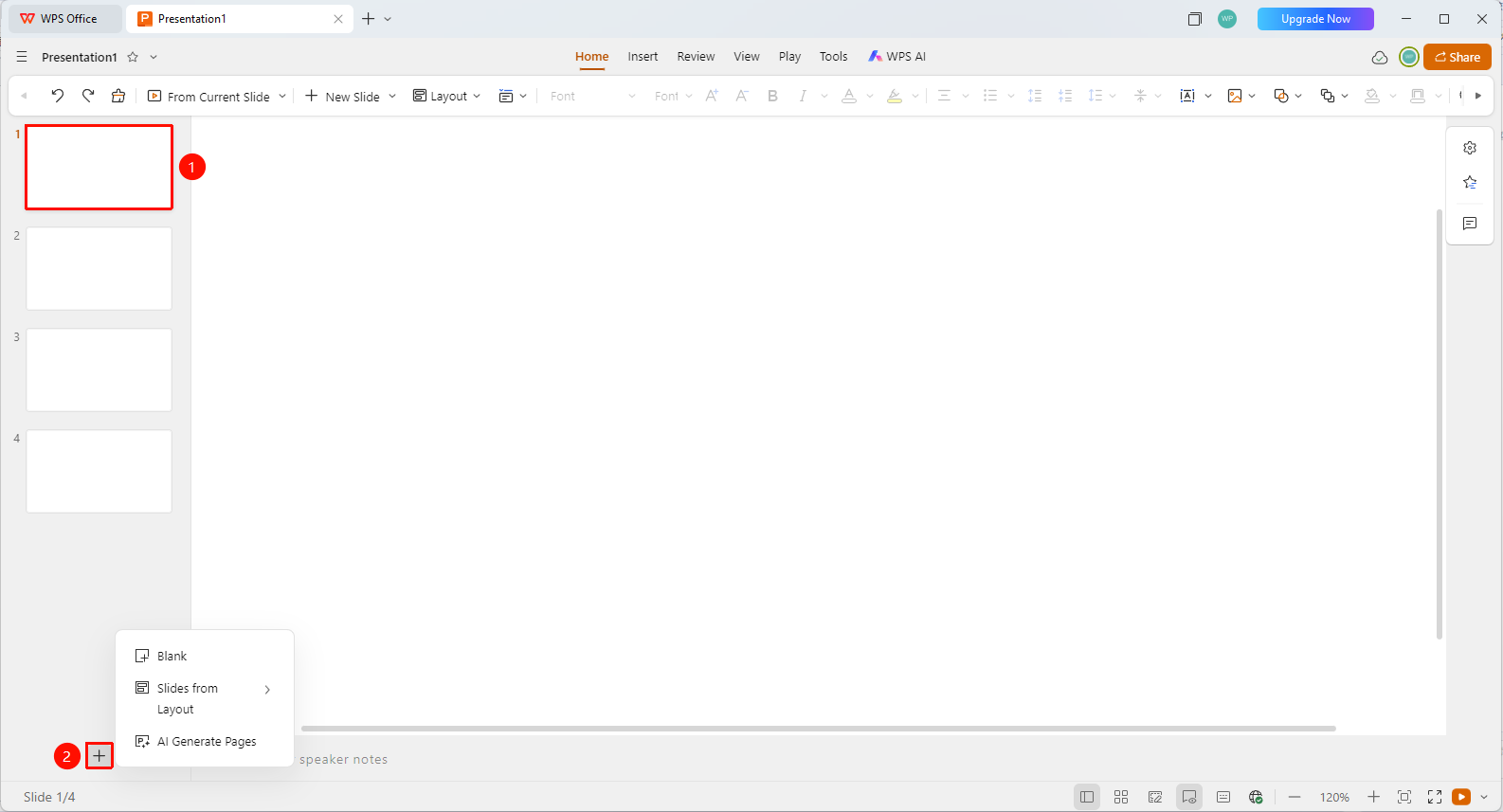
Locate the slide thumbnail where you want to insert a new slide, and create it in one of the following ways:
- Right-click the slide thumbnail, select "New Slide" from the context menu, and choose a creation method.
- Click the "New Slide" option at the bottom of the slide thumbnail, and choose a creation method.
- Click the "+" button at the bottom of the slide thumbnail area, and choose a creation method.
A new slide will be automatically created after the currently selected slide based on your choice.
FAQ
Q1: Where is the new slide created?
- Solution: By default, the new slide is created after the currently selected slide.
Q2: How do I choose a different layout?
- Solution: Click the drop-down arrow of the New Slide button to select from different preset layouts.
Q3: How do I edit AI-generated content?
- Solution: AI-generated content can be edited and modified just like regular content.
Notes
- We recommend choosing an appropriate layout based on your content type.
- The AI generation feature can quickly create a content framework.
- The new slide will inherit the theme style of the current presentation.