Feature Summary
In WPS Slides collaboration mode, using Normal view for daily editing is the most commonly used editing interface.
Feature Description
| Feature Dimension | Description |
|---|---|
| Membership Restriction | No membership restriction |
| Version Restriction | No version restriction |
Operation Steps
Switch to Normal View
Feature Entry 1
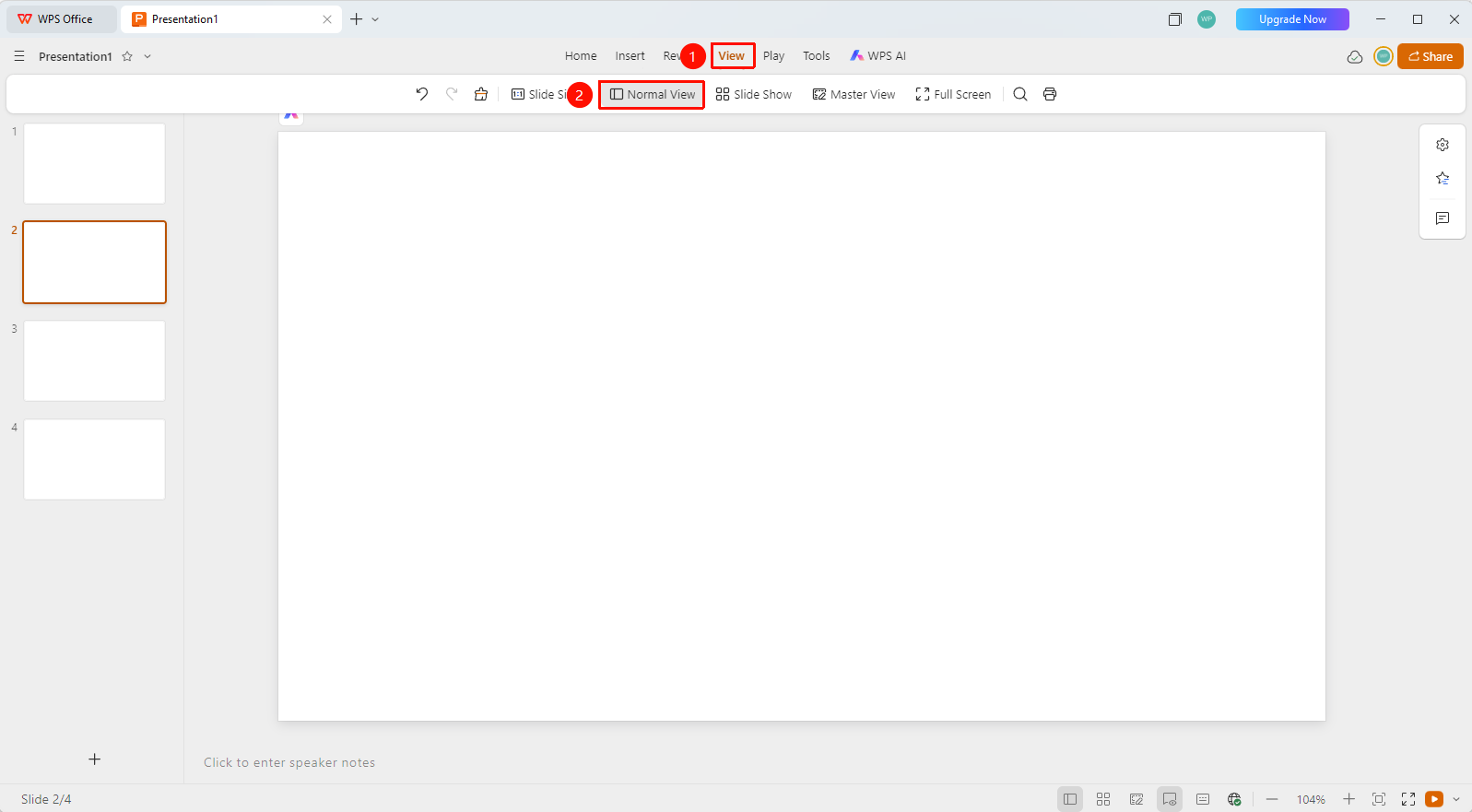
「View」 tab → 「Normal View」 button
- Click the 「View」 tab in the top menu bar
- Click the 「Normal View」 button in the toolbar
- The interface will switch to Normal view mode
- Normal view contains three areas:
- Left Thumbnails: Displays thumbnails of all slides
- Center Editing Area: The editing area for the current slide
- Right Toolbar: Settings panels for formatting, animations, etc.
Feature Entry 2
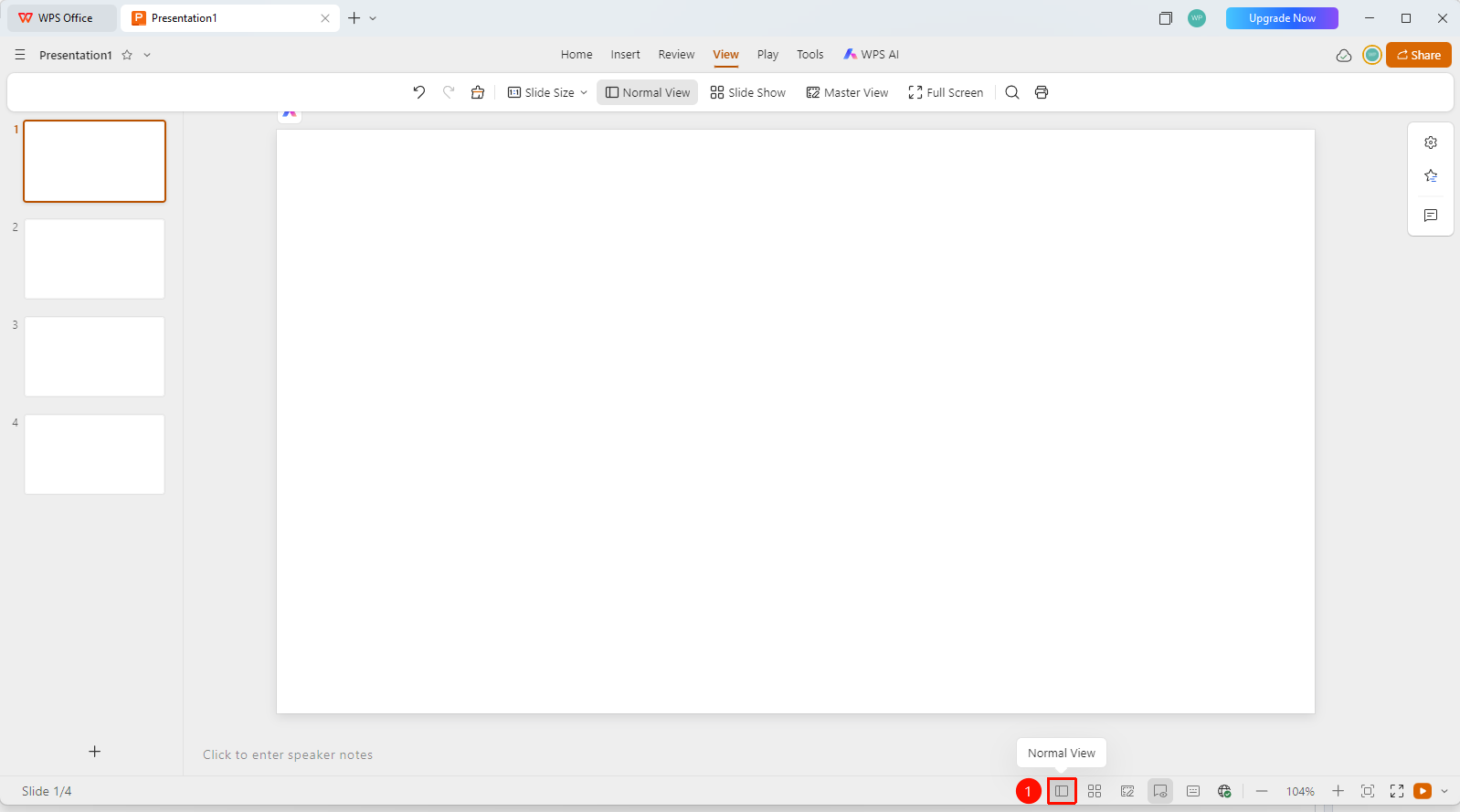
Bottom status bar → 「Normal View」 button
- Click the 「Normal View」 button in the bottom status bar
- The interface will switch to Normal view mode
FAQ
Q1: What is the difference between Normal view and other views?
- Solution: Normal view is the most commonly used editing view, allowing you to view thumbnails and edit content simultaneously.
Q2: How to quickly switch to Normal view?
- Solution: Click the "Normal View" button in the View tab.
Q3: Can the area sizes be adjusted in Normal view?
- Solution: Yes, you can drag the dividers between areas to adjust their sizes.
Notes
- Normal view is the default editing view
- Daily content editing is mainly performed in this view
- You can adjust the display ratio of each area as needed