Feature Summary
In WPS Slides Collaborate Mode, the slide display ratio is automatically adjusted to fit the editing window at the optimal size.
Feature Description
| Feature Dimension | Description |
|---|---|
| Membership Restriction | No membership restriction |
| Version Restriction | No version restriction |
Steps
Adjust Display Ratio
Feature Entry
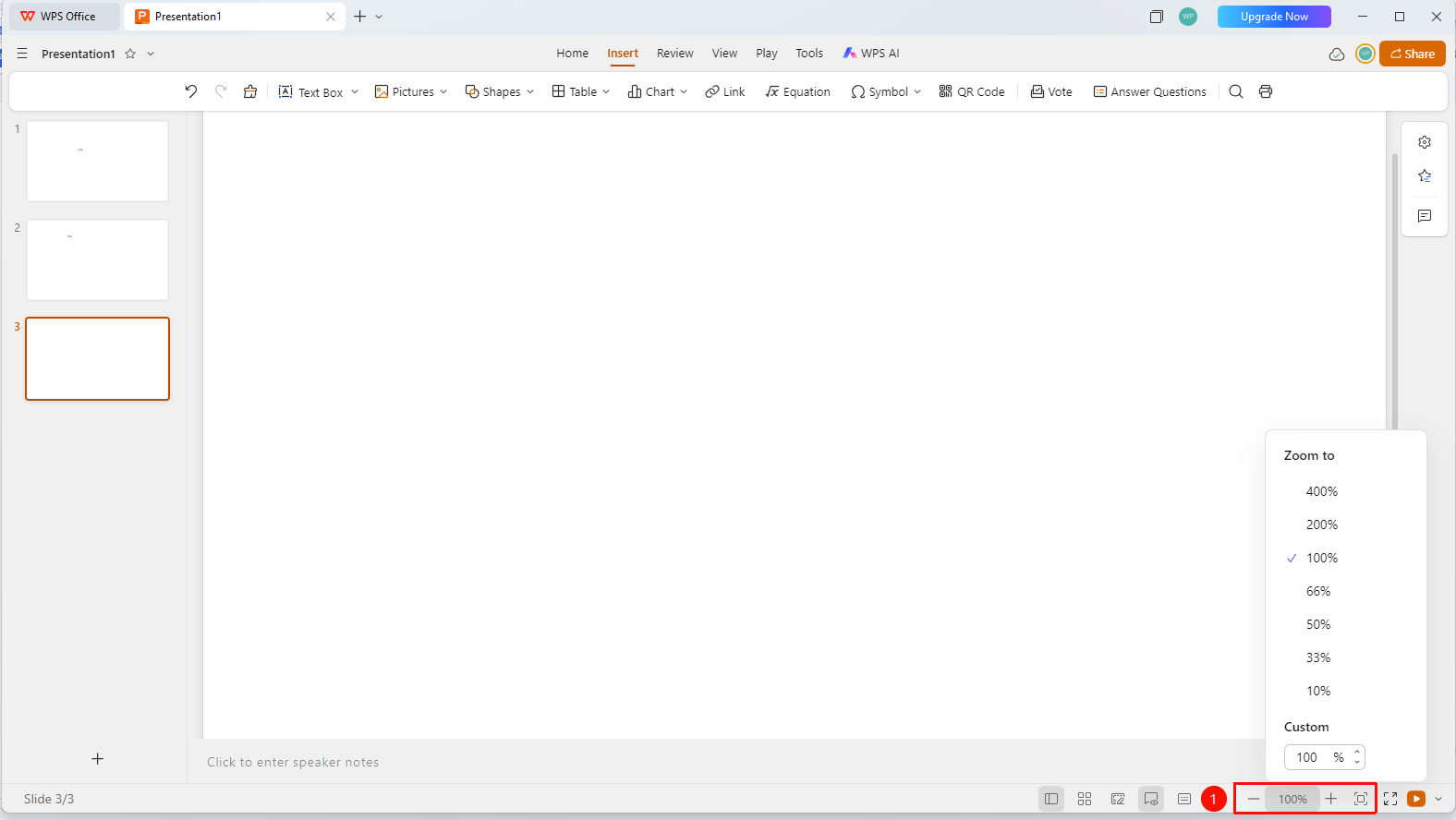
Bottom status bar → Display ratio area
- The current display ratio (e.g., 110%) is shown in the bottom status bar display area
- Click the 「+」 and 「-」 buttons to zoom in or out
- Click the display ratio input box to quickly apply a preset ratio or directly enter a specific percentage value
- Click the 「Best Fit」 button to automatically adjust the display ratio based on the current screen size
FAQ
Q1: What is the use of Best Fit display ratio?
- Solution: It allows you to quickly adjust the slide to a size that fits the entire display, making it easy to view the overall effect.
Q2: How to quickly return to 100% display?
- Solution: Click the display ratio area, enter 100, or select "100%".
Q3: Does the display ratio affect printing?
- Solution: No, the display ratio only affects the on-screen display. Printing uses the actual size.
Notes
- It is recommended to use the Best Fit display ratio to view the overall slide effect
- When editing details, you can zoom in to a larger ratio
- During a slideshow, it will automatically display in full screen
- Press and hold Ctrl + mouse wheel to quickly adjust the display ratio