Feature Summary
In WPS Slides collaboration mode, add soft edge effects to objects (shapes, pictures, etc.) to make the edges of objects softer and more natural.
Feature Description
| Feature Dimension | Description |
|---|---|
| Premium Limitation | No premium limitation |
| Version Limitation | No version limitation |
Steps
Set Soft Edge Effects via Sidebar
Feature Entry
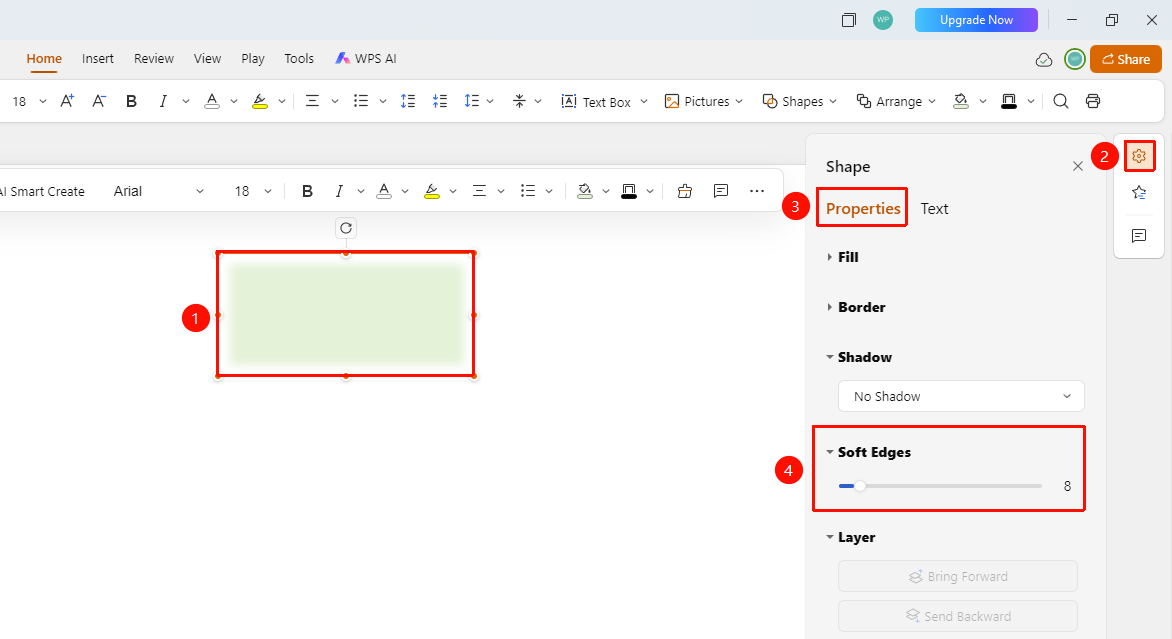
Right task pane > Format option > Properties tab > Soft Edges range
- Select the object (shape, picture, etc.) to which you want to apply the soft edge effect.
- Click the Format option in the task pane on the right.
- Switch to the Properties tab.
- You can see the soft edges slider in the Soft Edges range.
- Drag the slider to adjust the soft edge level (the larger the value, the softer the edges).
FAQ
Q1: How do I adjust the soft edge effect if it is too strong?
- Solution: Drag the soft edges slider to the left to decrease the soft edge value and weaken the effect.
Q2: How do I remove the soft edge effect?
- Solution: Drag the soft edges slider to the far left (value is 0) to remove the soft edge effect.
Q3: Will the soft edge effect affect object clarity?
- Solution: Soft edges only make the edges softer. If the soft edge value is too large and the object size is small, the clarity of the center position will be affected.
Notes
- The soft edge effect is suitable for creating gradient and hazy visual effects.
- We recommend that you adjust to an appropriate soft edge level based on actual needs.
- It can be used in combination with other effects (shadow, transparency).