Feature Summary
In WPS Slides collaboration mode, quickly find and replace text content in presentations to improve editing efficiency.
Feature Description
| Feature Dimension | Description |
|---|---|
| Member Limit | No membership limits |
| Version Limit | No version limits |
Steps
Open Find and Replace via the Ribbon
Feature Entry
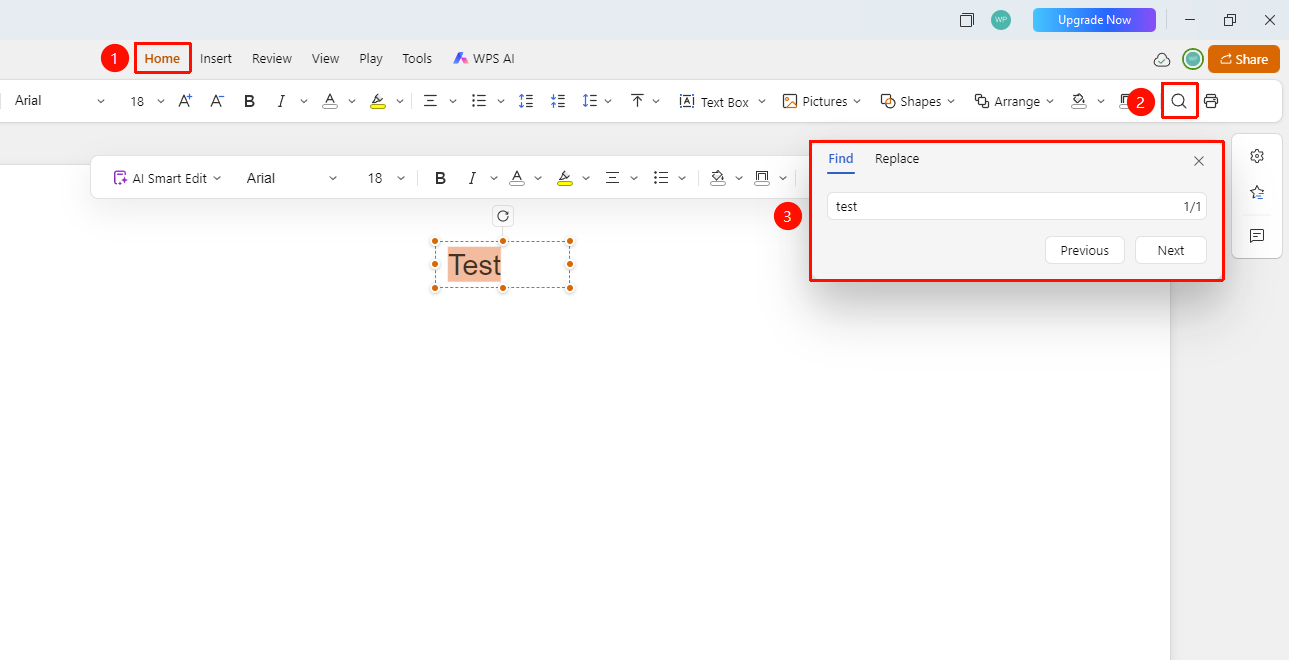
Any tab → "Find and Replace" button
- Click any tab on the top ribbon (such as the "Home" tab).
- Find and click the "Find and Replace" button (magnifying glass icon).
- Or use the shortcut Ctrl+F (Mac: cmd+F) to open the find panel.
- Enter the text you want to find in the search box.
- The system will automatically locate the matching content.
Perform Replace Operation
Feature Entry
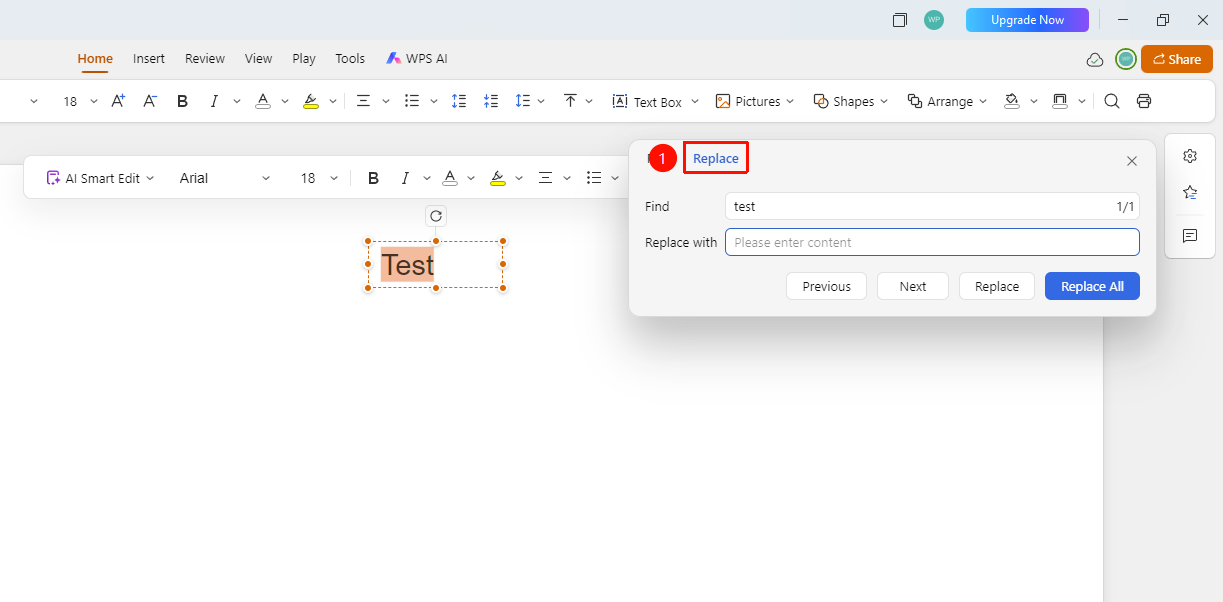
Find panel → Replace option
- Switch to replace mode in the find panel.
- Enter the original text in the "Find" box.
- Enter the new text in the "Replace with" box.
- Click the "Replace" button to replace items one by one.
- Or click the "Replace All" button to replace all matches at once.
FAQ
Question 1: Can I limit the search range?
- Solution: Limiting the search range is not supported. The search will be performed across the entire presentation.
Question 2: How do I find special characters?
- Solution: Click the special characters button to insert special characters such as tabs and paragraph marks.
Notes
- We recommend previewing the search results before replacing.
- Exercise caution when using "Replace All".
- You can use wildcards for fuzzy matching.