Feature Summary
In WPS Slides collaboration mode, use the Format Painter to quickly copy the formatting styles of an object and apply them to other objects to improve editing efficiency.
Feature Description
| Feature Dimension | Description |
|---|---|
| Premium Limits | No premium limits |
| Version Limits | No version limits |
Steps
Using the Format Painter from the Ribbon
Feature Entry
Any tab → Format Painter button
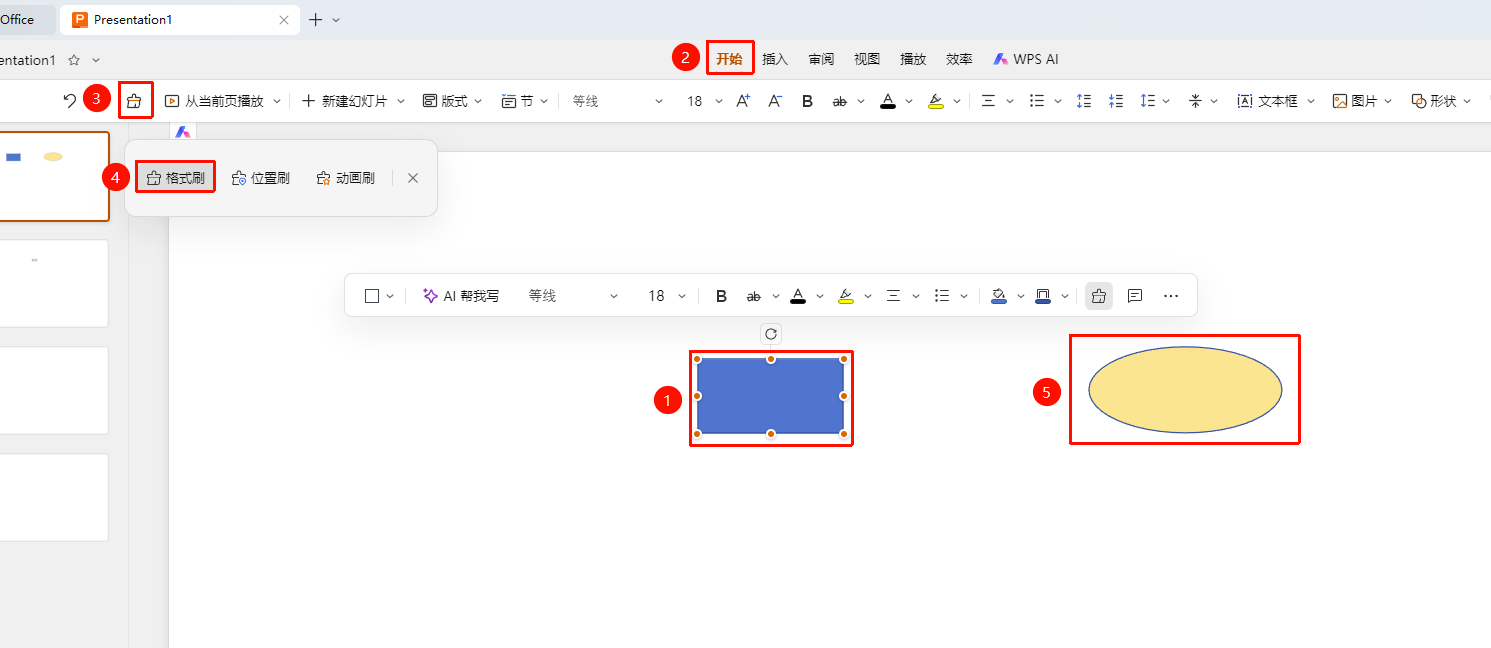
Select an object that already has formatting applied (as the format source).
Click any tab on the top menu bar (such as the Home tab).
Click the Format Painter button (brush icon) and choose from the following brush effects:
- Format Painter: Apply the formatting of the selected object to other objects.
- Position Painter: Apply the position of the selected object to other objects.
- Animation Painter: Apply the animation effects of the selected object to other objects.
The mouse cursor will change to a brush shape.
Click or drag to select the target objects to which you want to apply the formatting, position, or animation effects.
Double-clicking the Format Painter for Continuous Use
Feature Entry
Home tab → Double-click the Format Painter button
- Double-click the Format Painter button to lock its status.
- You can apply formatting to different objects multiple times in succession.
- Press Esc or click the Format Painter button again to exit continuous use mode.
FAQ
Q1: Can the Format Painter only copy text formatting?
- Solution: The Format Painter can copy all formatting attributes, including text formatting, shape styles, borders, and fills.
Q2: How do I use the Format Painter continuously?
- Solution: Double-click the Format Painter button to enter continuous use mode, allowing you to apply formatting multiple times.
Notes
- Ideal for unifying the formatting styles of multiple objects.
- Pay attention to the difference between single-use and continuous use modes.