Feature Summary
In WPS Slides collaboration mode, use Master View to edit the unified template style of slides to keep all slides in a consistent format.
Feature Description
| Feature Dimension | Description |
|---|---|
| Member restrictions | No member restrictions |
| Version restrictions | No version restrictions |
Steps
Enter Master View
Feature Entry 1
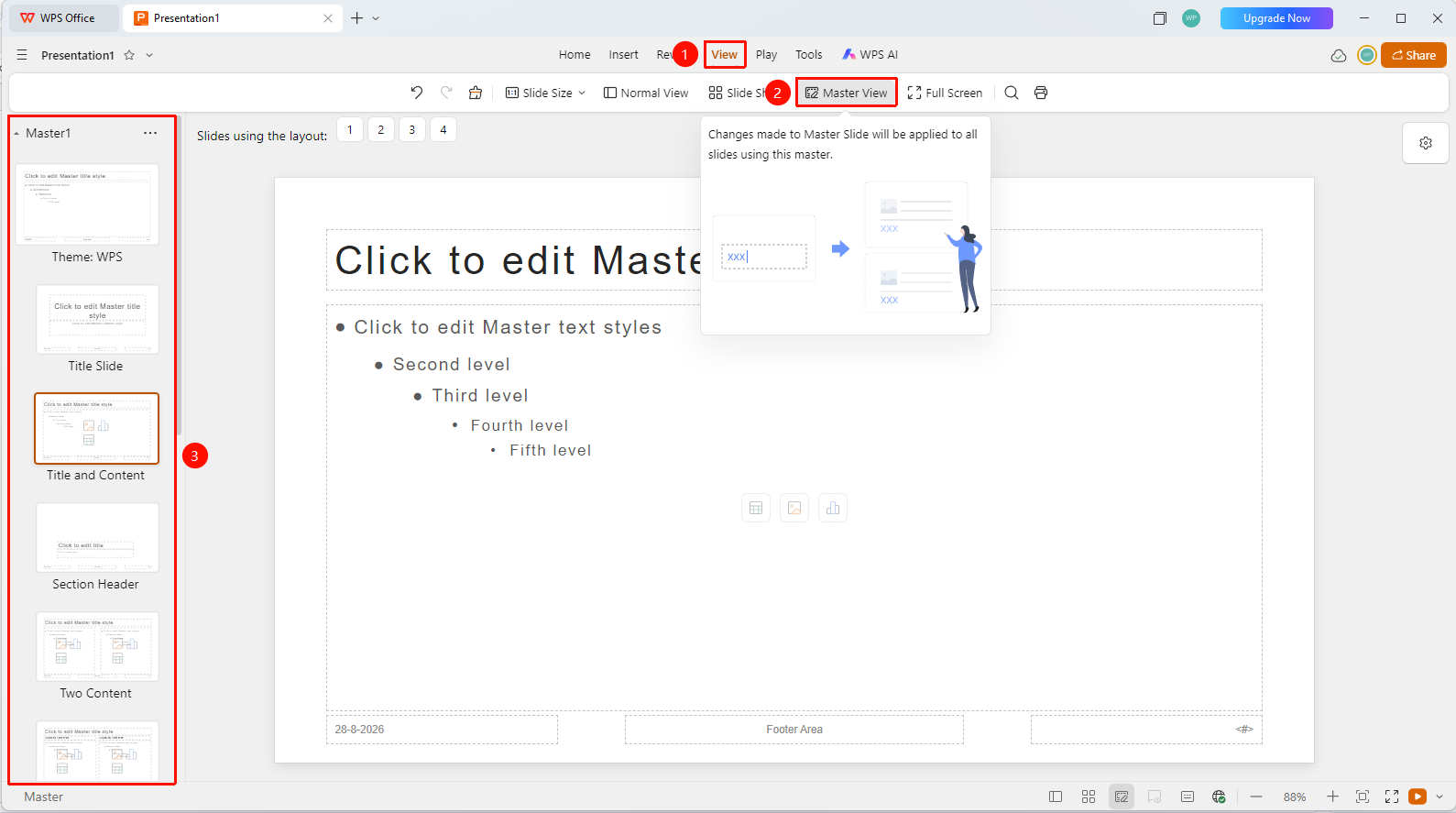
View tab -> Master View button
- Switch to the View tab at the top of the page.
- Click the Master View option on the tab.
- The interface will switch to master edit mode.
- The thumbnails on the left show all available master layouts.
Feature Entry 2
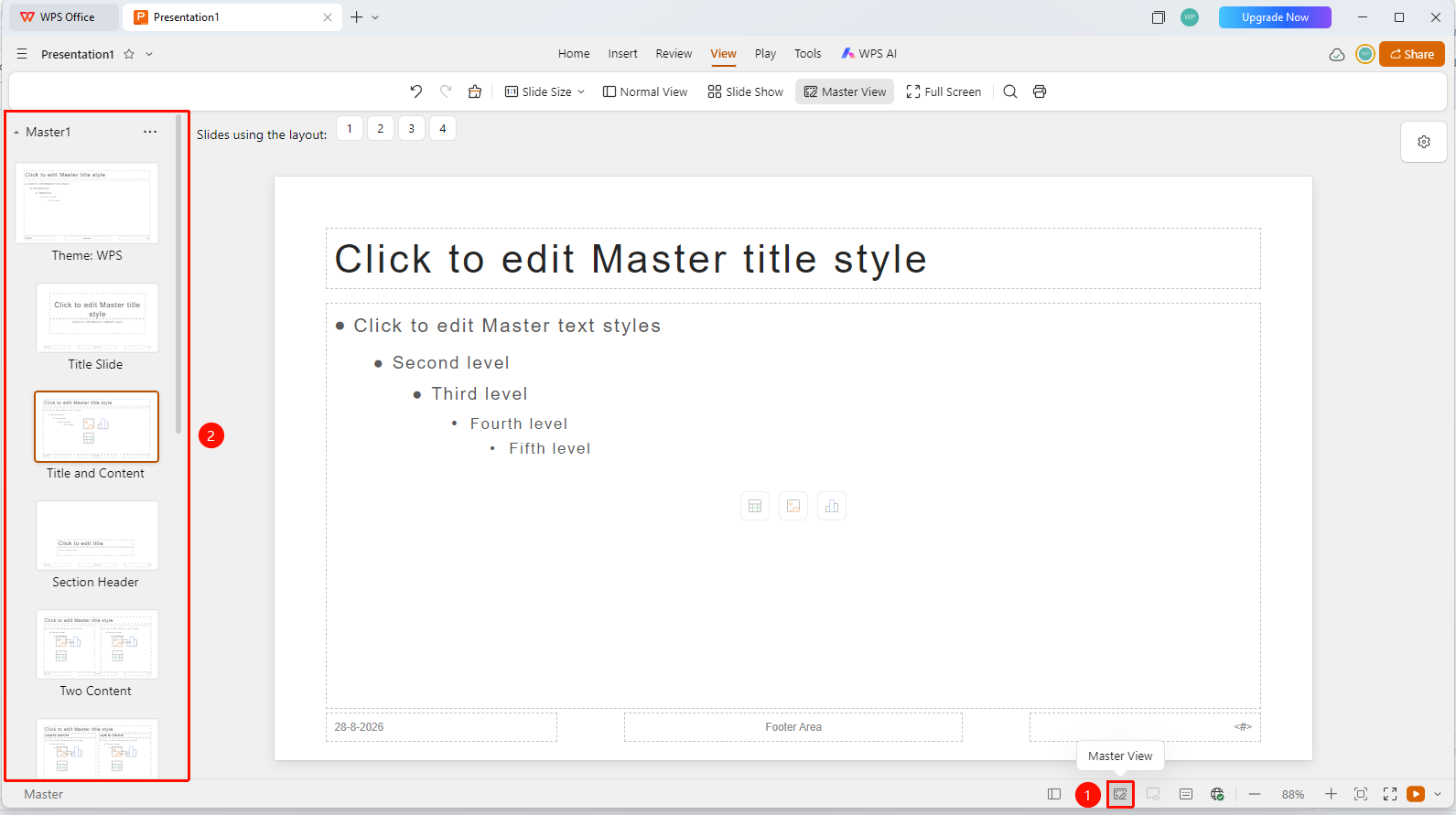
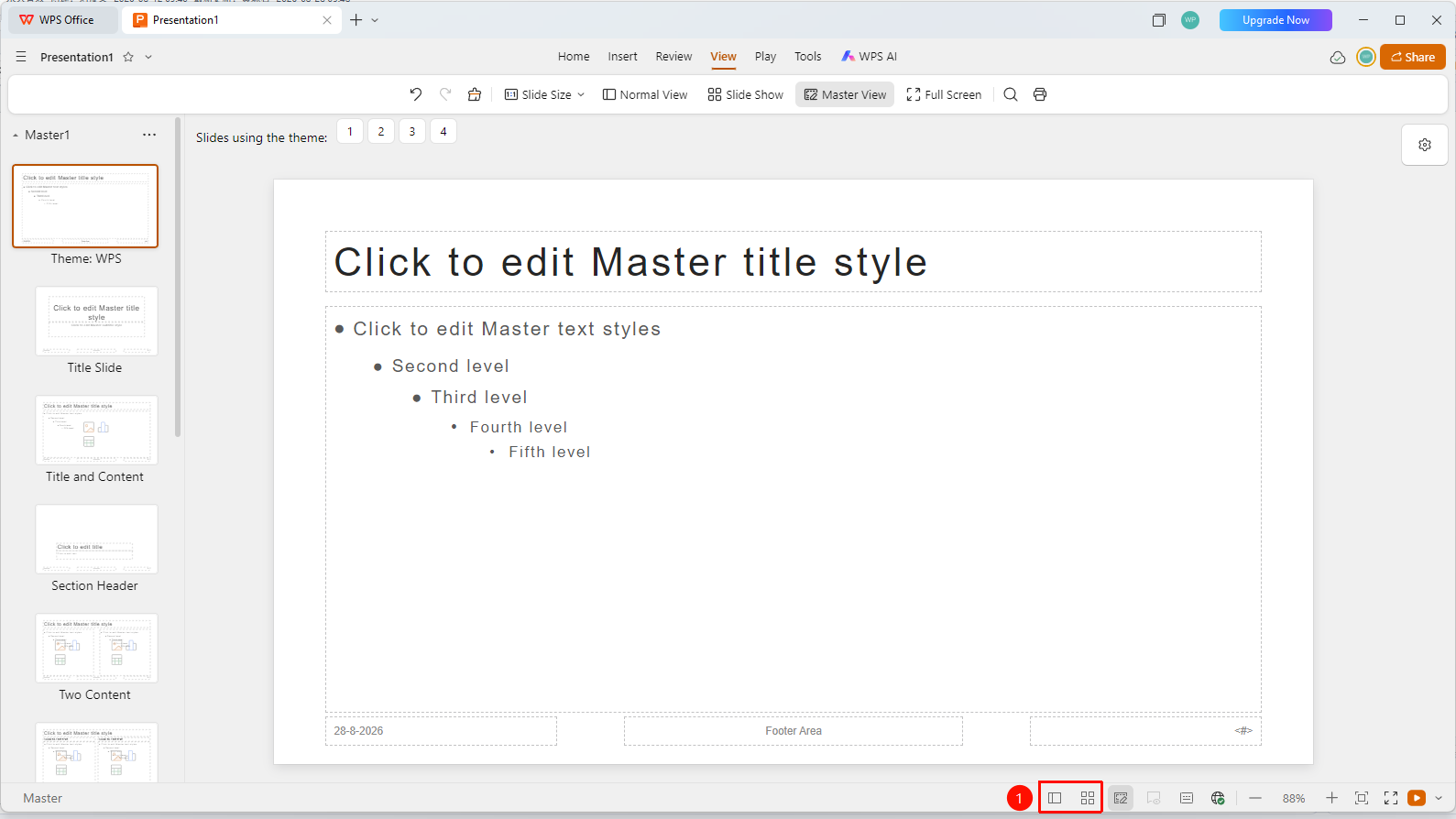
Status bar at the bottom -> Master View button
- Find and click the Master View button on the status bar at the bottom of the page.
- The interface will switch to master edit mode.
- The thumbnails on the left show all available master layouts.
Edit Master Content
Feature Entry
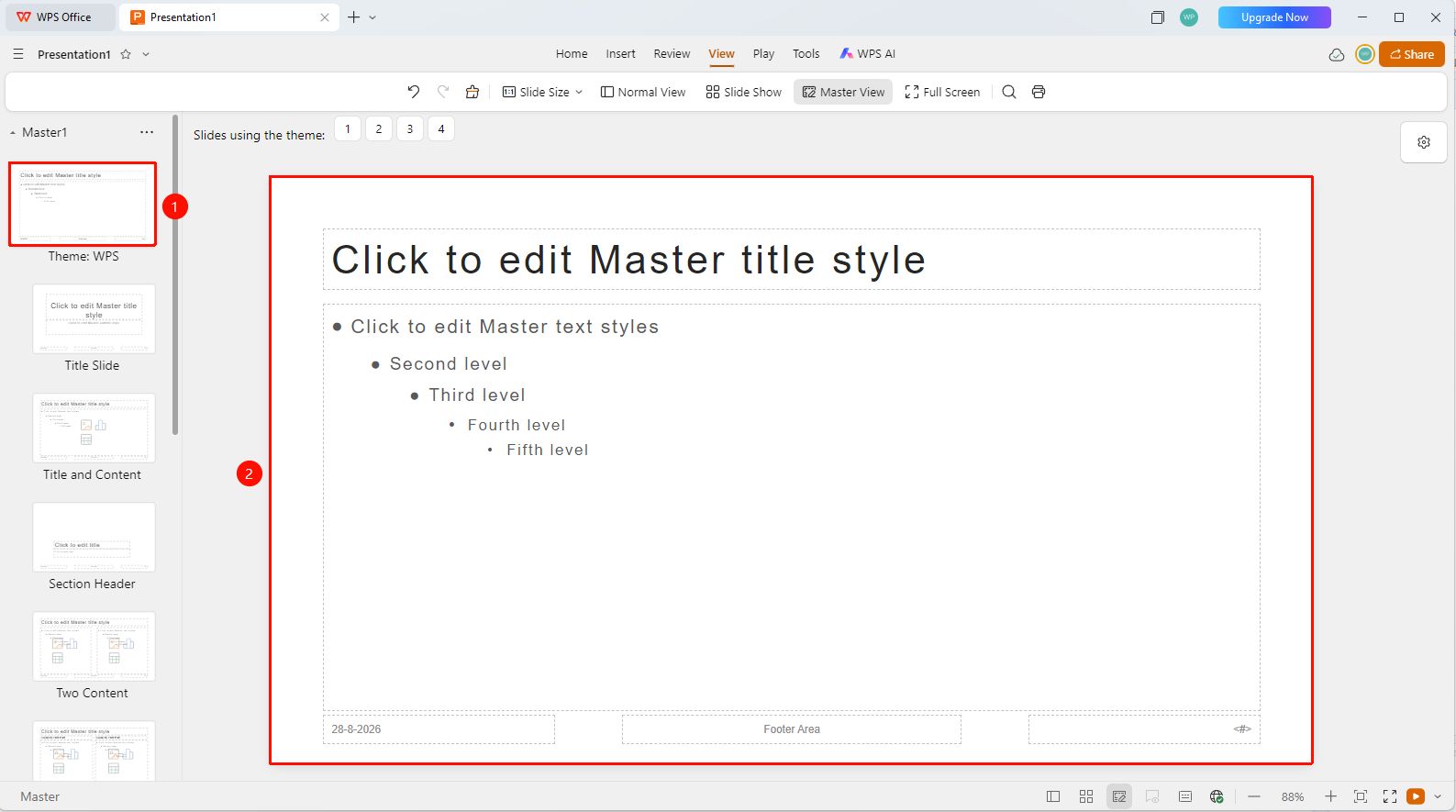
Master View -> Master editing area
Select the master layout you want to edit.
In the editing area, you can modify:
- Fonts and font sizes of titles and body text
- Positions and sizes of placeholders
- Background styles and color schemes
- Header and footer settings
Modifications will be applied to all slides using this layout.
Exit Master View
Feature Entry 1
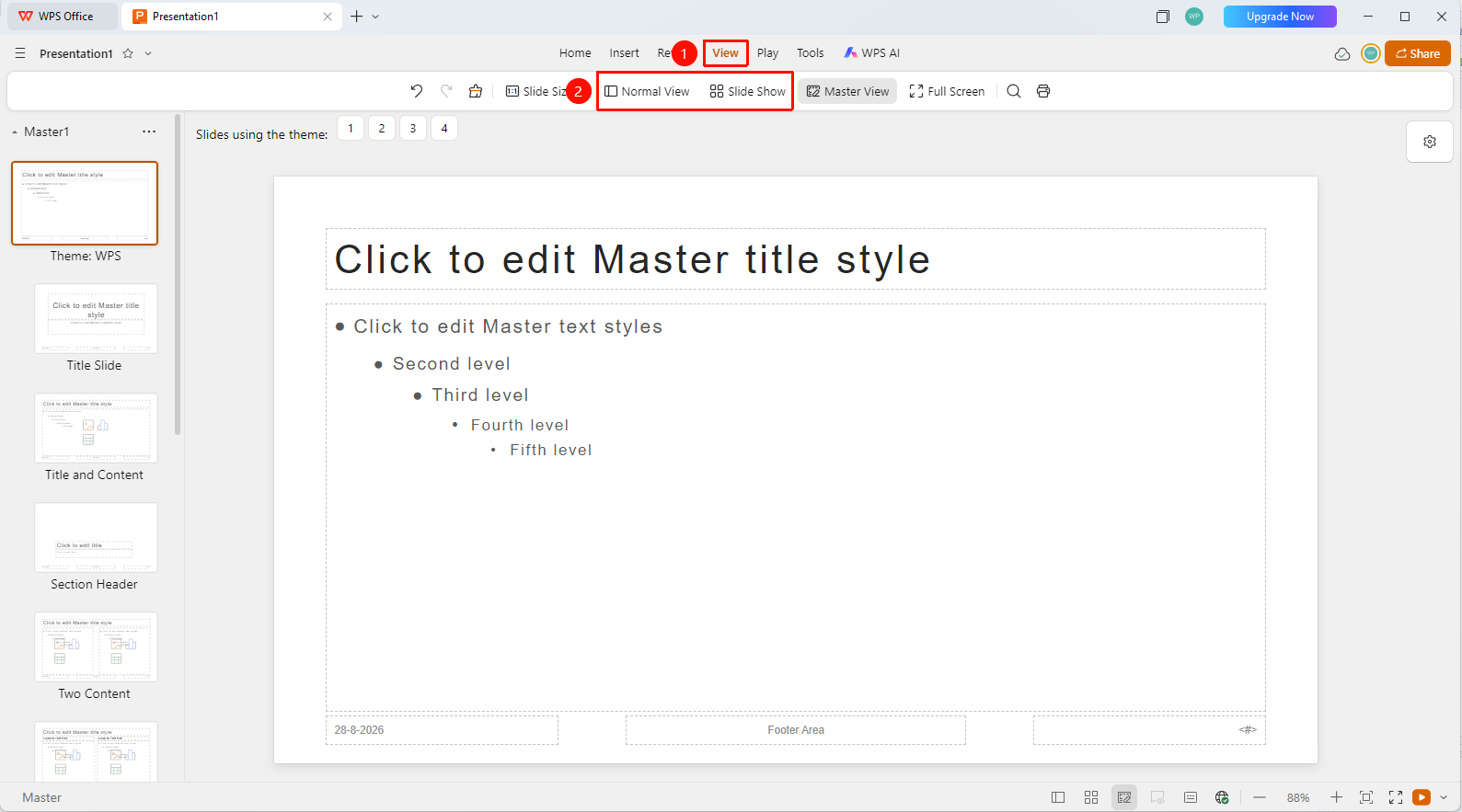
View tab -> Normal View / Slide Sorter
- After editing, switch to the View tab at the top of the page.
- Click the Normal View or Slide Sorter option.
- Return to the normal editing view.
- All slides applying this master will be automatically updated.
Feature Entry 2
Status bar at the bottom -> Normal View / Slide Sorter
- After editing, find and click the Normal View or Slide Sorter option at the bottom of the page.
- Return to the normal editing view.
- All slides applying this master will be automatically updated.
FAQ
Q1: What is the difference between a master and a layout?
- Solution: The master is the foundation of all layouts, and a layout is a specific application form of the master.
Q2: Will modifying the master affect existing content?
- Solution: It will only affect the style of the placeholder area, and will not delete or modify specific content.
Q3: How do I restore the default master?
- Solution: You can create a new slide and paste the master of the new slide into the target slide.
Notes
- Masters are used to unify the style of the entire presentation.
- We recommend designing the master before you start creating slides.