Feature Summary
In WPS Slides collaboration mode, you can use the section feature to group and manage slides. This feature supports actions such as adding, renaming, deleting, and collapsing/expanding sections.
Feature Description
| Feature Dimension | Description |
|---|---|
| Membership Limit | No membership limit |
| Version Limit | No version limit |
Steps
Manage Sections via Ribbon
Feature Entry
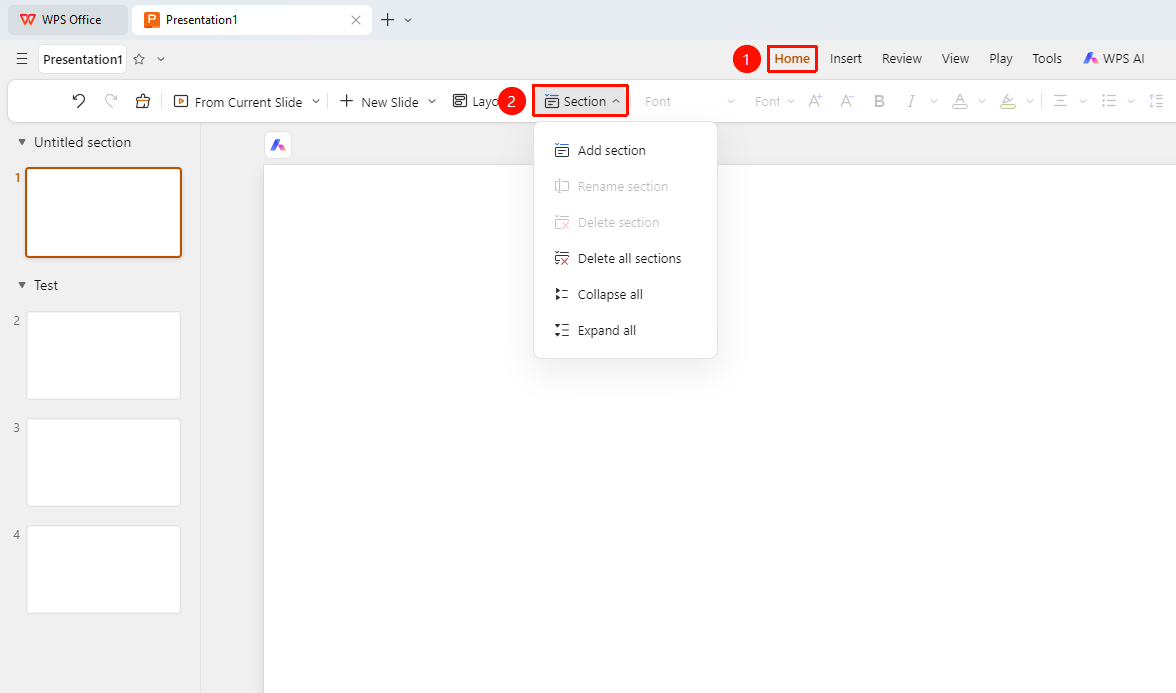
"Home" tab -> "Section" drop-down button
Click the Home tab on the top menu bar.
Click the Section drop-down button on the toolbar.
Choose an action from the pop-up menu:
- Add Section: Create a new section at the current position.
- Rename Section: Change the name of the current section.
- Remove Section: Delete the current section (slides are kept).
- Remove All Sections: Delete all section groupings.
- Collapse All: Collapse all sections to show only section titles.
- Expand All: Expand all sections to show all slides.
Create a New Section in Left Thumbnail Pane
Feature Entry
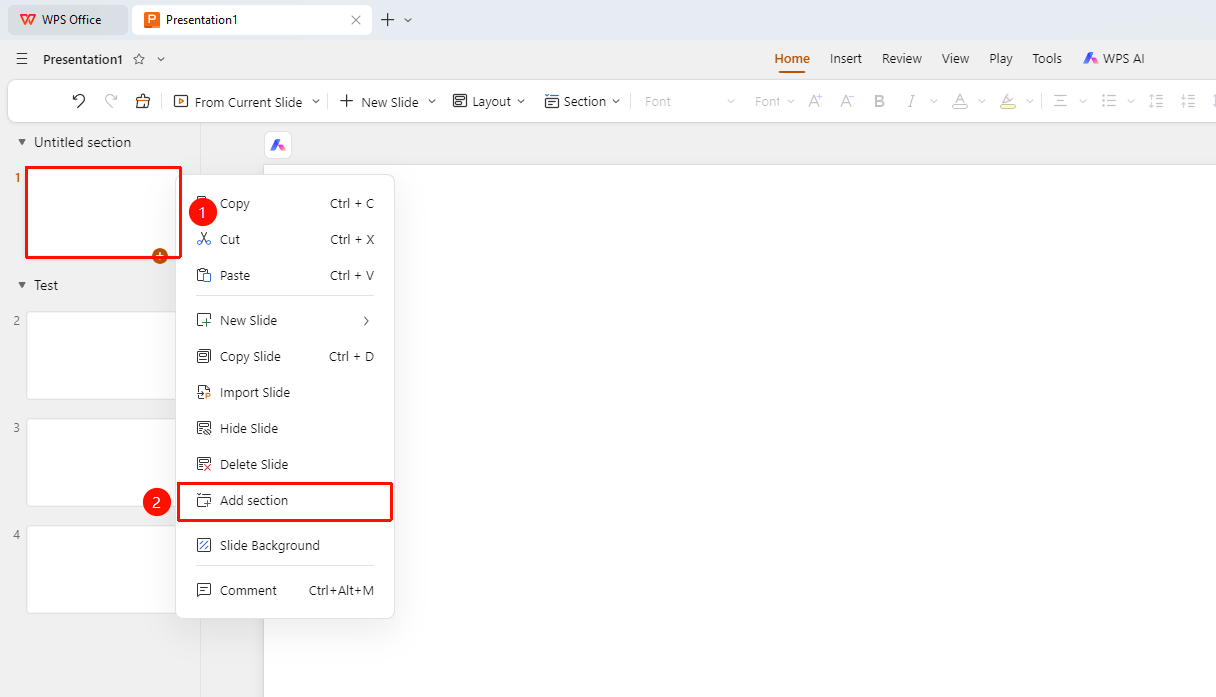
Right-click menu of the left slide thumbnail -> "Add Section"
- Locate the slide thumbnail in the left pane where you want to add a new section.
- Right-click the thumbnail to open the shortcut menu.
- Select Add Section from the shortcut menu.
- A new section will be created at the current position.
Manage Sections in Left Thumbnail Pane
Feature Entry
Left slide thumbnail -> Section title
- Click the section title on the left to collapse or expand the section.
- Double-click the section title on the left to rename the section.
- Right-click the section title to open the shortcut menu for more section actions.
- Drag slides to move them to other sections.
FAQ
Q1: What is the purpose of sections?
- Solution: Sections help organize and manage a large number of slides, making navigation and batch operations easier.
Q2: Does deleting a section affect the slides?
- Solution: Deleting a section only removes the grouping marker. The slides within the section will not be deleted.
Q3: How do I rename a section?
- Solution: Double-click the section title to rename it, or right-click the section title and select Rename Section.
Notes
- We recommend dividing sections based on content logic.
- Section names should be concise and clear.
- You can move all slides in a section in bulk.