Feature Summary
In WPS Slides collaboration mode, you can play presentations in various ways, including playing from the beginning, playing from the current slide, and auto-playing.
Feature Details
| Feature Dimension | Description |
|---|---|
| Member Restrictions | No membership restrictions |
| Version Restrictions | No version restrictions |
Steps
Play a Slide Show via the Ribbon
Feature Entry
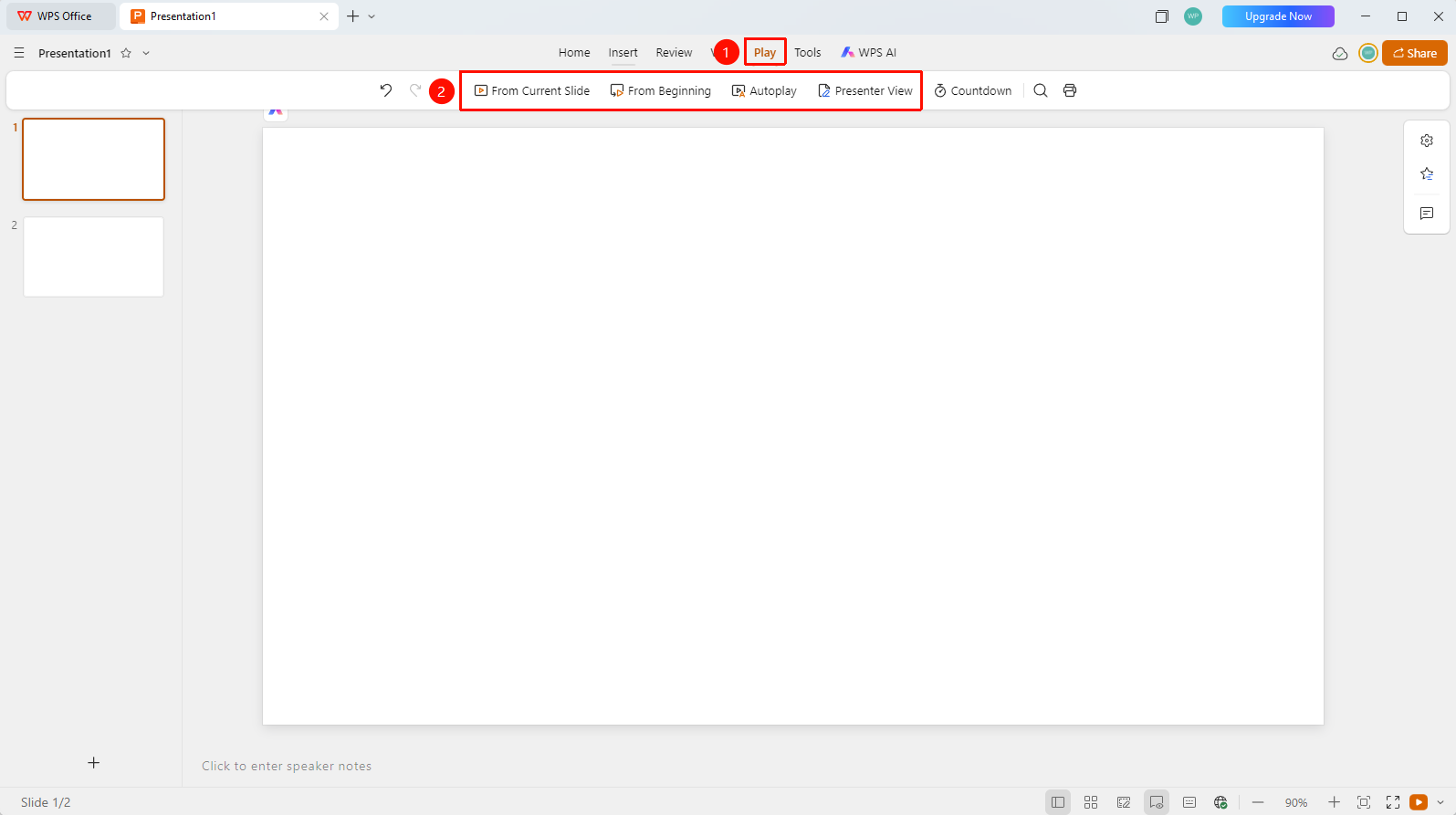
"Play" tab > Play button group
Click the Play tab in the top menu bar.
Choose a playback method:
- Play from Current: Start playing from the currently selected slide.
- Play from Beginning: Start playing from the first slide.
- Auto Play: Automatically switch slides based on preset timings.
- Presenter View: Play in Presenter View mode.
Play a Slide Show via the Status Bar
Feature Entry
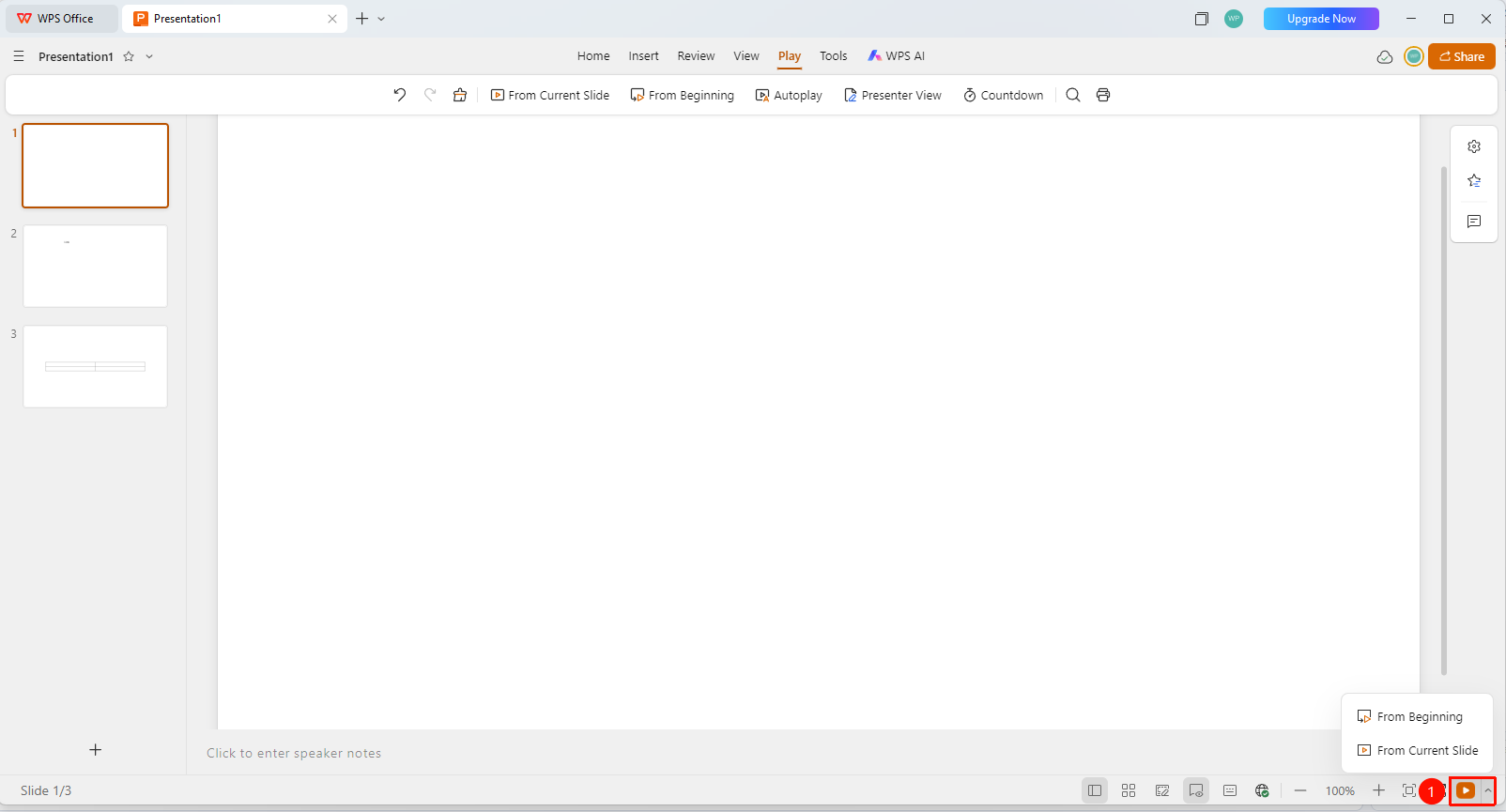
Status bar in the bottom right corner > "Play" button drop-down menu
- Click the drop-down menu of the Play button (play icon) in the status bar in the bottom right corner.
- Choose From Beginning or From Current Slide to play the slide show.
Playback Control
Feature Entry
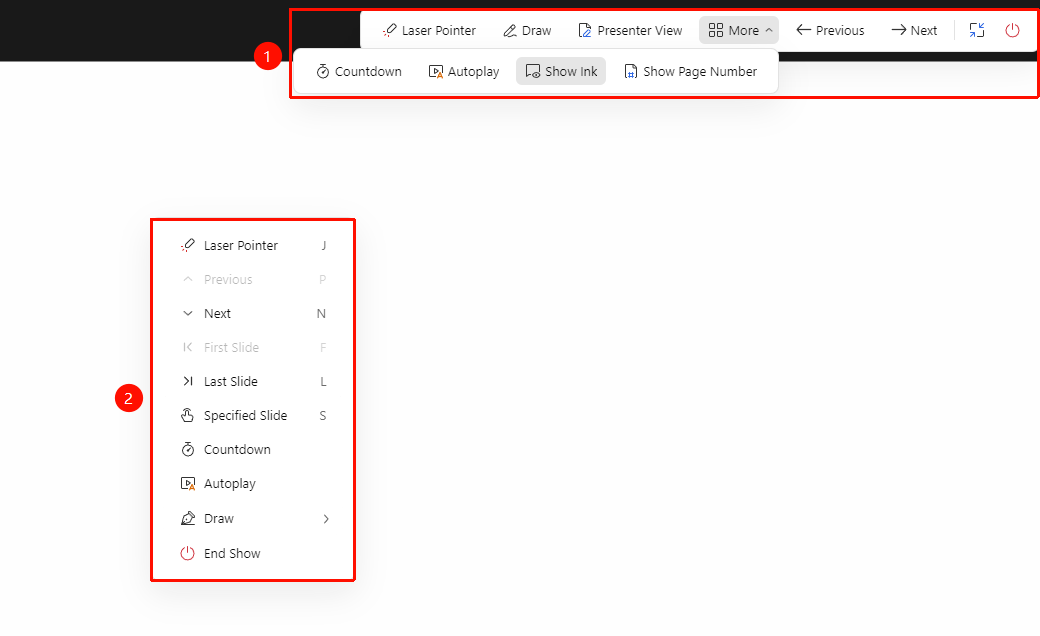
Presentation mode > Playback control
- Click the mouse or press the Spacebar to switch to the next slide.
- Press the Left or Right Arrow keys to switch between slides.
- Press the Esc key to exit presentation mode.
- Use the collapsed toolbar in the top right corner or the right-click menu to access tools such as Brush and Laser Pointer.
FAQ
Question 1: How do I start playing from a specific slide?
- Solution: Select the target slide first, and then click the "Play from Current" button.
Question 2: How do I exit the slide show?
- Solution: Press the Esc key or right-click and choose "End Show" to exit.
Notes
- We recommend previewing and checking your slides before presenting.
- You can use auxiliary tools such as Laser Pointer and Brush.
- Auto Play requires setting up slide transition timings in advance.