Feature Summary
In WPS Slides collaboration mode, using Presenter View for presentations allows you to view the current slide, next slide, and speaker notes simultaneously.
Feature Description
| Feature Dimension | Description |
|---|---|
| Member Restrictions | No member restrictions |
| Version Restrictions | No version restrictions |
Steps
Enabling Presenter View via Ribbon
Feature Entry
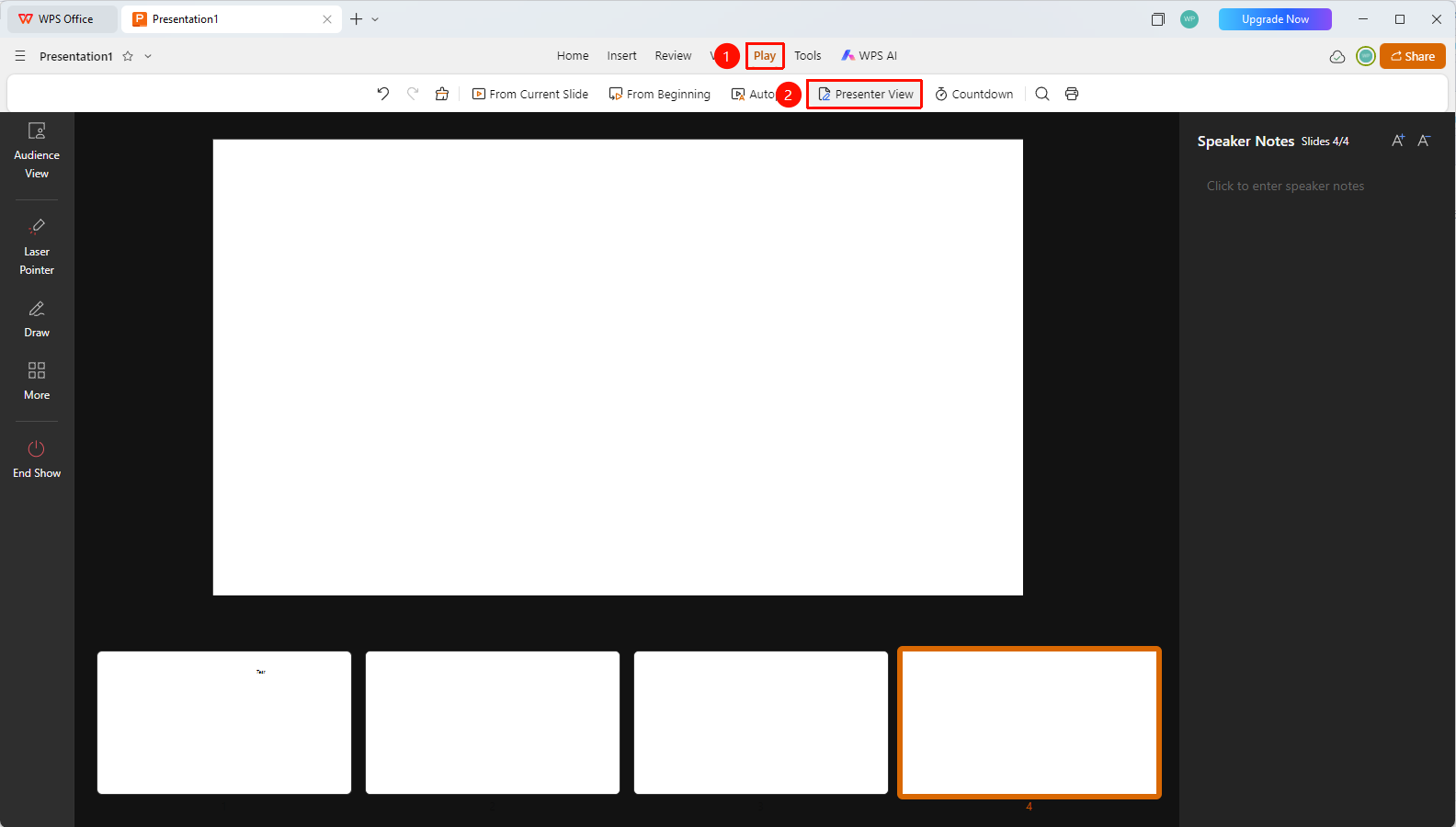
"Slide Show" tab → "Presenter View" button
- Click the "Slide Show" tab in the top menu bar.
- Click the "Presenter View" button in the toolbar.
- The system will enter Presenter View mode.
FAQ
Question 1: Where is Presenter View displayed?
- Solution: Presenter View requires dual monitors connected to be fully utilized.
Question 2: How do I add speaker notes?
- Solution: In Edit Mode, click the notes area below the slide to enter speaker notes.
Question 3: Can I preview the next slide in Presenter View?
- Solution: Yes, a preview of the next slide is displayed on the right side of Presenter View.
Notes
- Presenter View is suitable for formal presentation occasions.
- We recommend preparing speaker notes in advance.
- You can use auxiliary tools such as laser pointers and Brushes.