Feature Summary
In WPS Slides collaboration mode, you can insert Answer Questions for scenarios such as classroom interaction and training assessments.
Feature Description
| Feature Dimension | Description |
|---|---|
| Membership Restrictions | No membership restrictions |
| Version Restrictions | No version restrictions |
Operation Steps
Inserting a Answer Questions
Feature Entry
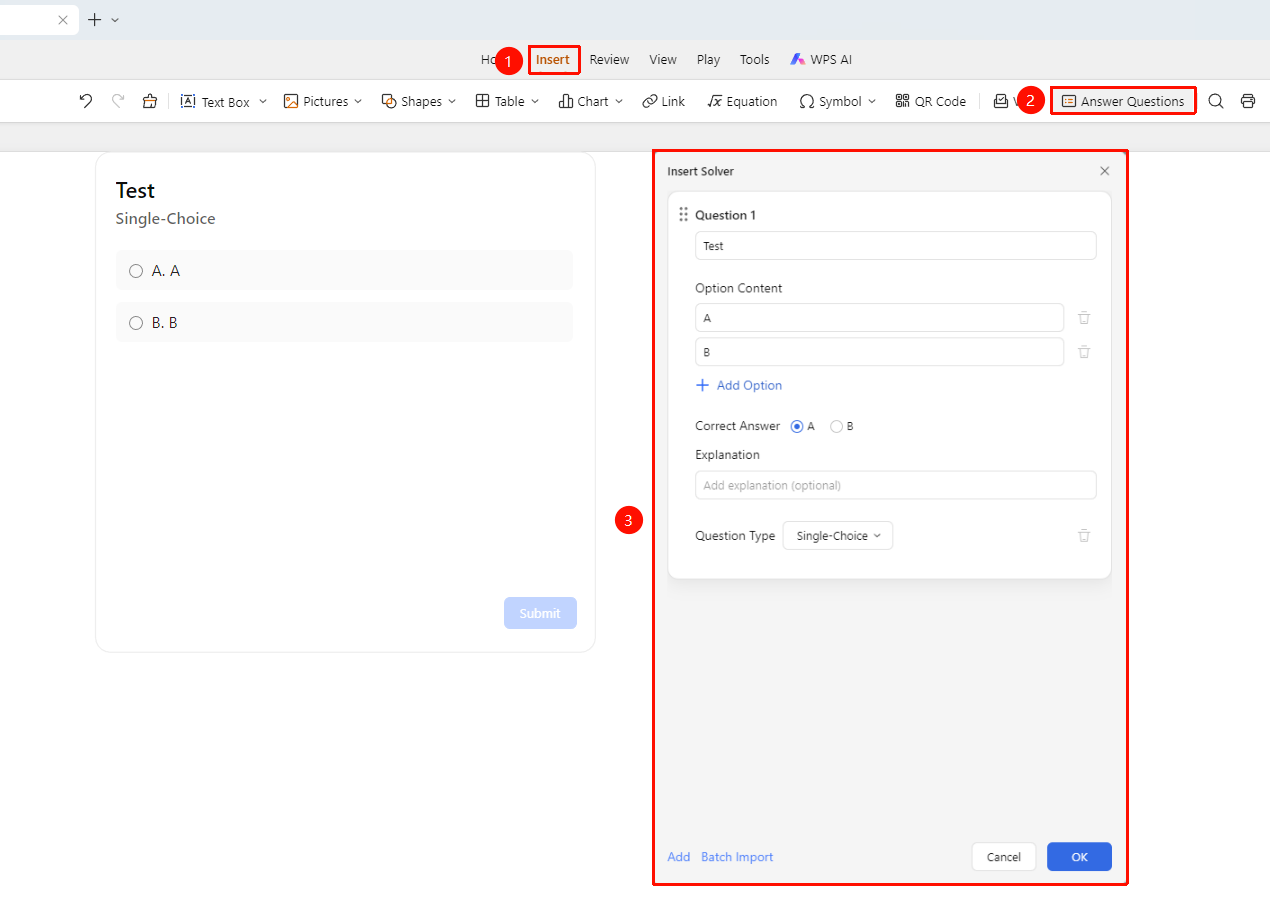
"Insert" tab → "Answer Questions" button
Switch to the "Insert" tab at the top of the page.
Click the "Answer Questions" option in the ribbon.
Set up the quiz content in the pop-up panel:
- Enter the question content.
- Set the option content.
- Set the correct answer.
- Select this question based on your needs.
Click "Add" to continue adding questions.
Click "OK" to insert the quiz component.
Batch Importing Questions
Feature Entry
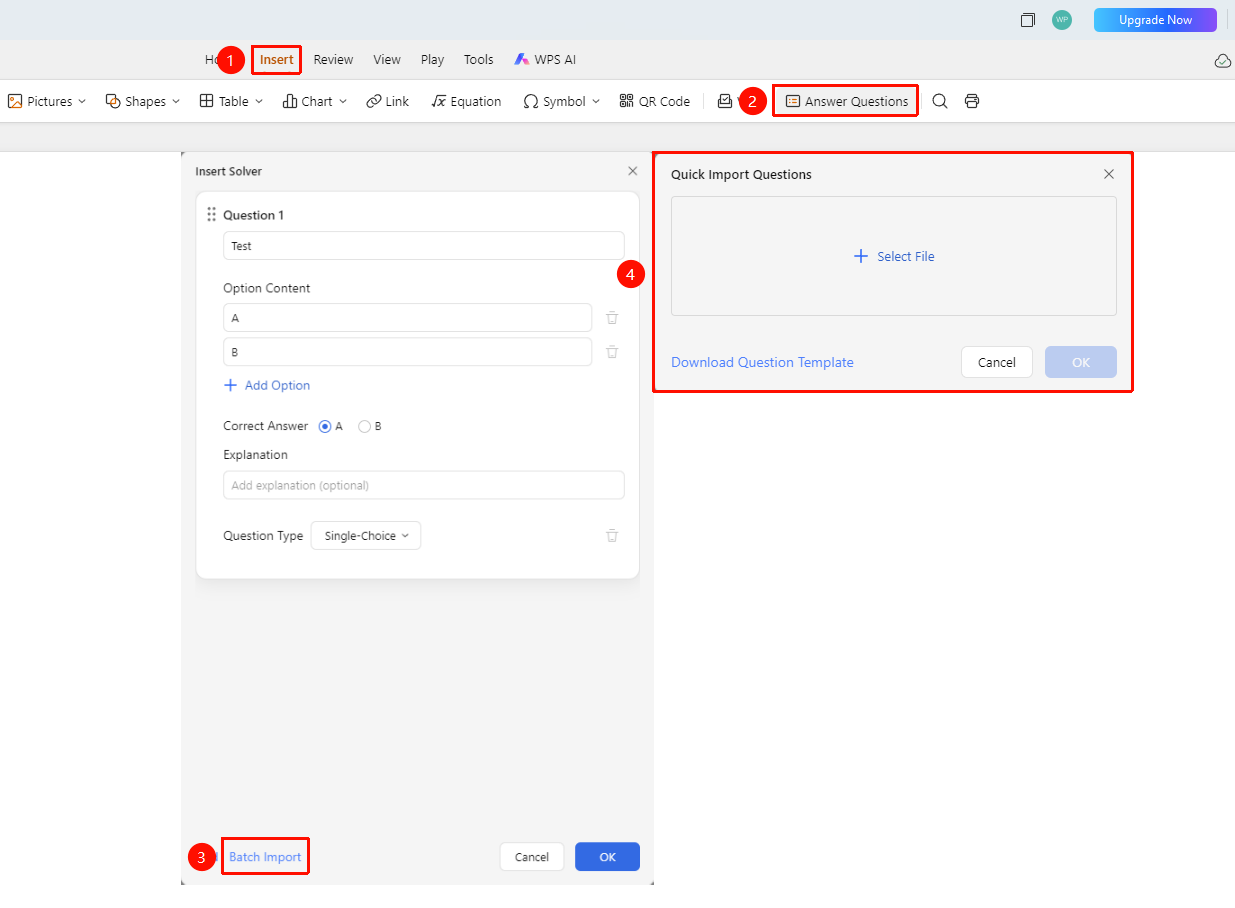
"Insert" tab → "Answer Questions" button → "Batch Import Questions"
- Switch to the "Insert" tab at the top of the page.
- Click the "Answer Questions" option in the ribbon.
- Find and click the "Batch Import Questions" button in the pop-up panel.
- Click "Download Template" to download the standard question template.
- Click "Select File" to choose the question file.
- Click "OK" to complete the import.
Answering Questions
Feature Entry
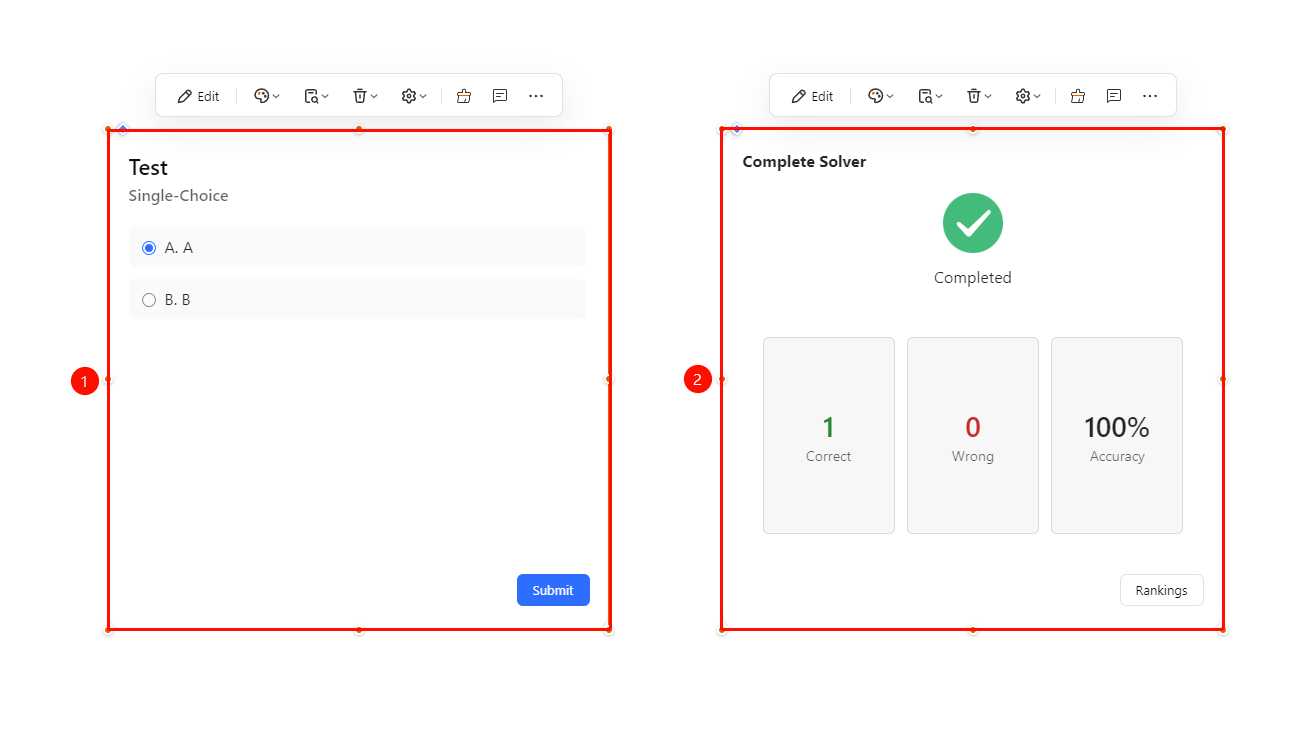
Question panel
- Click the inserted question, select an option, and click "Submit".
- You can view the quiz completion status and accuracy in real time.
Managing Answer Questions
Feature Entry
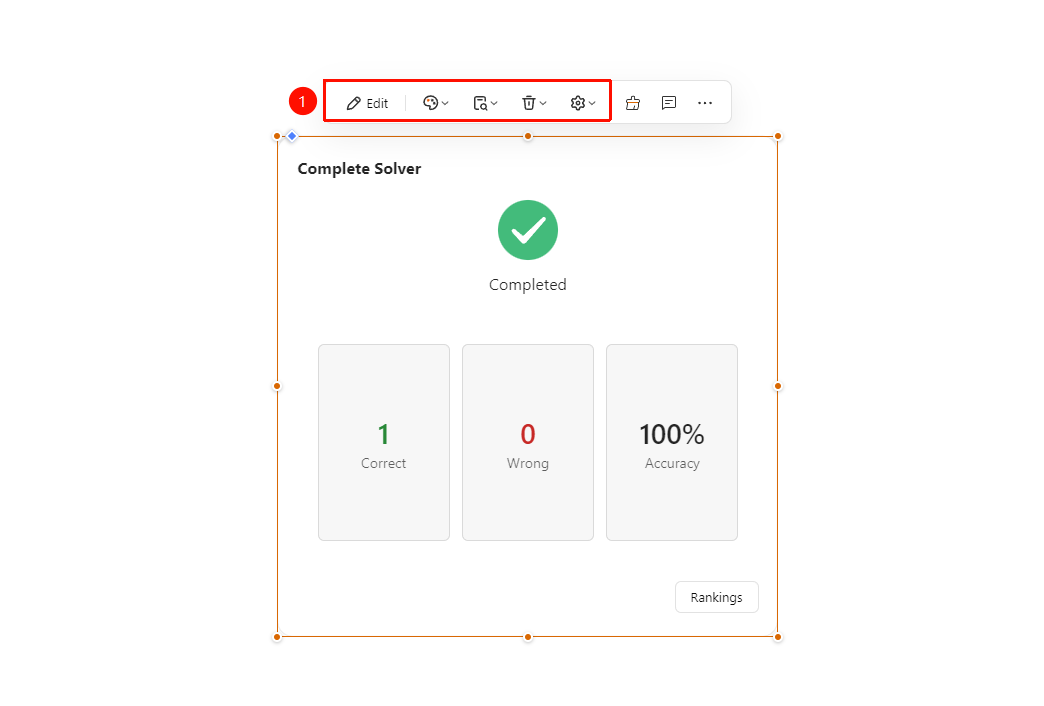
Question floating toolbar
Click the inserted question to bring up the floating toolbar.
Find and use the following quiz features on the floating toolbar:
- "Edit" : Quickly bring up the question editing panel to re-edit the current question.
- "Select Style" : View and change the current question style.
- "View Accuracy and Rankings" : View the quiz accuracy and leaderboard, and export quiz data.
- "Clear Data" : Clear the quiz data of the current question or document.
- "Settings" : Allow/disallow users to view the leaderboard after answering.
FAQ
Question 1: How do I use the quiz feature?
- Solution: In insert mode, click the Quiz button, set up the questions and options, and then insert them.
Question 2: How do collaborators participate in the quiz?
- Solution: Collaborators can open the Presentation file and jump to the corresponding slide to answer the questions, without any other operations.
Question 3: Can I see the quiz results?
- Solution: Yes, the quiz statistics and analysis data will be displayed in real time in presentation mode.