Feature Summary
In WPS Slides collaboration mode, you can group multiple objects to operate them as a single entity, or ungroup existing groups.
Feature Details
| Feature Dimension | Description |
|---|---|
| Member Limit | No member limit |
| Version Limit | No version limit |
Steps
Group Objects
Feature Entry 1
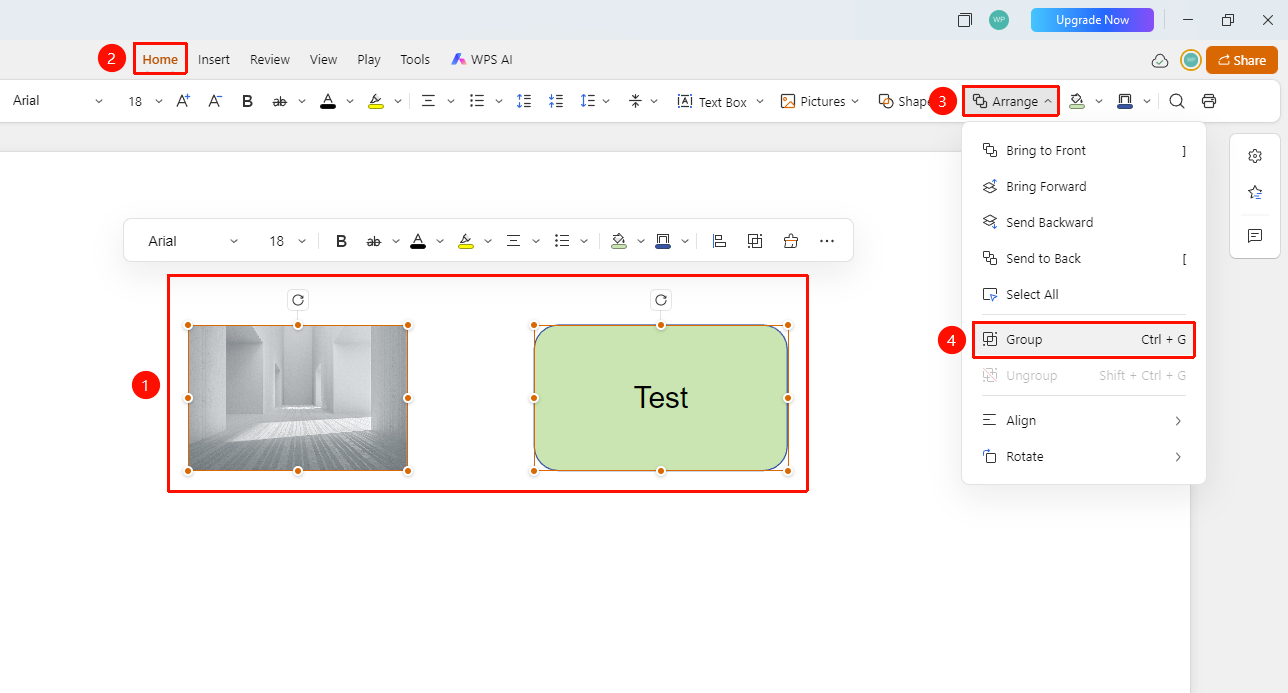
Start tab > Arrange drop-down menu > Group
- Hold down the Cmd key and select the multiple objects you want to group.
- Switch to the Start tab at the top of the page.
- Click Arrange to expand the drop-down menu.
- Select Group from the drop-down menu.
- The selected objects will be merged into a single entity.
Feature Entry 2
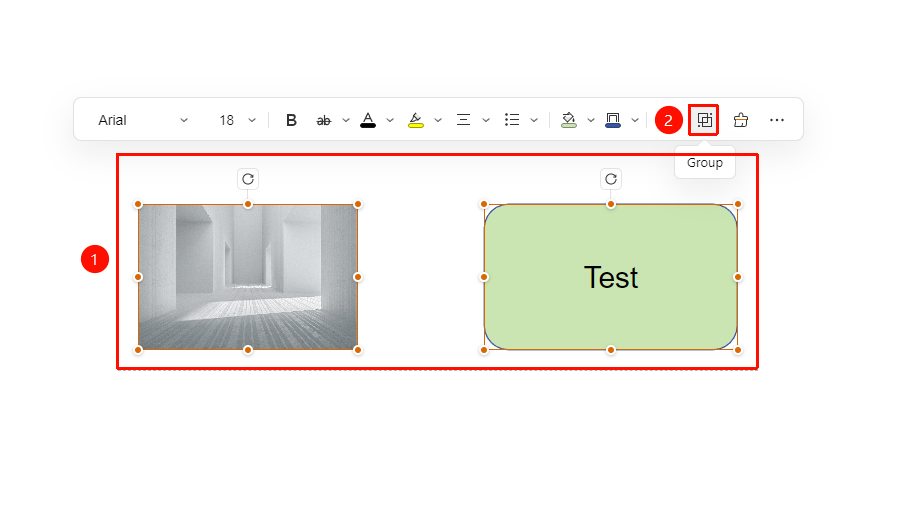
Floating toolbar > Group
- Select the multiple objects you want to group to bring up the floating toolbar.
- Select Group on the floating toolbar.
- The selected objects will be merged into a single entity.
Ungroup Objects
Feature Entry 1
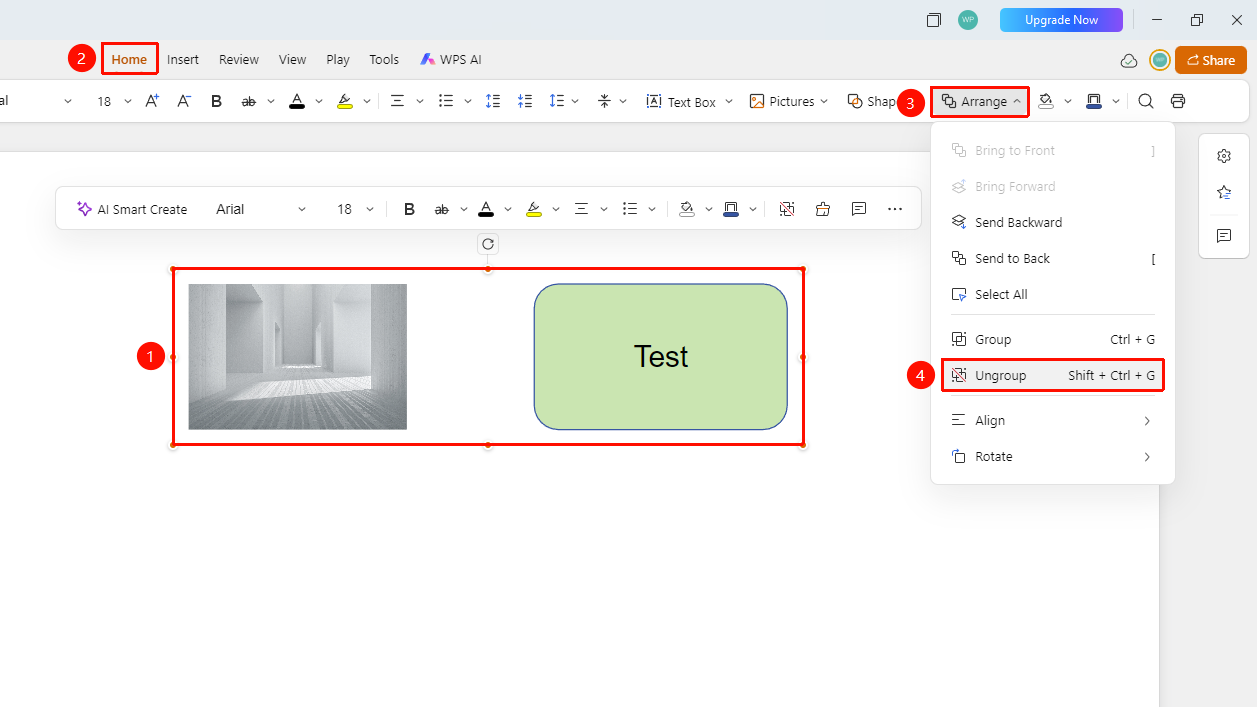
Start tab > Arrange > Ungroup
- Select the grouped objects.
- Switch to the Start tab at the top of the page.
- Click Arrange to expand the drop-down menu.
- Select Ungroup from the drop-down menu.
- The group will be split into individual objects.
Feature Entry 2
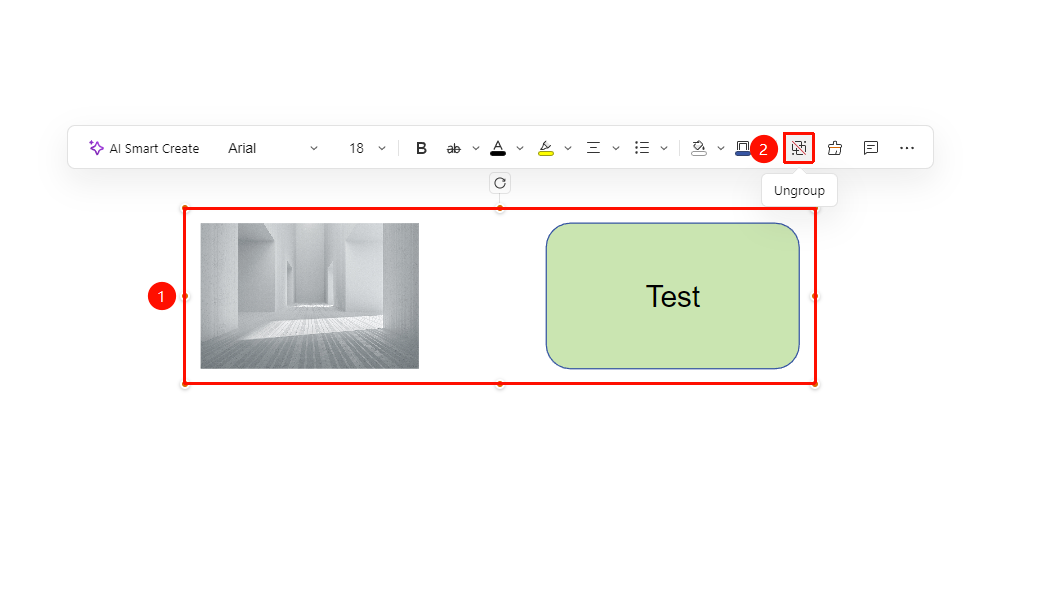
Floating toolbar > Ungroup
- Select the grouped objects to bring up the floating toolbar.
- Select Ungroup on the floating toolbar.
- The group will be split into individual objects.
FAQs
Q1: What is the purpose of grouping?
- Solution: Once grouped, you can move, resize, and rotate multiple objects simultaneously while keeping their relative positions unchanged.
Q2: How do I edit an individual object within a group?
- Solution: Double-click the group to enter Edit Mode, where you can edit a specific object individually.
Q3: Can groups be nested?
- Solution: Yes, you can group multiple groups together to create nested groups.
Notes
- Grouping is ideal for sets of objects that need to maintain their relative positions.
- You can apply animation effects to the group as a whole.
- We recommend determining the relative positions of your objects before grouping them.