Feature Summary
In WPS Slides collaboration mode, set the line spacing and character spacing of text to optimize the vertical and horizontal spacing of paragraphs.
Feature Description
| Feature Dimension | Description |
|---|---|
| Subscription Limits | No subscription limits |
| Version Limits | No version limits |
Steps
Set Line Spacing and Character Spacing via Sidebar
Feature Entry
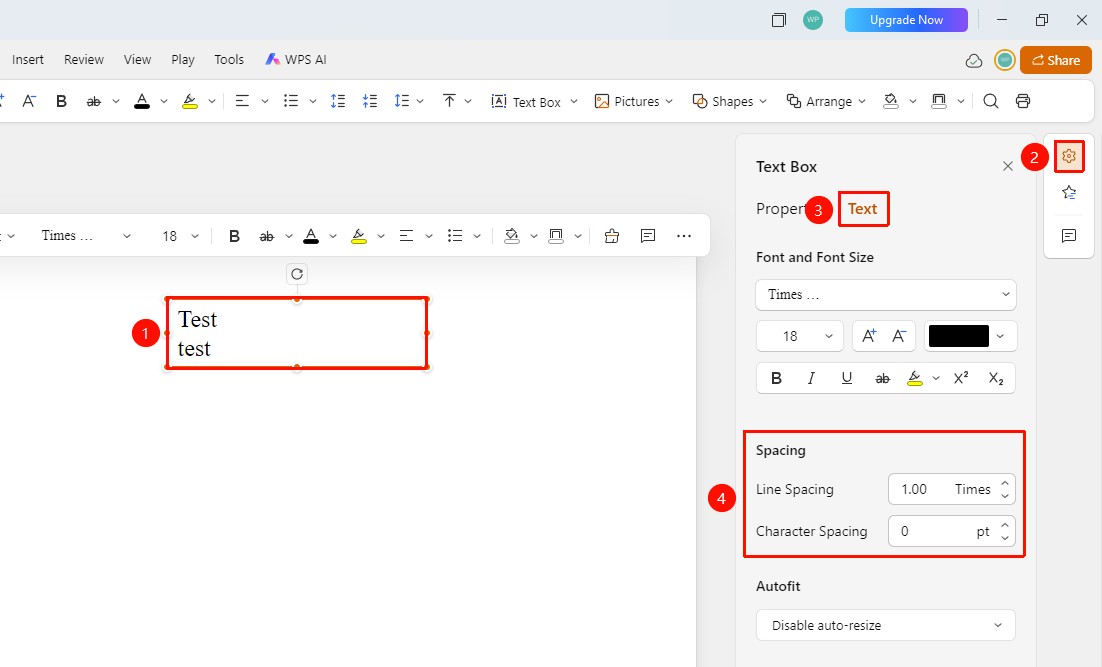
Right task pane > Format > Text tab > Spacing area
Select the text, text box, or shape you want to set line spacing for.
Click the Format option in the right task pane.
Switch to the Text tab.
Scroll to the bottom to find the Spacing area.
Set line spacing:
- Line Spacing: Set the distance between lines (unit: lines).
- The default value is 1.00 lines.
Set character spacing:
- Character Spacing: Set the distance between characters (unit: pt).
- The default value is 0 pt.
Quickly Adjust Line Spacing via Ribbon
Feature Entry
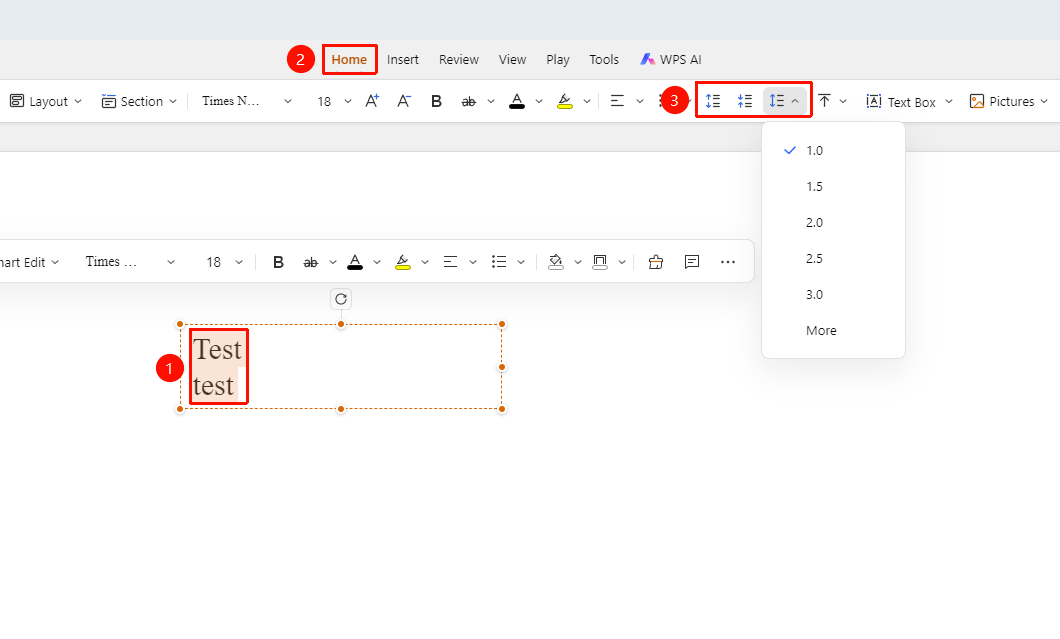
Home tab > Paragraph Spacing
- Select the text, text box, or shape you want to adjust line spacing for.
- Click the Paragraph Spacing button on the Home tab.
- Select a preset line spacing value (such as 1.0, 1.5, or 2.0).
- Or click the Increase/Decrease Paragraph Spacing button to quickly adjust.
FAQ
Q1: What does 1.5 lines of line spacing mean?
- Solution: 1.5 lines of line spacing means the distance between lines is 1.5 times the font height.
Notes
- We recommend using 1.2–1.5 lines of line spacing for body text to improve readability.
- Headings can use smaller line spacing to keep them compact.
- Character spacing adjustment is suitable for special formatting needs.