Feature Summary
In WPS Slides collaboration mode, set outline styles for objects (text boxes, shapes, etc.), including outline color, line weight, and line type.
Feature Description
| Feature Dimension | Description |
|---|---|
| Member Restrictions | No member restrictions |
| Version Restrictions | No version restrictions |
Steps
Set Outline via Ribbon
Feature Entry
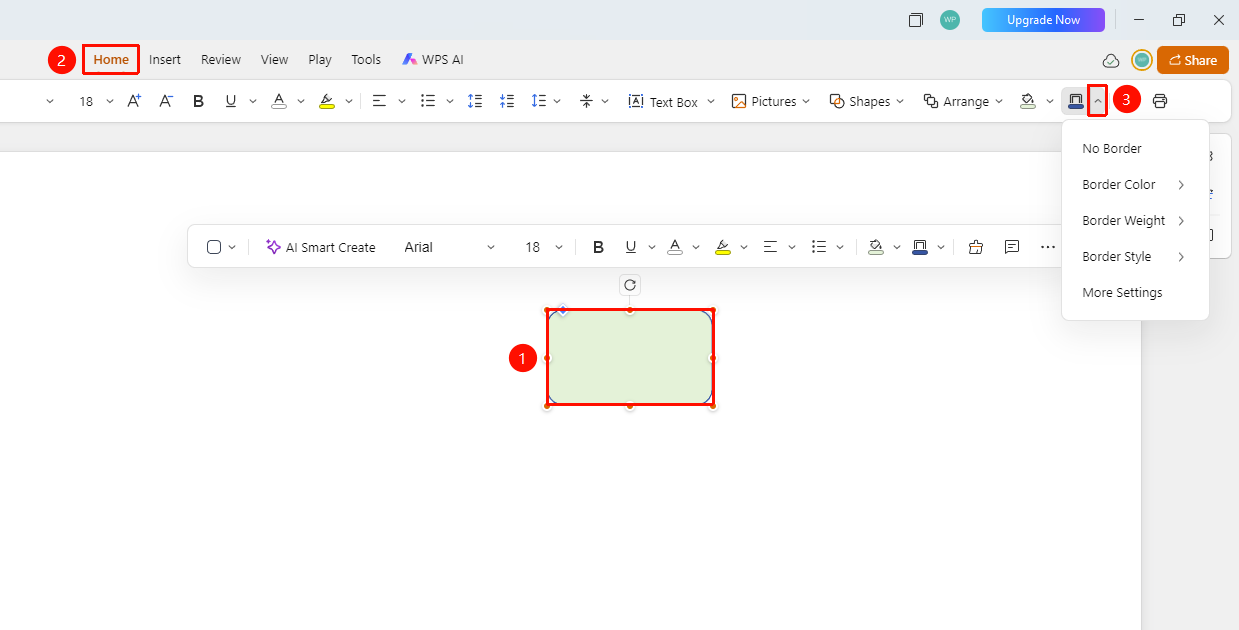
"Home" tab → "Outline" drop-down button
Select the object (text box, shape, picture, etc.) for which you want to set the outline.
Switch to the "Home" tab at the top of the page.
Find and click the "Outline" drop-down button.
Select a setting item from the pop-up menu:
- No Outline: Hide the outline.
- Outline Color: Select the outline line color.
- Line Weight: Set the thickness of the outline line.
- Line Type: Select a line style such as solid or dashed.
- More Settings: Open the detailed outline settings panel.
Set Outline via Task Pane
Feature Entry
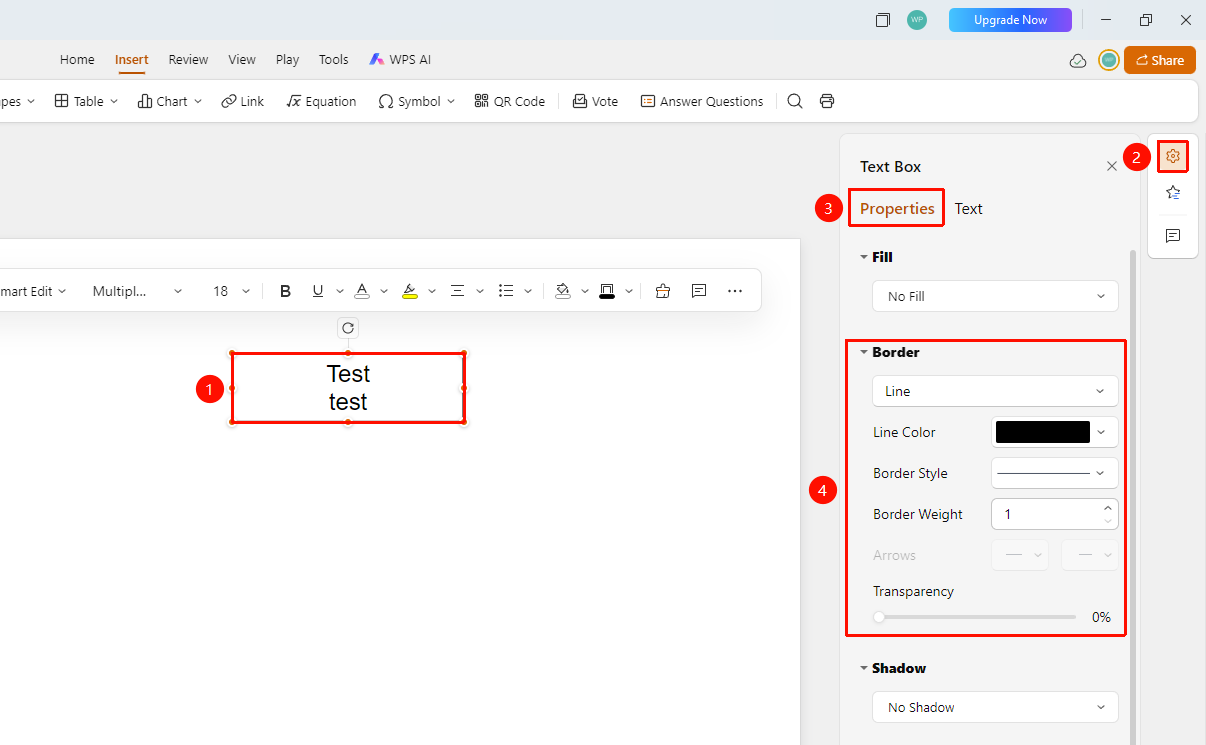
Right task pane → "Format" → "Properties" → "Outline" area
Select the object (text box, shape, picture, etc.) for which you want to set the outline.
Click the "Format" option in the right task pane.
Switch to the "Properties" tab.
In the "Outline" area, you can set:
- Line Color
- Line Weight
- Line Type
- Arrow Type
- Opacity
Set Outline via Floating Toolbar
Feature Entry
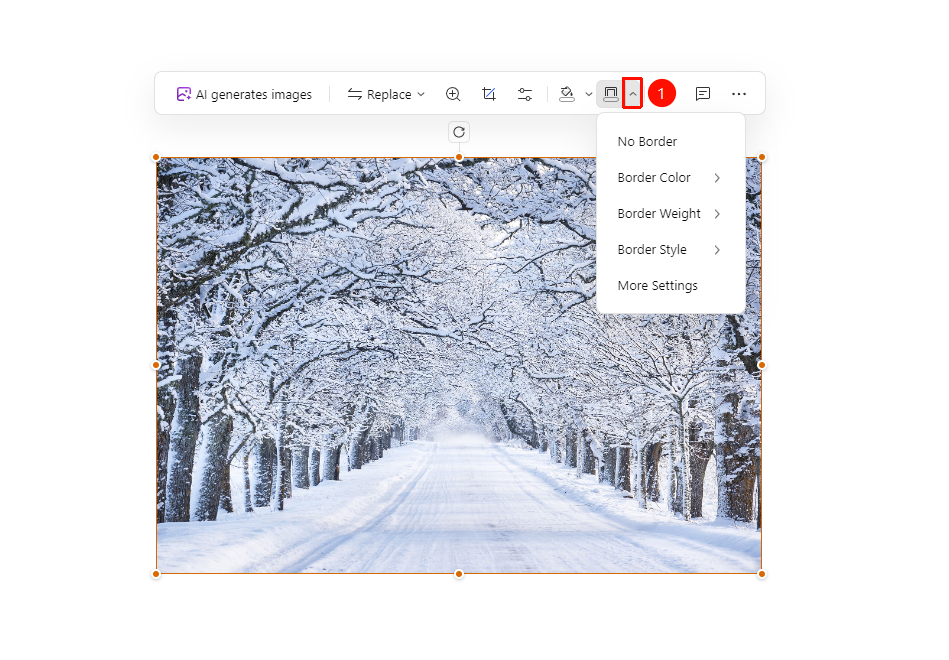
Object floating toolbar → "Outline" drop-down button
Select the object (text box, shape, picture, etc.) for which you want to set the outline to bring up the floating toolbar.
Find and click the "Outline" drop-down button.
Select a setting item from the pop-up menu:
- No Outline: Hide the outline.
- Outline Color: Select the outline line color.
- Line Weight: Set the thickness of the outline line.
- Line Type: Select a line style such as solid or dashed.
- More Settings: Open the detailed outline settings panel.
FAQ
Question 1: How do I quickly remove an outline?
- Solution: Select the "No Outline" option to quickly hide the outline.
Question 2: How do I customize the outline color?
- Solution: Click the outline color and select "More Colors" to customize the color.
Question 3: How do I set a dashed outline?
- Solution: You can select different styles of dashed lines under line types.
Notes
- The outline style should coordinate with the overall design style.
- You can set the opacity of the outline to add depth.
- We recommend adjusting the line weight appropriately based on the size of the object.