Feature Summary
In WPS Slides collaboration mode, add shadow effects to objects (shapes, images, text boxes, etc.) to enhance dimensionality and visual hierarchy.
Feature Description
| Feature Dimension | Description |
|---|---|
| Membership Limit | No membership limit |
| Version Limit | No version limit |
Steps
Set Object Shadow Effects
Feature Entry
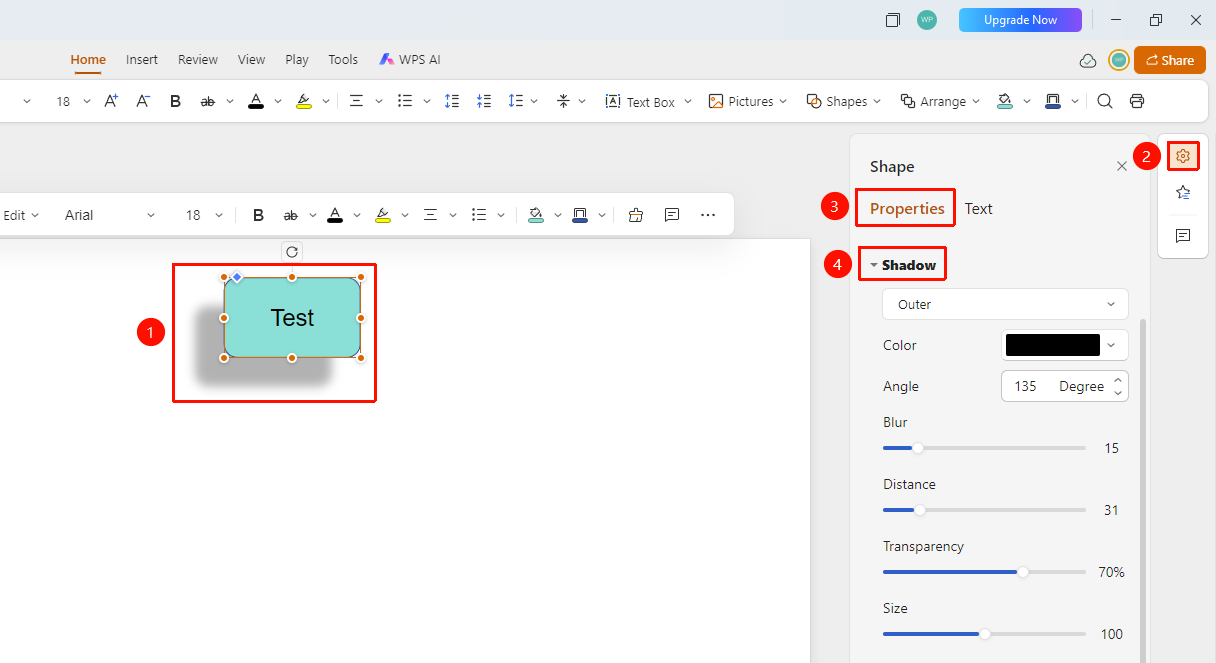
Right task pane > Format > Properties tab > Shadow area
- Select the object (shape, image, etc.) to which you want to add a shadow effect.
- Click Format in the right task pane.
- Switch to the Properties tab.
- Select a shadow style in the Shadow area.
- Set parameters such as shadow color, angle, blur, and distance to preview the effect in real time.
Set Text Shadow Effects
Feature Entry
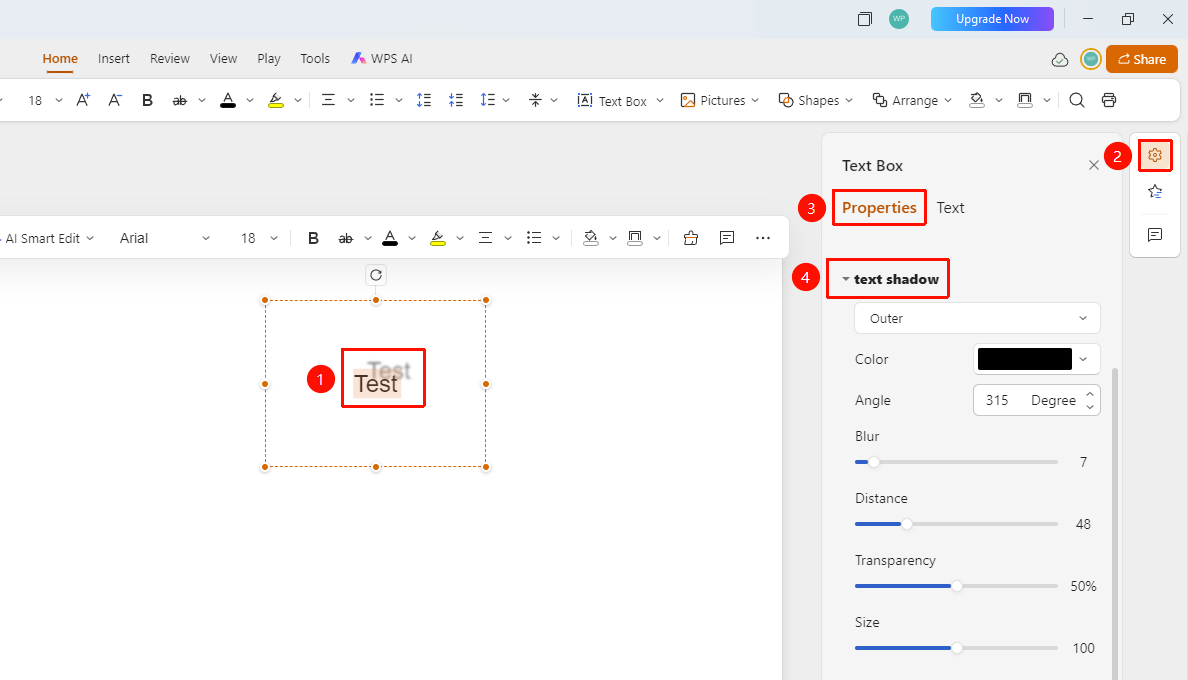
Right task pane > Format > Properties tab > Text Shadow area
- Select the text paragraph to which you want to add a shadow effect.
- Click Format in the right task pane.
- Switch to the Properties tab.
- Select a shadow style in the Text Shadow area.
- Set parameters such as text shadow color, angle, blur, and distance to preview the effect in real time.
FAQ
Question 1: How do I adjust shadow opacity?
- Solution: After selecting a shadow preset, you can further adjust the opacity, size, and distance of the shadow.
Question 2: How do I remove shadow effects?
- Solution: Select "None" in the shadow settings to remove the shadow effect.
Question 3: What should I do if the shadow effect is not noticeable?
- Solution: You can choose a shadow preset with a larger distance and lower blur, or manually adjust the parameters.
Notes
- Shadow effects are suitable for enhancing the dimensionality of objects.
- We recommend using a consistent shadow style throughout the presentation.
- The shadow color should contrast appropriately with the background.