Feature Summary
In WPS Slides collaboration mode, you can hide specified slides so that they do not display during slide shows while retaining their editing features.
Feature Description
| Feature Dimension | Description |
|---|---|
| Membership limit | No membership limit |
| Version limit | No version limit |
Operation Steps
Hide Slides via the Shortcut Menu
Feature Entry
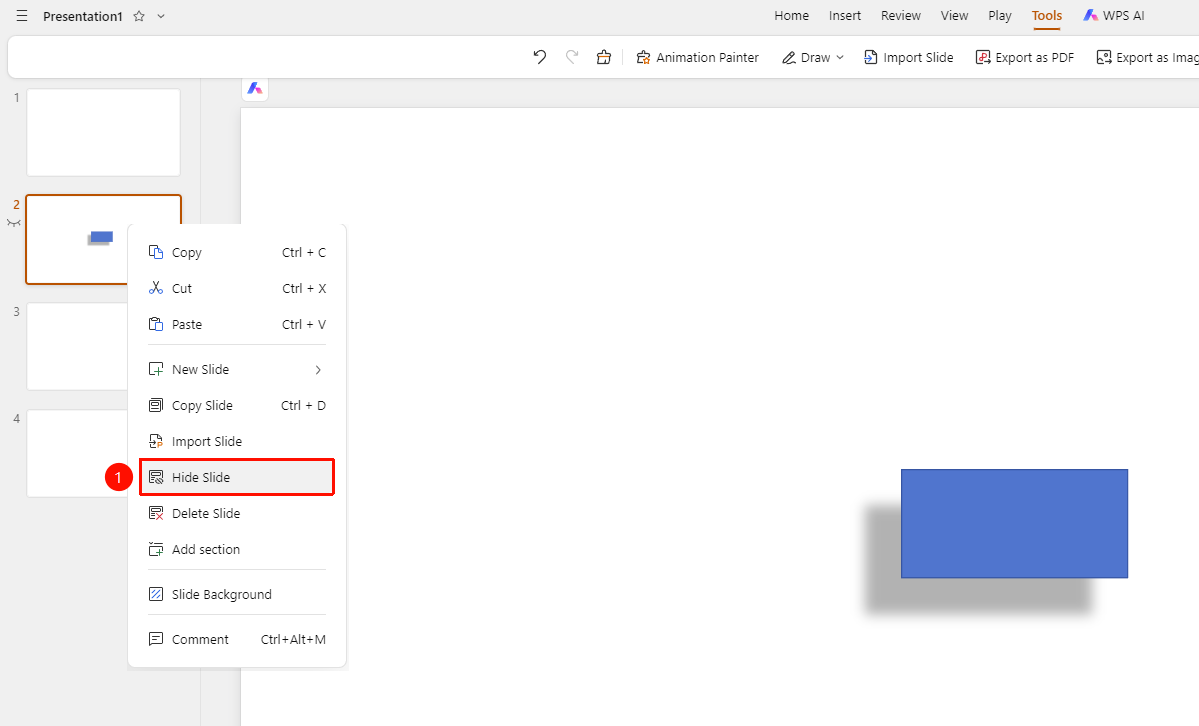
Left slide thumbnail → Shortcut menu → "Hide Slide"
- In the slide thumbnail area on the left, right-click the slide you want to hide.
- In the shortcut menu that appears, select the "Hide Slide" option.
- A closed-eye icon will appear on the left side of the slide thumbnail, indicating that it has been successfully hidden.
- The slide will not display during slide shows.
Unhide Slides
Feature Entry
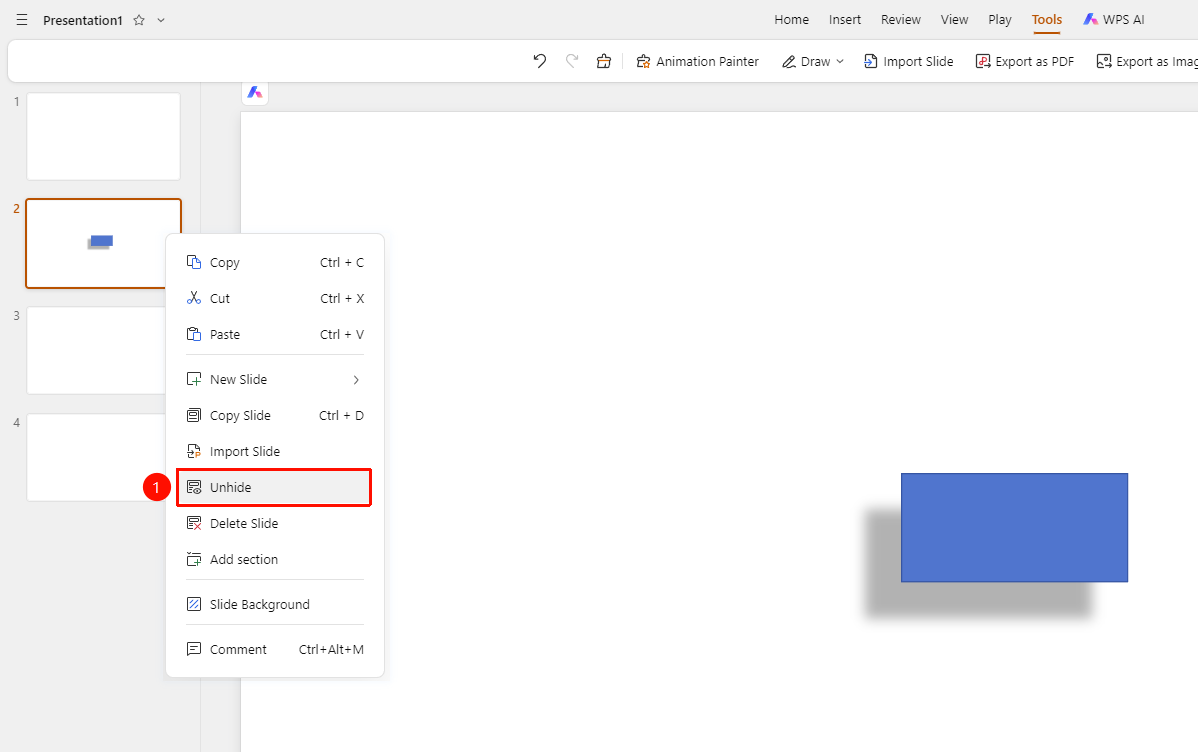
Left slide thumbnail → Shortcut menu → "Unhide Slide"
- Right-click the hidden slide.
- In the shortcut menu that appears, select the "Unhide Slide" option.
- The closed-eye icon on the left side of the slide thumbnail will disappear, indicating that it has been successfully unhidden.
- The slide will be restored to its normal display state.
FAQs
Question 1: Will hidden slides be deleted?
- Solution: No. Hiding a slide only prevents it from displaying during slide shows. The content is still retained in the document.
Question 2: How do I check which slides are hidden?
- Solution: Hidden slide thumbnails will display a closed-eye icon for easy identification.
Question 3: Does hiding slides affect page numbers?
- Solution: Hidden slides are not counted in page numbers during slide shows.
Notes
- The hide feature is suitable for content that you temporarily do not want to display.
- You can choose whether to include hidden slides when printing.
- We recommend checking the hidden status before your presentation to ensure it is correct.