Feature Summary
In WPS Slides collaboration mode, add bullets or numbering to text to make the content structure clear and organized.
Feature Details
| Feature Dimension | Description |
|---|---|
| Member Limit | No membership limit |
| Version Limit | No version limit |
Steps
Set Up Numbering
Feature Entry 1
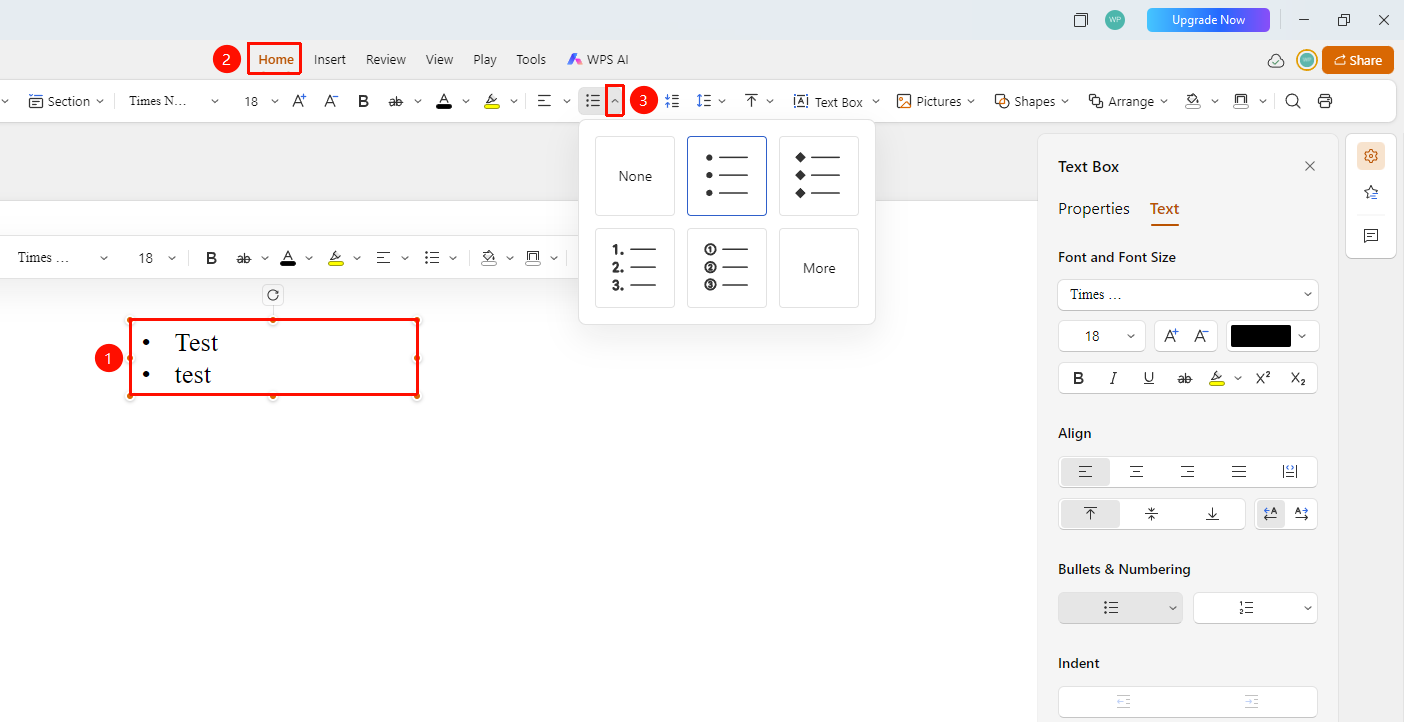
"Home" tab → "Numbering" drop-down button
- Select the text paragraph, text box, or shape where you want to add numbering.
- Switch to the "Home" tab at the top of the page.
- Click the "Numbering" drop-down button.
- Choose the desired numbering format.
- Click "More" to expand the task pane on the right and view more preset bullets and numbering.
Feature Entry 2
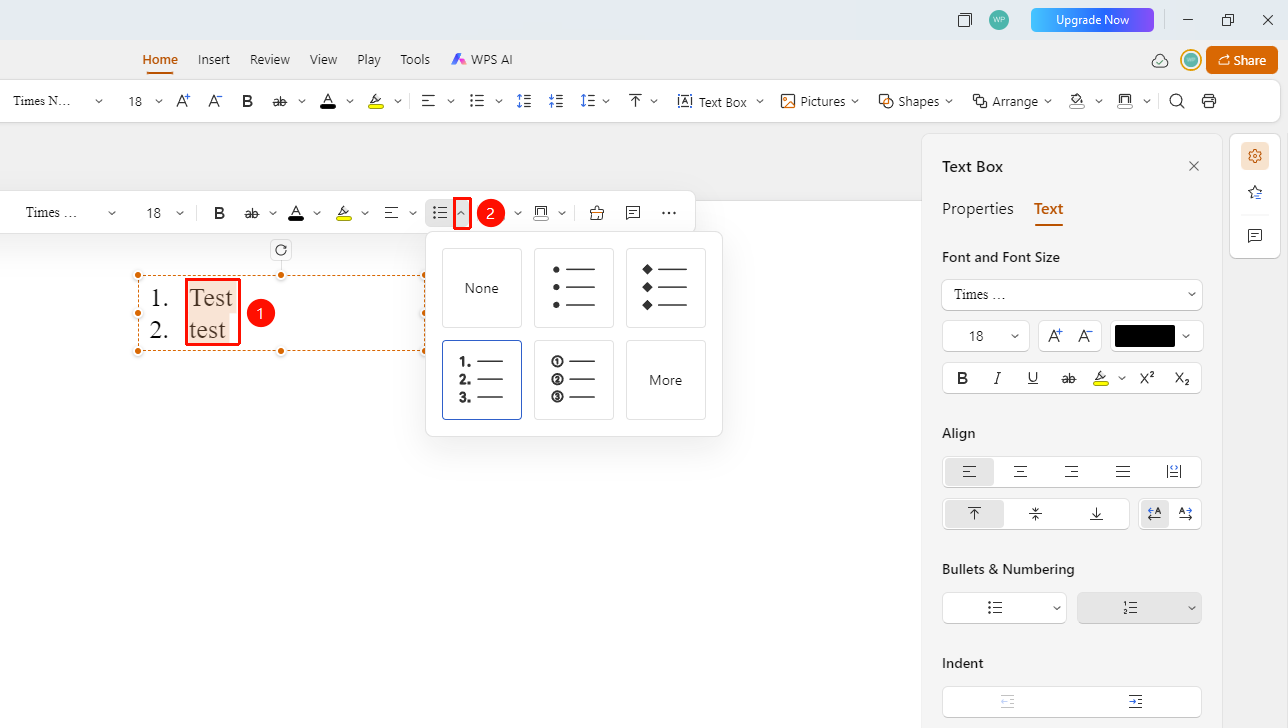
Floating toolbar → "Numbering" drop-down button
- Select the text paragraph, text box, or shape where you want to add numbering to bring up the floating toolbar.
- Click the "Numbering" drop-down button.
- Choose the desired numbering format.
- Click "More" to expand the task pane on the right and view more preset bullets and numbering.
Set Up Bullets and Numbering via the Task Pane
Feature Entry
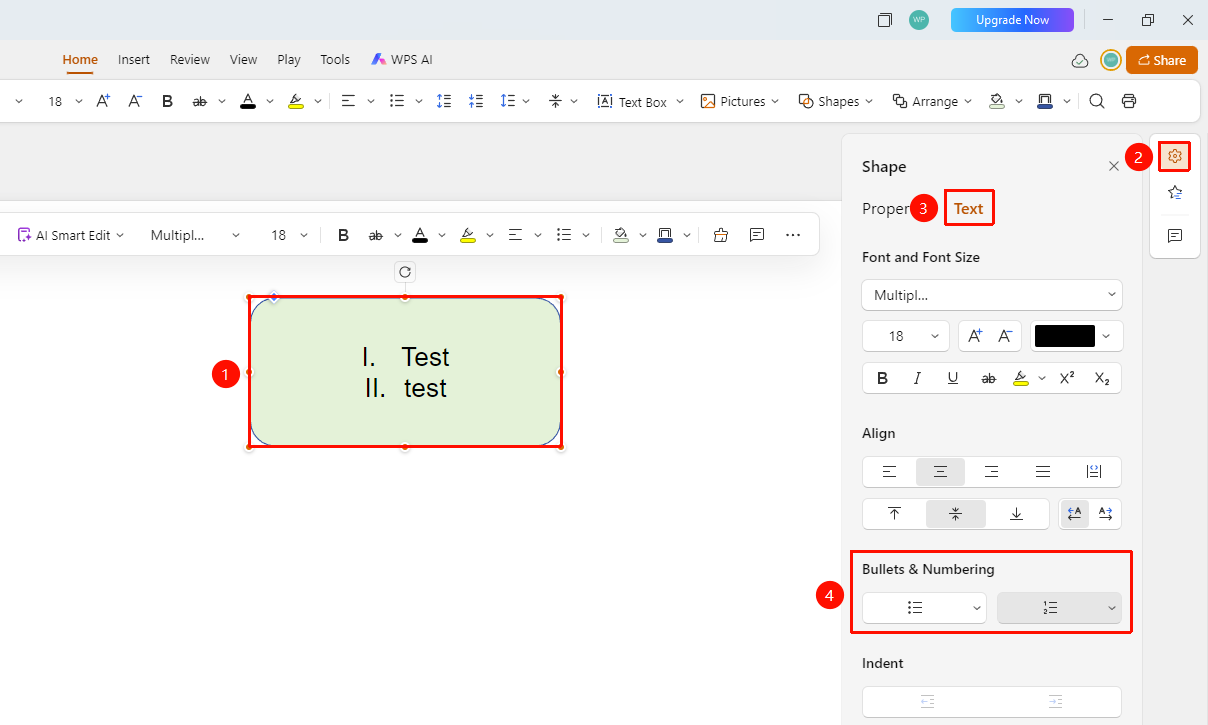
Right task pane → "Format" → "Font" tab → "Numbering" section
- Select the text, text box, or shape you want to set up.
- Click the "Format" option in the right task pane.
- Select the "Font" tab.
- Locate the "Numbering" section in the font formatting area.
- Click the "Bullets" and "Numbering" drop-down buttons to add bullets or numbering to the text.
FAQ
Q1: How do I remove bullets?
- Solution: Select the text and click the bullets drop-down button again, or select "None" to remove them.
Q2: How do I adjust bullet indentation?
- Solution: You can adjust the left indent and hanging indent values in the paragraph settings.
Q3: How do I customize bullets?
- Solution: WPS Slides collaboration mode does not support custom bullets and numbering.
Notes
- Bullets are suitable for parallel content.
- Numbering is suitable for sequential or step-by-step content.
- We recommend using a consistent symbol style for the same level.