Feature Summary
In WPS Slides collaboration mode, add a highlight background color to selected text to emphasize important content.
Feature Description
| Feature Dimension | Description |
|---|---|
| Member Limit | No member limit |
| Version Limit | No version limit |
Operating Steps
Set Up Highlighting
Feature Entry 1
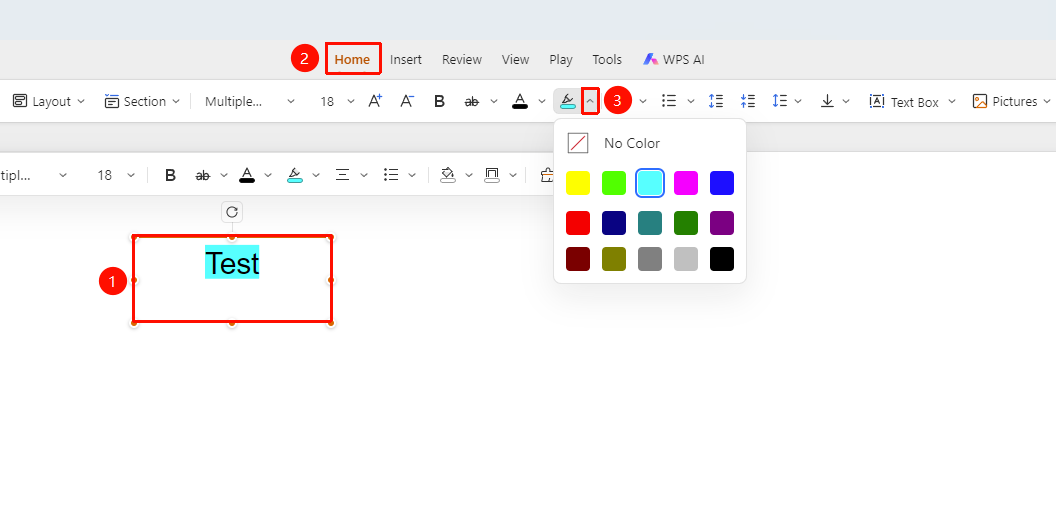
"Home" tab → "Highlight" drop-down button
Select the text paragraph, text box, or shape that needs to be highlighted.
Switch to the "Home" tab at the top of the page.
Click the "Highlight" drop-down button (the icon with a color marker).
Select a highlight color in the pop-up color panel:
- None: Cancel the highlight effect.
- Color: Yellow, green, cyan, magenta, blue, etc.
After selecting a color, you can add a highlight background to the text paragraph, text box, or text content in the shape.
Feature Entry 2
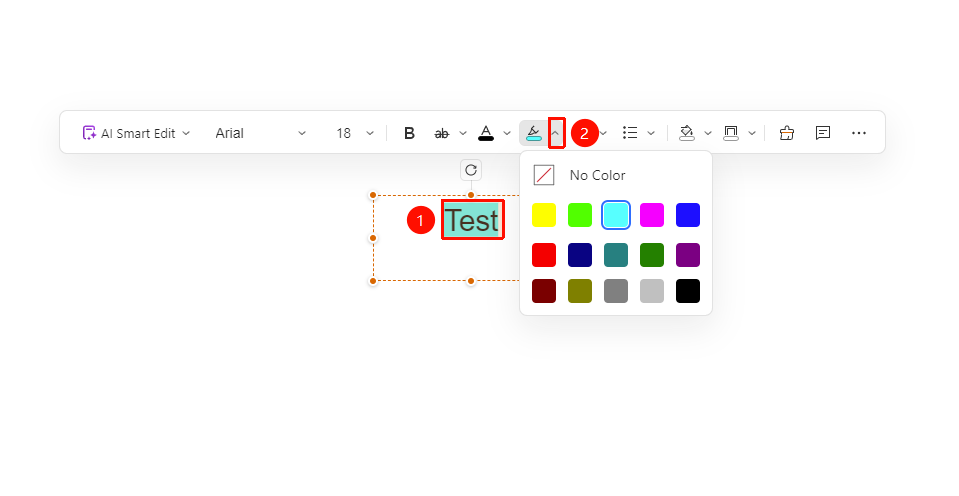
Object floating toolbar → "Highlight" drop-down button
- Select the text paragraph, text box, or shape that needs to be highlighted to call up the floating toolbar.
- Click the "Highlight" drop-down button.
- After selecting a color, you can add a highlight background to the text paragraph, text box, or text content in the shape.
Feature Entry 3
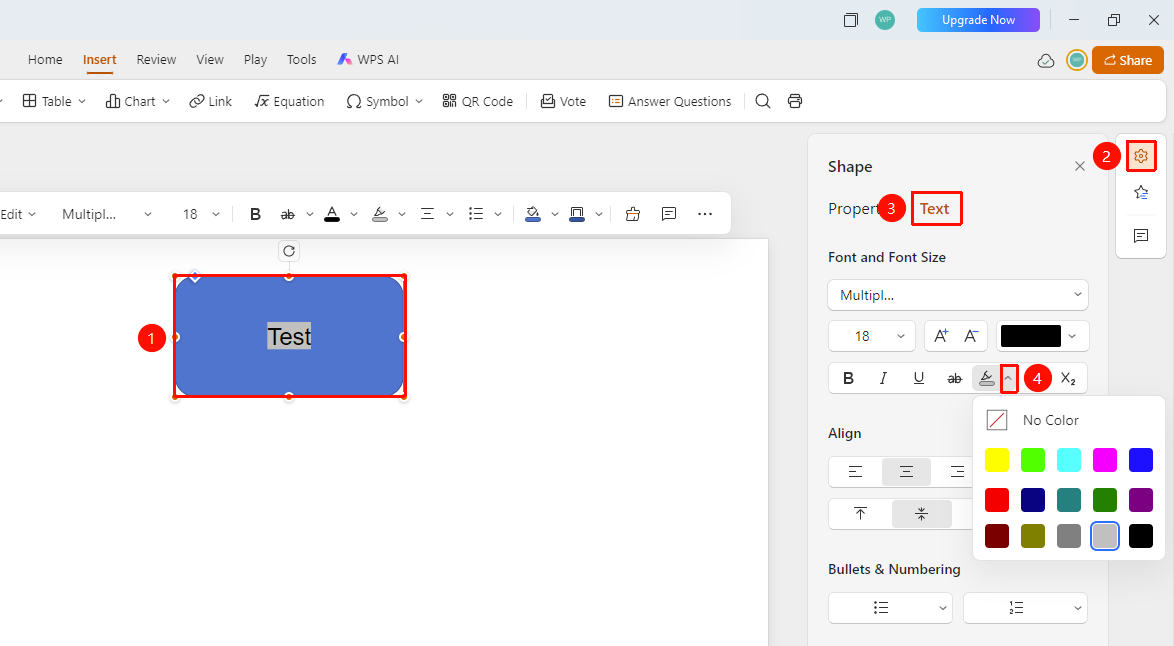
Right task pane → "Format" → "Text" tab → "Highlight" area
- Select the text paragraph, text box, or shape that needs to be highlighted.
- Click the "Format" option in the right task pane.
- Select the "Text" tab.
- Find the "Highlight" area in the font format area.
- Select a highlight color in the expanded color panel. After selecting a color, you can add a highlight background to the text content.
FAQ
Question 1: How do I cancel the highlight effect?
- Solution: Select the highlighted text, and then select "None" in the color panel to cancel the highlight.
Question 2: Can highlight colors be customized?
- Solution: Custom highlight colors are not supported. Currently, you can only select preset colors.
Question 3: Will highlighting affect the printing effect?
- Solution: The highlight background color will be displayed on the printed page.
Notes
- Highlighting is suitable for marking key content and should not be overused.
- When choosing a highlight color, ensure that the text is clear and readable.
- It is recommended to use a unified highlight color in the same presentation.