Feature Summary
Gradient fill adds a color gradient transition effect inside text strokes. You can customize the gradient direction and angle, giving text a layered and artistic visual effect.
Feature Description
| Feature Dimension | Description |
|---|---|
| Membership Restriction | Some features require subscribing to a membership to use |
| Version Restriction | No version restriction |
Operation Steps
Apply Preset Gradient Color
Feature Entry ①
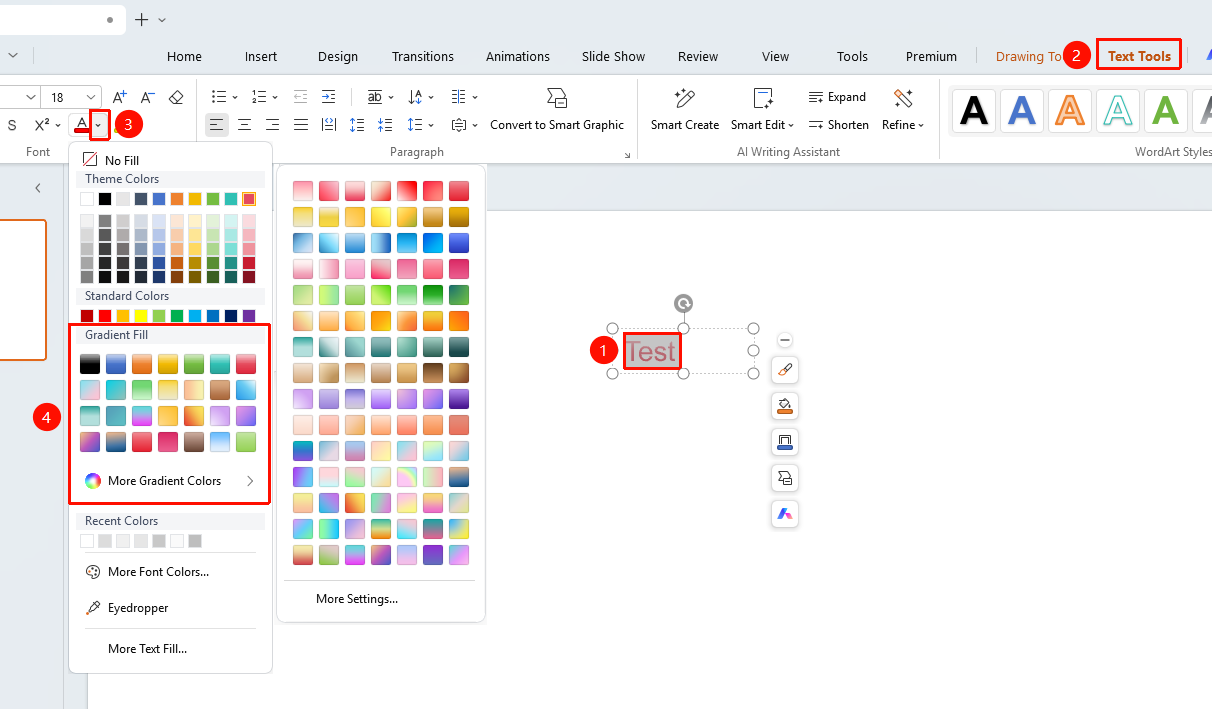
"Text Tools" tab → "Text Color" → "Gradient Fill"
Select the text content you want to fill
Under "Text Tools", click the arrow on the right side of "Text Color" to expand the drop-down menu
In the "Gradient Fill" section of the pop-up drop-down menu, select the desired preset gradient fill style
Click "More Fill Colors" to get more preset gradient fill styles
Click the desired fill style, and the text will apply the corresponding gradient fill
Some preset fill colors require subscribing to WPS membership to use. Please pay attention to the membership identifier before use.
Feature Entry ②
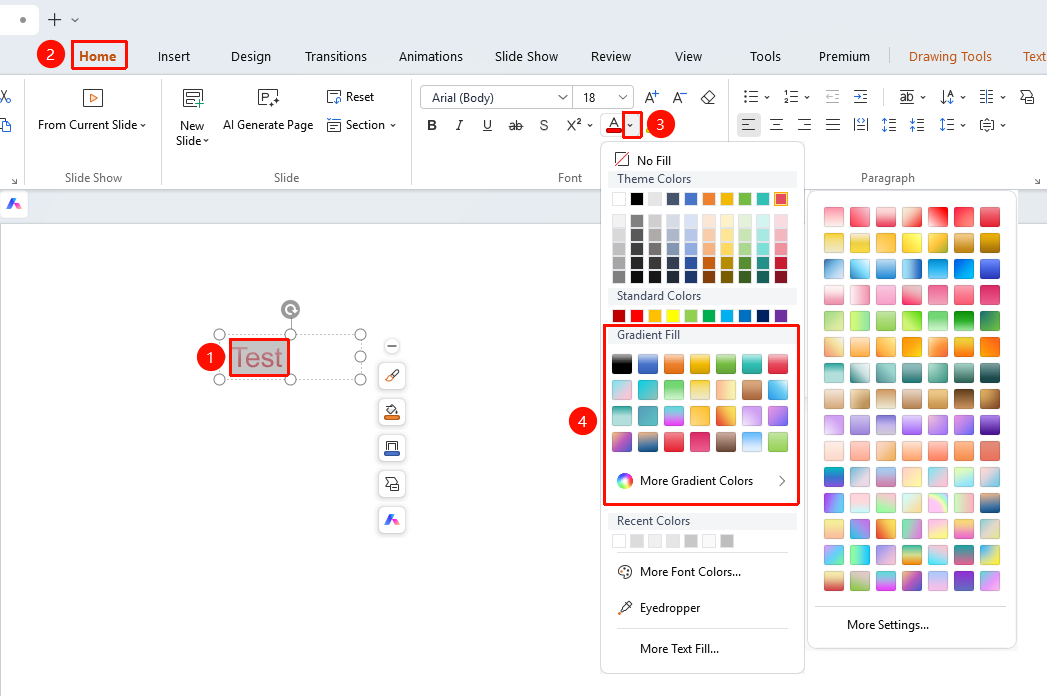
"Home" tab → "Font Color"
- Select the text whose color you want to change
- Click the "Home" tab
- Click the drop-down arrow next to the "Font Color" button
- Select the desired color in the pop-up color panel
Set via Floating Edit Bar
Feature Entry
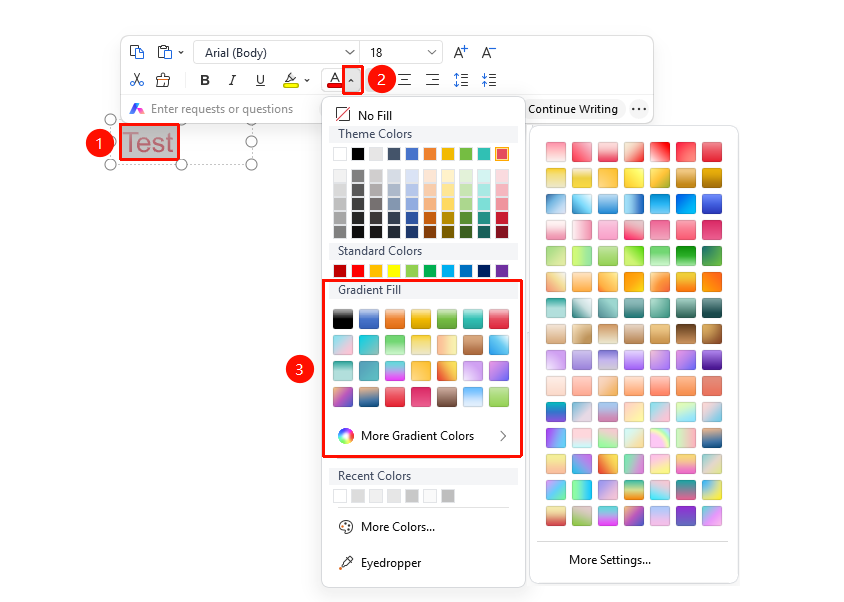
Select the text you want to add gradient fill color to, "Floating Edit Bar" → "Font Color" button
- Select the text you want to bold
- After selection, the Floating Toolbar will automatically pop up
- Click the drop-down arrow next to the "Font Color" button
- Select the desired preset gradient fill color in the pop-up color panel
- After clicking the color, the selected text will be filled with the corresponding color
Custom Gradient Effect
Feature Entry
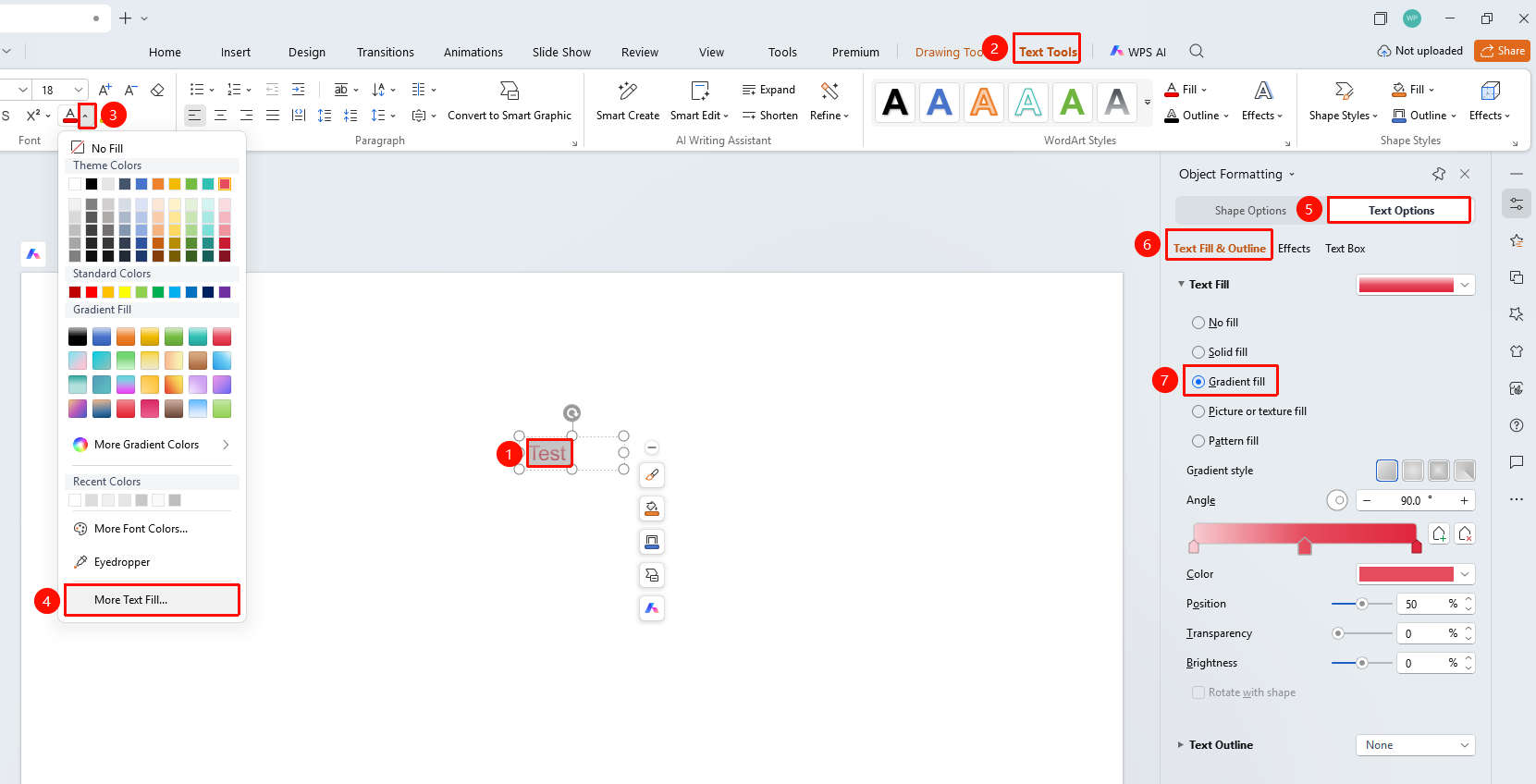
"Text Tools" tab → "Text Color" → "More Settings" → "Text Options" → "Fill & Outline" → "Gradient Fill"
- Select the target text, click the drop-down arrow on the right side of "Text Color" under the "Text Tools" tab
- Click the "More Settings" option to expand the "Object Properties" right-side panel
- Click the "Fill & Outline" option under the "Text Options" tab
- Find the "Text Fill" section
- Switch the fill effect to "Gradient Fill" to expand the detailed gradient settings panel
- Set gradient effects such as gradient style, angle, color stop color, position, and transparency
- The effect is applied to the selected text in real time
FAQ
Q1: What gradient types are available for gradient fill
- Solution: WPS Slides supports four gradient types: Linear Gradient (transition along a straight line), Radial Gradient (radiating from the center outward), Rectangular Gradient (expanding from the center to the corners of a rectangle), and Path Gradient (transition following the text stroke path). Different types of gradients are suitable for different design needs.
Q2: How to create a metallic text effect
- Solution: Select Linear Gradient, set a multi-segment gradient from light gray to dark gray, add multiple color stops on the gradient bar alternately setting bright and dark colors to simulate the gloss reflection effect of a metal surface. Adjusting the gradient angle appropriately can achieve different metallic textures.
Q3: What to do if text legibility is low after gradient fill
- Solution: It is recommended to choose gradient color combinations with greater color difference, or add a dark outline to the text. You can also reduce the contrast of the gradient and use gradients of adjacent color systems instead of contrasting color gradients.
Notes
- Gradient fill is suitable for titles and decorative text
- It is not advisable to use too many gradient colors; usually 2-3 colors can achieve a good effect
- Light-colored gradients are suitable for dark backgrounds, and dark-colored gradients are suitable for light backgrounds
- You can also set "Font Color" in the floating edit bar when text is selected
- After selecting text, click the "Object Properties" button on the right side of the screen to expand the full font effect settings panel