Feature Summary
The Undo and Redo feature allows users to quickly revert or redo actions in WPS Slides, preventing content loss from misoperations and improving editing efficiency.
Feature Description
| Feature Dimension | Description |
|---|---|
| Membership Restriction | No membership restriction |
| Version Restriction | No version restriction |
Steps
Undo
Feature Entry
"Quick Access Toolbar" → "Undo" button
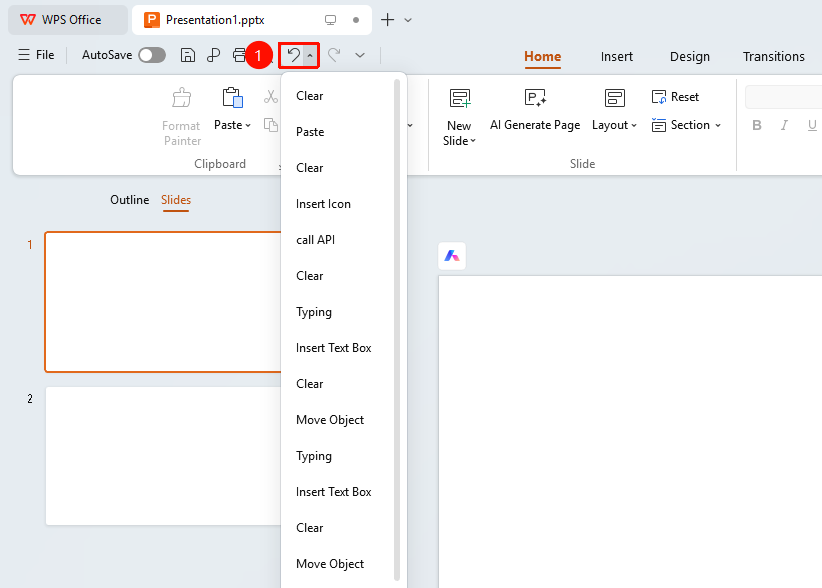
- While editing a presentation, if you need to undo the previous action, click the Undo button in the Quick Access Toolbar.
- Each click undoes the most recent action.
- You can also use the Shortcut
Ctrl+Z(Mac:⌘+Z) to quickly undo. - Pressing the Shortcut multiple times consecutively undoes multiple actions in sequence.
- Click the dropdown arrow to the right of the Undo button in the Quick Access Toolbar to display the list of undoable actions. Find the desired rollback point in the dropdown and click it to undo all actions up to that point in one step.
Redo
Feature Entry
"Quick Access Toolbar" → "Redo" button
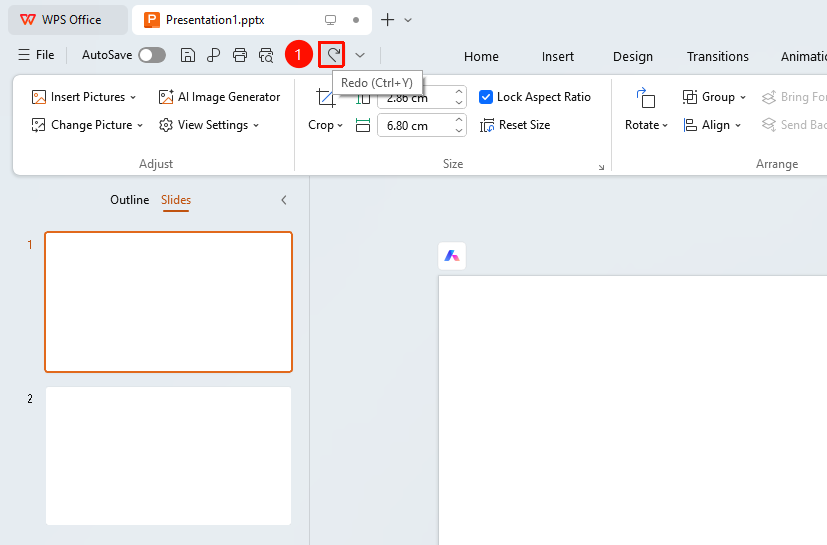
- After performing an undo, if you need to restore the undone action, click the Redo button in the Quick Access Toolbar.
- Each click restores the most recently undone action.
- You can also use the Shortcut
Ctrl+Y(Mac:⌘+Y) to quickly redo. - Pressing the Shortcut multiple times consecutively redoes multiple actions in sequence.
Set Undo/Redo Steps
Feature Entry
"File" tab → "Options"
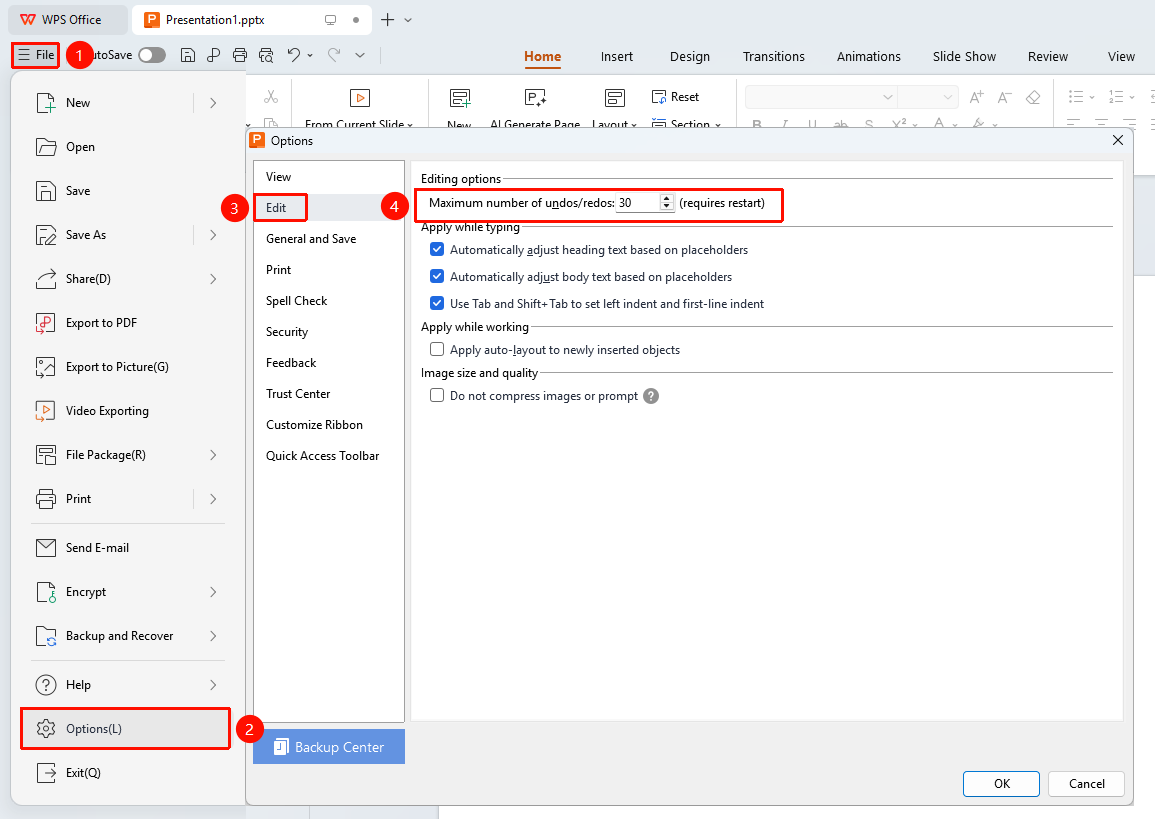
- Click the File tab in the upper-left corner and select Options.
- In the pop-up Options dialog, select the Edit tab.
- Find the Undo/Redo steps setting.
- Enter the desired number of steps (default is 30, maximum is 150).
- Click OK to save the settings.
FAQ
Q1: Why is the Undo button grayed out?
- Solution: A grayed-out Undo button indicates there are currently no actions to undo, possibly because the file was just opened or you have already undone back to the earliest action. Try performing a new edit, and the Undo button will become available again.
Q2: What should I do if the number of undo steps is insufficient?
- Solution: You can increase the number of steps from the default 20 to a maximum of 150 via the Undo/Redo steps setting under "File" → "Options" → "Edit". Note that more steps consume more memory resources, so please set a reasonable value based on your actual needs.
Notes
- Undo and Redo operations are only valid within the current editing session; the operation Record will be cleared once the file is closed.
- Setting the number of Undo/Redo steps too high will consume more system memory. It is recommended to set a reasonable value based on your computer's configuration.
- Some operations (such as inserting images or videos) may not be reversible via the Undo feature.
- It is recommended to develop the habit of saving files regularly. Press
Ctrl+Spromptly after important modifications to save.