WPS Slides Table Row Height Feature User Guide
Feature Summary
The row height feature is used to precisely set the height of rows in a table. It supports both manual drag adjustment and precise numerical input, helping users flexibly control the display height of rows according to content needs, ensuring complete content display and a well-organized layout.
Feature Description
| Feature Dimension | Description |
|---|---|
| Membership Restriction | No membership restriction |
| Version Restriction | No version restriction |
Steps
Drag to Adjust Row Height
Feature Entry
Hover over row border → Drag to adjust
- Move the mouse to the bottom border of the row you want to adjust
- When the cursor changes to a vertical double-headed arrow
- Hold down the left mouse button and drag up or down
- Release the mouse to set the row height to the new position
Set Row Height Precisely
Feature Entry
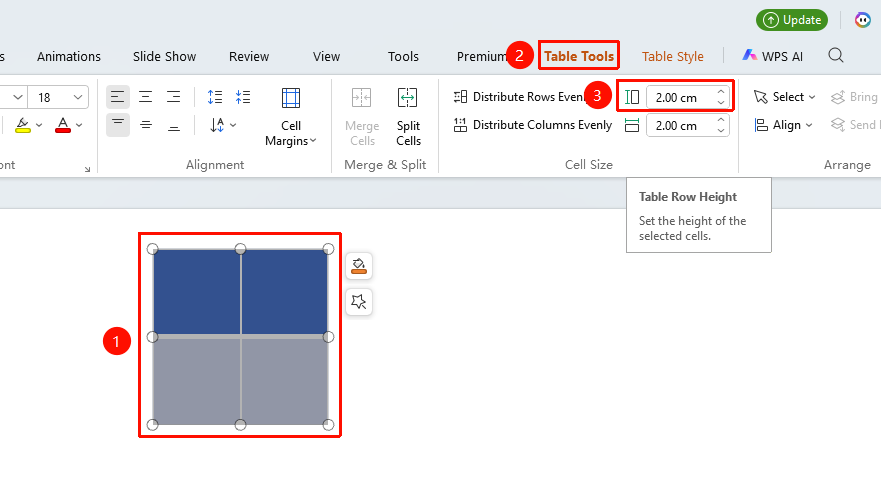
Select row → "Table Tools" → "Set Row Height"
- Select the row(s) you want to set (multiple rows can be selected)
- In the top "Table Tools" tab, find "Row Height"
- Enter the precise row height value (unit: cm) in the dialog box or use the buttons to fine-tune the row height
FAQ
Q1: How to make all row heights consistent?
- Solution: Select the entire table, then choose "Distribute Rows Evenly" in the "Table Tools" tab to quickly set all rows to the same height, ensuring the table is neat and uniform.
Q2: What should I do if content is not fully displayed after setting row height?
- Solution: Check if the row height value is too small and increase it appropriately.
Q3: Will content in cells overflow?
- Solution: Content in cells will not overflow. Content exceeding the column width will wrap to the next line by default.
Notes
- The unit for numerical input when setting row height precisely defaults to centimeters; it is recommended to set it reasonably based on the amount of content.
- Adjusting row height does not affect the content formatting in the table; it only changes the display height of the row.
- When setting row height for multiple rows simultaneously, all selected rows will be set to the same height value.
- It is recommended to set row height reasonably based on the amount of content to avoid content being cut off due to insufficient height or wasting space due to excessive height.