Feature Summary
The master protection feature is used to lock the current master, preventing accidental modifications to the master's layout and formatting settings.
Feature Description
| Feature Dimension | Description |
|---|---|
| Membership Restriction | No membership restriction |
| Version Restriction | No version restriction |
Operation Steps
Protect Master
Feature Entry
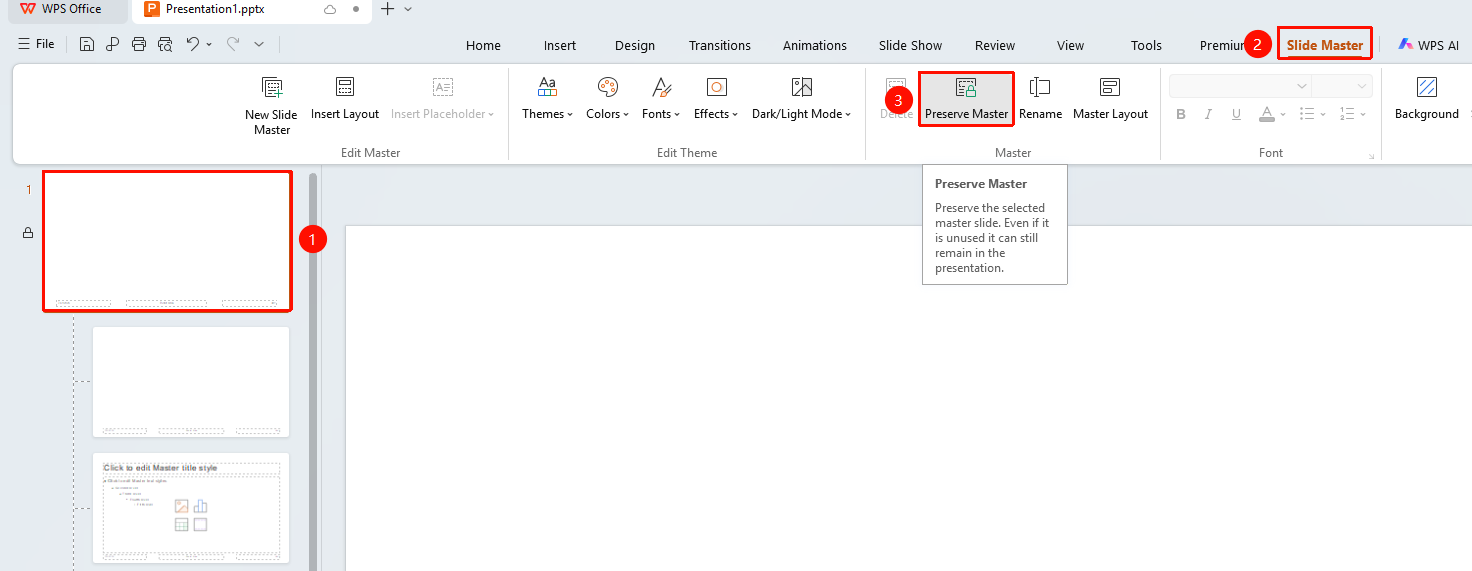
"Slide Master" tab → "Protect Master"
- Switch to the "Slide Master" tab
- Select the master to protect in the left thumbnail pane
- Click the "Protect Master" button
The "Slide Master" tab needs to be enabled first by clicking the "Slide Master" option under the "View" tab
FAQ
Q1: What is the purpose of protecting a master?
- Solution: Protects the selected slide master so that it remains in the presentation even when not in use.