Feature Summary
The Other Controls feature is used to insert ActiveX controls that are already registered in the system. You can use third-party or system-built-in extended controls to expand the functionality of your presentation.
Feature Description
| Feature Dimension | Description |
|---|---|
| Membership Restriction | No membership restriction |
| Version Restriction | No version restriction |
Operation Steps
Add Other Controls
Feature Entry
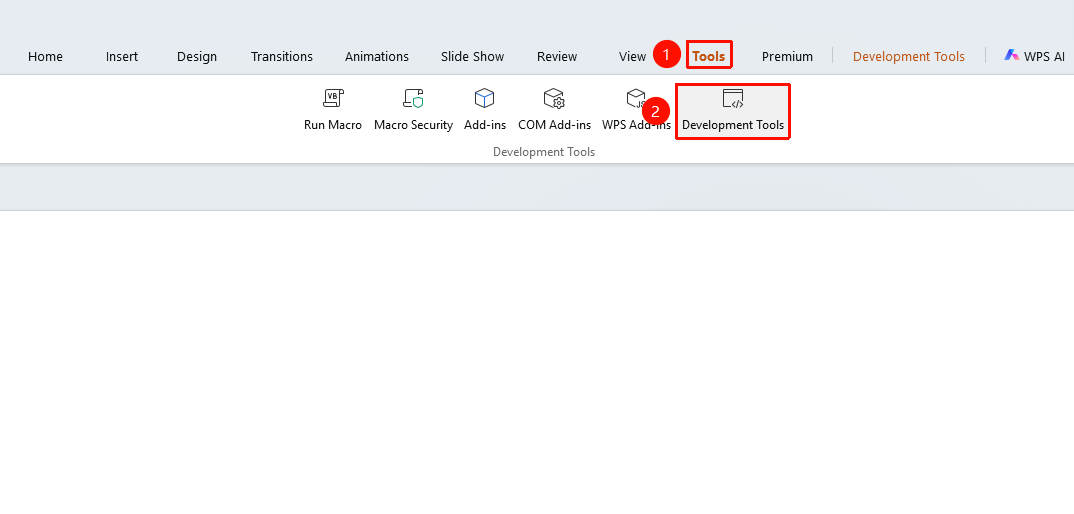
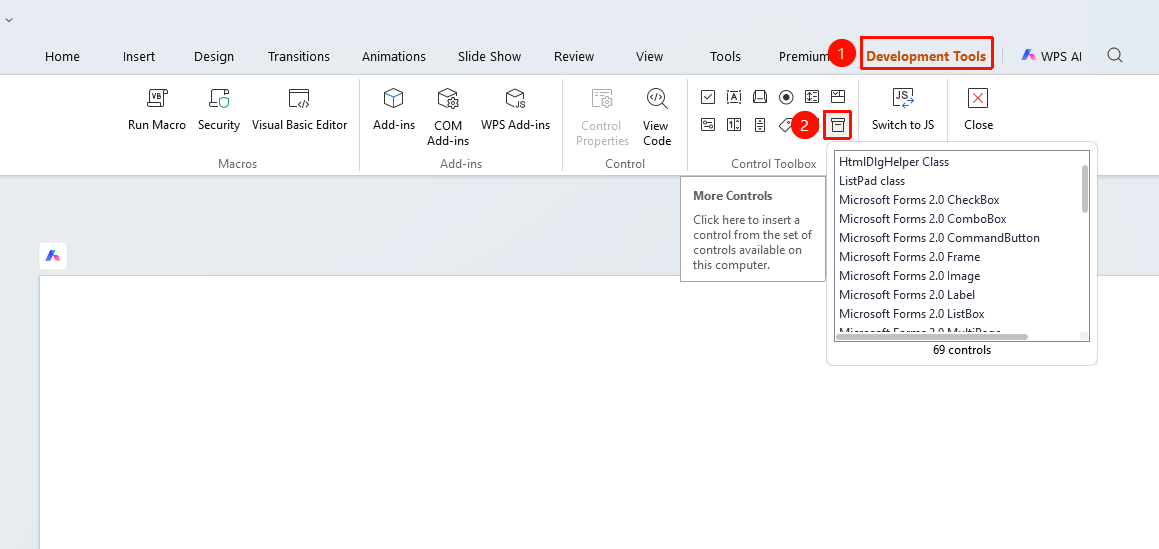
"Tools" tab → "Developer Tools" button → "Developer Tools" tab → "Other Controls"
- Click the "Tools" tab at the top, locate and click the "Developer Tools" button to bring up the "Developer Tools" tab at the top
- Click the top "Developer Tools" tab
- Select "Other Controls"
- In the pop-up dialog box, select the control you want to insert
- Drag the mouse on the slide to draw the control size
Register Custom Control
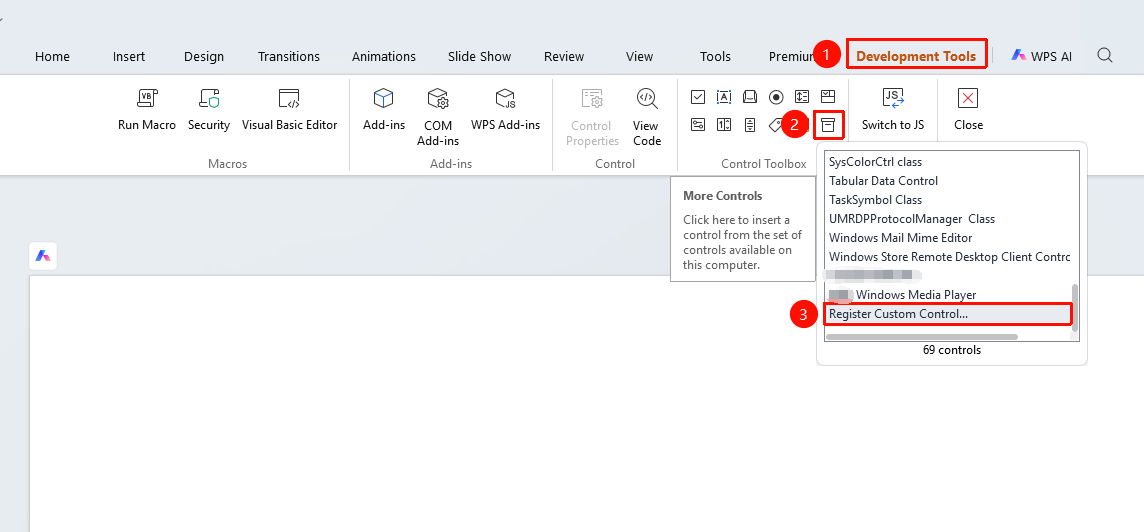
"Developer Tools" tab → "Other Controls" → "Register Custom Control"
- Click the top "Developer Tools" tab
- Select "Other Controls"
- In the pop-up dialog box, scroll to the bottom and select "Register Custom Control"
- In the pop-up window, select a path to manually add a custom control
Frequently Asked Questions
Question 1: There are many unfamiliar controls in Other Controls
- Solution: These are ActiveX controls registered in the system. Only use controls that you understand and that come from reliable sources. Do not use unknown controls arbitrarily.
Question 2: The inserted control does not work properly
- Solution: Check whether the control is correctly installed and registered. Some third-party controls may require separate installation.
Notes
- Only use controls from reliable sources
- Some controls may require additional installation or registration