Feature Summary
The paginated image insertion feature is used to automatically arrange images across multiple slides in a presentation, placing multiple images onto different slides. It is suitable for batch processing and layout of a large number of images.
Feature Description
| Feature Dimension | Description |
|---|---|
| Membership Restriction | No membership restriction |
| Version Restriction | No version restriction |
Operation Steps
Paginated Image Insertion via the Insert Menu
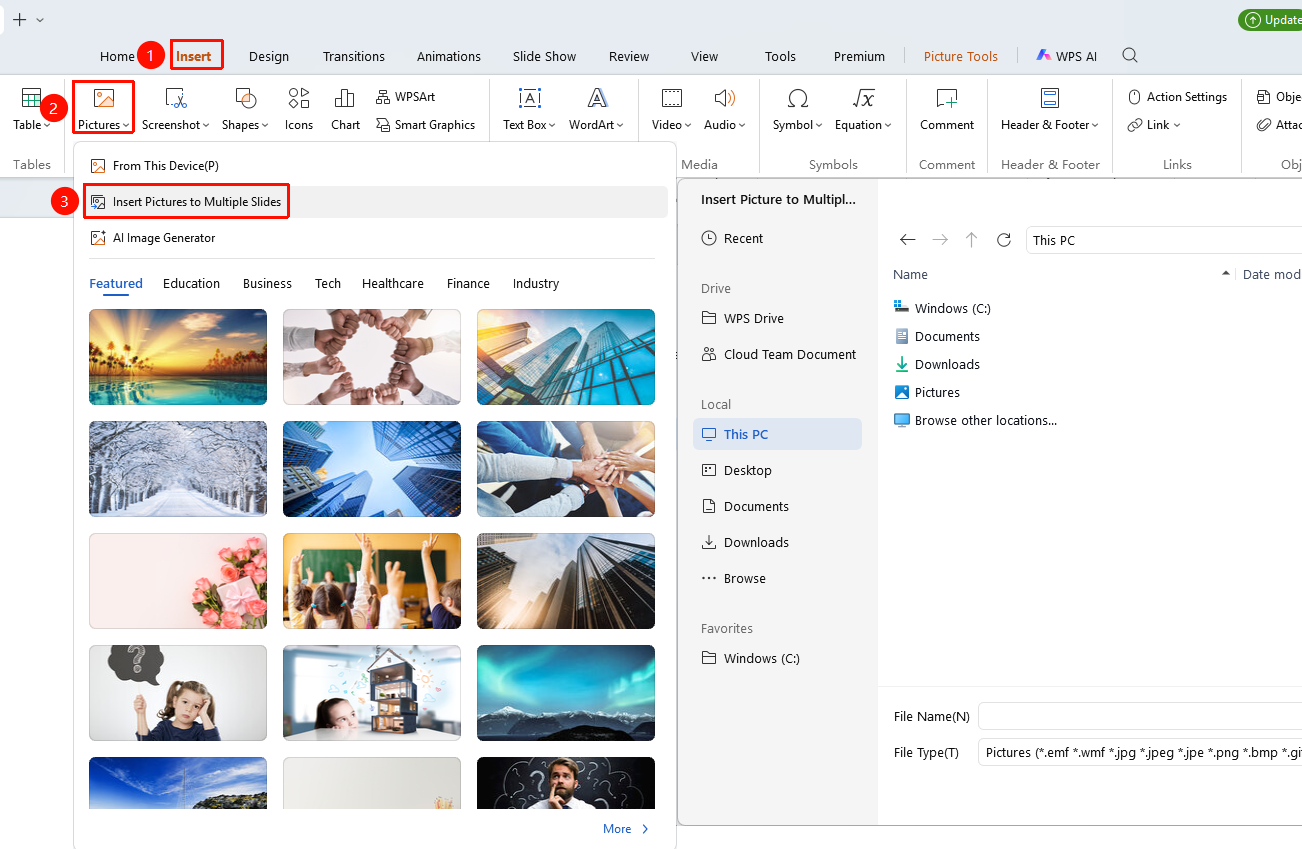
Feature Entry ①
"Insert" tab → "Picture" → "Paginated Image Insertion"
- Open the WPS Presentation document and navigate to the starting slide where paginated image insertion is required.
- Click the "Insert" tab at the top.
- Click the "Picture" drop-down menu.
- Select "Paginated Image Insertion".
- In the pop-up dialog box, select multiple images.
- Click "Open" to complete paginated image insertion.
- The images will be inserted in the order of selection onto the current slide and subsequent slides.
Feature Entry ②
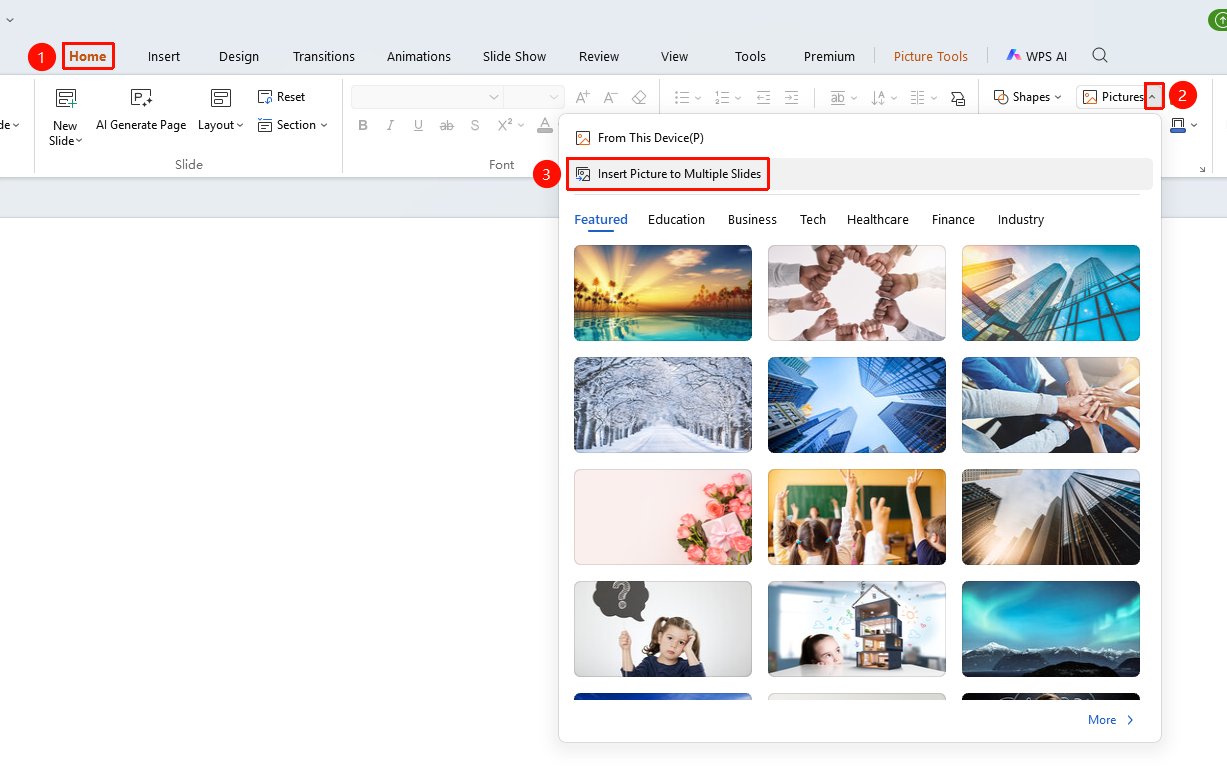
"Home" tab → Drop-down button to the right of "Picture" → "Paginated Image Insertion"
- Click the "Home" tab in the top ribbon.
- Click the drop-down button to the right of "Picture" to expand the insert menu.
- You can quickly perform paginated image insertion.
Notes
- If there are insufficient remaining slides, paginated image insertion will automatically create new slides.
- Common image formats are supported (JPG, PNG, BMP, etc.).