Feature Summary
The Toggle Button feature is used to insert a toggleable button control into a presentation. When clicked, the button switches between pressed and unpressed states.
Feature Description
| Feature Dimension | Description |
|---|---|
| Membership Restriction | No membership restriction |
| Version Restriction | No version restriction |
Operation Steps
Insert a Toggle Button
Feature Entry
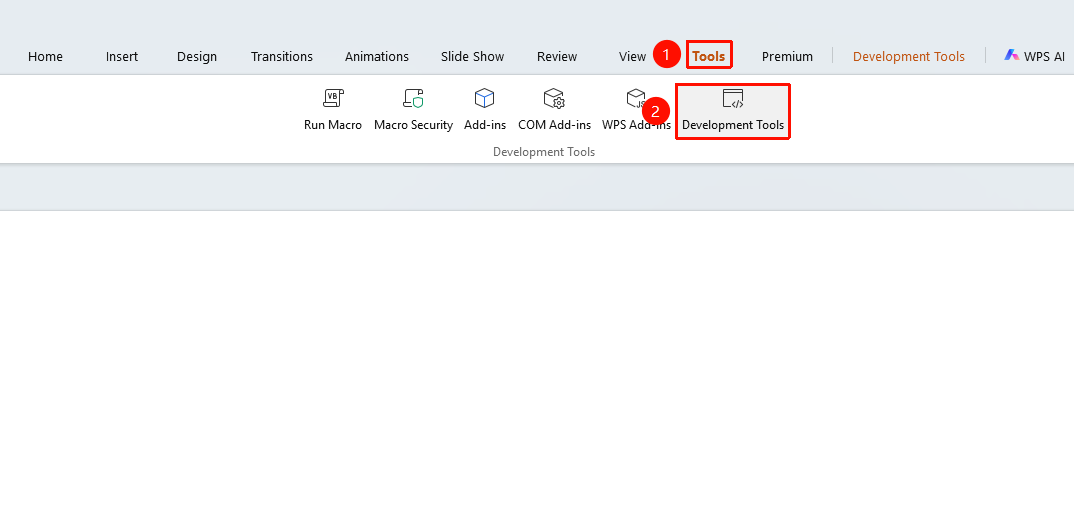
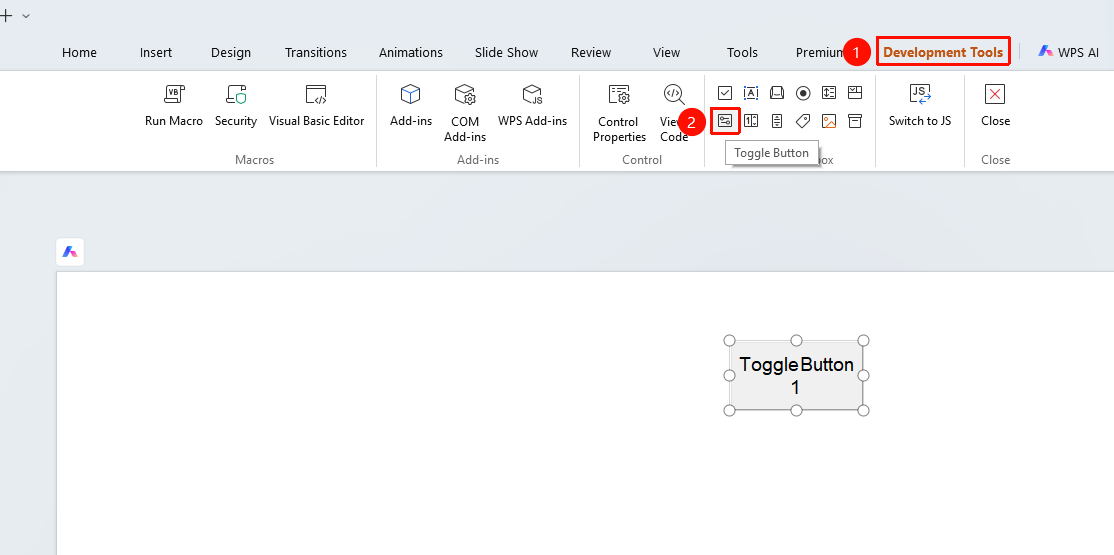
"Tools" tab → "Developer Tools" button → "Developer Tools" tab → "Toggle Button"
- Click the "Tools" tab at the top, locate and click the "Developer Tools" button to bring up the "Developer Tools" tab at the top
- Click the top "Developer Tools" tab
- Select the "Toggle Button" control
- Drag the mouse on the slide to draw the toggle button
Set Toggle Button Properties
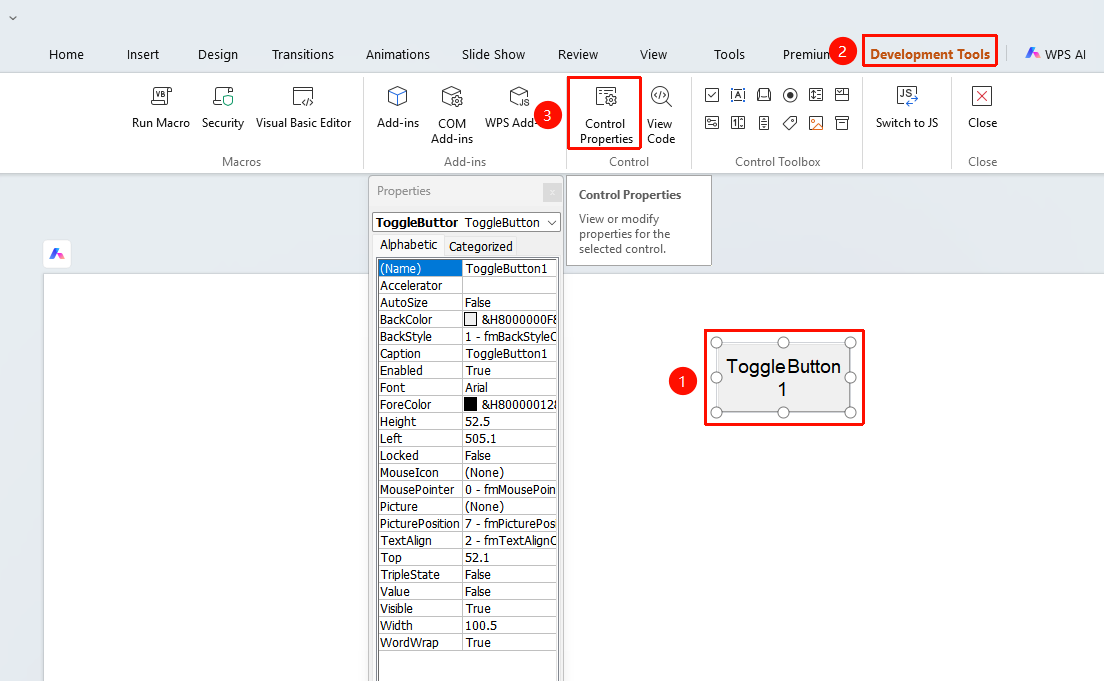
- Select the inserted toggle button
- Click the "Control Properties" button
- Set the following options in the properties panel
- "Caption": Set the display text of the toggle button
- "Value": Get the button state (True = Pressed, False = Unpressed)
- "Name": Set the name of the toggle button
Frequently Asked Questions
Question 1: How to execute different operations based on the button state
- Solution: Determine the Value property in the Click event. True indicates the pressed state, and False indicates the unpressed state. Execute different code based on the different states.
Question 2: How to make the toggle button default to the pressed state
- Solution: Set the "Value" property to "True" in the control properties, and the button will default to the pressed state.
Notes
- The toggle button requires a VBA environment to function
- The button state is automatically maintained