Feature Summary
WPS Slides local mode supports deleting unwanted slides to keep your presentation concise.
Feature Description
| Feature Dimension | Description |
|---|---|
| Membership Restriction | No membership restriction |
| Version Restriction | No version restriction |
Steps
Delete via Right-Click Menu
Feature Entry
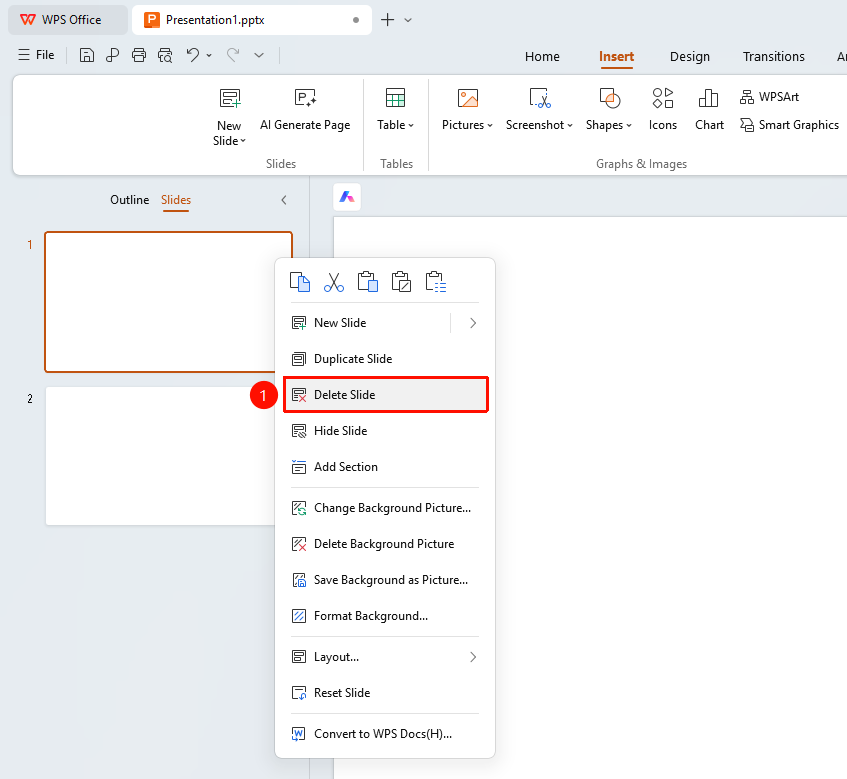
Left thumbnail pane → Right-click → "Delete Slide"
- Select the slide you want to delete in the Thumbnails pane
- Right-click the selected slide
- Select the "Delete Slide" option
- The slide will be deleted
Delete via Shortcut
Feature Entry
Keyboard Delete key
- Select the slide you want to delete in the left thumbnail pane
- Press the Delete key
- The slide will be deleted
FAQ
Q1: Can a deleted slide be recovered?
- Solution: You can press Ctrl+Z to undo the deletion.
Q2: How to batch delete multiple slides?
- Solution: Hold down the Ctrl key to select multiple slides, then right-click to delete.
Q3: Will deleting a slide affect other content?
- Solution: Deleting a slide only affects the current slide and will not affect other slides.
Notes
- Before deleting, it is recommended to confirm that the slide content is no longer needed
- It is recommended to back up important slides first