Summary
The delete template feature is used to remove unwanted masters or layouts from the current presentation, streamlining the presentation structure.
Feature Description
| Feature Dimension | Description |
|---|---|
| Membership Restriction | No membership restriction |
| Version Restriction | No version restriction |
Steps
Delete Template
Feature Entry
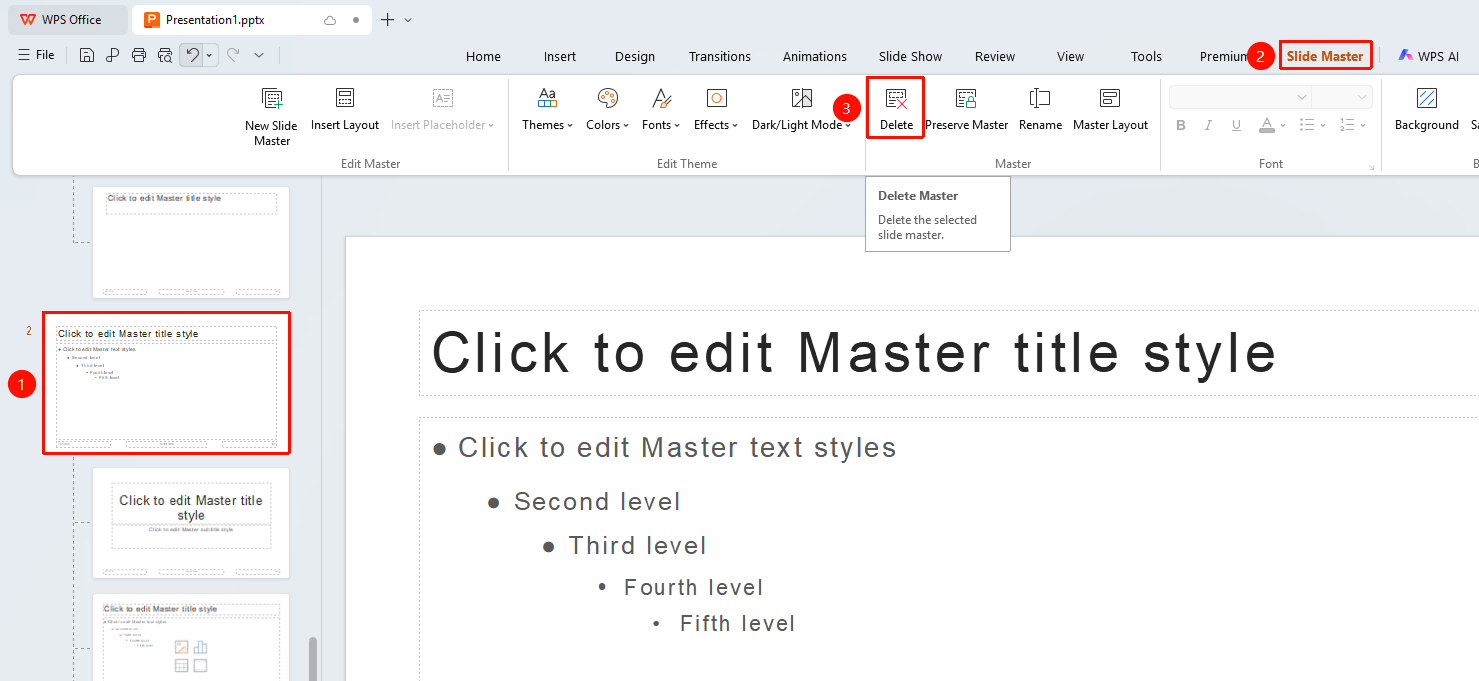
"Slide Master" tab → "Delete"
- Switch to the "Slide Master" tab
- Select the master or layout to delete in the left thumbnail pane
- Click the "Delete" button
The "Slide Master" tab needs to be enabled first by clicking the "Slide Master" option under the "View" tab
FAQ
Q1: Can I recover after deletion?
- Solution: You can immediately use the "Undo" feature to recover, but after performing the deletion and then saving, it cannot be directly restored.
Notes
- Before deleting a master, confirm that it is not used by any slides