Feature Summary
WPS Slides local mode supports setting actions for objects, including actions triggered on mouse click and mouse over.
Feature Description
| Feature Dimension | Description |
|---|---|
| Membership Restriction | No membership restriction |
| Version Restriction | No version restriction |
Operation Steps
Setting Actions via the Ribbon
Feature Entry
"Insert" tab → "Action" button
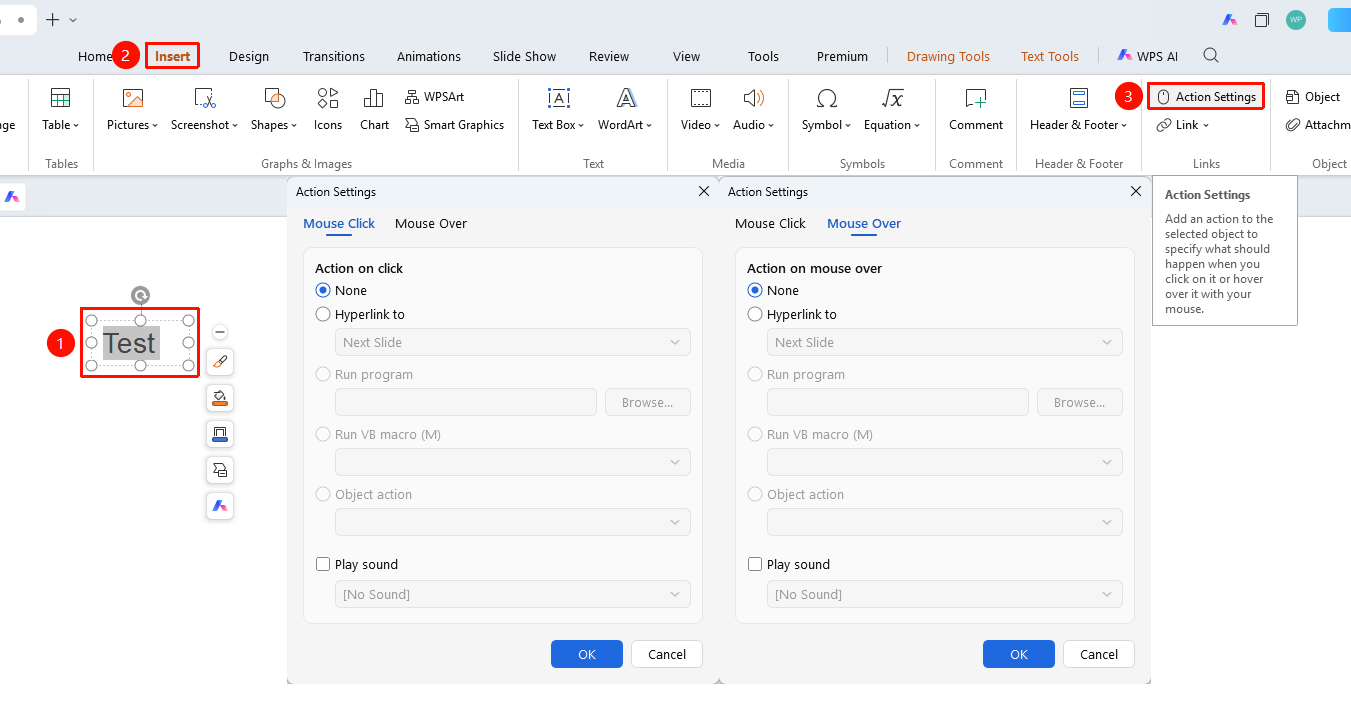
- Select the object for which you want to set an action (picture, shape, text box, etc.)
- Click the "Insert" tab in the top menu bar
- Click the "Action" button
- In the pop-up Action Settings dialog box, select the trigger method:
- "Mouse Click" tab: Set the action when the object is clicked
- "Mouse Over" tab: Set the action when the mouse hovers over the object
- Select the action type (hyperlink, run program, play sound, etc.)
- Click "OK" to complete the settings
Setting Mouse Click Actions
Feature Entry
"Action Settings" dialog box → "Mouse Click" tab
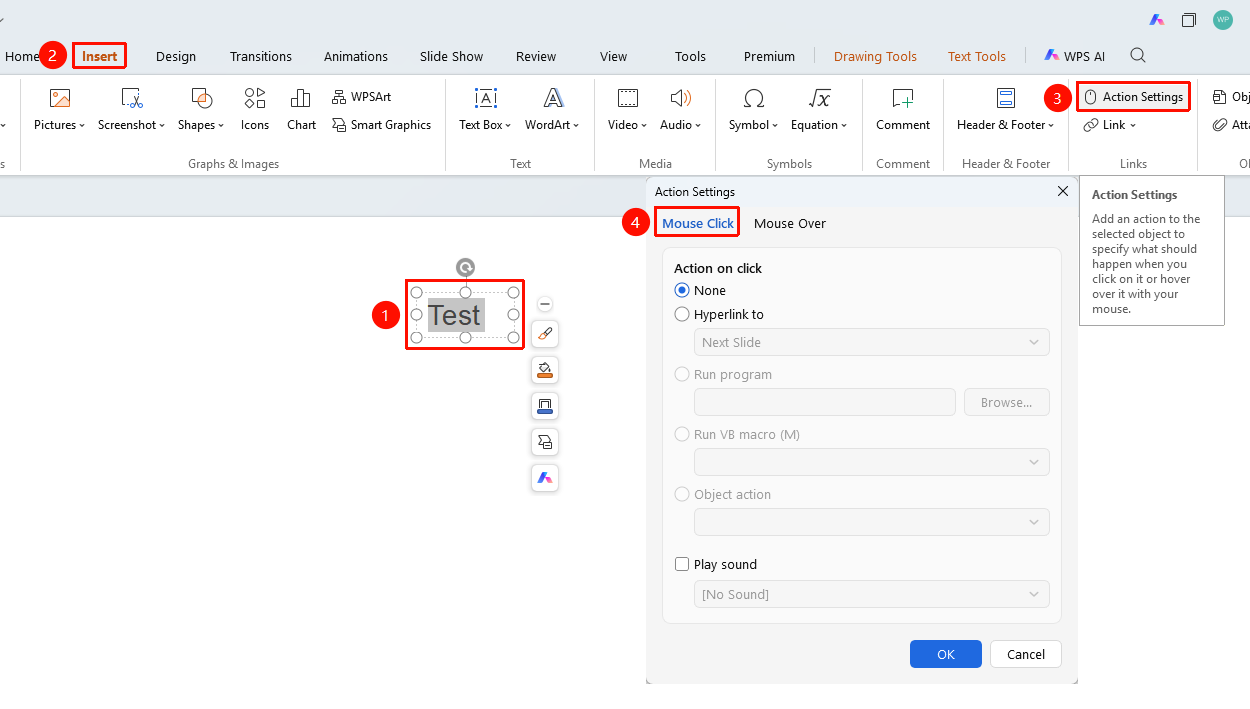
- In the Action Settings dialog box, select the "Mouse Click" tab
- Select the action type:
- None
- Hyperlink to
- Run program
- Play sound
- Set specific parameters
- Click "OK"
Setting Mouse Over Actions
Feature Entry
"Action Settings" dialog box → "Mouse Over" tab
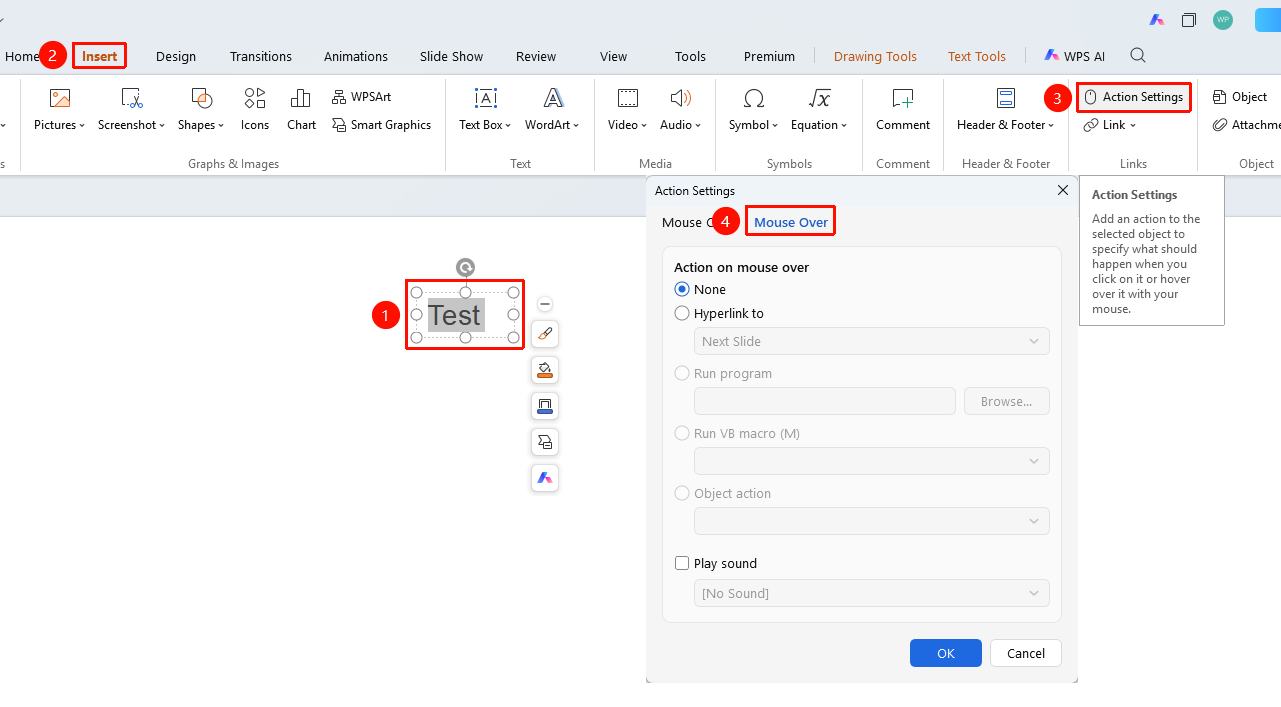
- In the Action Settings dialog box, select the "Mouse Over" tab
- Select the action type and parameters
- Click "OK"
FAQ
Q1: Which objects are supported by Action Settings?
- Solution: Supports objects such as pictures, shapes, text boxes, SmartArt, and charts.
Q2: How to test the action effect?
- Solution: Press F5 to enter slideshow mode, then trigger the set action.
Q3: How to delete a set action?
- Solution: Reopen the Action Settings dialog box and select the "None" option.
Notes
- Action settings only take effect during slideshow
- It is recommended to set actions for the navigation buttons of the presentation