Feature Summary
The Merge Shapes feature is used to perform cropping operations on multiple intersecting shapes, allowing you to create complex custom shapes.
Feature Description
| Feature Dimension | Description |
|---|---|
| Membership Restriction | No membership restriction |
| Version Restriction | No version restriction |
Operation Steps
Merge Shapes
Feature Entry
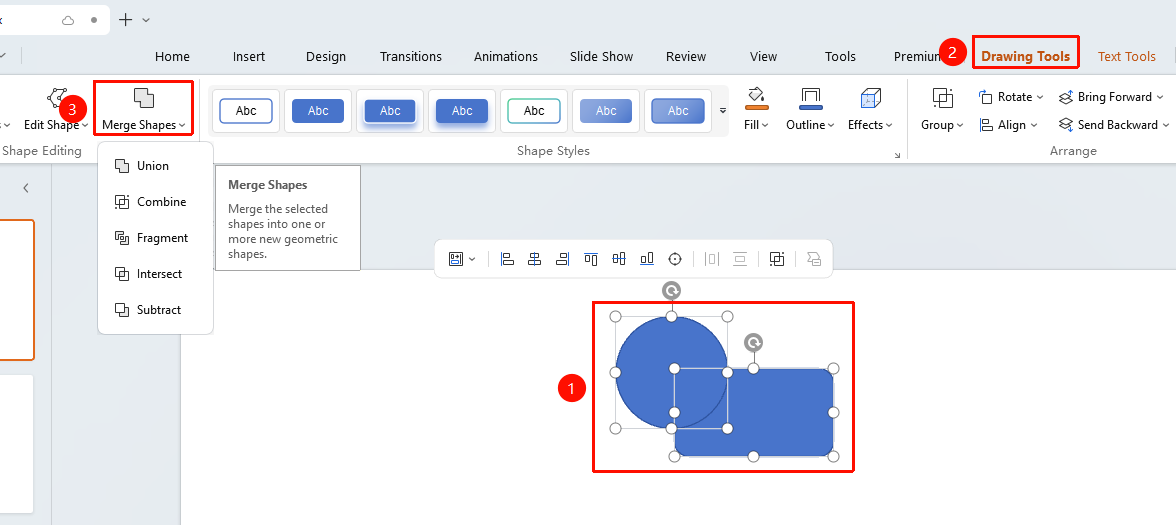
"Drawing Tools" tab → "Merge Shapes"
- Select multiple intersecting shapes to be merged
- Click the top "Drawing Tools" tab
- Locate and click the "Merge Shapes" button to expand and set the following options
- "Union": Combine multiple shapes into one shape, removing overlapping areas
- "Combine": Combine multiple shapes into one shape, highlighting overlapping areas
- "Fragment": Split multiple shapes into independent parts, with overlapping areas split into separate shapes
- "Intersect": Keep the overlapping areas of multiple shapes
- "Subtract": Subtract shapes
- Click the desired merge method to apply it to the shapes
FAQ
Q1: How to select multiple shapes for merging
- Solution: Hold down the Ctrl key and click the shapes you want to merge in sequence, or use the mouse to box-select multiple shapes.
Q2: How to undo the operation after merging
- Solution: Use Ctrl+Z to undo the merge operation.
Notes
- Merging shapes will fuse multiple shapes into one shape
- The merge operation is irreversible; it is recommended to back up in advance
- The merged shape can continue to have its vertices edited