Feature Summary
The Command Button feature is used to insert button controls into a presentation. Clicking a button can trigger VBA code execution, enabling various interactive operations.
Feature Description
| Feature Dimension | Description |
|---|---|
| Membership Restriction | No membership restriction |
| Version Restriction | No version restriction |
Operation Steps
Inserting a Command Button
Feature Entry
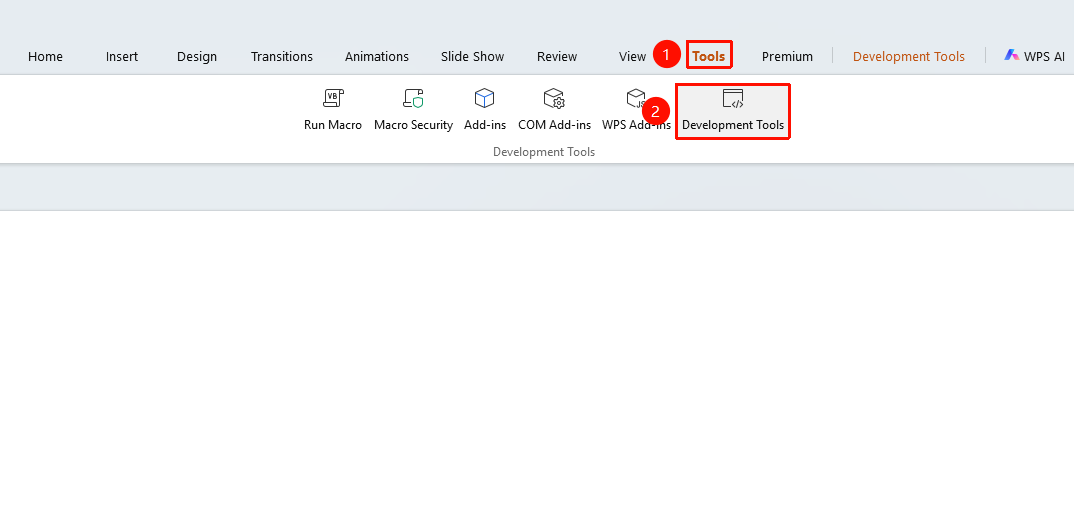
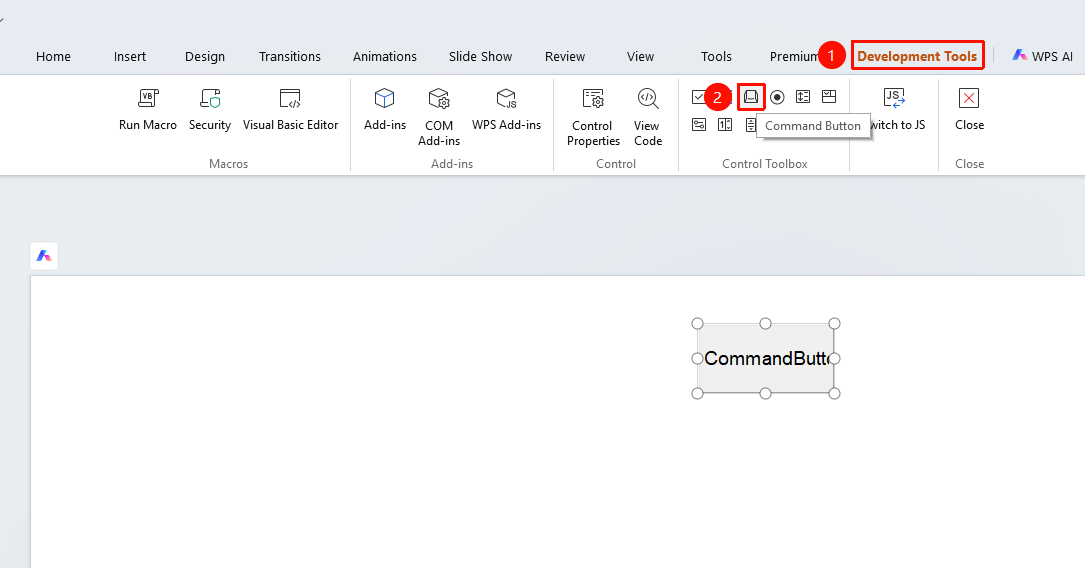
"Tools" tab → "Developer Tools" button → "Developer Tools" tab → "Command Button"
- Click the "Tools" tab at the top, locate and click the "Developer Tools" button to bring up the "Developer Tools" tab at the top
- Click the top "Developer Tools" tab
- Select the "Command Button" control
- Drag the mouse on the slide to draw the button
Common Command Button Properties
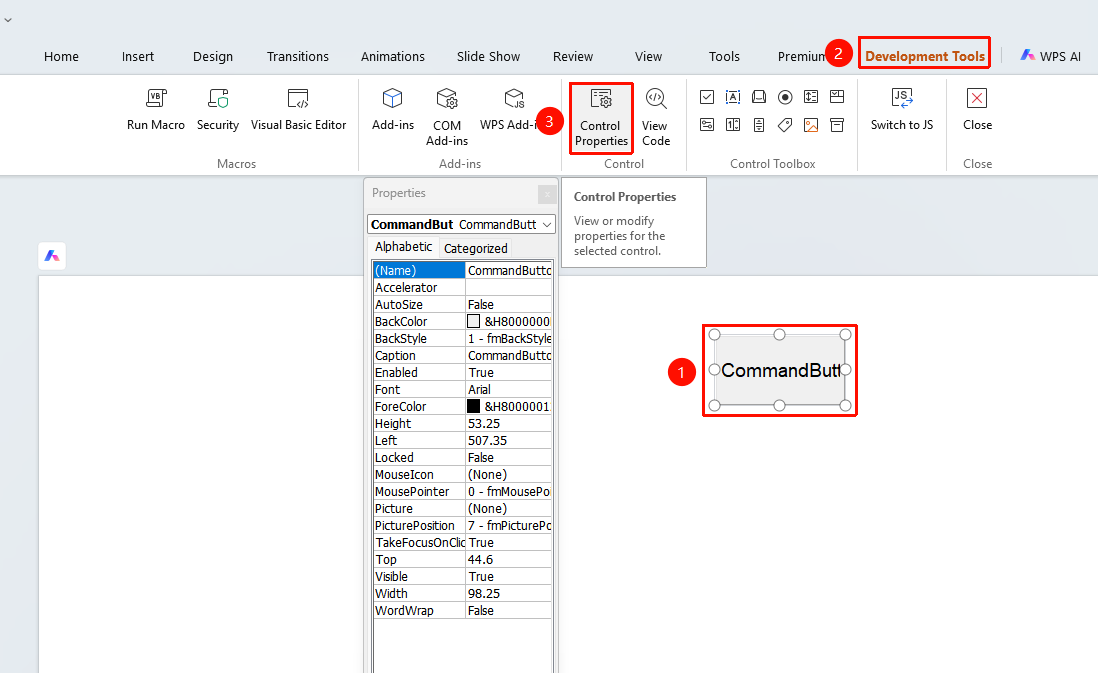
- Select the inserted button
- Click the "Control Properties" button
- Set the following options in the properties panel
- "Caption": Set the button display text
- "Name": Set the button name
- "Enabled": Set whether the button is available
- "BackColor": Set the button background color
FAQ
Q1: How to make a button grayed out and unclickable
- Solution: In the control properties, set the "Enabled" property to "False", and the button will become grayed out and unavailable.
Q2: How to modify the button color
- Solution: In the control properties, modify the "BackColor" property to set the background color, and the "ForeColor" property to set the text color.